
How to Show Zapier Notification Alert using NotificationX? #
NotificationX gives you the chance to integrate with your Zapier Account. As a result, you are able to display any sort of Zapier Notification Alerts, such as Email Subscription, Review, Sales Notifications and others.
Before you connect NotificationX with your Zapier Account, you need to create a Zapier Notification Alert on your website. Follow these steps to show the Zapier Notification popup with NotificationX:
How to Create & Configure Zapier Notification Alert #
Step 1 – Add New Notification #
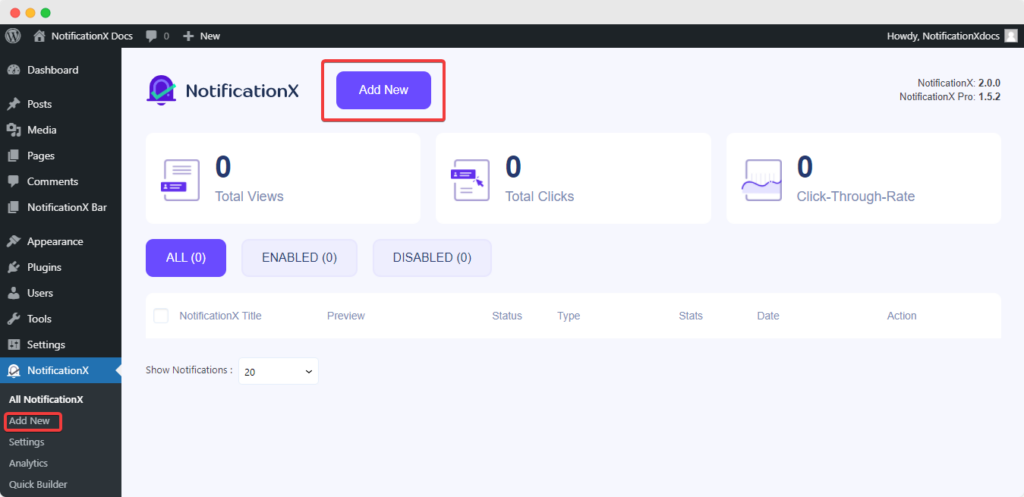
To begin, go to your WordPress Dashboard and navigate to wp-admin -> All NotificationX -> NotificationX. Then, right at the top, click on ‘Add New’.
Step 2 – Pick a Source #
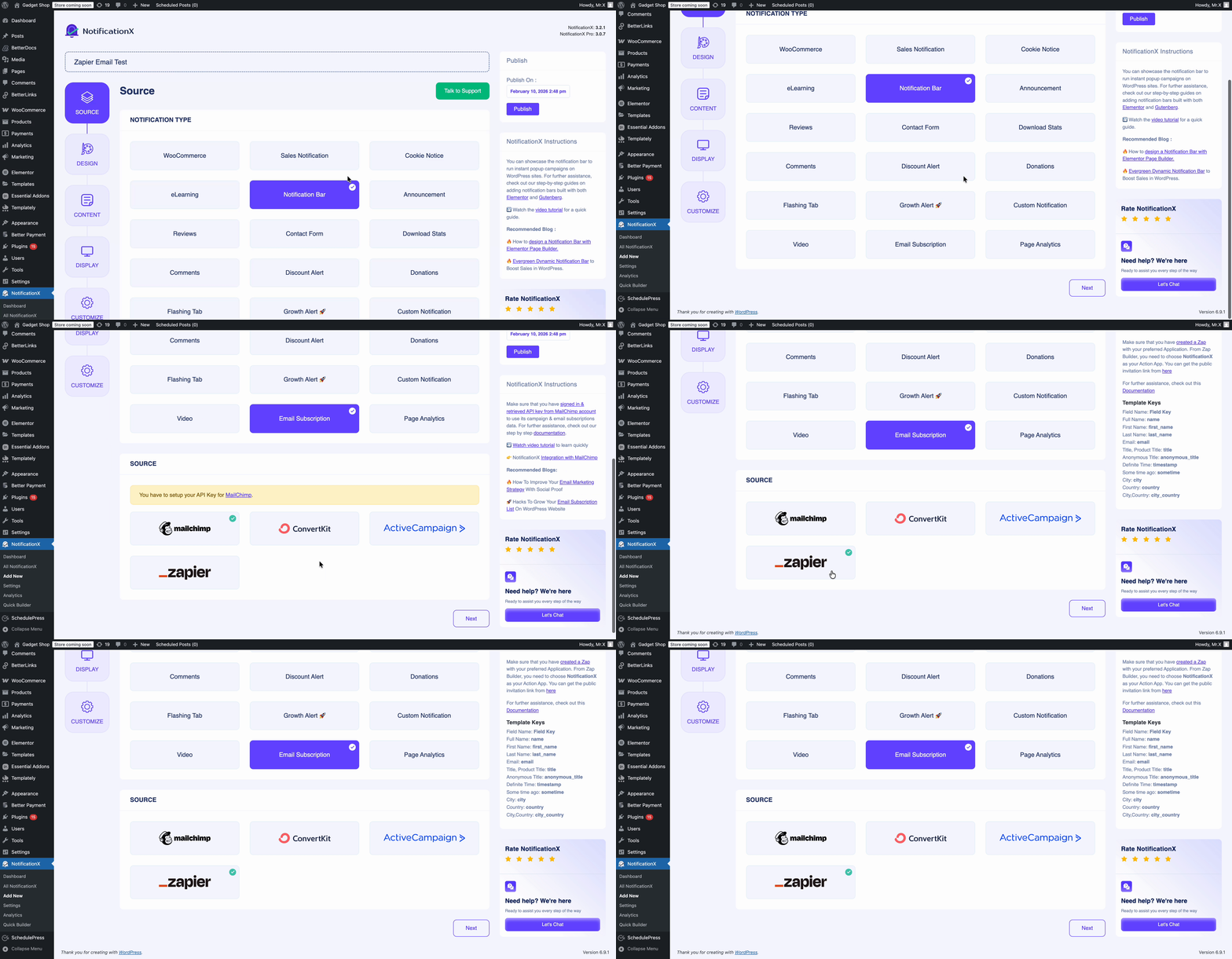
You will find ‘Zapier’ source inside these Notification Types: Sales Notification, Reviews and Email Subscription. For instance, if you want to display new emails from your Gmail account, you can pick the ‘Email Subscription’ option. After picking your preferred Notification Type, make sure to choose ‘Zapier’ as your Source and click on ‘Next’.
Step 3 – Choose a Design Theme #
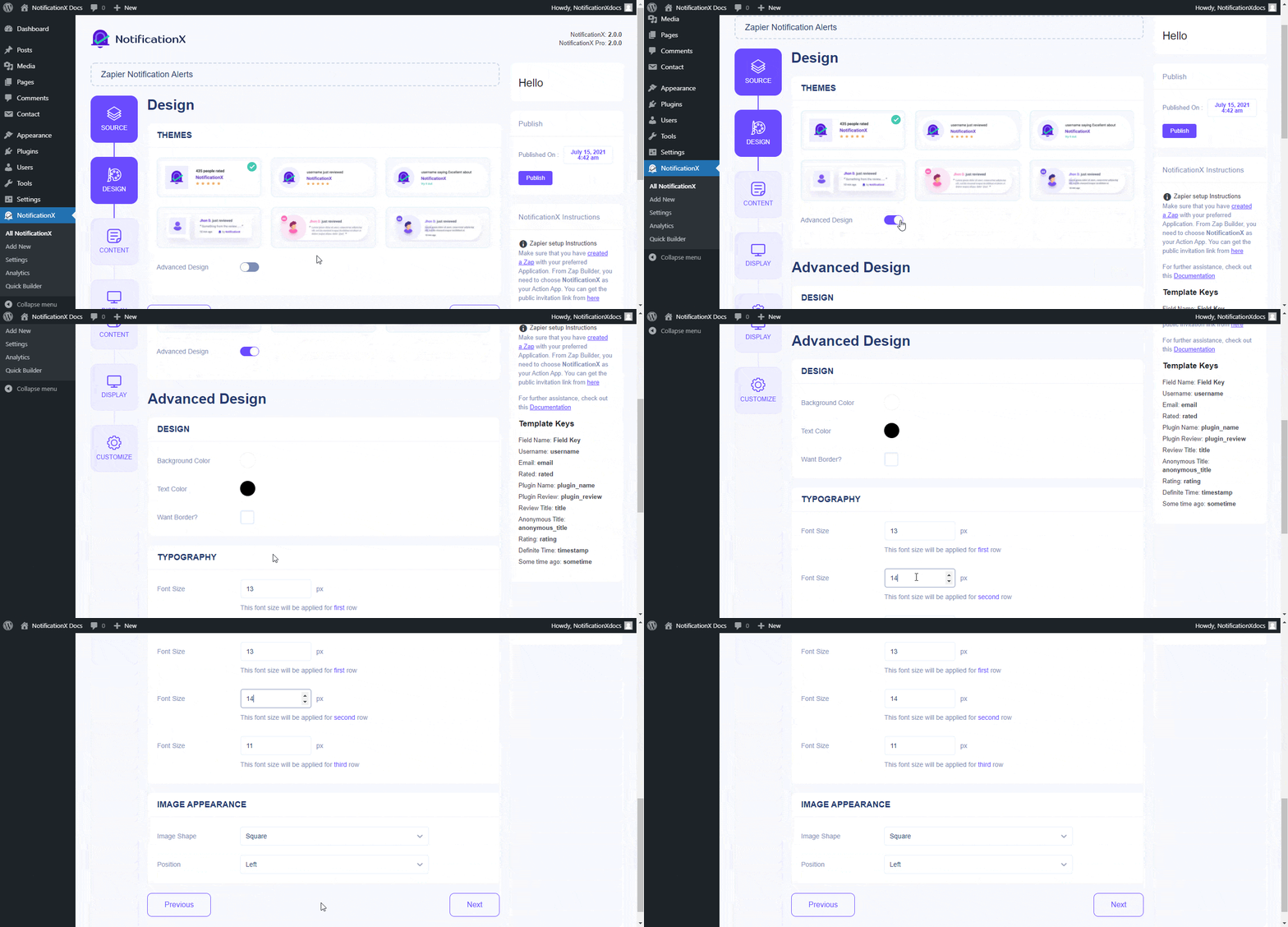
From the ‘Design’ tab, you can choose a layout and also have the flexibility to use the ‘Advanced Design’ option to customize it as per your preference. From the ‘Themes’ section, the chosen layout is how the notification alert will be displayed on your website. Besides, you can modify your chosen Theme by customizing it through ‘Advanced Design’ option. From this section, you will be able to easily add styling to your design, image appearance and typography.
Step 4 – Configure Template Content #
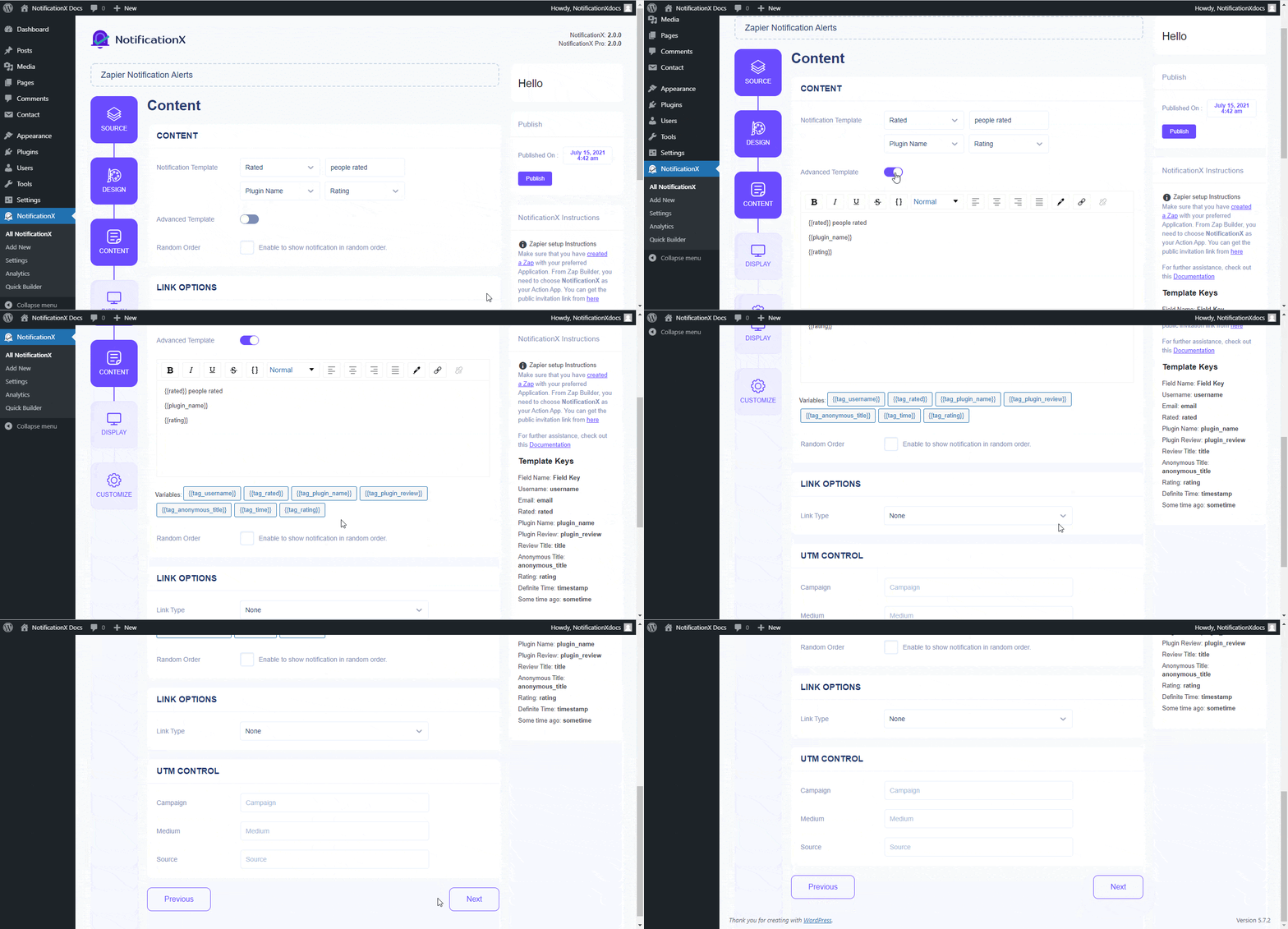
You will then be redirected to the ‘Content’ tab from where you can modify your ‘Notification Template’ and add your preferred content text. Besides, NotificationX offers ‘Notification Template’ for your Content. You can easily go ahead and choose your preferred variables. On the other hand, ‘Advanced Template’ gives you complete control over to customize the entire Content. Moreover, you can even track the various types of campaigns through NotificationX through ‘UTM Control’.
Step 5 – Adjust Display Options #
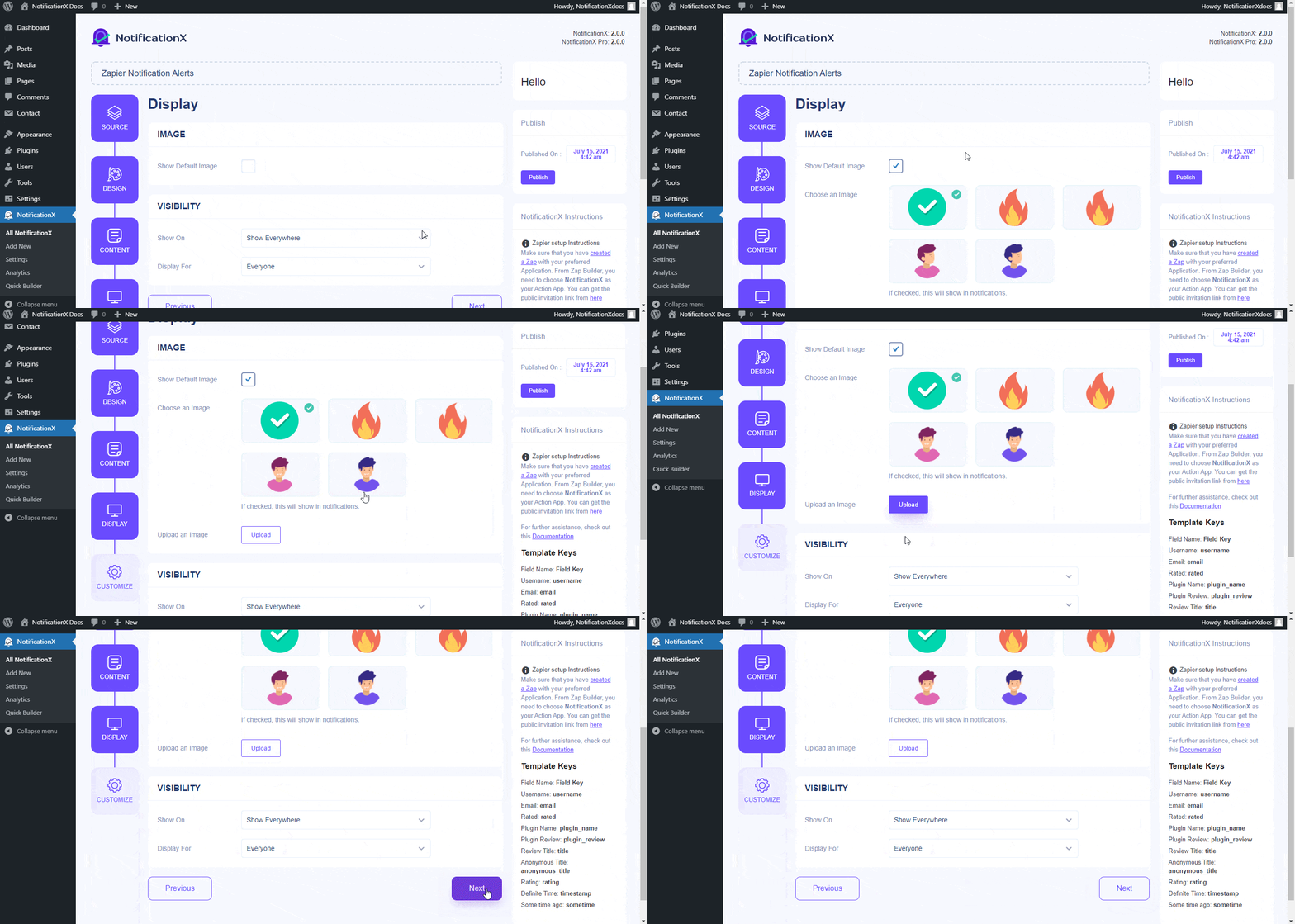
From the ‘Image’ section, you can use the checkbox to display a default image or an avatar in the notification popup. Whereas the ‘Visibility’ section allows you to set the pages where you want to display the Zapier notification alert.
Step 6 – Set Up Appearance #
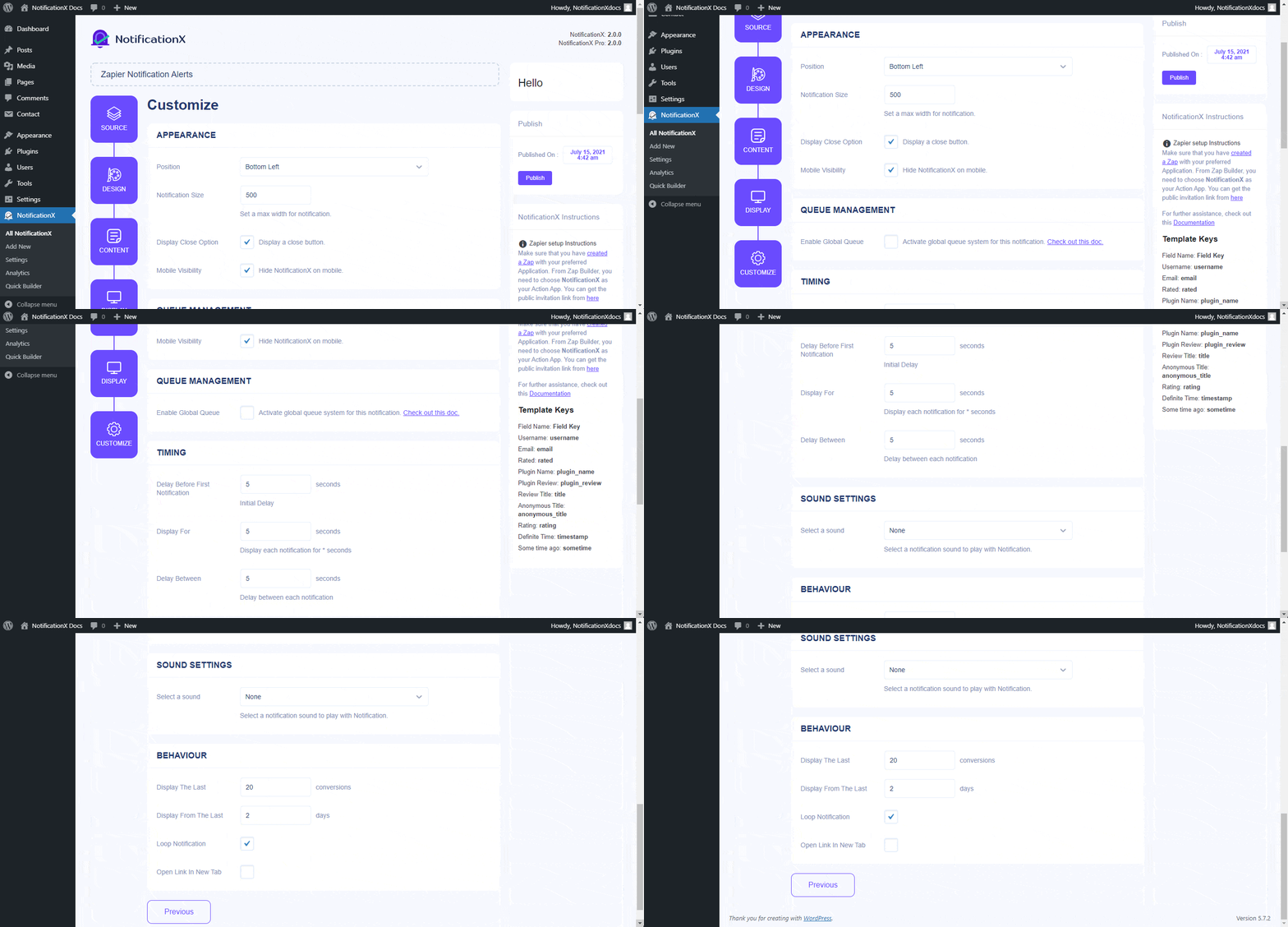
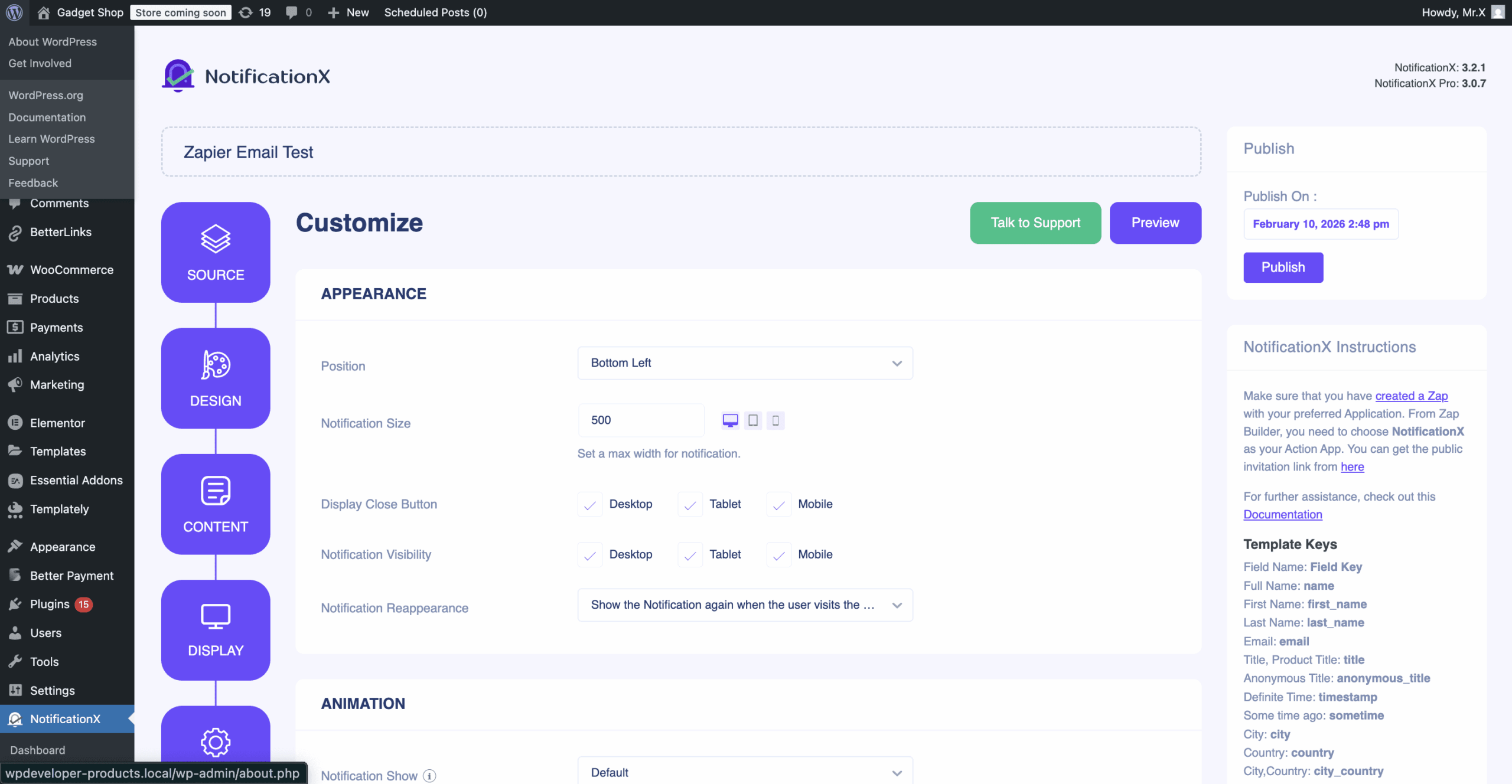
From the‘Appearance’ section, you can set the position and width for notificiation alert. From the ‘Timing’ section, you can control the ‘Display’ time duration and set an initial time after which your ‘Zapier notification alert’ will pop up. The ‘Behaviour’ section allows you to pick a number of conversions and specify a certain number of days that will be considered for the notification popup. Besides, the ‘Sound Settings’ section lets you pick a Sound Alert for your notification popup.
Step 7: Publish Your Notification #
After you have completed step 6, click on the ‘Publish’ button. As a result, the ‘Contact Form Submission Alert’ will be successfully created.
How to Connect NotificationX with Zapier #
After you have published your Zapier Notification Alert, you will need to connect NotificationX with Zapier. To do that, first of all, you need to login to your Zapier Dashboard. To use NotificationX in Zapier, make sure to accept the public invitation link of NotificationX. Then, simply go ahead and click on the ‘Accept Invite & Build a Zap’ button.
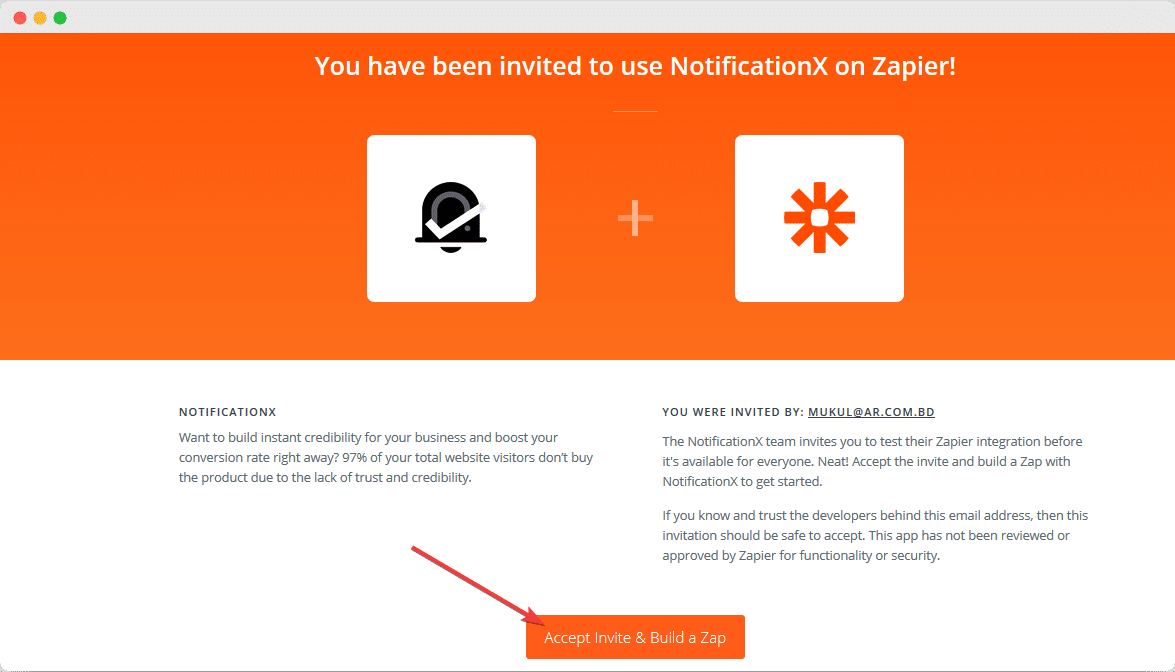
Note: You will find the Zapier API key in the NotificationX settings option. There will be an API key, and you will get a public invitation link. You can add the link from the settings and get the invitation link here.
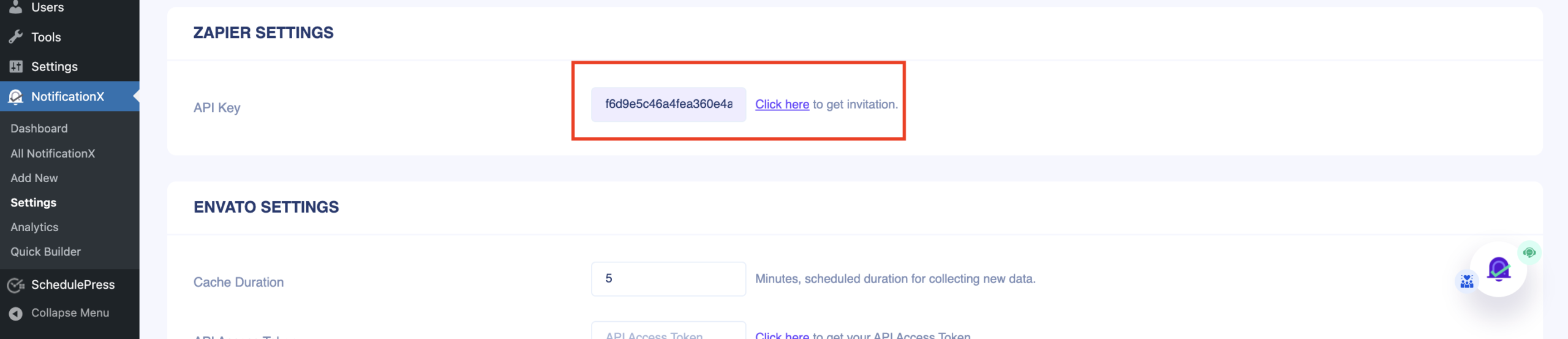
Step 1 – Create a Zap #
To connect NotificationX with Zapier, you need to create a Zap with your preferred Application. You will find the ‘Create’ button on your Zapier Dashboard. Simply go ahead and click on it. After that, click on ‘Zaps’ to start automating your notification.
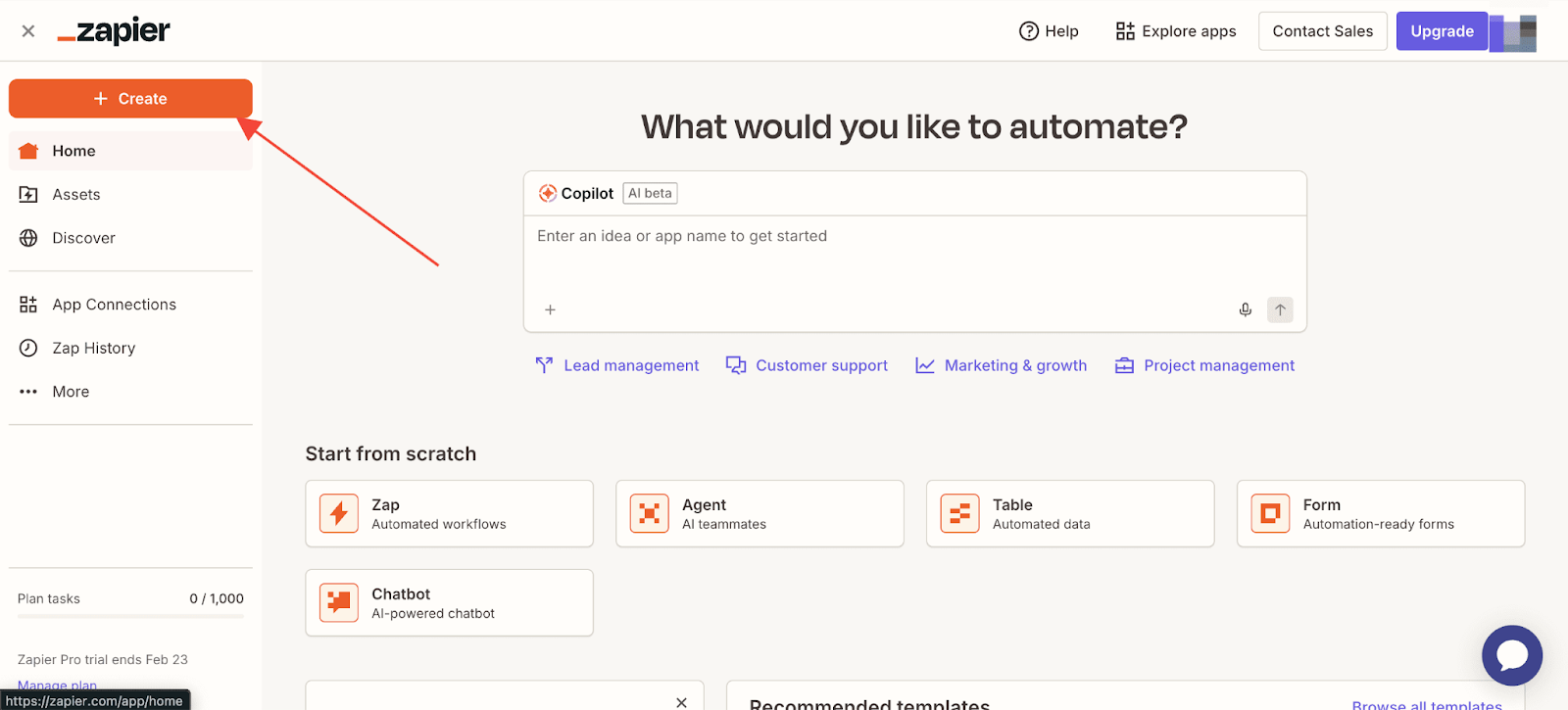
Step 2 – Choose App & Event #
Once you are in the Zapier Editor page, you can set a Name for the Zap you are creating from the top bar of the Editor. Click on the dropdown and click on ‘Rename’. You can name it whatever you want.
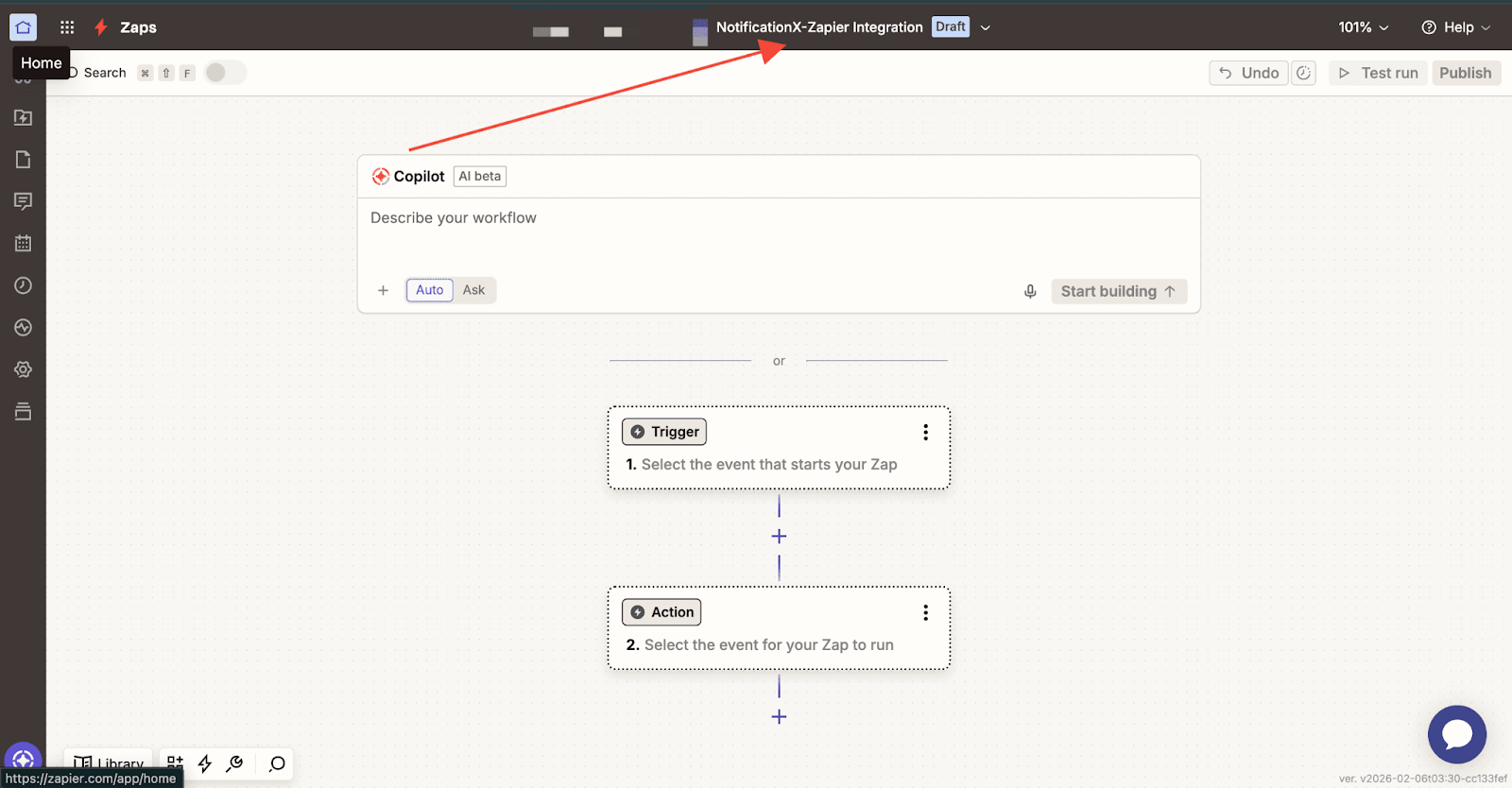
Afterward, you can describe the workflow. Here, you can write what this workflow is about and how it works on your website.
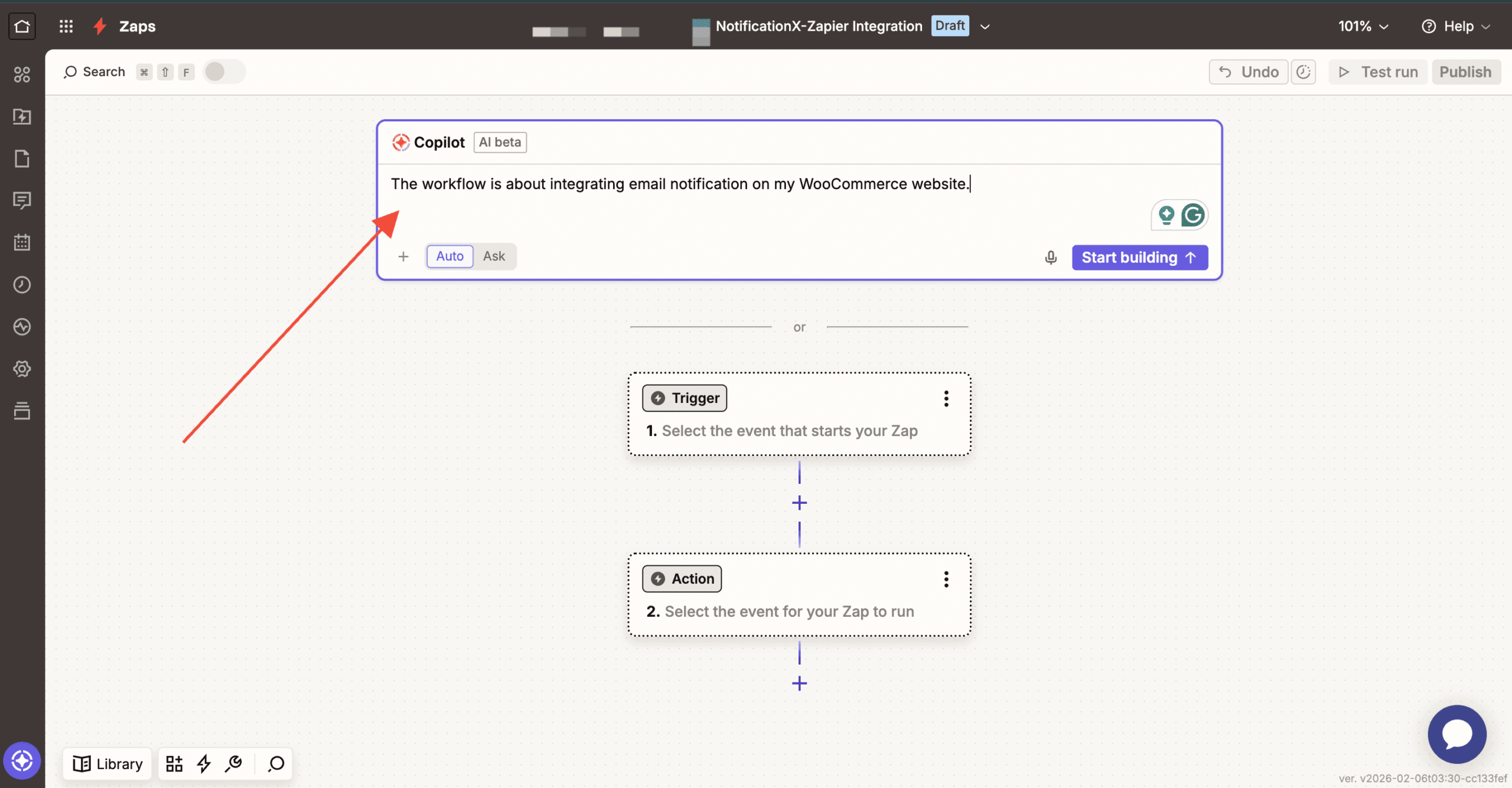
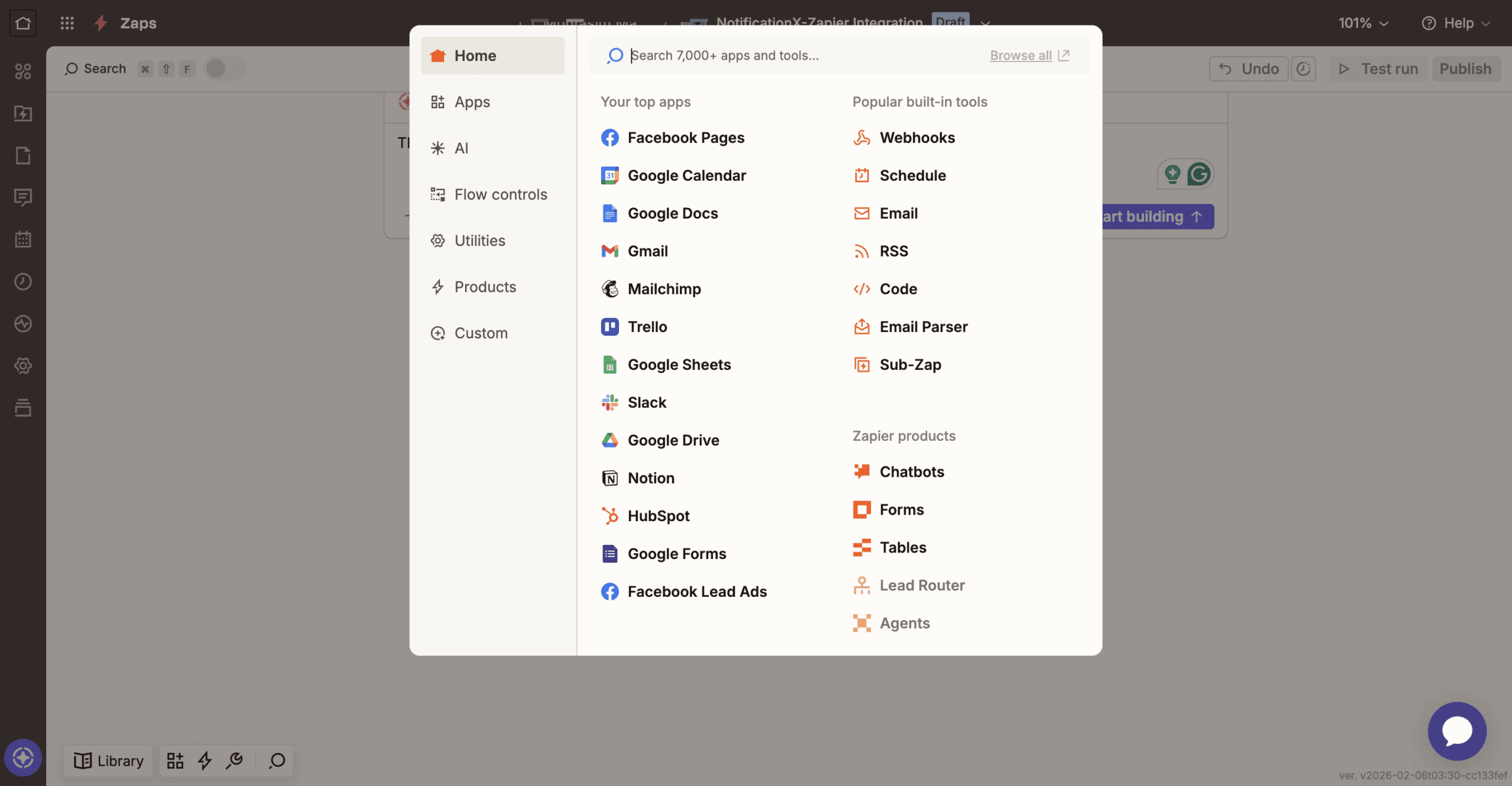
Alternatively, choose the app you want to integrate. Click on ‘Trigger,’ and then you will find a lot of options to choose the app. From there, select your preferred app.
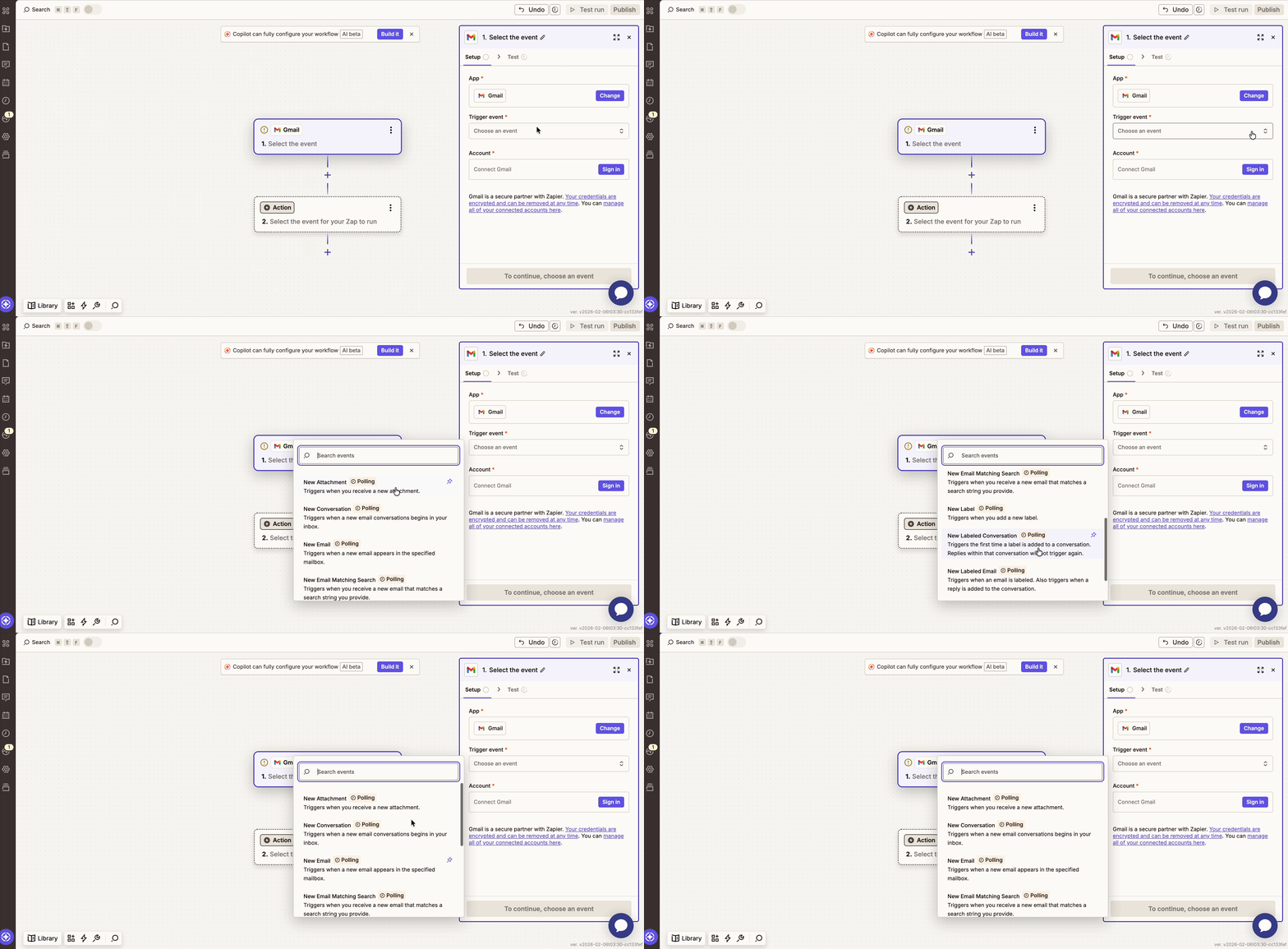
After you have picked your App, go ahead and choose a Trigger Event for it. (Example: if you want to show a new email notification from your Gmail, then pick ‘New Email’ as your Trigger Event).
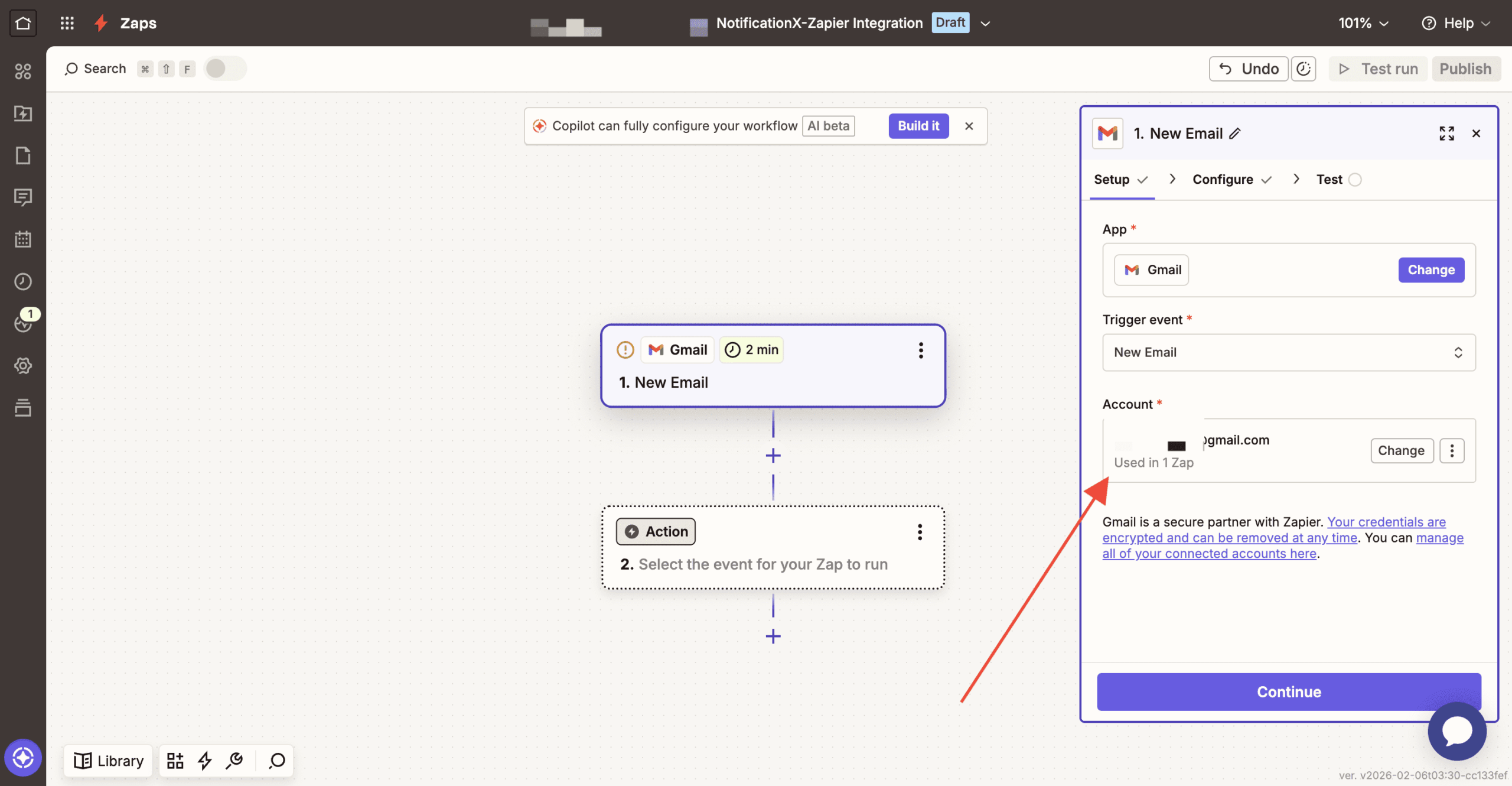
Afterward, you will be asked to connect your App account with Zapier. Once the connection is established, simply go ahead and continue.
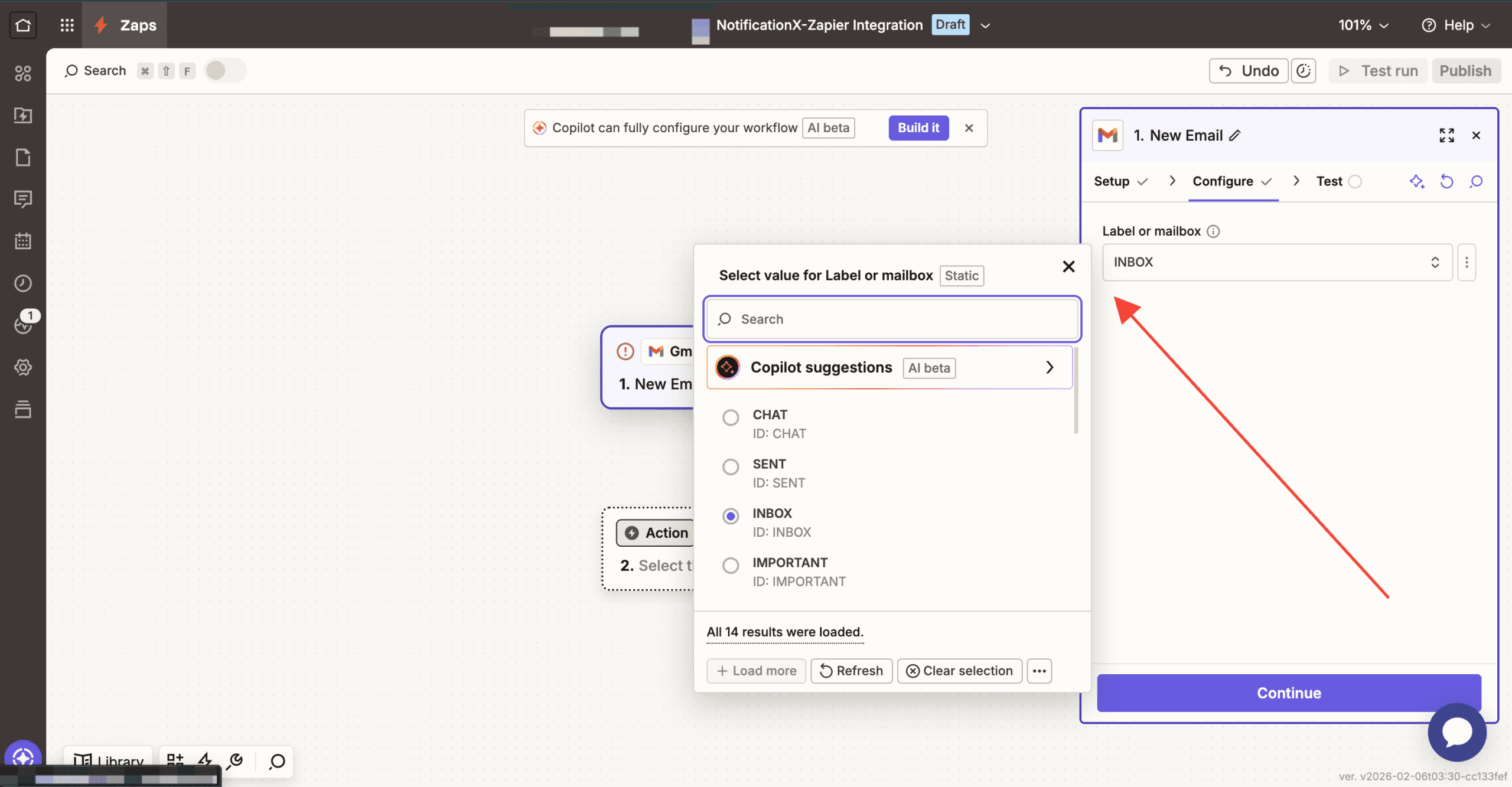
After that, click on the “Continue” button for the next stage. Then you have to add the ‘Configure’ section. In the ‘Configure’ section, choose the type of value label you want to choose.
For smooth flow in Zapier, next go to the ‘Test’ section. Here you can test if your email integration is working properly or not. Click on the ‘Test Trigger’ button to start the test.
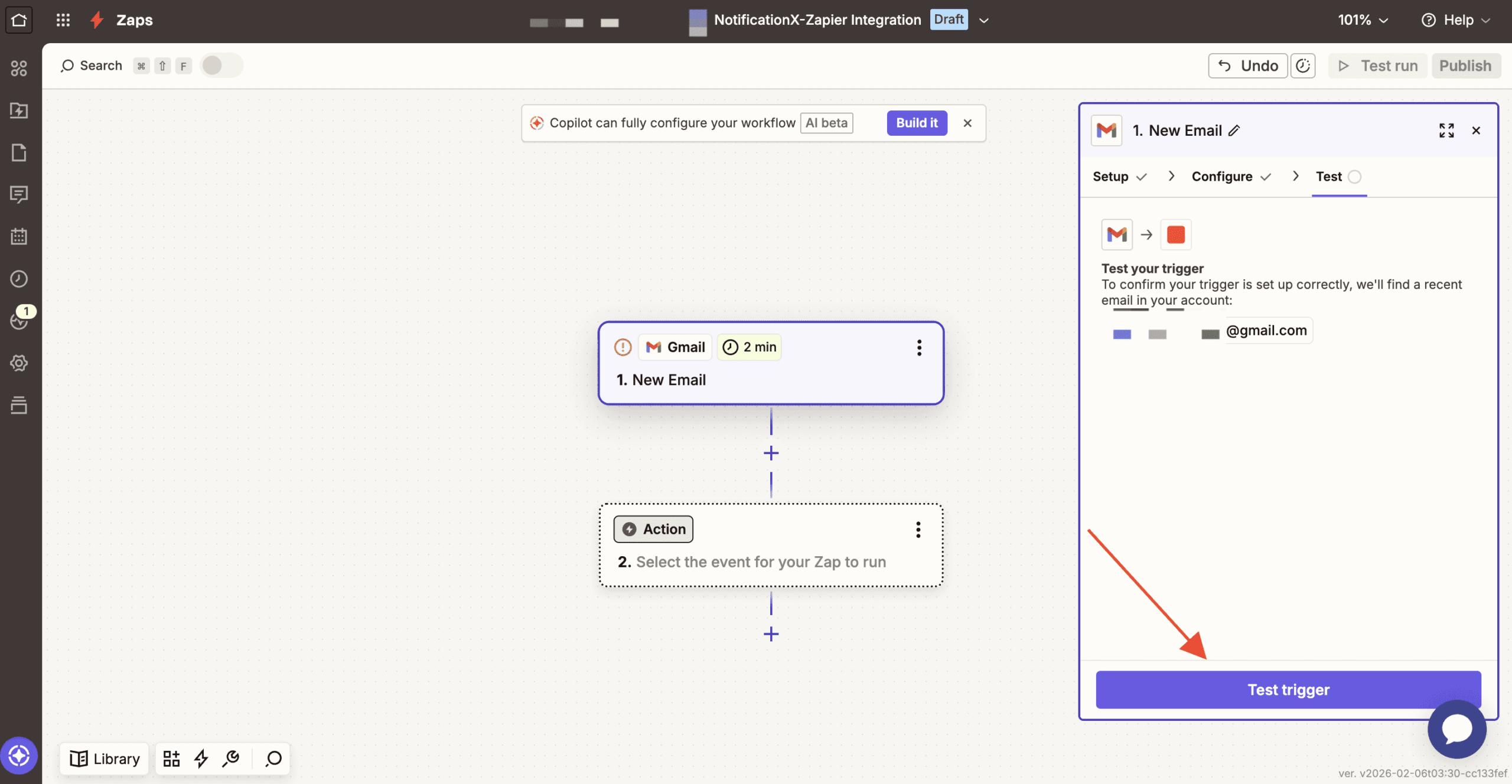
After that, from the fetched records by Zapier, you can start your testing. Click on “Continue with Selected Records” to get started.
Step 3 – Choose Action App & Action Event #
After you have successfully completed the previous step, from the action app, search for “NotificationX”. Afterward, choose‘Action Event’.
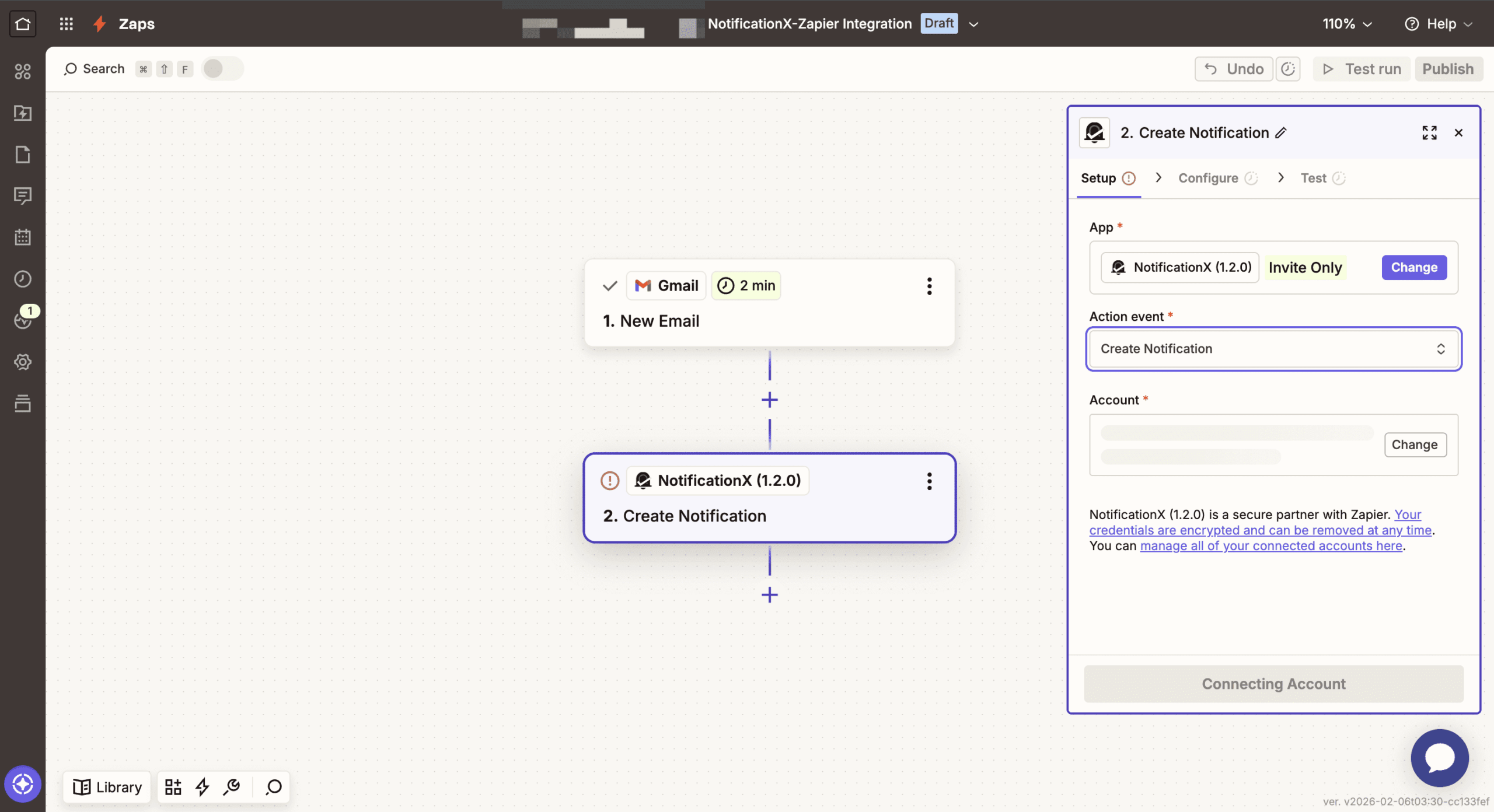
After that, connect your NotificationX account. After that, click on the “Yes, Continue to NotificationX” button. Then your account will be connected to the notification trigger. Then click on the “Continue” button.
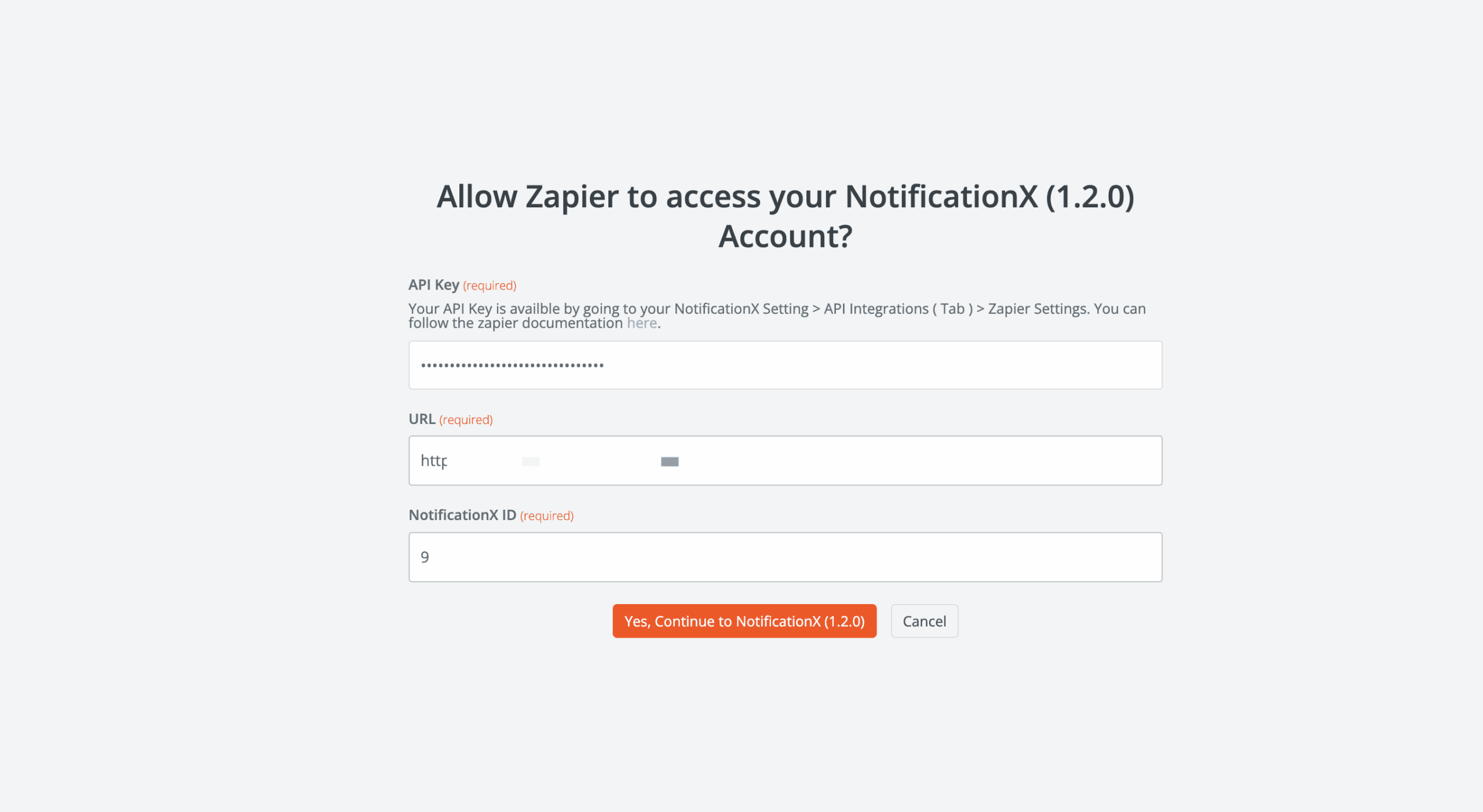
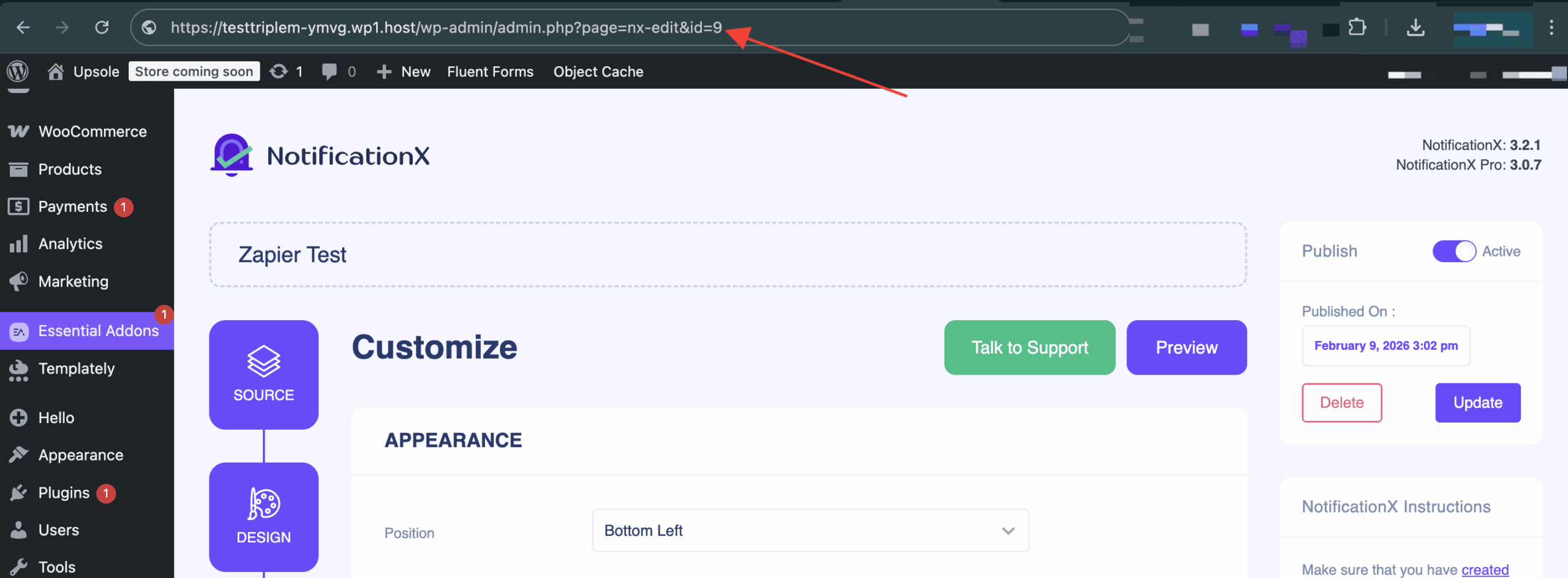
You can find your NotificiationX ID from the Zapier Notification Alert you have created earlier. To find that, go to: wp-admin ->All NotificationX -> NotificationX. Open the Zapier Notification alert and just simply check the end of the URL as you can see in the screenshot. That’s your NotificationX ID.
After that, configure the notification type. Select the specific value you want to display. Select the value and then go to the next step. There, for different types of notification you will find different options. Fill in all the fields to complete the setup.
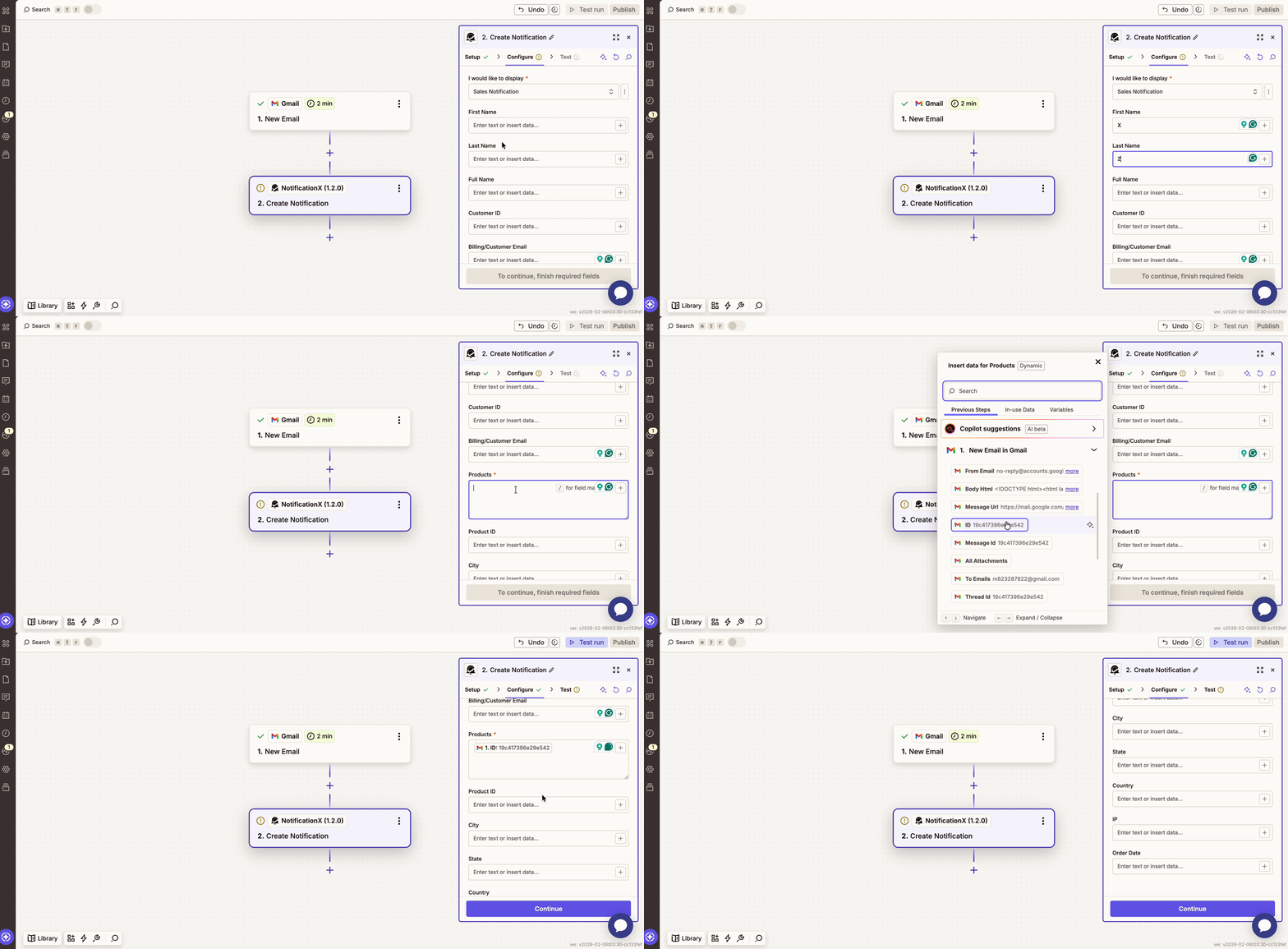
Then, from the ‘Test’ section, you can either set a test or skip this part. After skipping, click on the “Publish” button to make the notification LIVE on your website.
After you have completed all the steps mentioned above, go to your website and you will find the Zapier Notification Alert popping up like this:
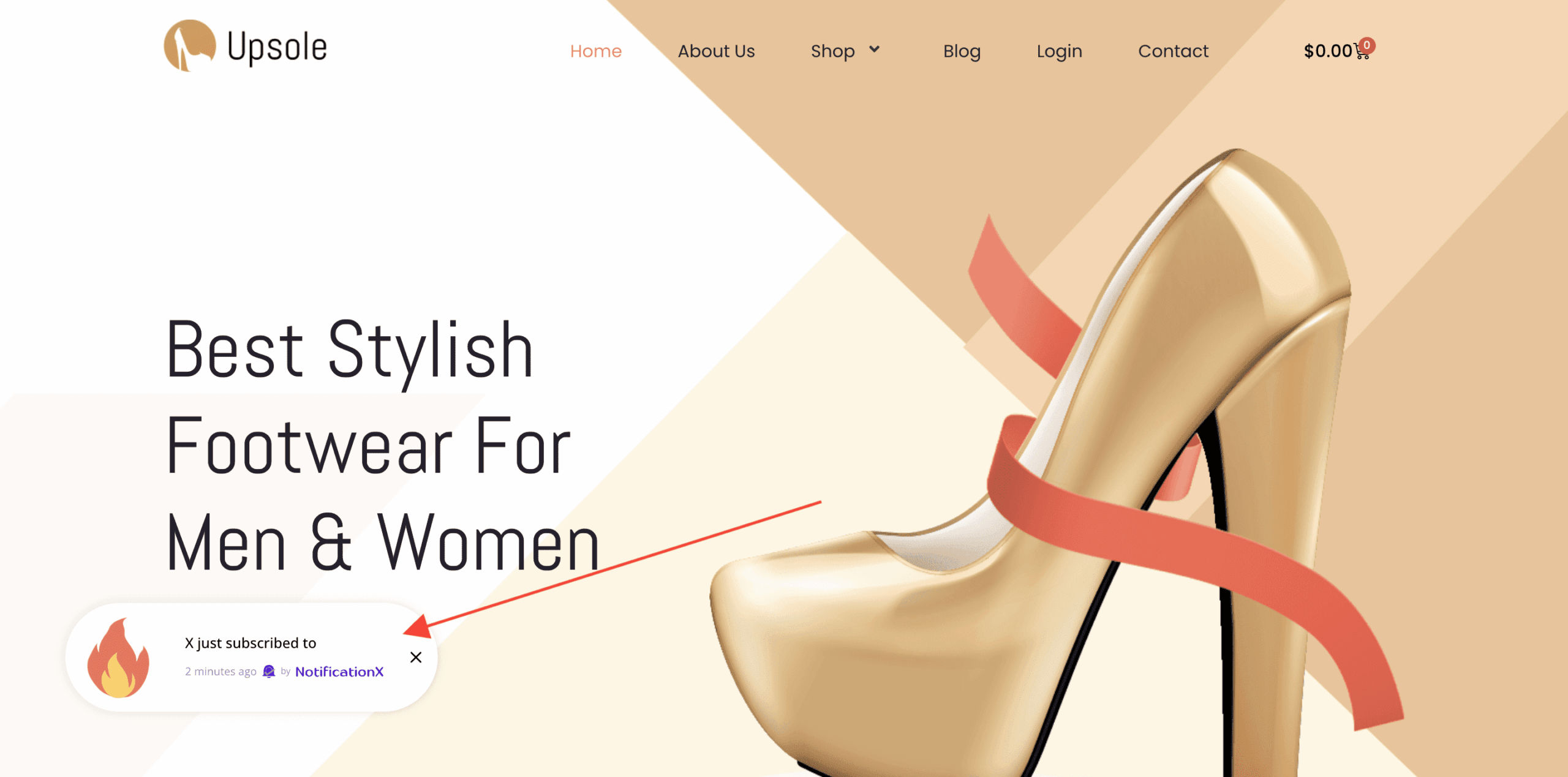
By using NotificationX, this is how you can easily design and display an amazing Zapier Notification popup on your WordPress website & grow your userbase.
If you face any issues, you can contact our Support Team here.


 English
  Arabic
  Indonesian
  Spanish
  Bengali
  Portuguese
  German
  Dutch
Dutch  Russian
  Hindi
Hindi  French
  Japanese
  Chinese
  Vietnamese
  Malay
Malay