
NotificationX Builder comes with the ‘Customize’ option to let you style the appearance and set your preferred timing for popup notification alerts on your WordPress website. Let’s follow the guideline below to learn how to use ‘Customize’ tab in NotificationX
Step 1: Choose A Notification Alert #
First of all, go to your WordPress dashboard and navigate to wp-admin -> NotificationX -> NotificationX Builder.
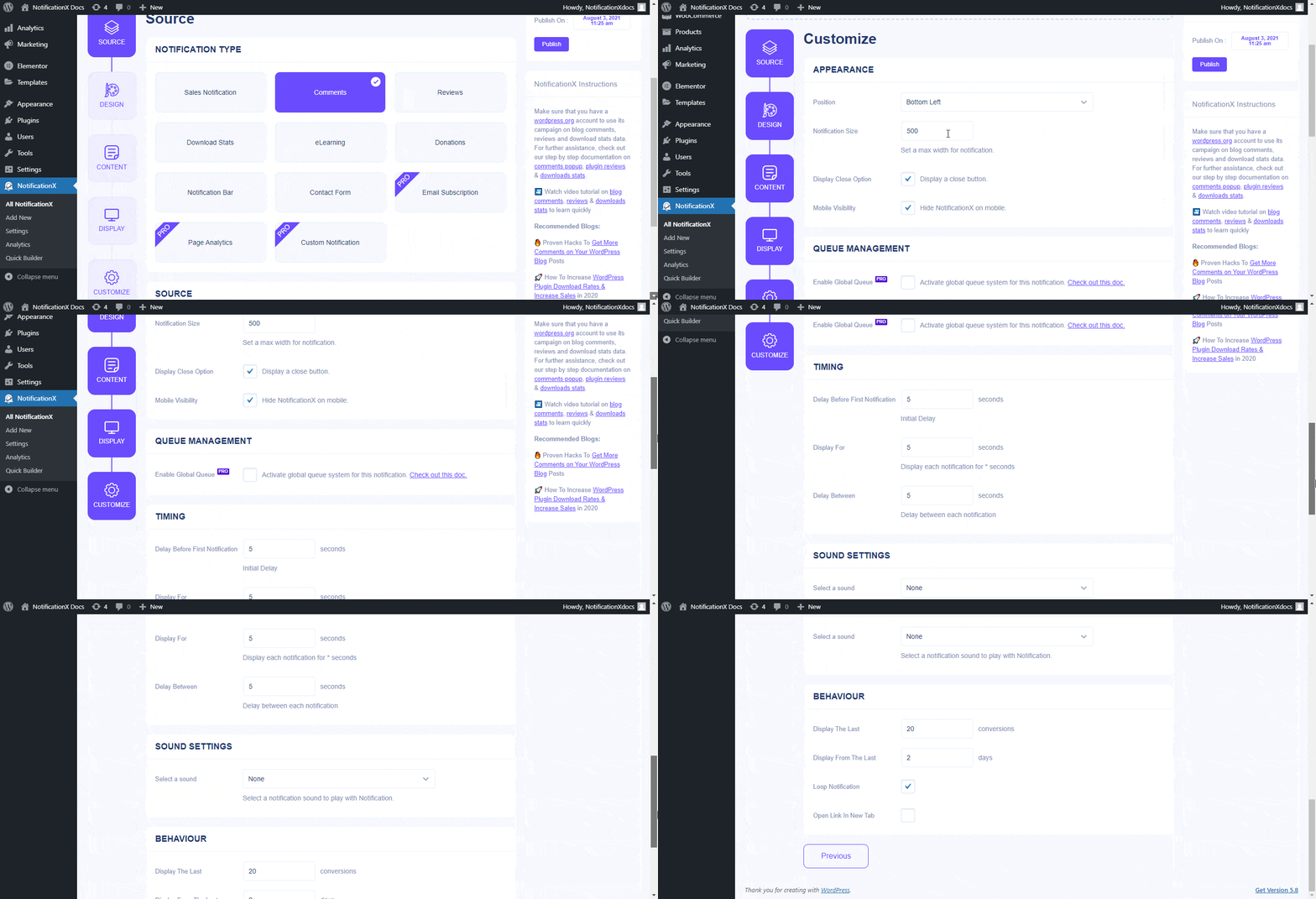
After picking your preferred ‘Notification Type’ from the ‘Source’ option, simply click on the ‘Customize’ tab, as shown below.
Step 2: Configure The Customization Settings #
‘Customize’ tab has four separate sections: Appearance, Timing, Behavior & Sound Settings.
From the ‘Appearance’ section, you can set the position where you want to display your notification alert. You can also control the size of your notification alert. Moreover, you can hide or display the ‘Close’ button. If you want, you can hide the notification alert for mobile devices too.

Besides, you also have the freedom to set time for ‘Initial’, ‘Display For’ & ‘Delay Between’ options as per your preference from the ‘Timing‘ section. You can set an initial time after which your ‘Review’ notification will be popped up. By default, it is set to 5 seconds.
You can also set a time limit for how long you want each notification popup to be displayed by modifying the ‘Display For’ field. To choose a time interval between two notifications of Review, simply set the time in the ‘Display Between’ field. Or, if you want to display multiple types of notifications, you can simply activate the ‘Global Queue Management’ option using NotificationX PRO.

From the ‘Behaviour’ section, you can choose to display the number of reviews made for certain past days. By checking the ‘Loop Notification’ box, the notification popup will keep on displaying. You can disable this as well. When a visitor clicks on the notification popup, you can control whether you want the link to open in a new window or a new tab from the ‘Open link in new tab’ checkbox.
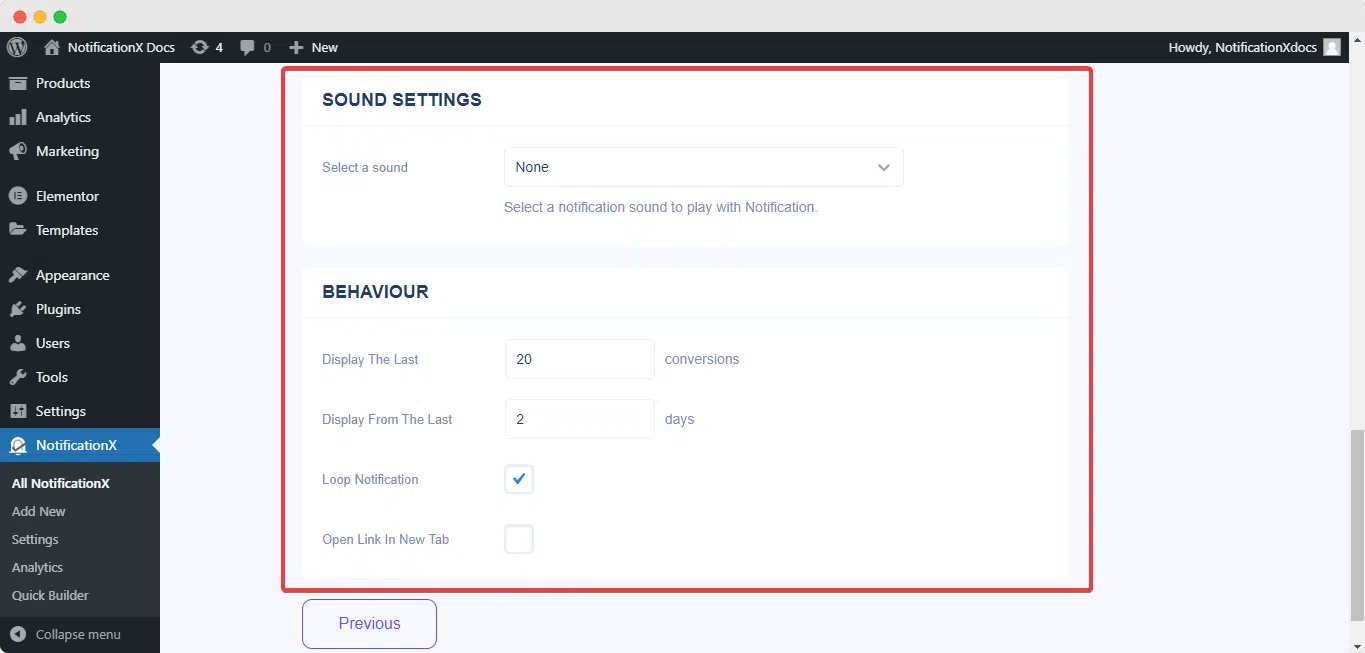
With the help of NotificationX PRO, you can also enable sound alerts for your notifications from the ‘Sound Settings’ section. You can easily choose a sound from the drop-down menu that will be played with each notification popup.
Getting Stuck? Feel free to contact our dedicated Support Team for further assistance and queries.
 English
  Arabic
  Indonesian
  Spanish
  Portuguese
  German
  Dutch
Dutch  Russian
  Hindi
Hindi  French
  Japanese
  Chinese
  Vietnamese
  Malay
Malay