
NotificationX offers mobile responsive theme options along with selected themes for desktops, ensuring your notifications look great on all devices. Mobile responsive notifications provide a consistent and engaging experience for users viewing your notifications on a mobile device. This helps you to turn your visitors into customers.
注意: Before using a mobile responsive theme, make sure that you already have installed the NotificationX Pro plugin & activated the NotificationX PRO License Key on your WordPress website.
Configure Mobile Responsive Themes in Notification with NotificationX #
Follow the steps below to set a responsive theme for notifications on mobile devices with NotificationX.
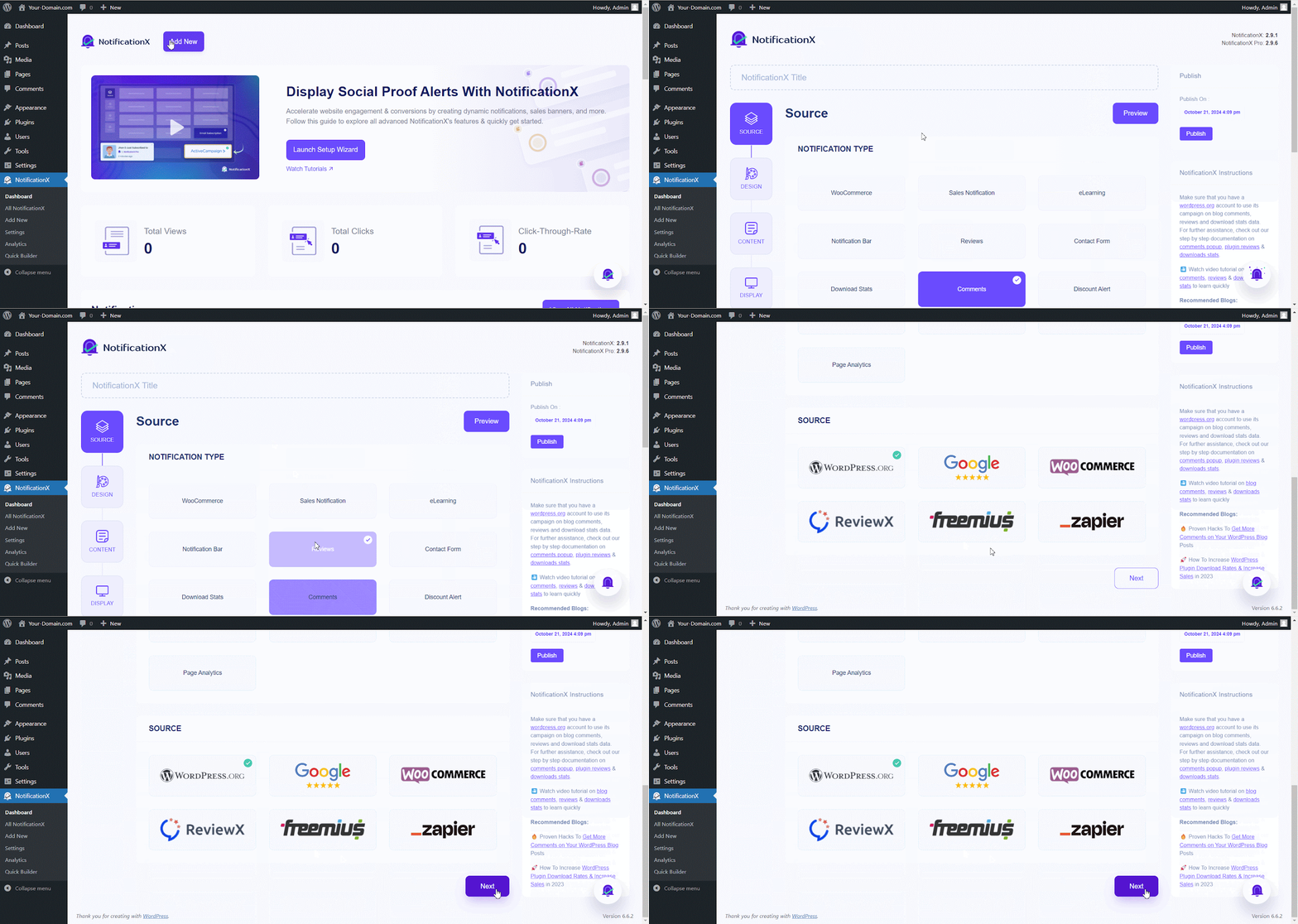
Step 1: Add & Select a New Notification Type #
From your NotificationX dashboard click on the ‘新しく追加する’ button to add a new notification. Now, select a ‘通知タイプ’ and source then hit the ‘次' ボタン。
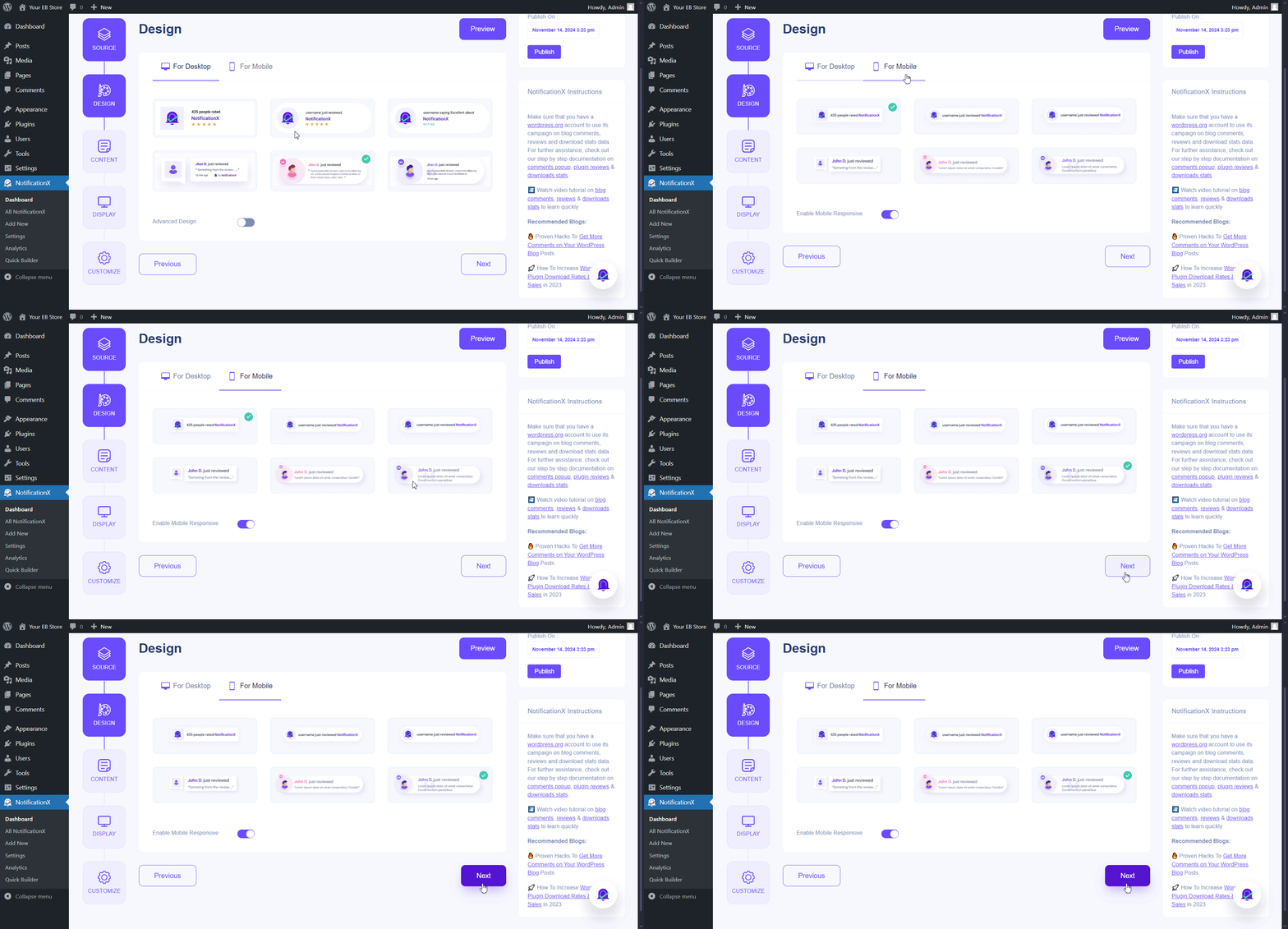
Step 2: Select A Mobile Responsive Theme #
Here, in the design settings, after choosing a desktop theme, move to the ‘For Mobile‘ Tab and select a mobile responsive theme alternative to the desktop theme to give your visitors a better experience on all devices. Now, click on the ‘次' ボタン。
Step 3: Configure & Publish #
After choosing a mobile theme, add your content and adjust how you want to show notifications. Next in the customization tab, you can check mark whether to display/hide NotificationX on the mobile.
注意: By default mobile visibility check box is checked on to hide NotificationX on Mobile.
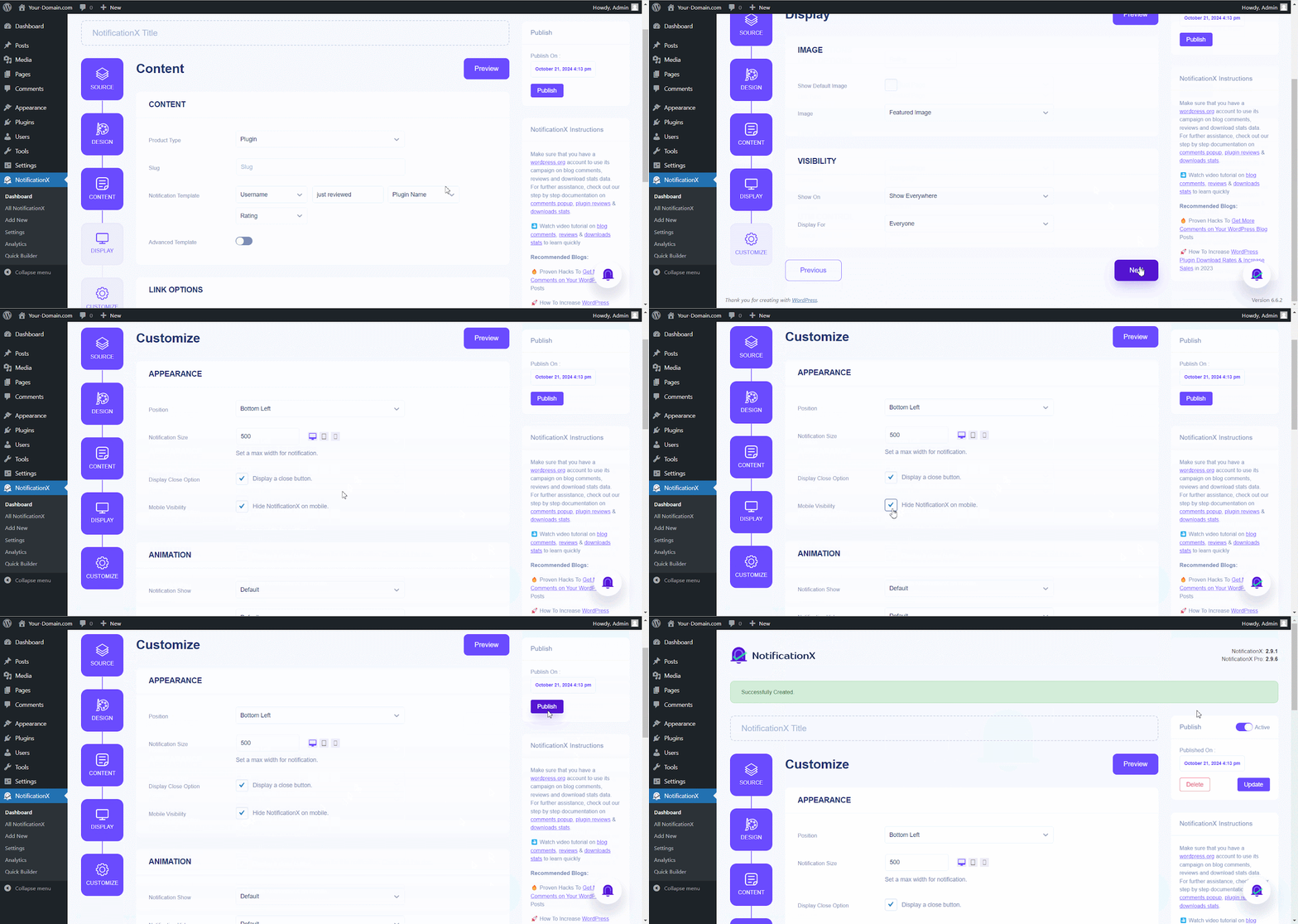
Follow this documentation to style your notifications using ‘高度なデザイン’. Once you’re done, click ‘公開する'。
最終結果 #
Following these steps, you can effectively configure mobile responsive themes in NotificationX to ensure your notifications are visually appealing and mobile device-friendly. This enhances user experience and contributes to higher engagement and conversions.

If you have any questions or need further help, please サポートチームに連絡してください. We’re just one click away.
 English
  Arabic
  Indonesian
  Spanish
  Portuguese
  German
  Dutch
Dutch  Russian
  Hindi
Hindi  French
  Japanese
  Chinese
  Vietnamese
  Malay
Malay