
Using the AI in NotificationX, you create stunning notification bars in WordPress instantly. This feature saves time, eliminates manual design, and helps you quickly create engaging notifications that align with your website’s goals and branding.
Now displaying your latest sales, discounts, or urgent announcements amazingly on the website to influence your potential customers to buy your products or take your services will be faster and easier.
Before getting started, make sure you have installed and activated:
- How to Install and Activate NotificationX Free Version?
- How to Install and Activate NotificationX PRO Version?
How to Configure Notification Bar with AI in NotificationX? #
Follow the step-by-step guide below to configure & style the notification bar on your website using NotificationX.
第 1 步:添加新通知 #
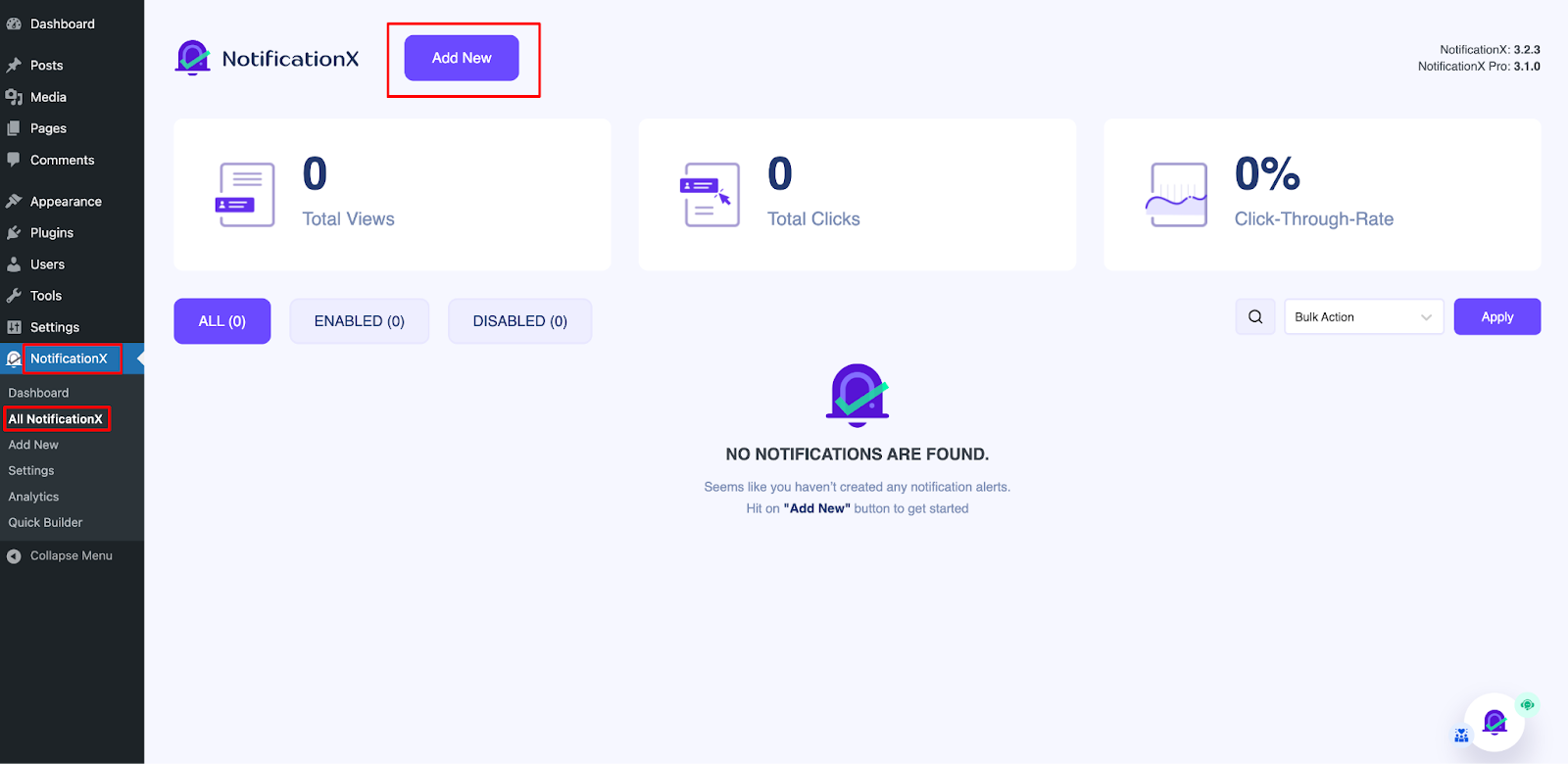
转到WordPress仪表板并导航至 NotificationX → 全部 NotificationX. Then, right at the top, click on ‘添新’. Or you can also simply go to the ‘Add New’ tab from the sidebar.
Step 2: Select Notification Bar as Your Notification Type #
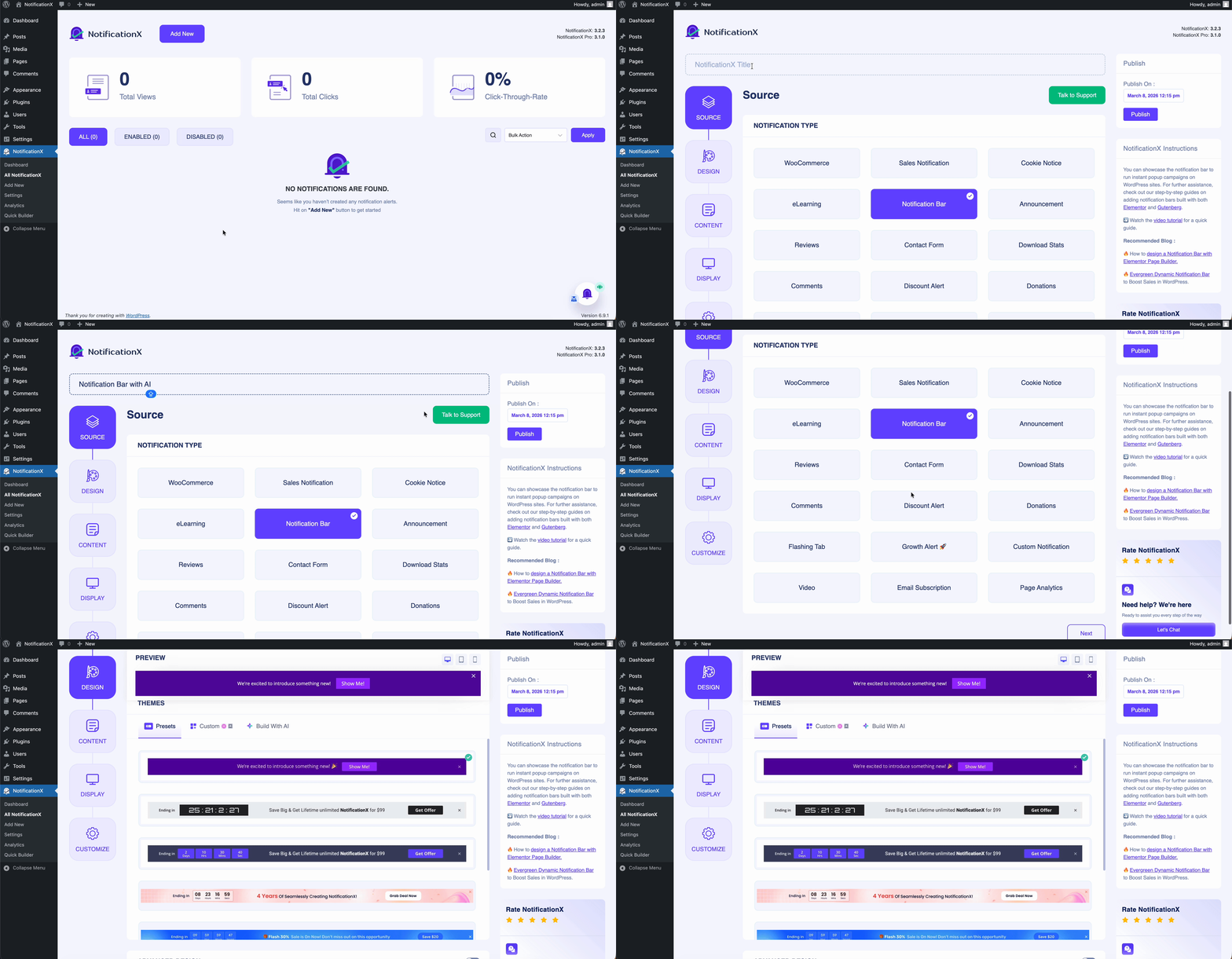
完成第 1 步后,您将被重定向到“来源’ Tab page of your NotificationX. You can also put a title for your notification. From the options, select ‘通知栏’ as your notification type. Then click on the ‘下一个' 按钮。
Step 3: Design the Notification Bar #
来自 '设计’ tab, you can choose a layout and also have the flexibility to use the ‘进阶设计’ option to customize it as per your preference. NotificationX offers awesome Premade layouts that you can pick from and get started. The chosen layout is how the ‘通知栏’ will be displayed on your website. You can also see a preview of your design at the top.
And to create with the help of AI, just click on the ‘Build with AI’ & let AI handle everything from this point up to creating a stunning notification bar for your website.
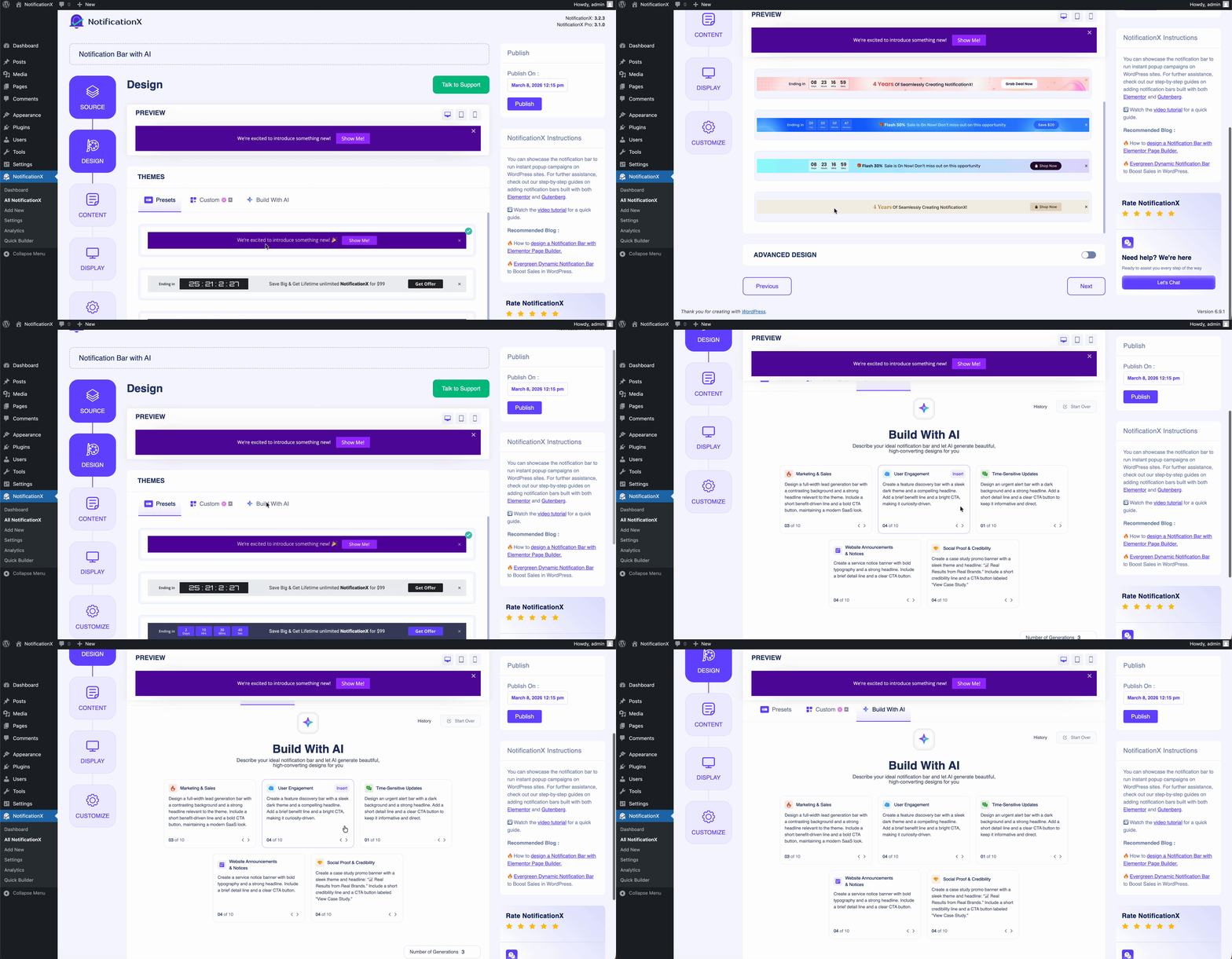
Here you’ll see multiple notification bar categories & 10 prompts for each category. You can pick your categories, select the prompt by clicking on ‘Insert,’ set the number of generations, and modify your prompts if you wish to before clicking on the generate icon.
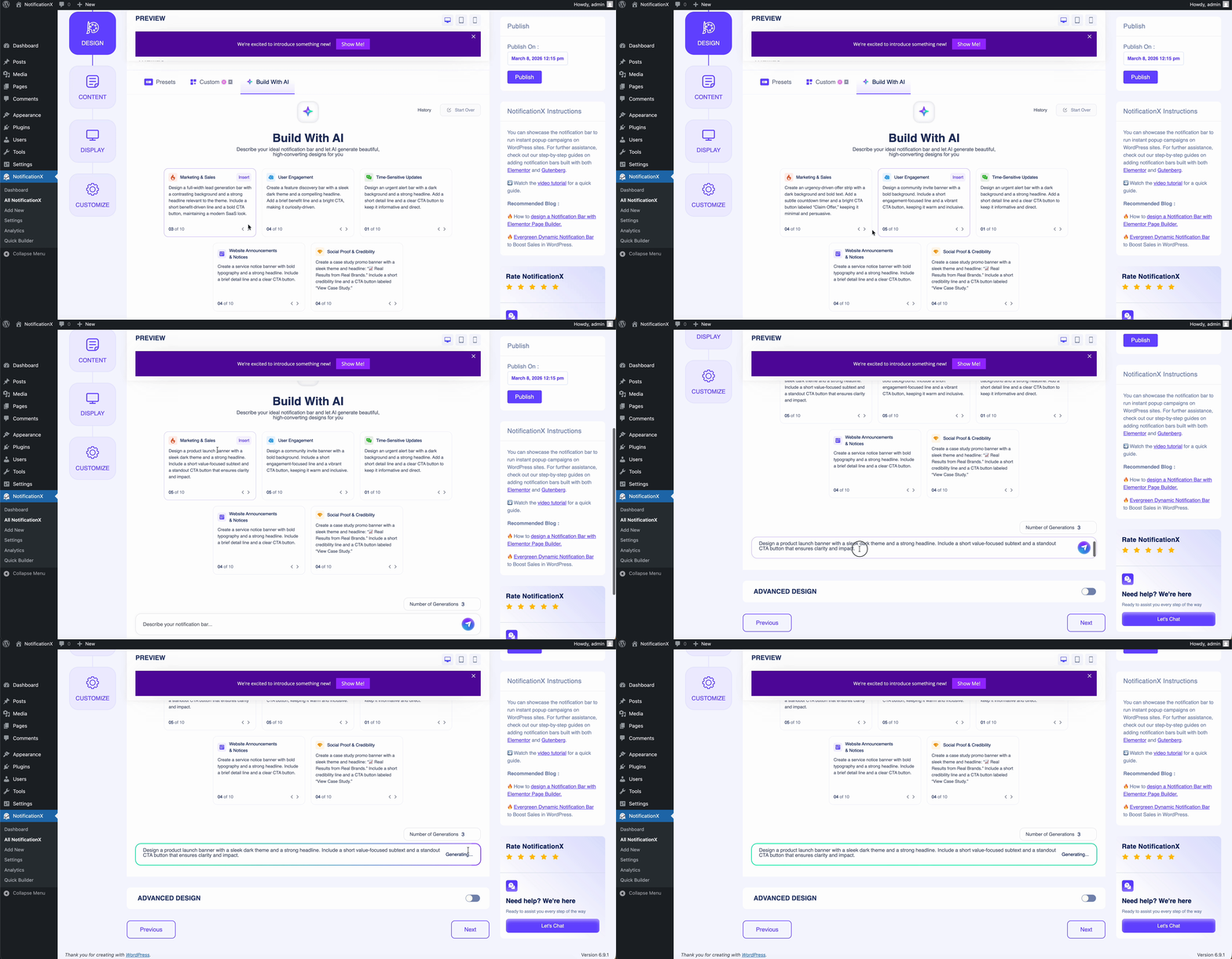
And here’s the result below based on your prompt. Now you can select the one that you want to go with & get the preview on top.
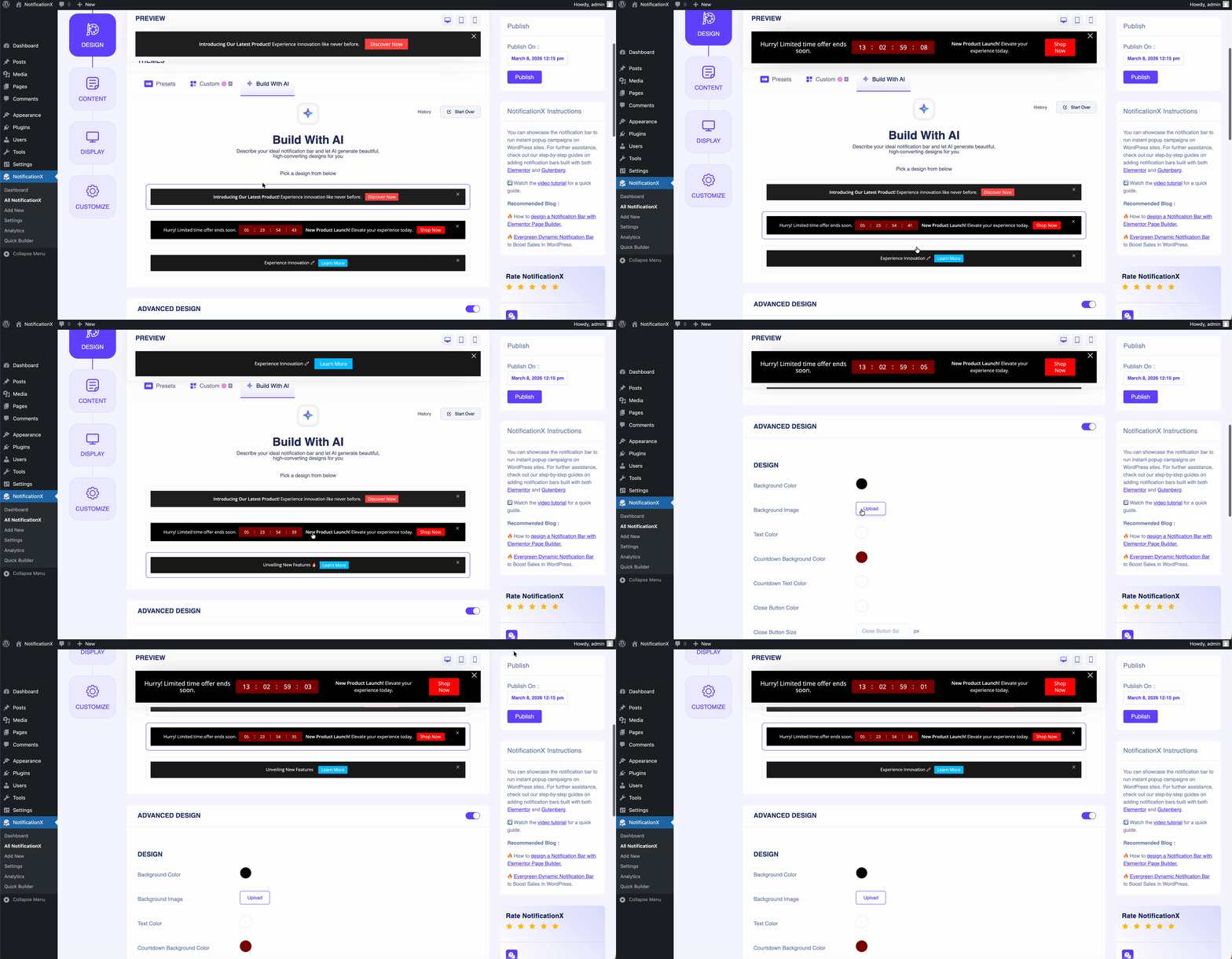
来自 '进阶设计’ section, you can play around with the Background & Text colors. Then you can choose different background colors and a customized background image option. You can also choose your preferred text color for the bar.
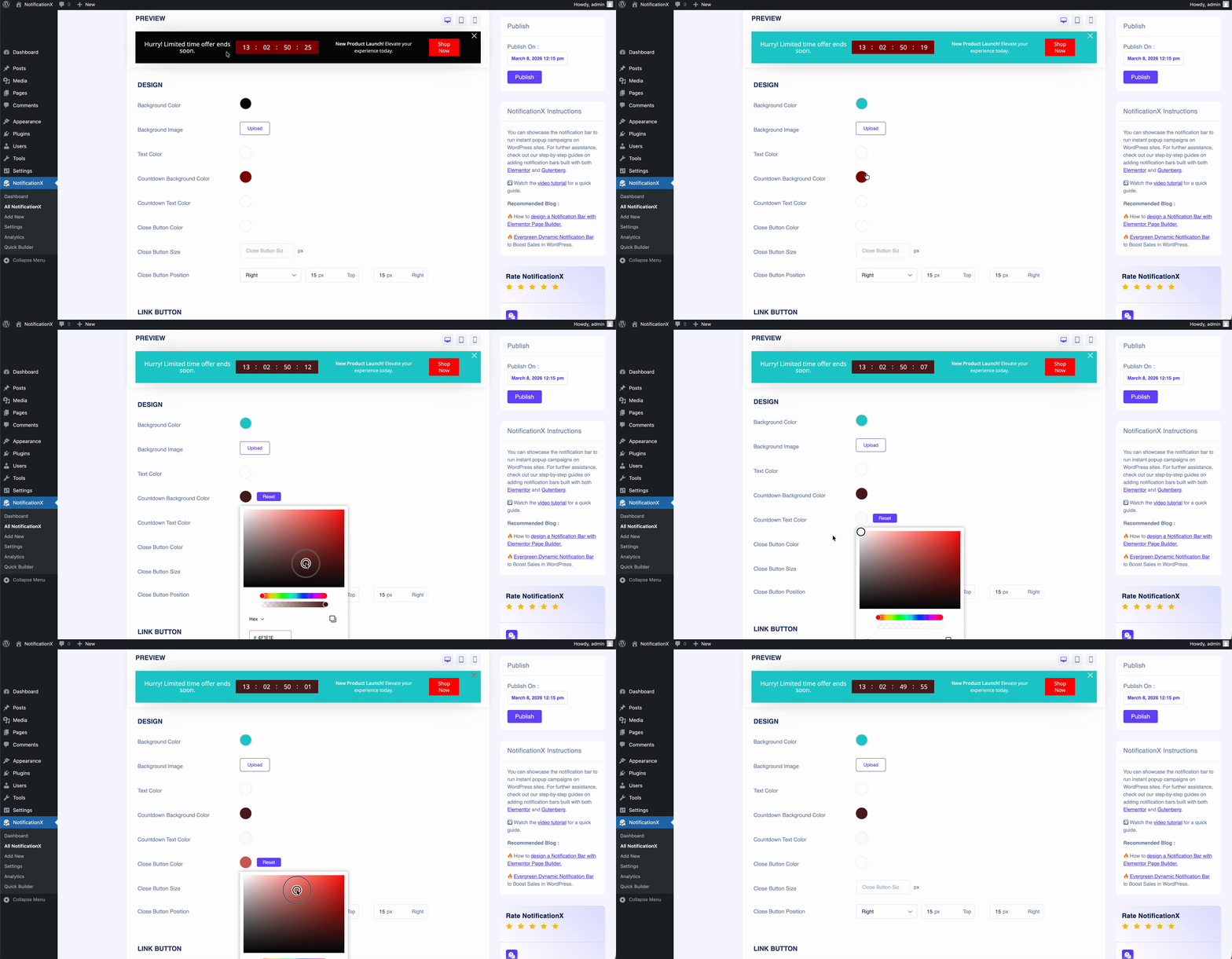
For the button and countdown, you can choose background and text colors as well. Based on your preference, you can add color to the close button and customize its size. The option of showing a close button in the preferred area is available.
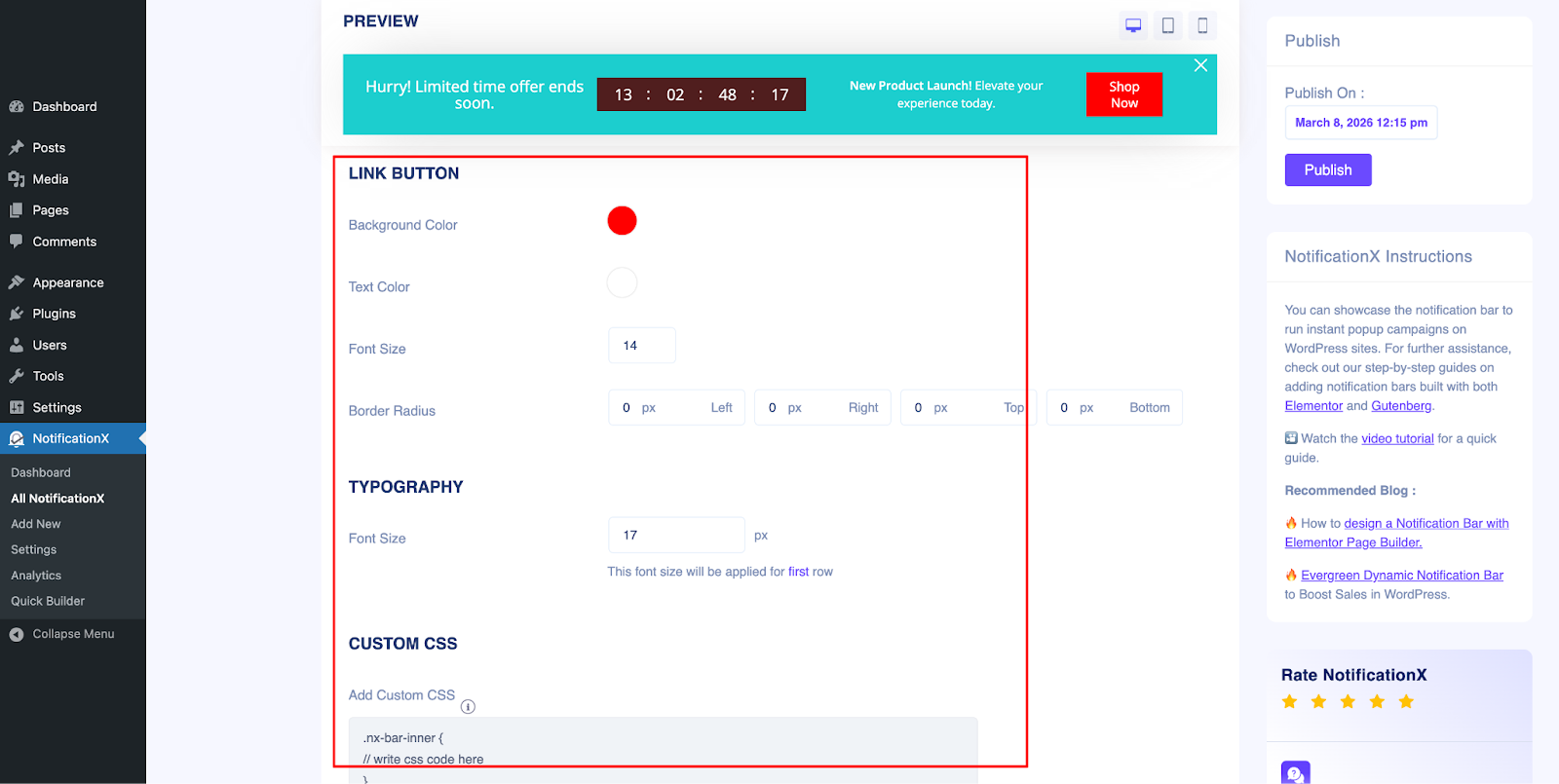
In the advanced design, you can also change the background color, text color and font size of your ‘Link Button’. As per your preference, you can even decrease or increase the font size. Add custom CSS code if you want more flexibility for your notification bar.
After you are done designing the Notification Bar, click on ‘下一个’ to continue.
Step 4: Add Content for Your Notification Bar #
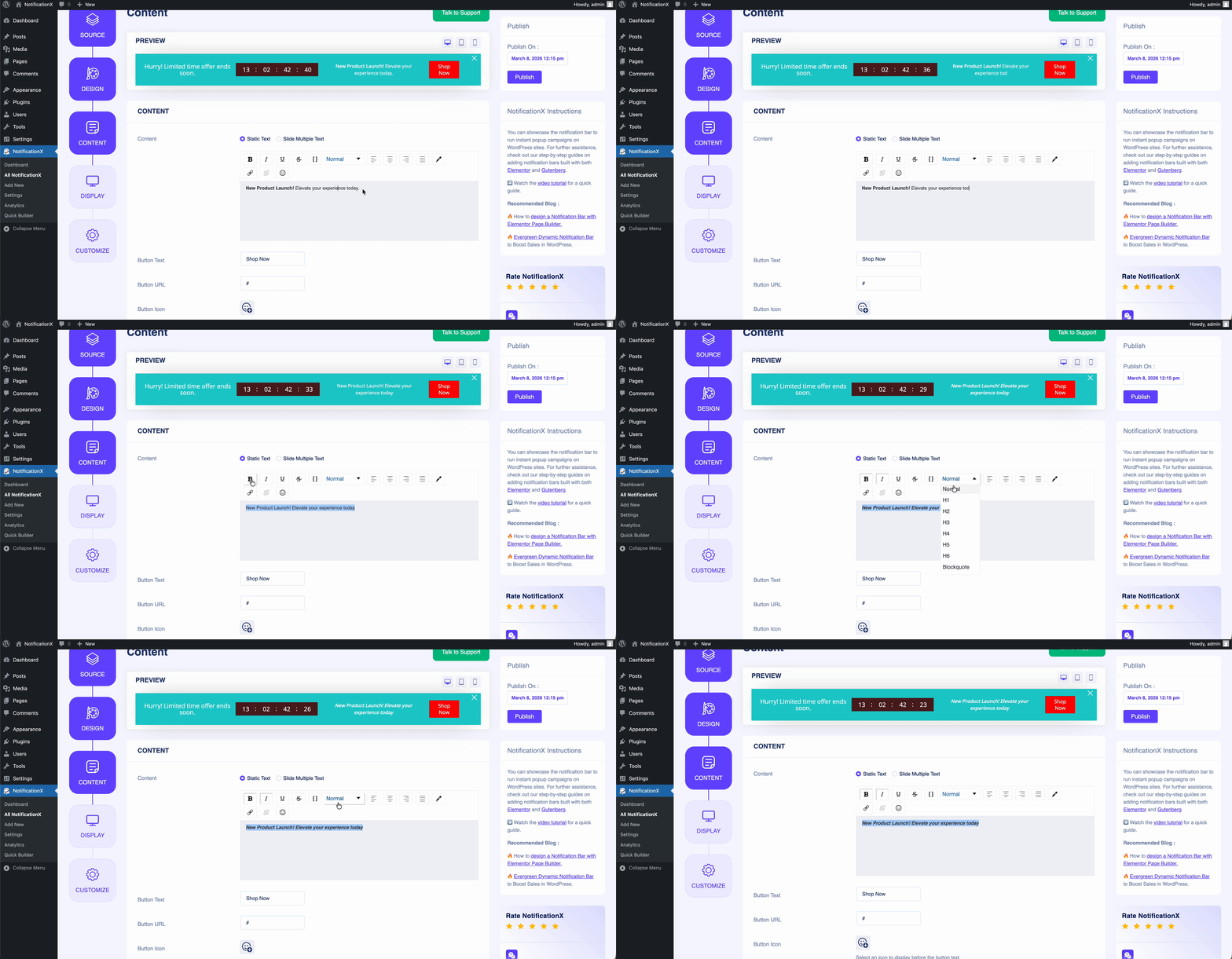
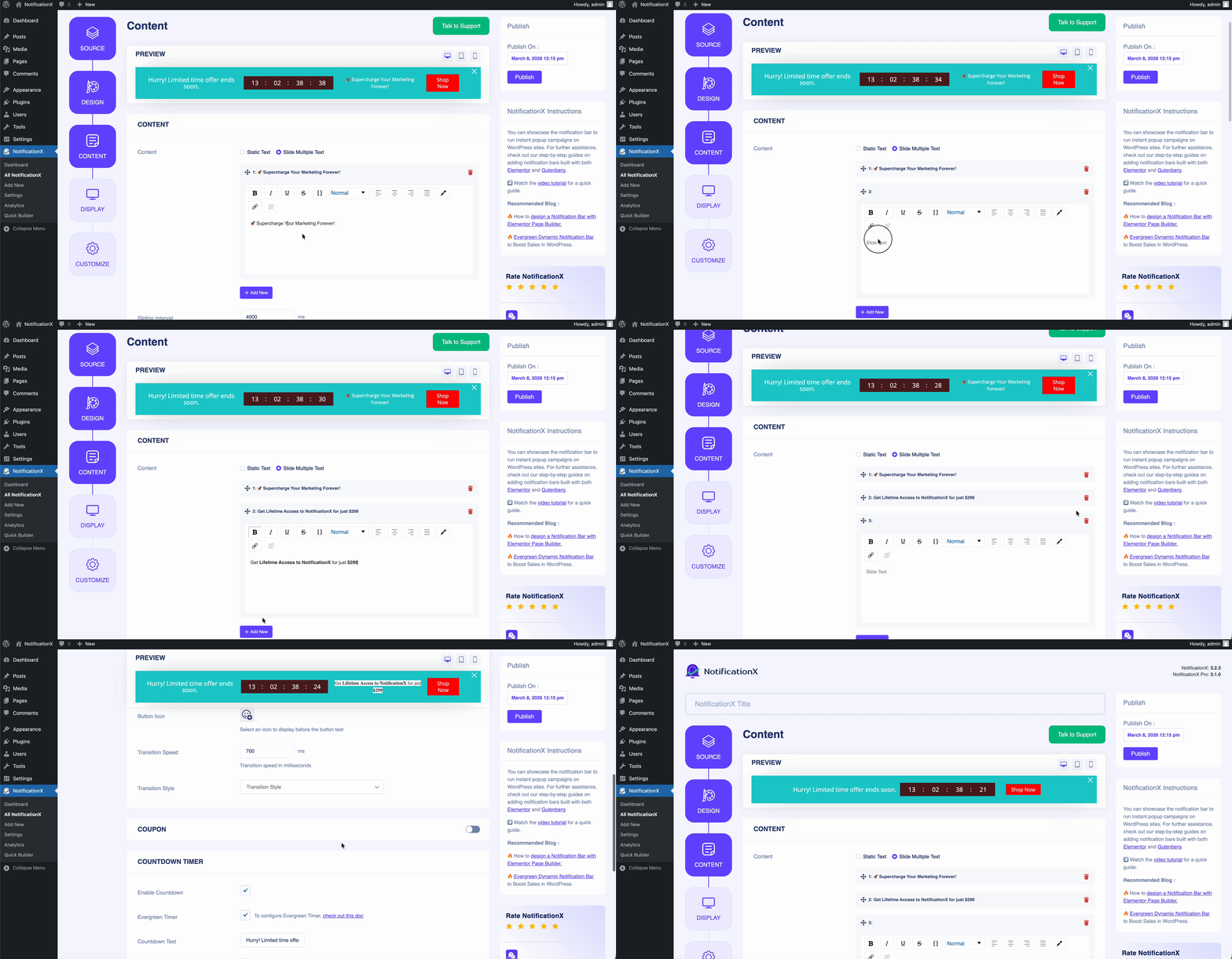
Next, go to the ‘内容’ tab. There you will find the option to add ‘Static Text' 要么 'Slide Multiple Text’. Add your preferred content and you can see how it will look in the preview. You can also customize the text as you want.
To make your bar content more engaging, you can choose the ‘Slide Multiple Text’ option. For this option, add multiple texts for your notification bar. To add multiple texts, add your text and then click on ‘添新' button to add another text. After adding text, you can also change the sequence by simply dragging and dropping the text. Choose the sliding interval timing for the text.
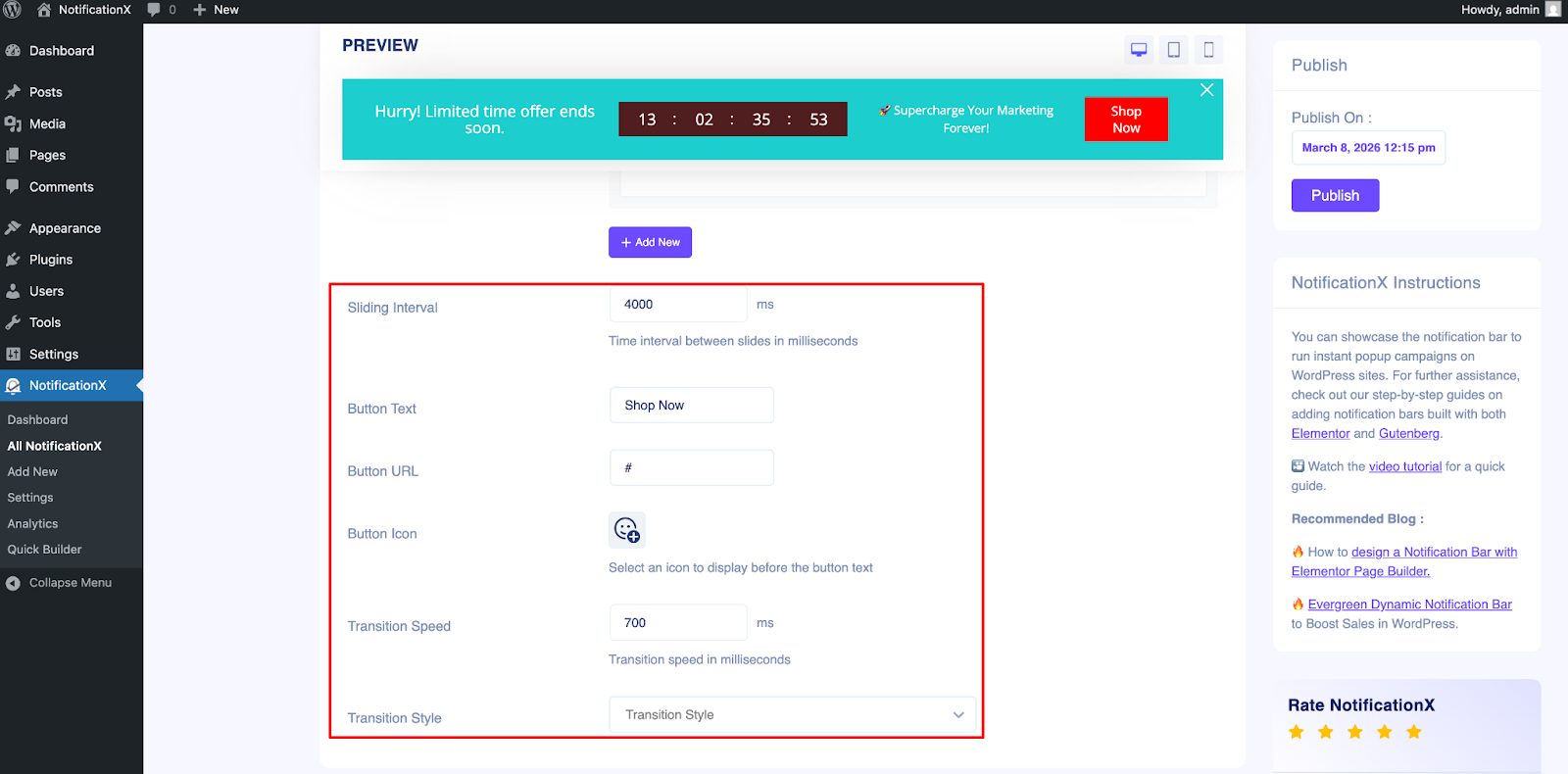
You can also use a ‘Button’ to redirect your visitors to a certain page of your website. You will find an option to add different button text and URL. You can also add ‘Transition Speed' 和 'Transition Style’ to the button.
Add Coupon Code #
You can enable the coupon code option if you want to give discounts via code. You will find the option to add the coupon button text. Add the coupon code so that visitors will click on the button and it will be automatically copied. You can also add ‘Tooltip’ for further instructions on the coupon code. Choose your preferred background, text and border color for the button.
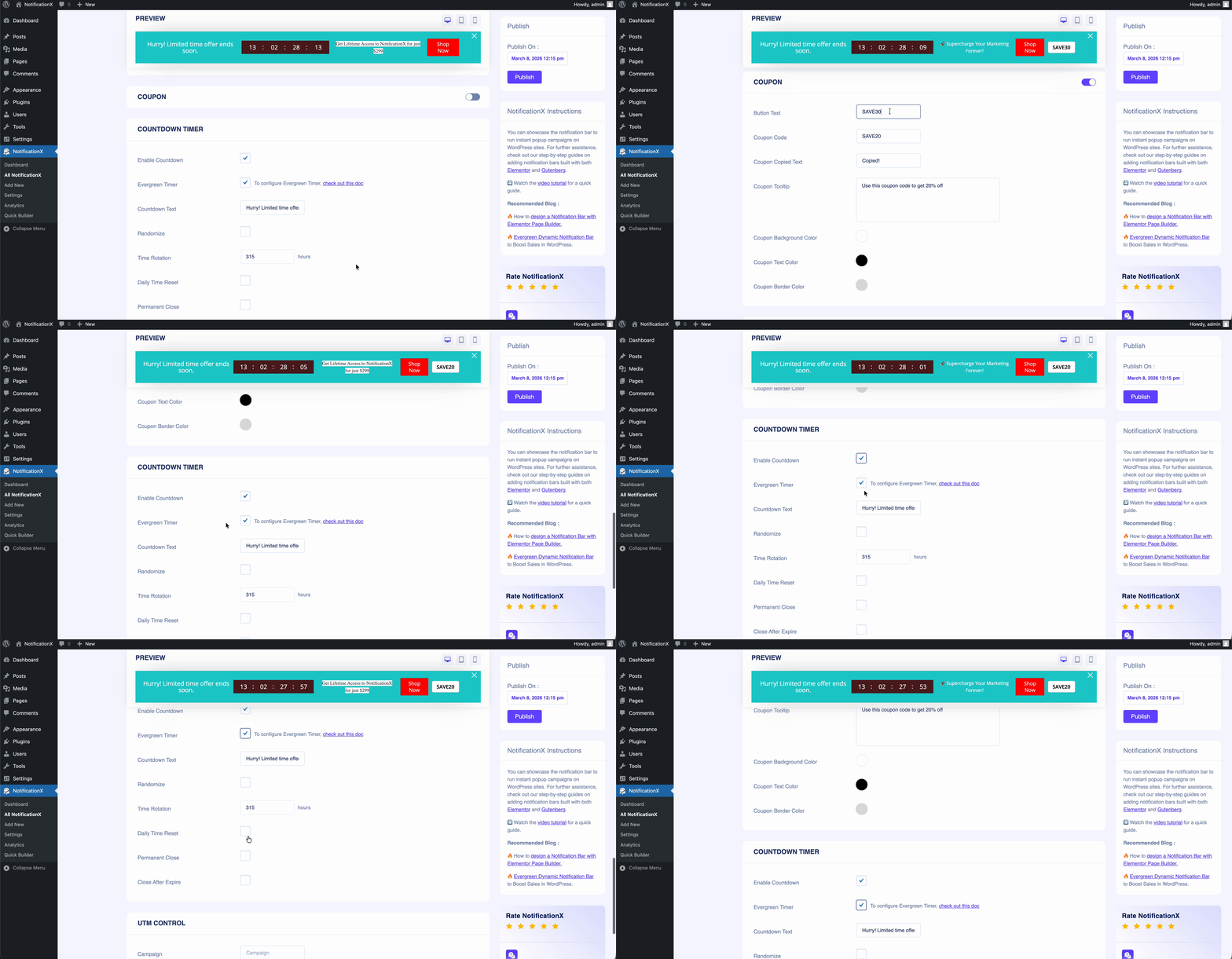
After that, you can use the checkbox to enable/disable the ‘Countdown’ option. If it’s enabled, then you can add a ‘Countdown Text' 和 'Countdown Time’ of your preference. The ‘Countdown’ feature will give your visitors a sense of urgency to grab the offer currently going around before it expires.
You also have a checkbox to use a ‘Permanent Close’ button. So, if users hit the close button, it will no longer be displayed on the website. You can also choose to enable ‘Evergreen Countdown Timer’ 如果你想。要了解更多信息, 检查此文档.
After you are done with the configuration, simply click on the ‘下一个’ button to continue.
Step 5: Configure Display Option for the Bar #
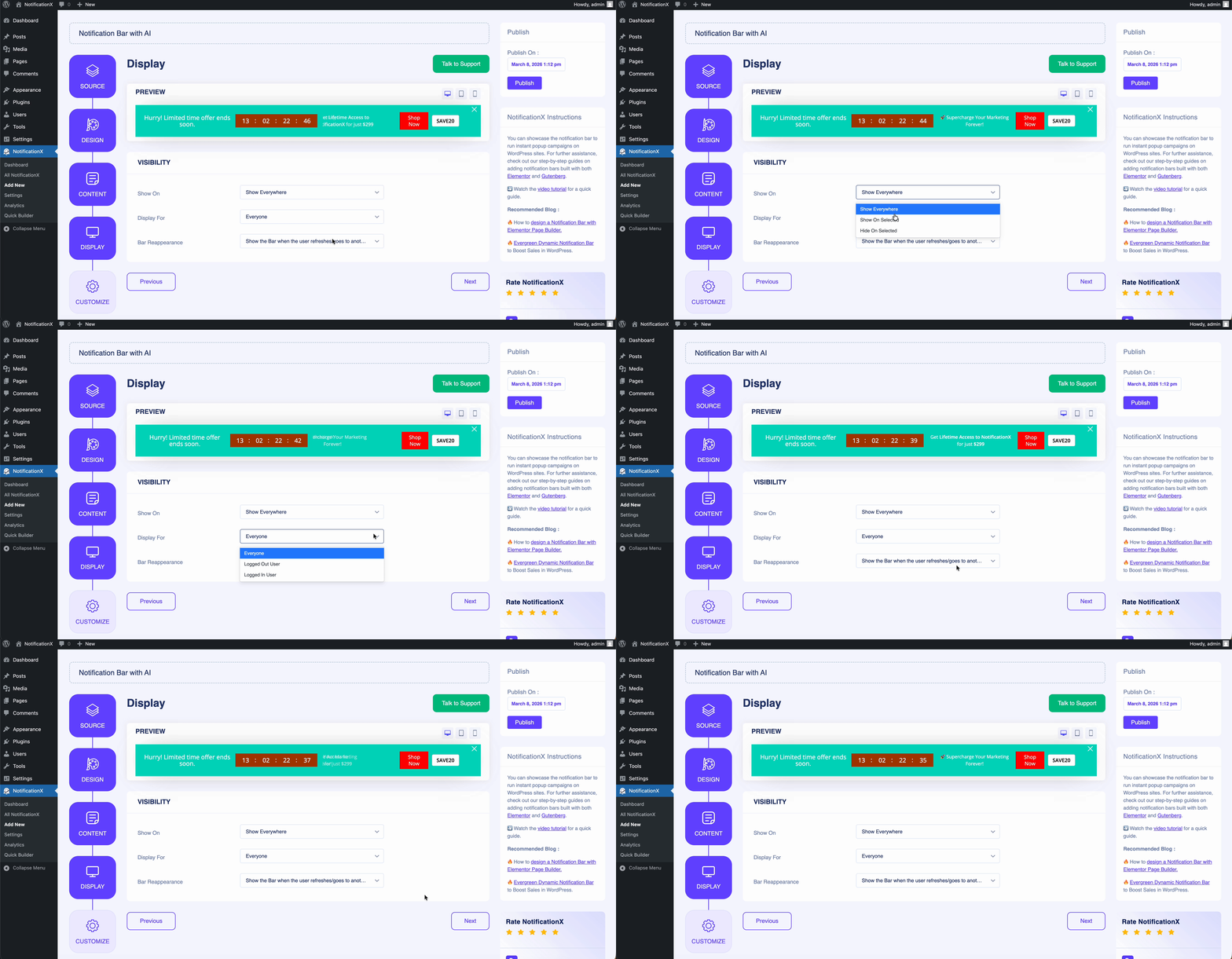
来自 '展示’ tab, you can set the pages where you want to display the Notification Bar. You also have the option to restrict the Notification for only certain user roles. By default, ‘Show On’ is set to ‘Show Everywhere’; as a result the Notification Bar will be displayed in every single page of your website.
You will also get the option to show the bar by setting different conditions in the ‘Bar Reappearance’ option. There you will find three available options from the dropdown:
- Don’t show the bar again for the user: Where a specific user will only see the notification bar once.
- Show the bar again when the users visit the website next time: Visitors will see the bar when they visit the website next time.
- Show the bar when the user refreshes to another page: When the visitor refreshes another page, the bar will appear.
Step 6: Customize Notification Appearances #
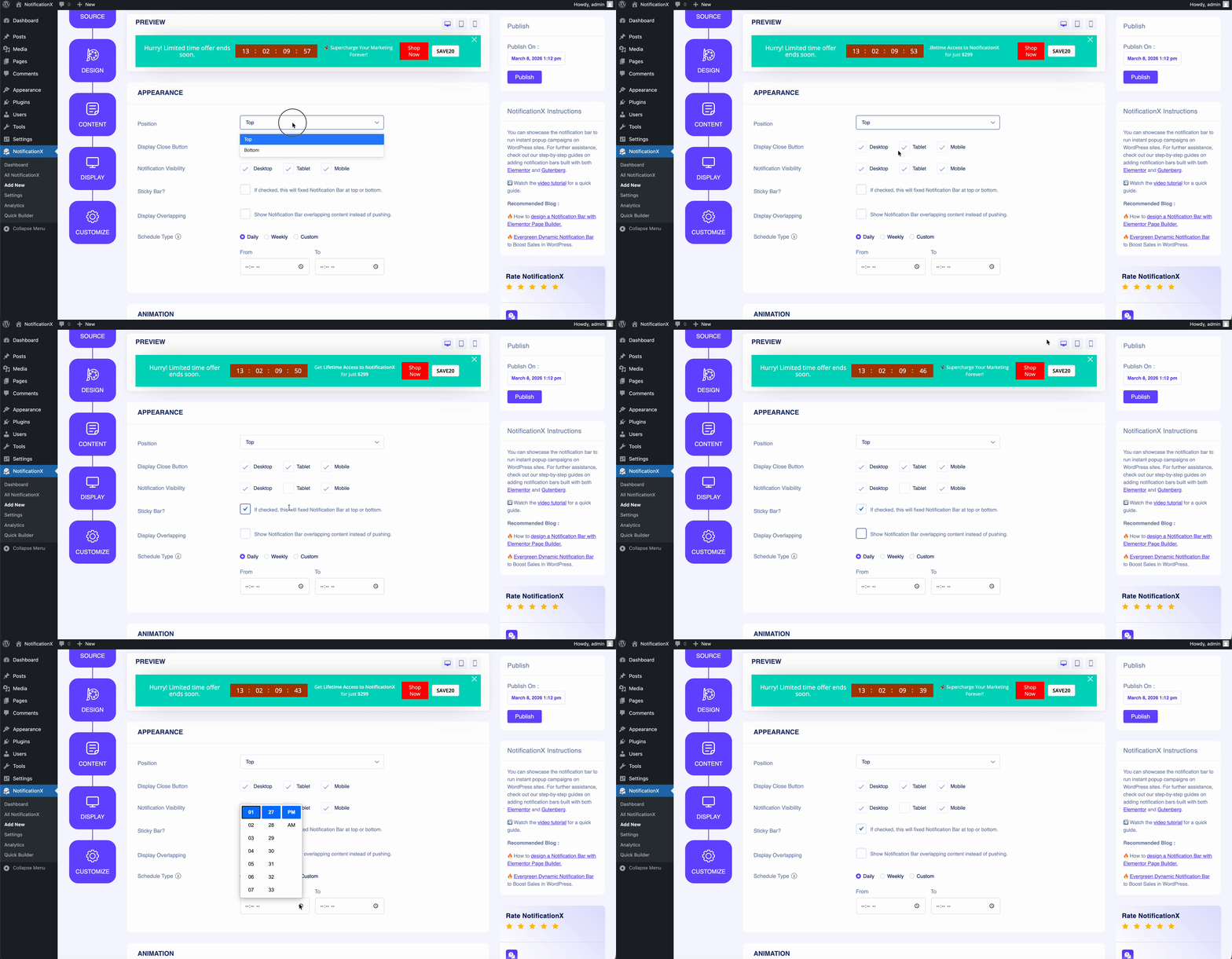
在下面 '定制’ tab, you will find five separate sections: Appearance, Animation, Targeting, Timing & Behavior. From the ‘外貌’ section, you can set the position where you want to display the Notification Bar and use the checkbox to disable/enable ‘Sticky Bar', 'Close Button’ & ‘Hide on Mobile’ options.
You can set the position of the Notification Bar to either the top or the bottom of your website. If the Sticky Bar is chosen, then the ‘通知栏’ will be in a fixed position. As a result, no matter where you try to navigate on your page, it will always show up.
You can choose the display overlapping option to show the notification bar overlapping the content. In this section, you can also choose a scheduling option and select daily, weekly or custom scheduling options to select how many times you want to show the notification.
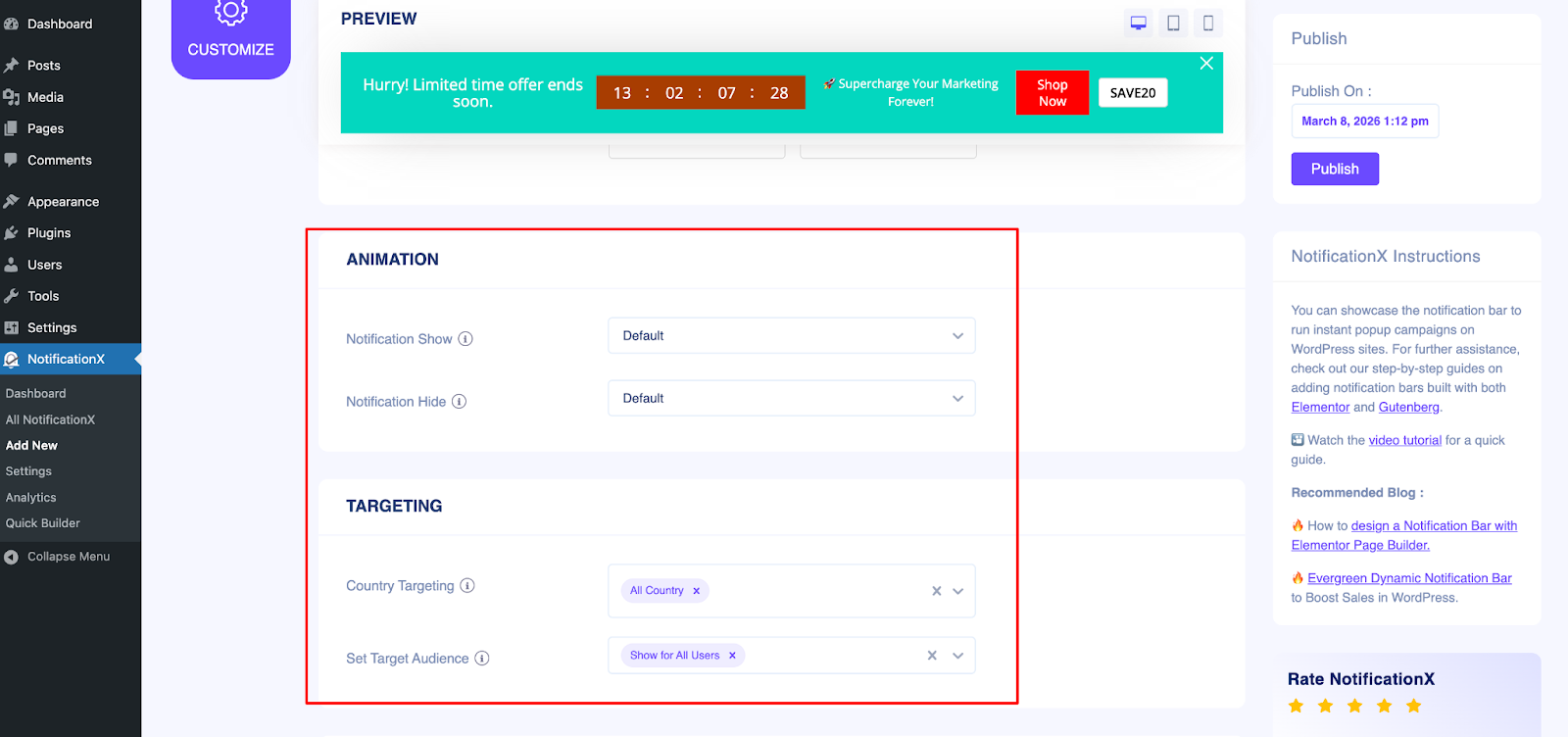
Next, from the animation section, add how you want to show your notification bar more attractively. You can also choose the option to hide the notification with animation.
Your discount offer might not be the same for every user. For this, you can choose the targeting option and specify your target customer. From the target location, you can select which country you want this notification bar for. You can also choose a specific role for whom you want to show this notification bar.
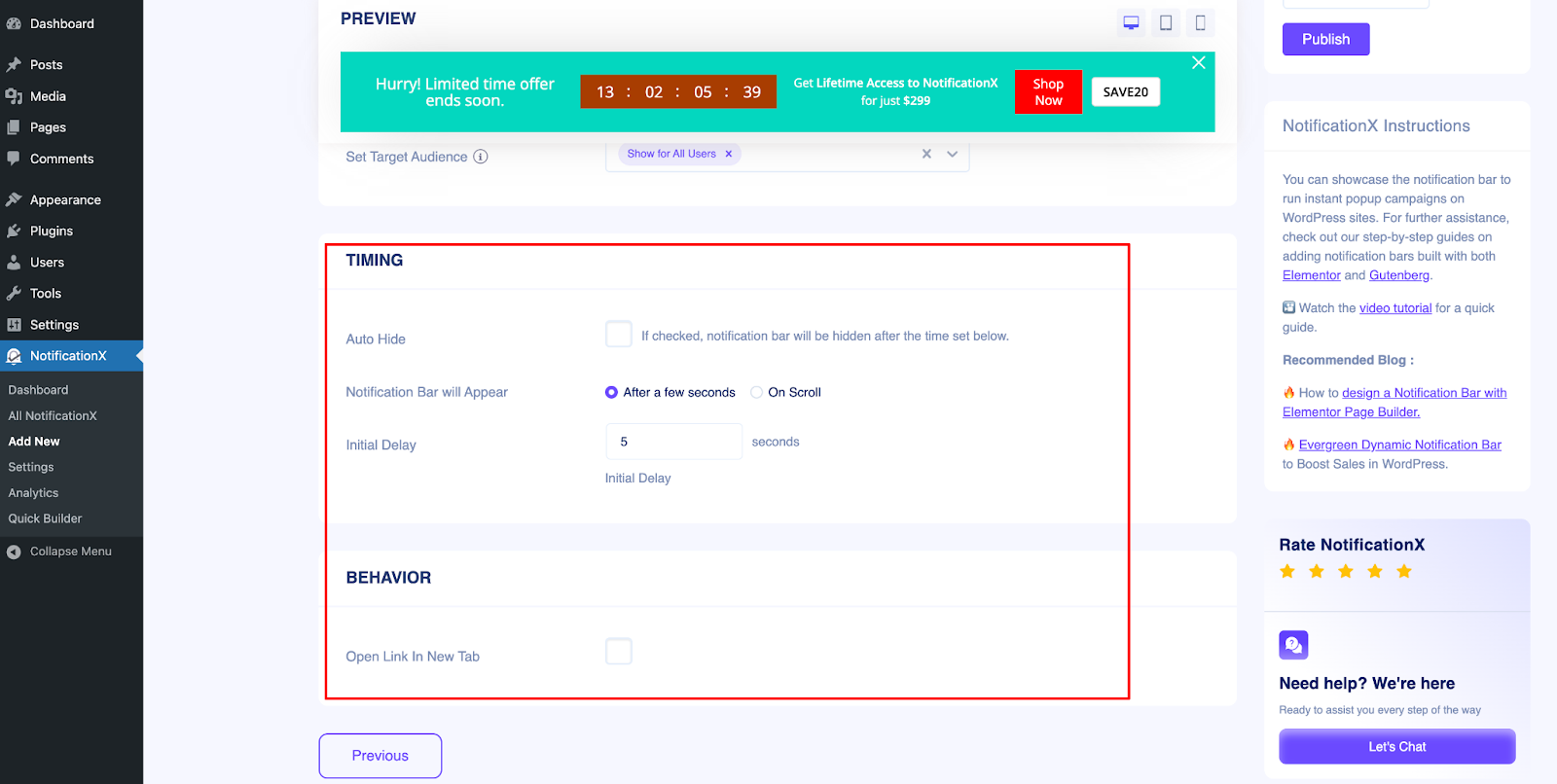
In the ‘定时’, you can set an ‘Initial Delay’ time after which your ‘Notification Bar’ will be popped up. By default, it is set to 5 seconds. You can also hide the ‘Notification Bar’ after a certain amount of time by checking the box‘Auto Hide’ and setting a time in the ‘Hide After’ field.
You can use the checkbox to decide whether to open your set link in a new window or a new tab as well. If you have previously set a URL in your Button, when your visitors click on it, the new page will be displayed in either a new window or a new tab, depending on your settings.
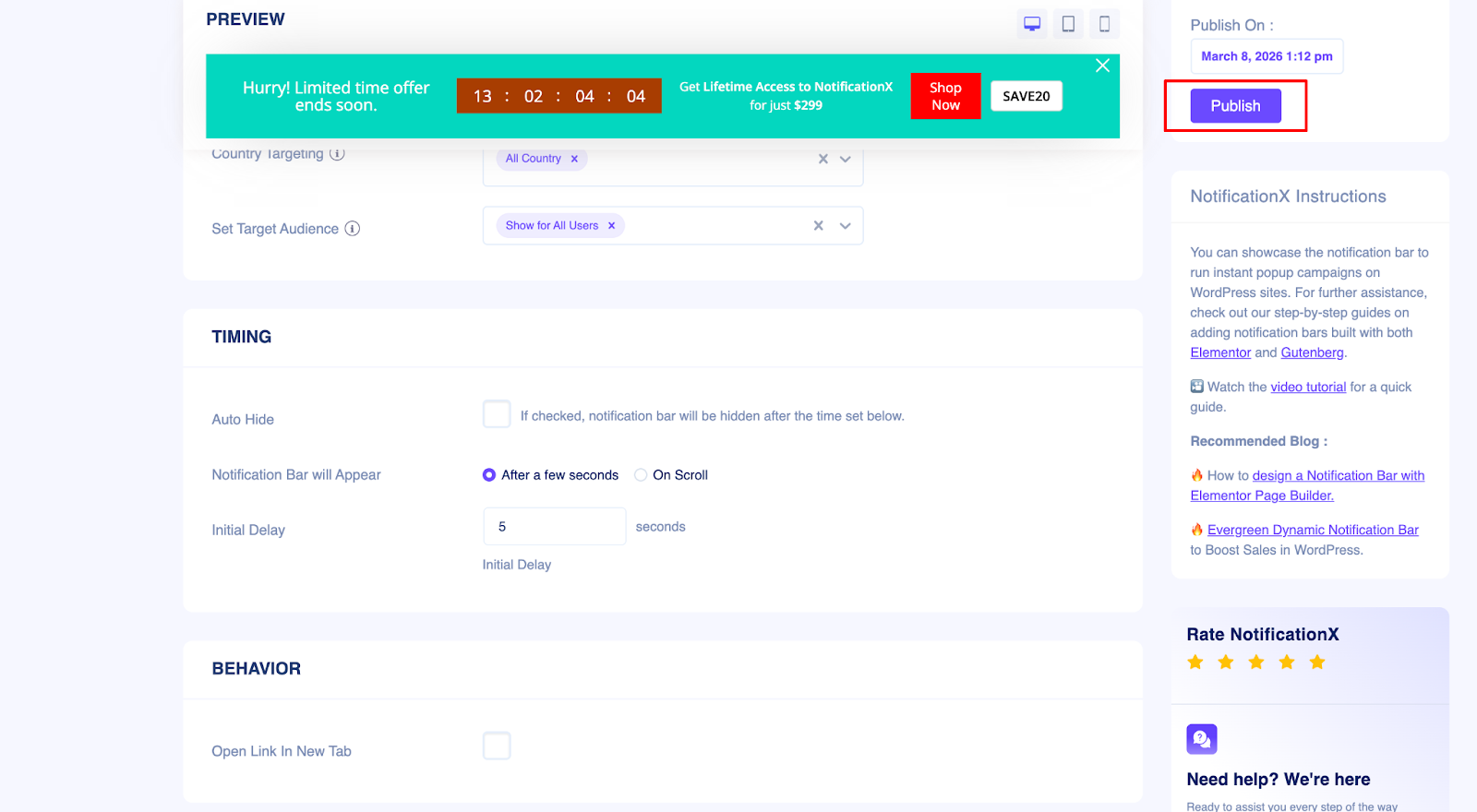
Step 7: Publish the Notification Bar #
After you have completed step 6, click on the ‘发布’ button. As a result, the ‘通知栏’ will be successfully created.
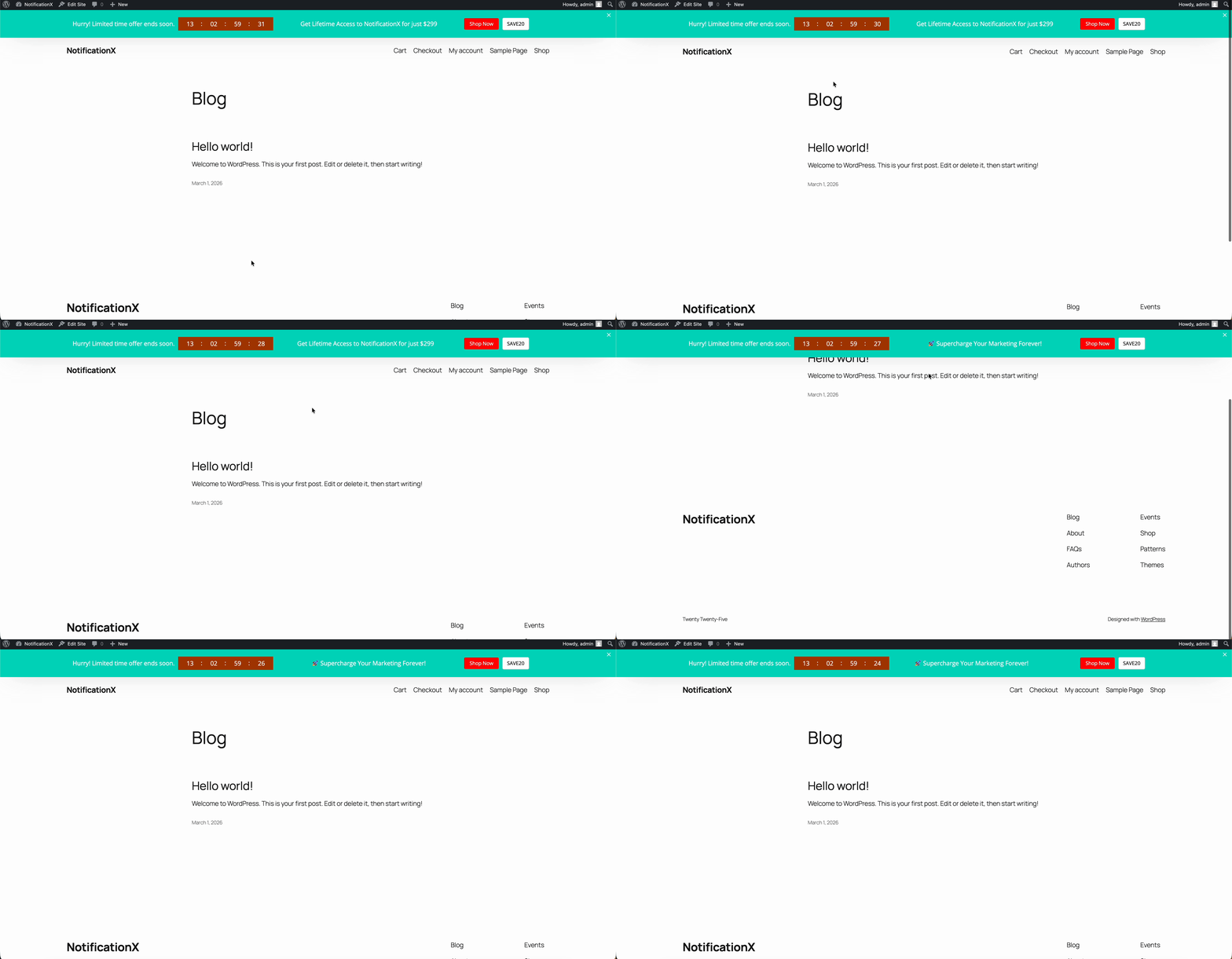
By following these steps and a bit more modifying & styling, your final outcome would look something like this.
最终结果 #
This is how you can easily design and display an appealing Notification Bar with AI on your WordPress website using NotificationX.
If you face any issues, you can contact our dedicated 支持团队.


 English
  Arabic
  Indonesian
  Spanish
  Bengali
  Portuguese
  German
  Dutch
Dutch  Russian
  Hindi
Hindi  French
  Japanese
  Chinese
  Vietnamese
  Malay
Malay