
NotificationX vous donne la possibilité d'afficher WooCommerce reviews for products on your WordPress website every time a customer reviews your products on the WooCommerce store. You can showcase the feedback left by customers on your WooCommerce store in the form of beautifully designed FOMO popups for FREE. This useful feature will help you add credibility to your business by showing visitors what other customers have to say about your products.
How To Display WooCommerce Reviews For Products In NotificationX? #
Before getting started, you need to have WooCommerce installed and activated on your website to use this feature. Follow this step-by-step guide below to learn how to display WooCommerce reviews for products.
Étape 1 : Ajouter une nouvelle notification #
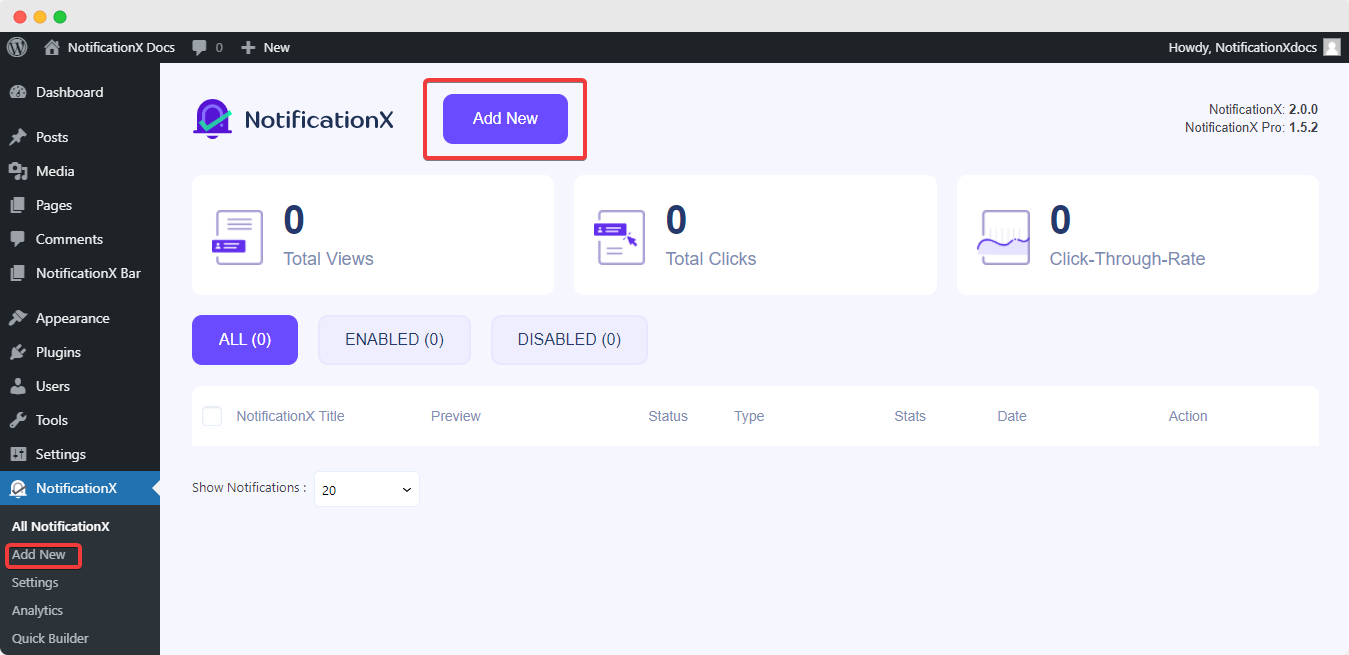
Accédez à votre tableau de bord WordPress et accédez à wp-admin –> NotificationX. Then, right at the top, click on ‘Add New'.
Step 2: Select Notification Source #
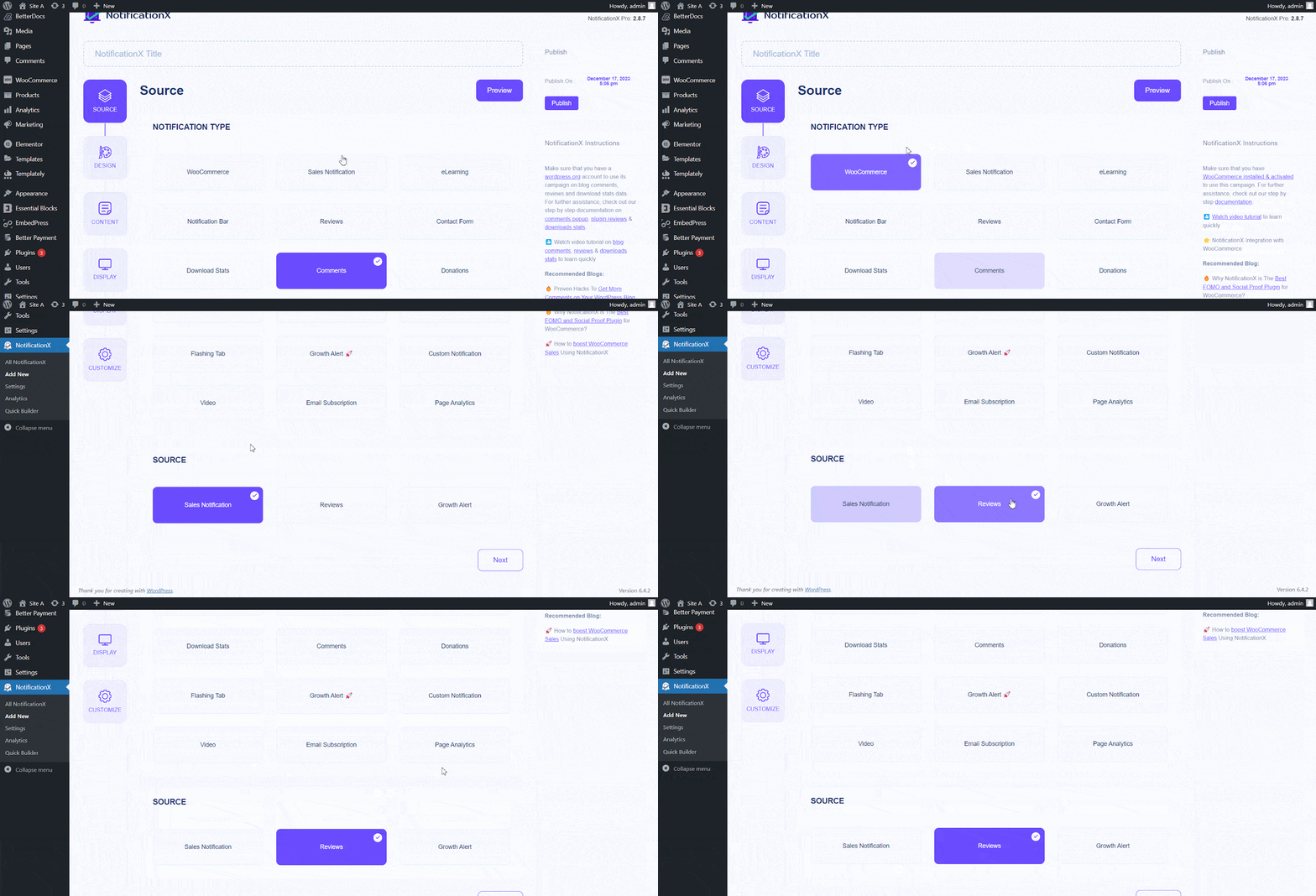
After completing step 1, you will be redirected to the 'La source' Page à onglet de votre NotificationX. Vous pouvez également mettre un titre. Utilisez le menu déroulant pour sélectionner «WooCommerce» comme type de notification.
Drop down and choose ‘Reviews’ du 'La source’ options to choose your preferred notification type. There are also options to choose ‘Sales Notification’ as the source to display sales alerts.
However, if you have NotificationX PRO, You can display "Alerte de croissance" for your WooCommerce store. Afterward, go ahead & click on the ‘Prochain’ Button.
Step 3: Customize The Design #
Du 'Conception' tab, you can choose a layout and have the flexibility to use the ‘Advanced Design’ option to customize it according to your preference. From the «Thèmes» section, the chosen layout is how the review alerts will be displayed on your website.
You can customize your chosen Theme through the ‘Advanced Design’ option. You can easily add styling to your design, image appearance, and typography from this section. You can add a Background or Text color for the notification popup. Besides you can also add a Border and add styling to it.
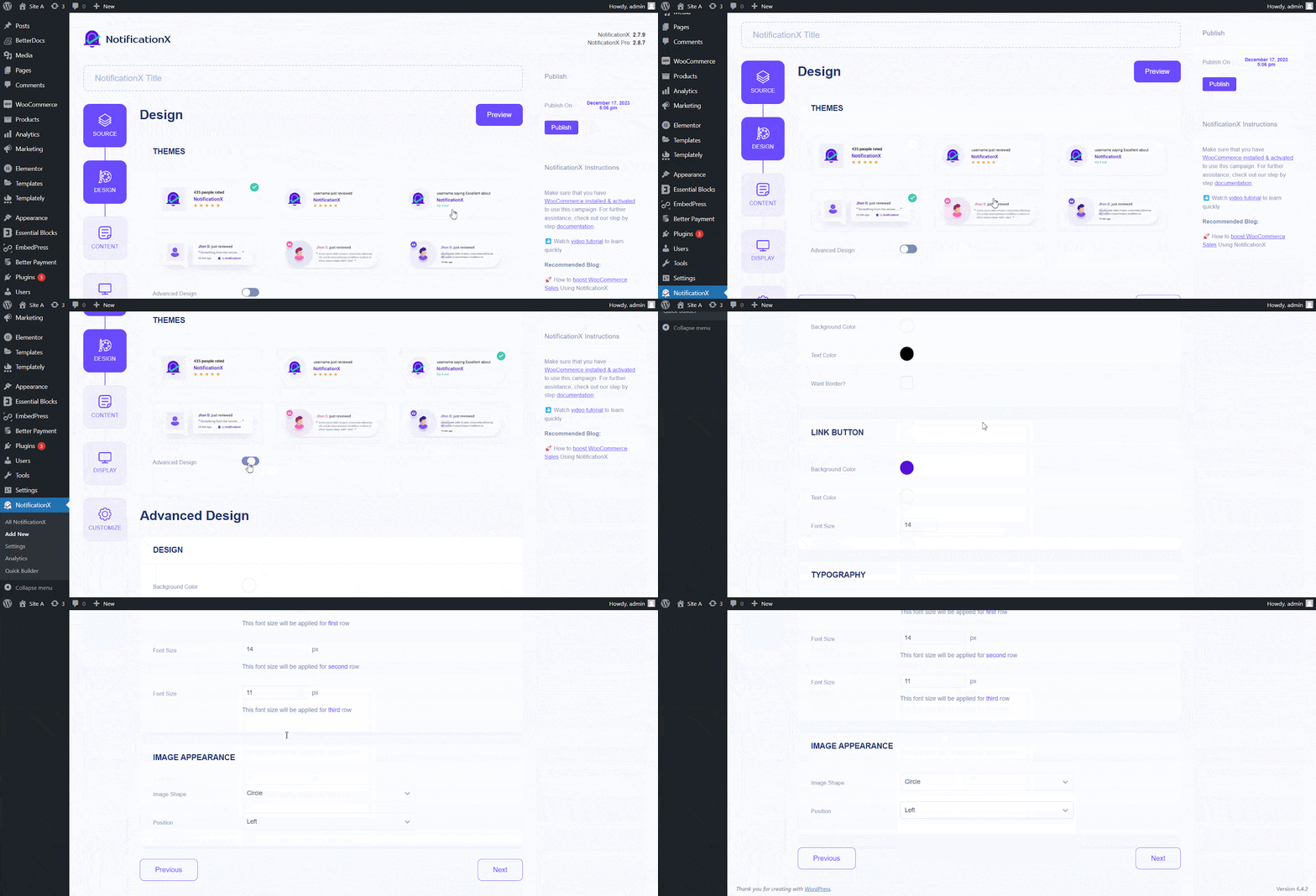
le «Apparence de l'image» section lets you change the ‘Image Shape’ to out of these three: Rounded, Circle, and Square. You can also use the drop-down menu ‘Position’ to change the position of the image: Left or Right. From the ‘Typography’ section, you can also change the Font Size for each row.
Step 4: Modify The Content #
Vous serez ensuite redirigé vers le 'Contenu' tab, where you can modify your «Modèle de notification» and add your preferred content text. These settings vary depending on the notification you are working with.
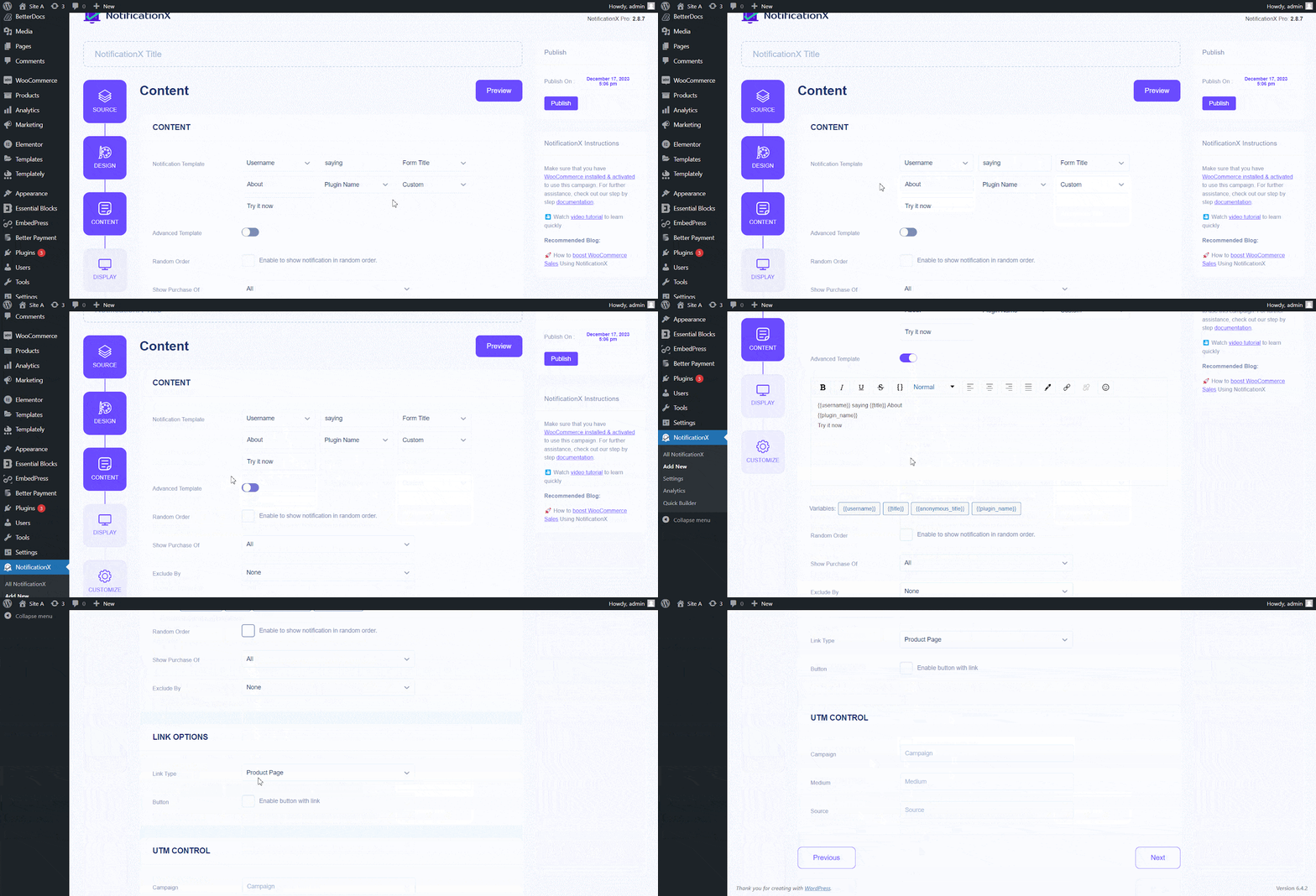
NotificationX offers a «Modèle de notification» for your content. You can easily go ahead and choose your preferred variables. These variables help display the user’s name who has purchased a specific product within a certain time interval. You can also add your text, which will appear in the notification popup.
Step 5: Customize The Display #
dans le 'Afficher' tab are two available sections: Image & Visibility. You can use the checkbox from the ‘Image’ section to display the default image or an avatar in the notification popup. If the users don’t have any ‘Avatar’ set in their profile, you can display the ‘Default’ image by selecting the ‘Default Image’ checkbox and uploading a default image.
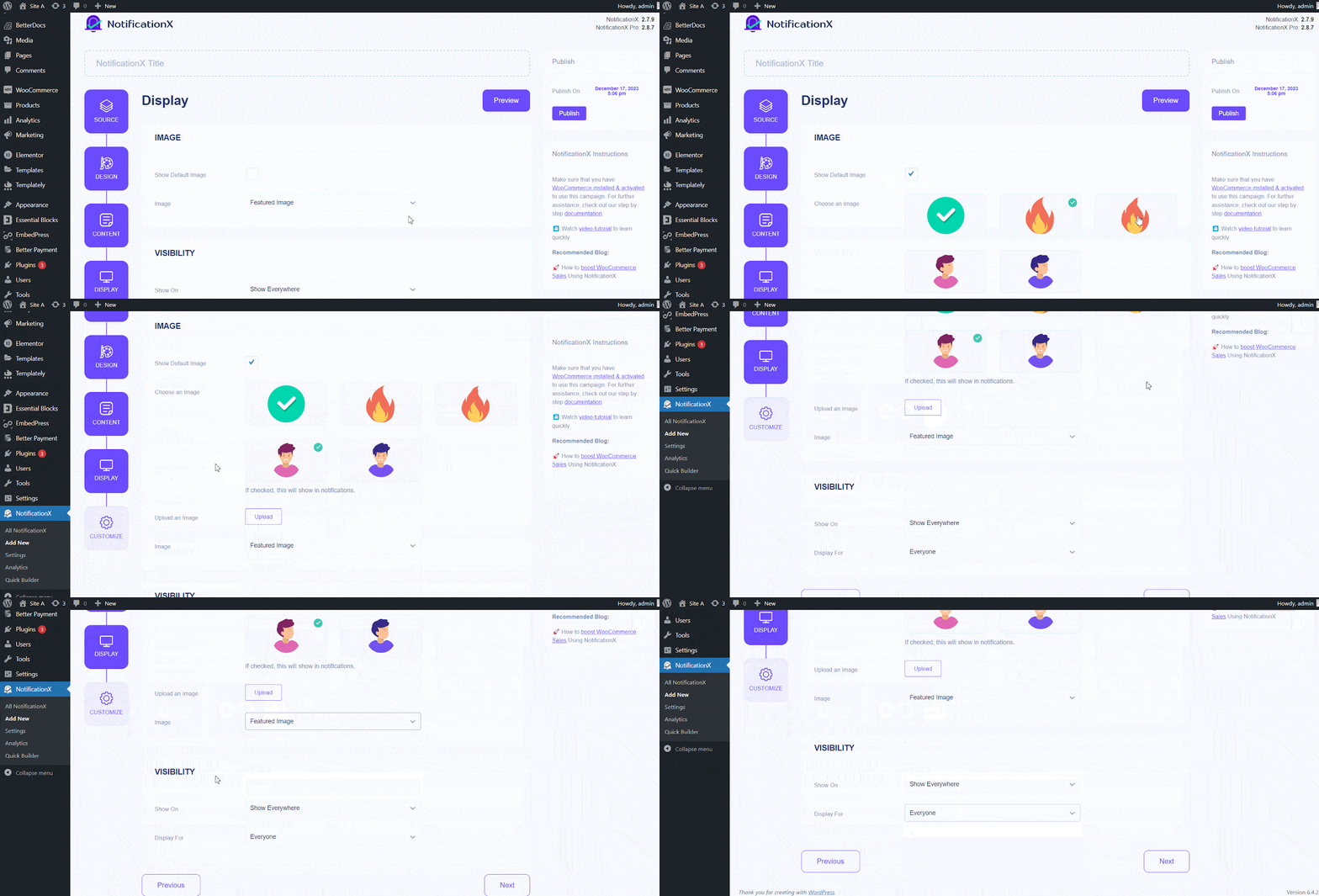
Besides, you will have the opportunity to display the product image purchased by the customer. This option is only available for the WooCommerce/ EDD type of Notifications.
You can set the pages where you want to display the review alerts from the’ Visibility’ section. By default, ‘Show On’ is set to ‘Show Everywhere’. As a result, the notification will be displayed on every page of your website. On the other hand, you can also specify the pages where you want to display or hide the notification. After you click the ‘Next’ button, you will be redirected to the 'Personnaliser' Tab.
Step 6: Customize Timing, Behavior & More #
Sous le 'Personnaliser' tab, you will find three separate sections: Appearance, Timing & Behavior. From the ‘Appearance’ section, you can set the position where you want to display the notification and use the checkbox to disable/enable the ‘Close Button’ & ‘Hide on Mobile’ options. You can even set a max width for your Notification Popup as well.
You can set the position for notification to either the bottom left or bottom right side of your website. You can also show a ‘Close Button,’ which can be clicked to close the notification. Furthermore, you can hide the notification for mobile devices if you want to do so as well.
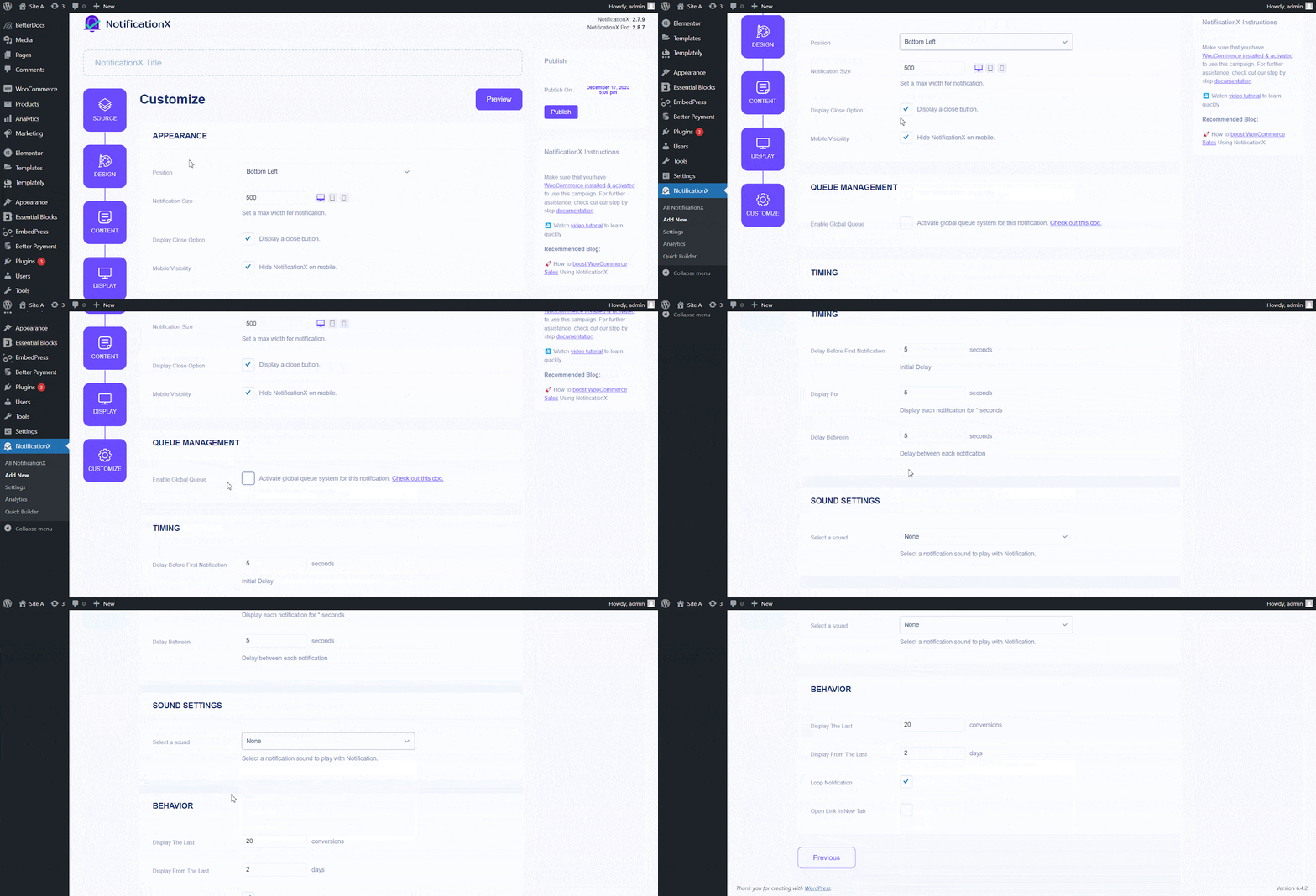
Besides, you can set time for the ‘Initial’, ‘Display For’ & ‘Delay Between’ options per your preference from the ‘Timing’ section. You can set an initial time, after which your notification will be popped up. By default, it is set to 5 seconds. You can also set a time limit for how long you want each notification popup displayed by modifying the ‘Display For’ field. To choose a time interval between two notifications, set the time in the ‘Display Between’ field.
You can display the number of sales made for the past few days from the’ Behavior’ section. By checking the ‘Loop Notification’ box, the notification popup will keep on displaying. You can disable this as well. When a visitor clicks on the notification popup, you can control whether you want the link to open in a new window or a new tab from the ‘Open link in new tab’ checkbox.
Étape 7 : Publiez votre notification #
Après avoir terminé l'étape 6, cliquez sur le 'Publier' bouton.
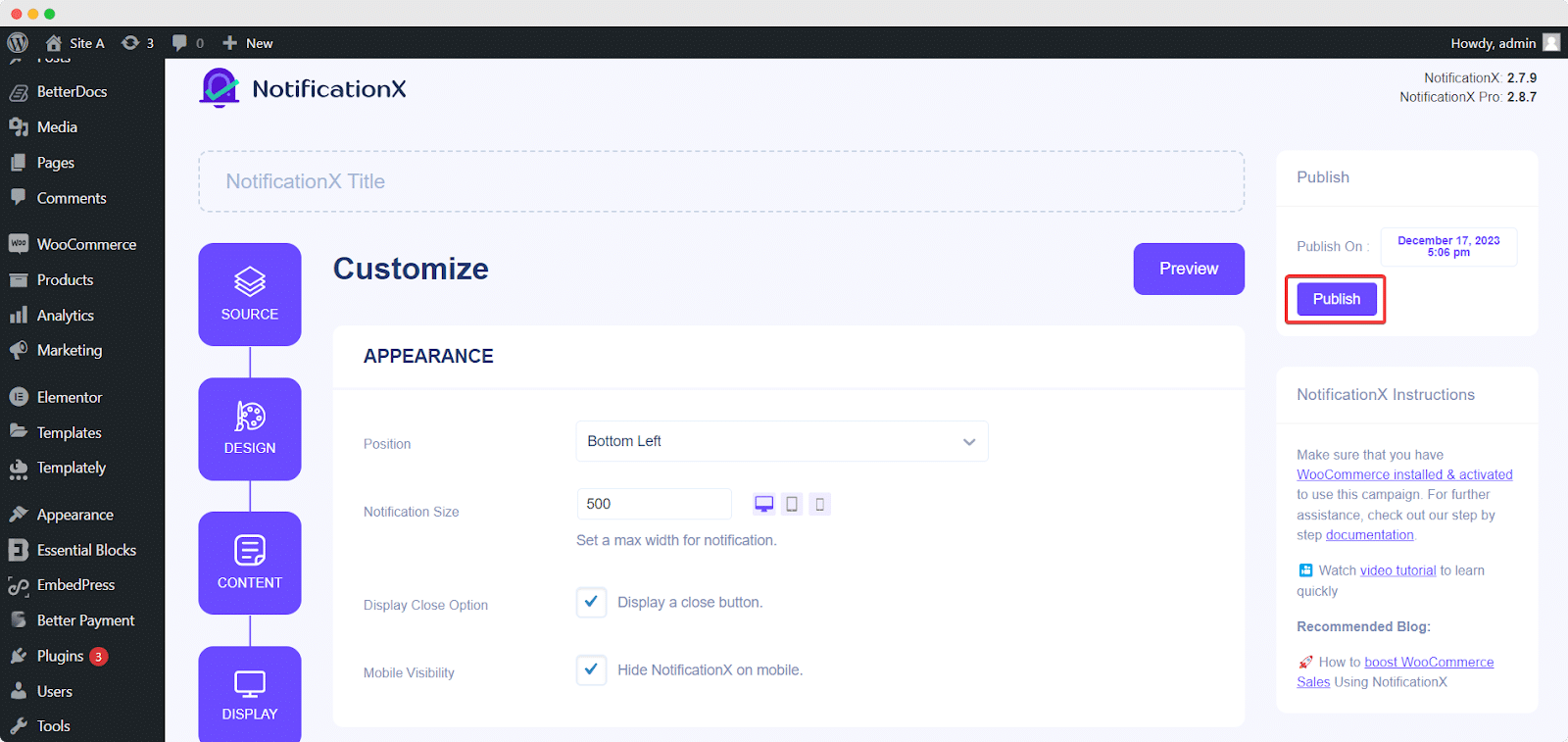
As a result, the notification will be successfully created. By following these steps and a bit more modifying & styling, your outcome will look like this.
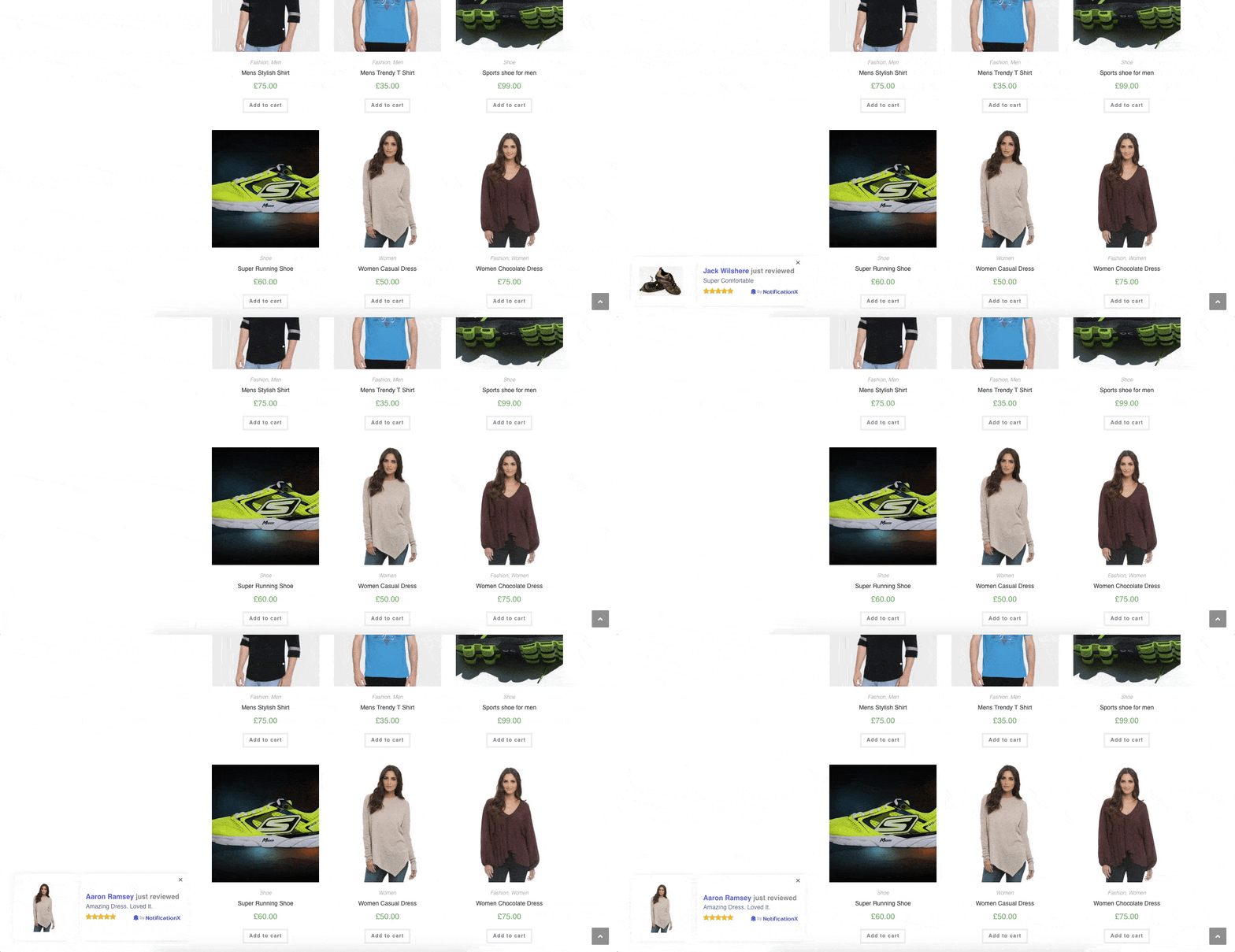
This is how you can easily design and display appealing ‘WooCommerce reviews’ for products sur votre site WordPress en utilisant NotificationX.
Si vous rencontrez des problèmes, vous pouvez contacter notre Équipe de soutien.


 English
  Arabic
  Indonesian
  Spanish
  Bengali
  Portuguese
  German
  Dutch
Dutch  Russian
  Hindi
Hindi  French
  Japanese
  Chinese
  Vietnamese
  Malay
Malay