
साथ में NotificationX, you can showcase attractive popups to let everyone know when someone subscribes to your newsletter using ActiveCampaign. This premium feature of NotificationX प्रो helps you to display ActiveCampaign email subscription alerts that boost your business by increasing conversions. This simple marketing trick helps you grow your user base and take your business to the next level.
सक्रिय अभियान stands as a leading Email Marketing platform renowned for its effectiveness. NotificationX offers seamless integration with ActiveCampaign, enabling you to showcase recent subscriptions through eye-catching notification alerts on your website.
To initiate this integration, ensure you have your ActiveCampaign Account Keys in hand. These include the API Key and API URL, which you must generate from your ActiveCampaign Account. Simply copy these keys for further use.
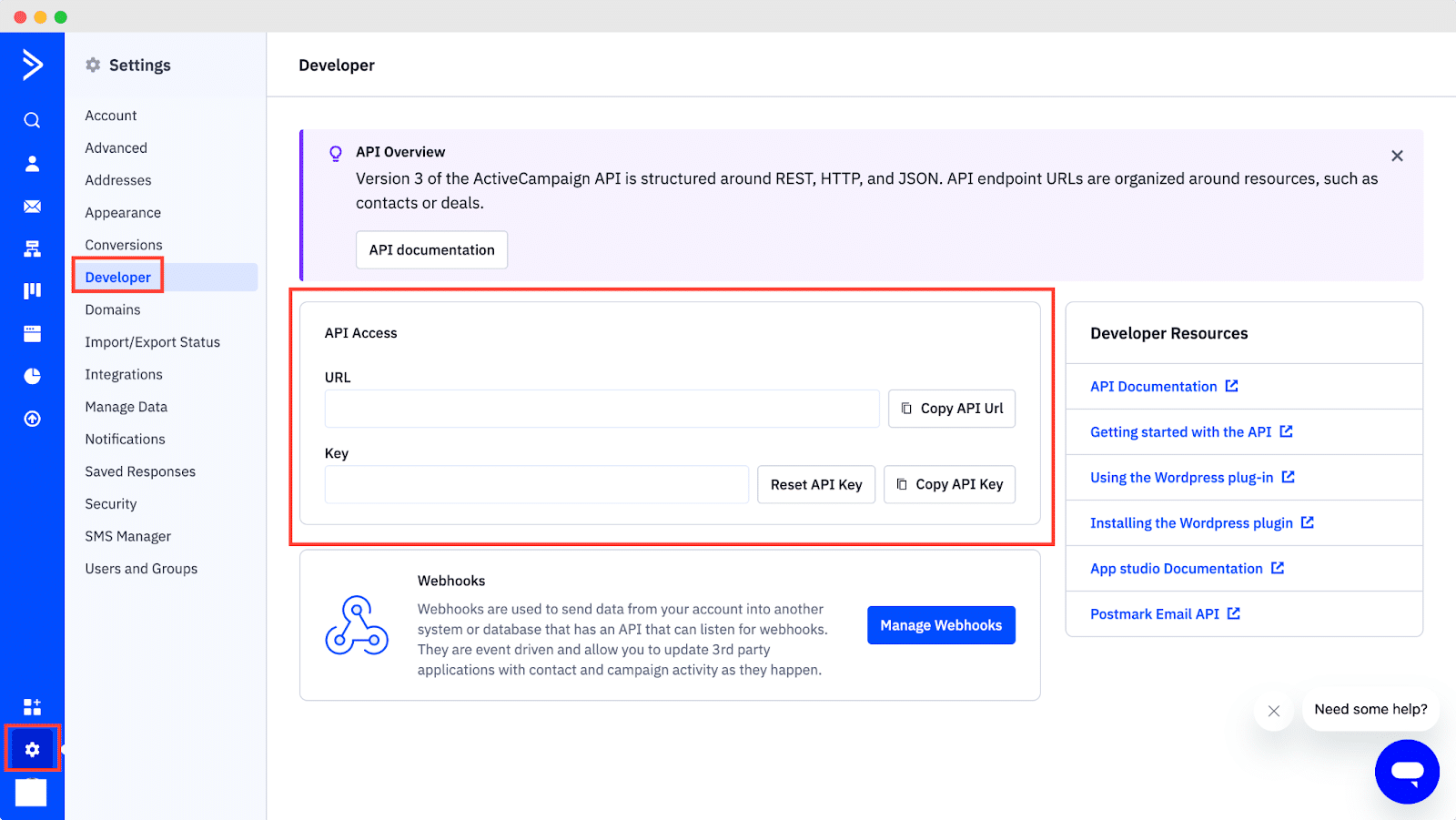
Guide To Show ActiveCampaign Email Subscription Alert Using NotificationX #
Once you have the ActiveCampaign keys, go to your WordPress Dashboard and navigate to wp-admin → NotificationX → Settings → API Integrations. From there, navigate to the ‘ActiveCampaign Settings’ tab and input the appropriate keys from your ActiveCampaign account.
Additionally, you can specify a time interval for NotificationX to check your account for new subscriptions in the ‘Cache Duration’ settings. Once this is completed successfully, you’re all set.
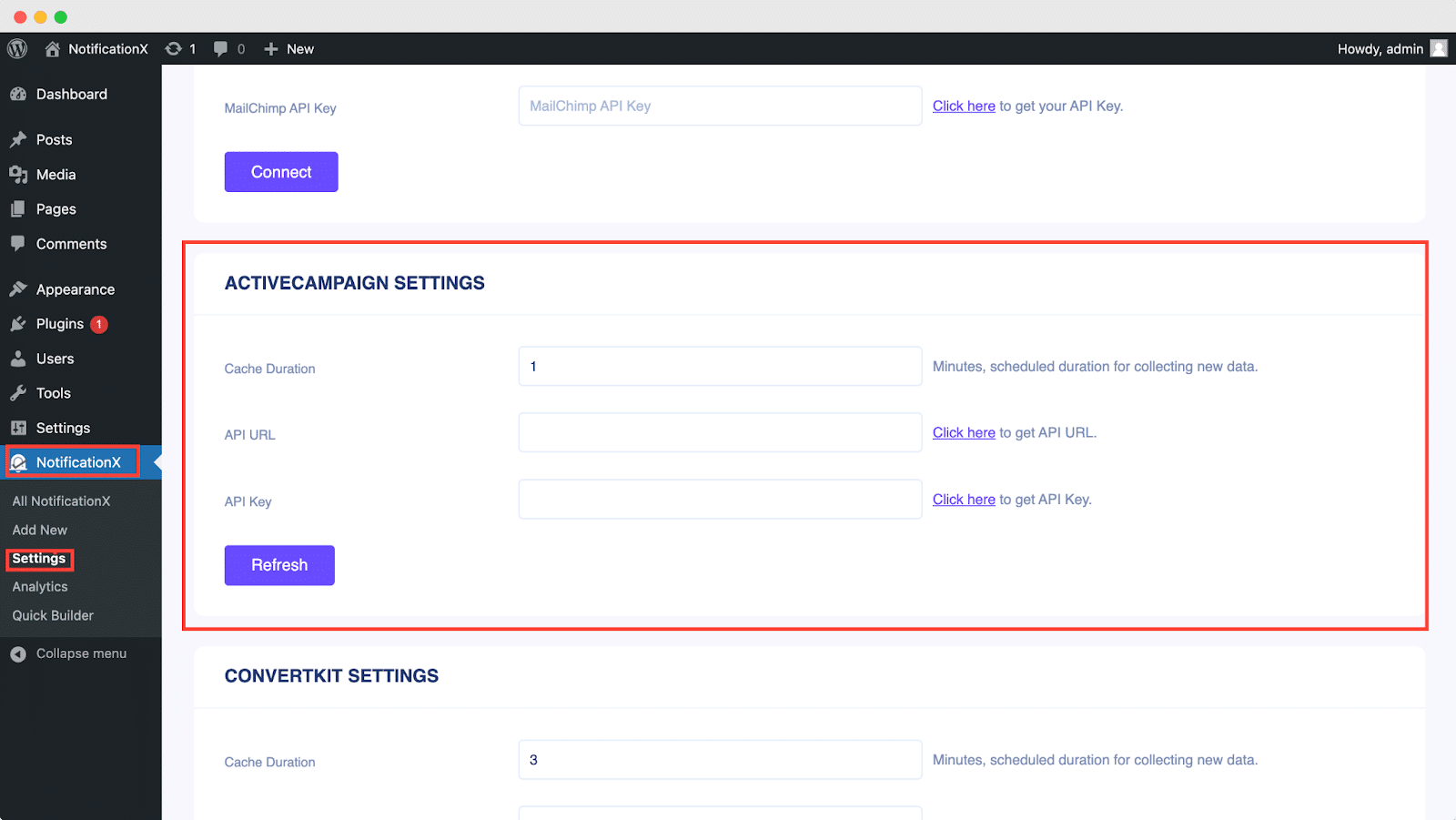
Once you’ve completed the previous steps, follow the guidelines below to showcase ActiveCampaign Email Subscription alerts using NotificationX.
चरण 1: नई अधिसूचना जोड़ें #
अपने वर्डप्रेस डैशबोर्ड पर जाएं और नेविगेट करें WP-व्यवस्थापक → NotificationX → सभी NotificationX। फिर सबसे ऊपर दाईं ओर, क्लिक करें ‘Add New’. Or you can also simply go to the ‘Add New’ tab from the sidebar.
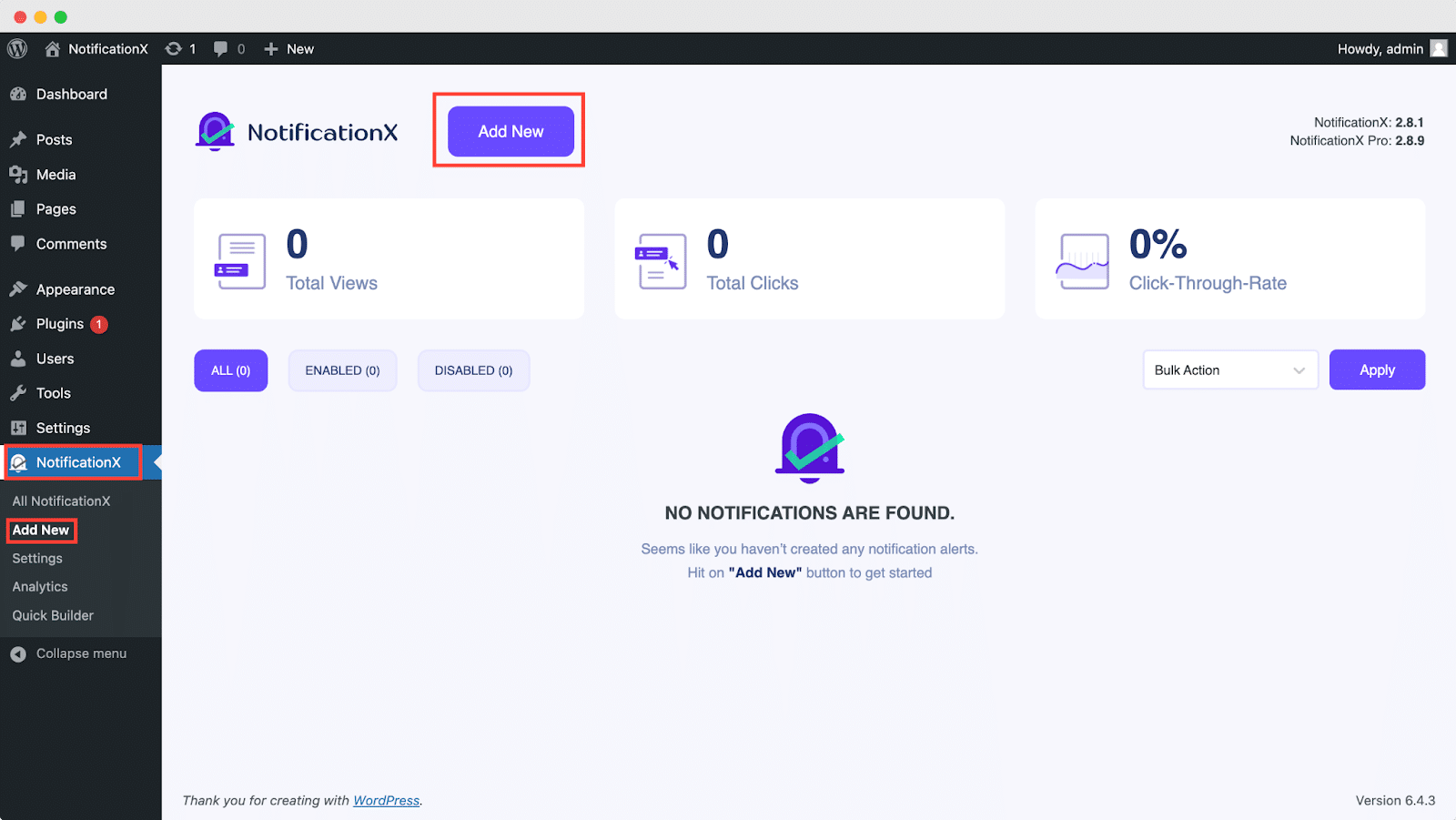
चरण 2: एक स्रोत चुनें #
आपके द्वारा चरण 1 के साथ किए जाने के बाद, आपको इसे पुनर्निर्देशित किया जाएगा 'स्रोत' आपके NotificationX यूजर इंटरफेस का टैब पेज।
By default, the notification type is set as ‘Sales Notifications’. Simply write a title and choose ‘Email Subscription’ as your Notification type. Afterward, select ‘ActiveCampaign’ as your source to display ActiveCampaign Email Subscription alerts. Then, click on the ‘Next‘ बटन।
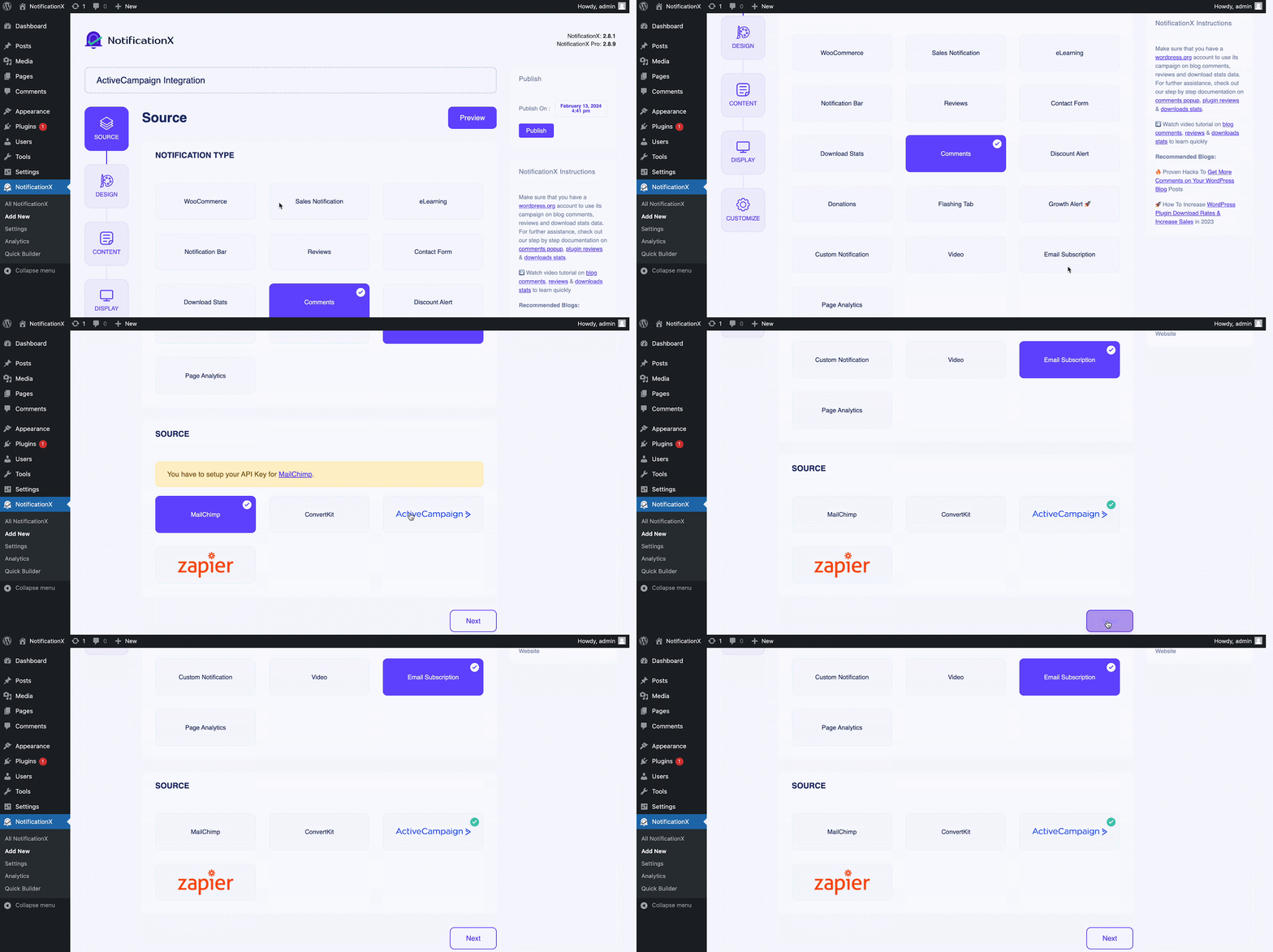
चरण 3: एक डिज़ाइन थीम चुनें #
वहाँ से 'डिज़ाइन' टैब, आप एक लेआउट का चयन कर सकते हैं और यह भी उपयोग करने के लिए लचीलापन है 'उन्नत डिजाइन' option to customize it as per your preference.
वहाँ से 'विषय-वस्तु' section, you can choose a ‘theme‘ for your notification alert and this will be the layout of the Email Subscription Alerts that will be displayed on your website.
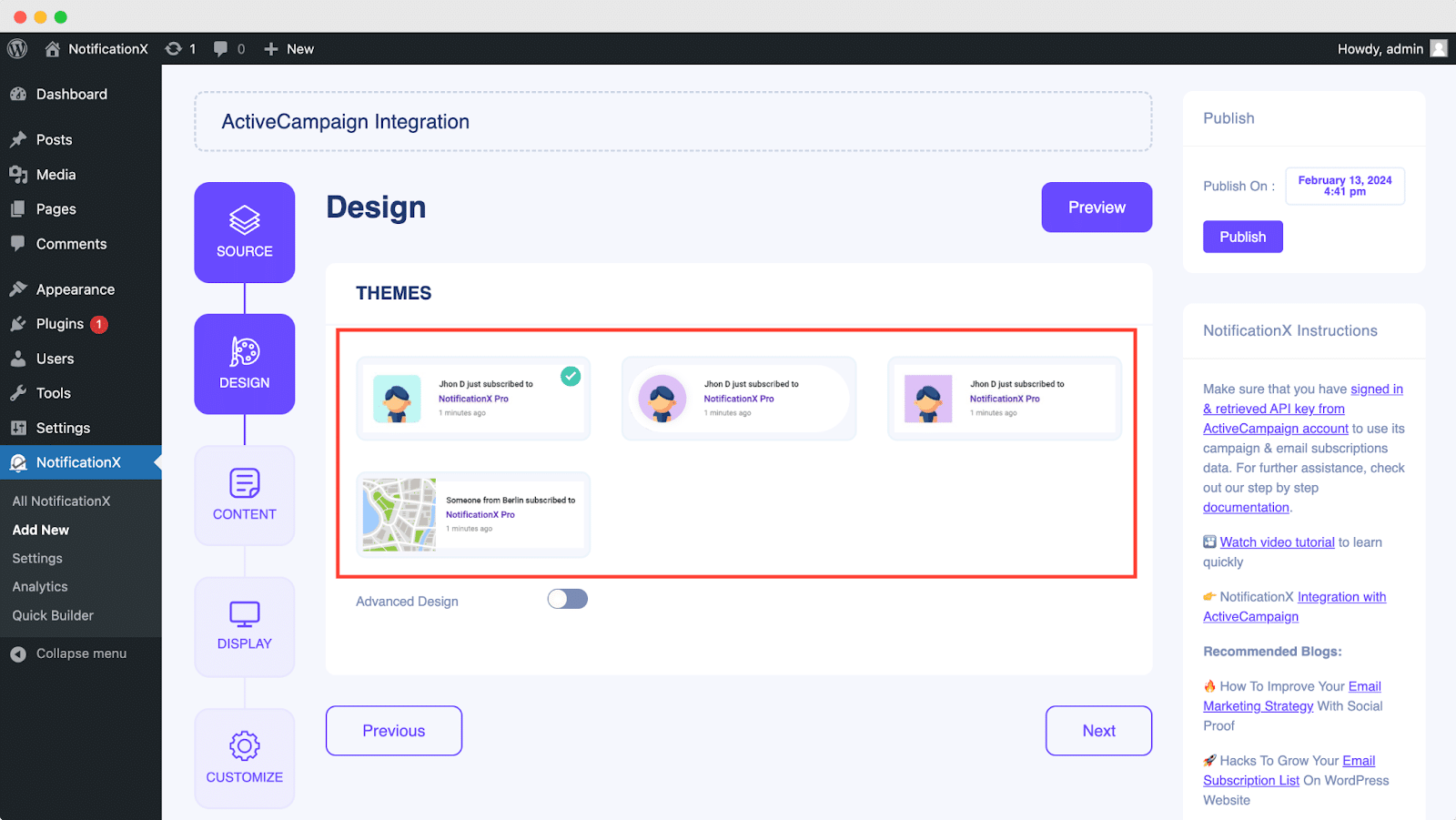
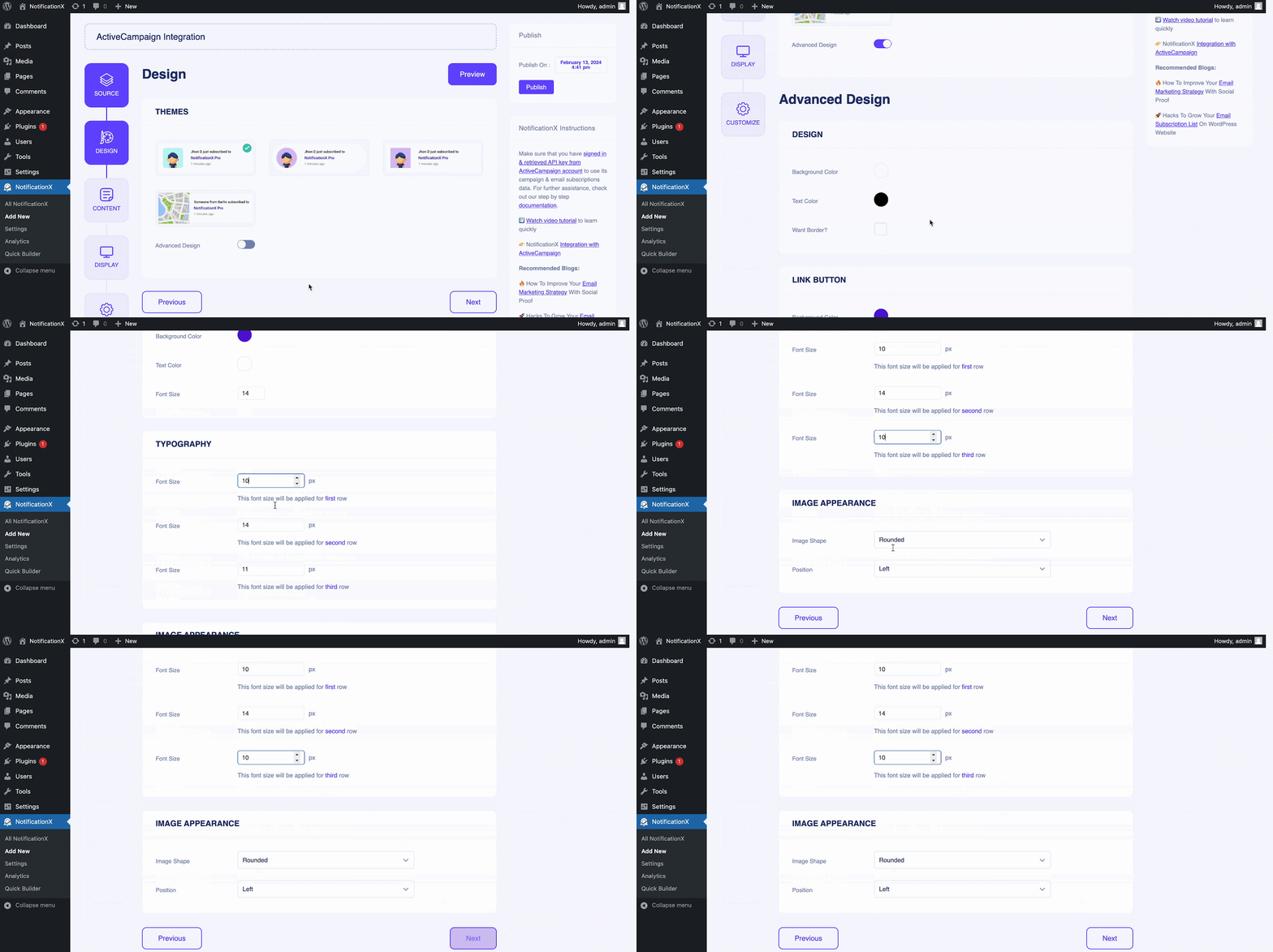
Moreover, you can modify your chosen Theme by customizing it through the 'उन्नत डिजाइन' option. From this section, you will be able to easily add styling to your design, image appearance, and typography. You can add a Background or Text color for the notification popup.
Besides, you can also add a Border and add styling to it. Basically, an Email Subscription consists of three rows. From the 'टाइपोग्राफी' अनुभाग, आप प्रत्येक पंक्ति के लिए फ़ॉन्ट आकार भी बदल सकते हैं।
चरण 4: टेम्पलेट सामग्री कॉन्फ़िगर करें #
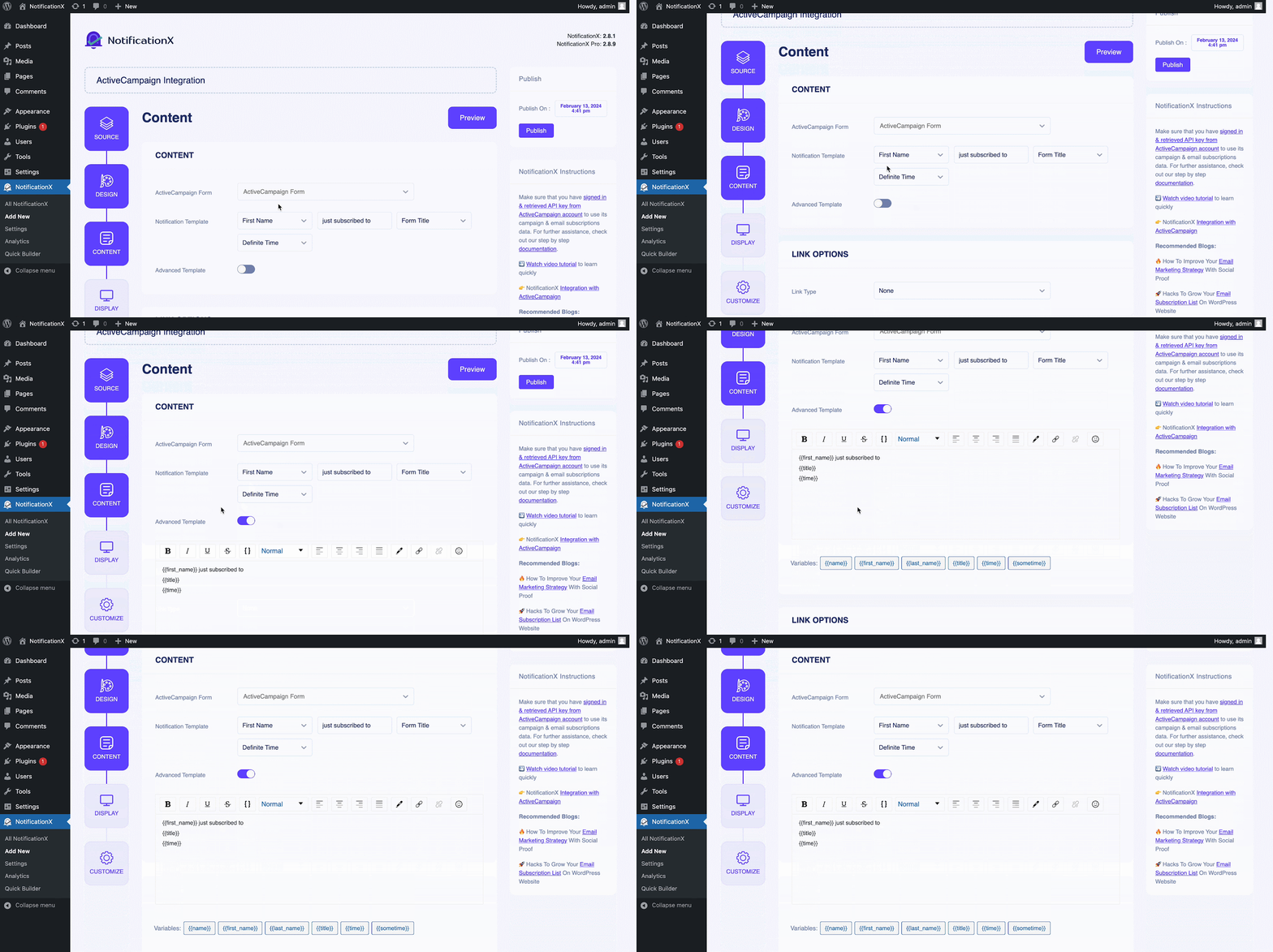
फिर आप को पुनर्निर्देशित किया जाएगा 'सामग्री' टैब जहाँ से आप अपने को संशोधित कर सकते हैं ‘Notification Template‘ and add your preferred content text. From here, you specify the ‘ActiveCampaign List’ from which the Email Subscription List will be fetched and displayed on your WordPress website.
NotificationX offers a 'अधिसूचना टेम्पलेट' for your content where you can easily choose your preferred variables. These variables help to display the names of the users who have subscribed to your ActiveCampaign Email Newsletter on a certain day. On the other hand, 'उन्नत टेम्प्लेट' आपको संपूर्ण सामग्री को अनुकूलित करने पर पूरा नियंत्रण देता है ‘ActiveCampaign Email Subscription’ भी।
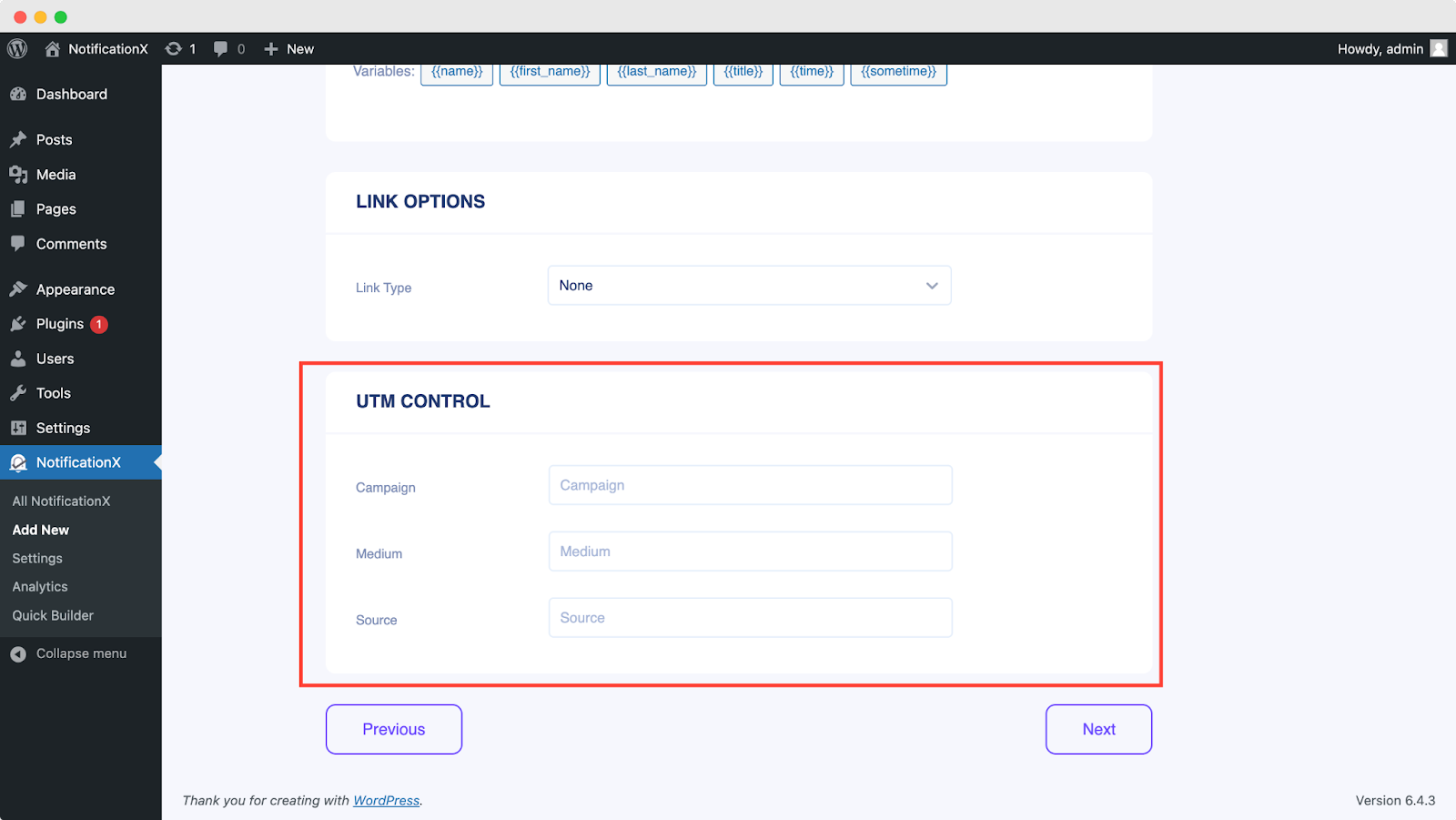
इसके अलावा, आप NotificationX के माध्यम से विभिन्न प्रकार के अभियानों को भी ट्रैक कर सकते हैं। 'UTM नियंत्रण' allows you to add ‘Campaign’, ‘Medium’ तथा 'स्रोत' to your ‘ActiveCampaign Email Subscription’ सतर्क।
चरण 5: प्रदर्शन विकल्प समायोजित करें #
में 'प्रदर्शन' टैब, दो उपलब्ध अनुभाग हैं: छवि और दृश्यता। वहाँ से ‘Image‘ section, you can use the checkbox to display the default image or an avatar in the notification popup. If the users don’t have any ‘Gravatar’ set in their profile, you can simply display the ‘Default‘ image by selecting the ‘Default Image’ checkbox and uploading a default image.

वहाँ से 'दृश्यता' section, you can set the pages where you want to display the Email Subscription. You also have the option to restrict the notification popup based on certain user roles: Always, Logged In & Logged Out. By default, ‘Show On’ इसके लिए सेट है ‘Show Everywhere’ as a result the Email Subscription popup will be displayed on every single page of your website.
On the other hand, you can also specify the pages where you want to display or hide the ‘Email Subscription’ notification alert. Afterward, when you click on the 'आगे' बटन, आप को पुनर्निर्देशित किया जाएगा 'अनुकूलित करें' टैब।
चरण 6: उपस्थिति सेट करें #
You also have the freedom to set time for the ‘Initial’, ‘Display For’ और ‘Delay Between’ से आपकी पसंद के अनुसार विकल्प 'समय' section. You can set an initial time after which your ‘Email Subscription’ अधिसूचना पॉप अप हो जाएगी। डिफ़ॉल्ट रूप से, यह 5 सेकंड के लिए सेट है।
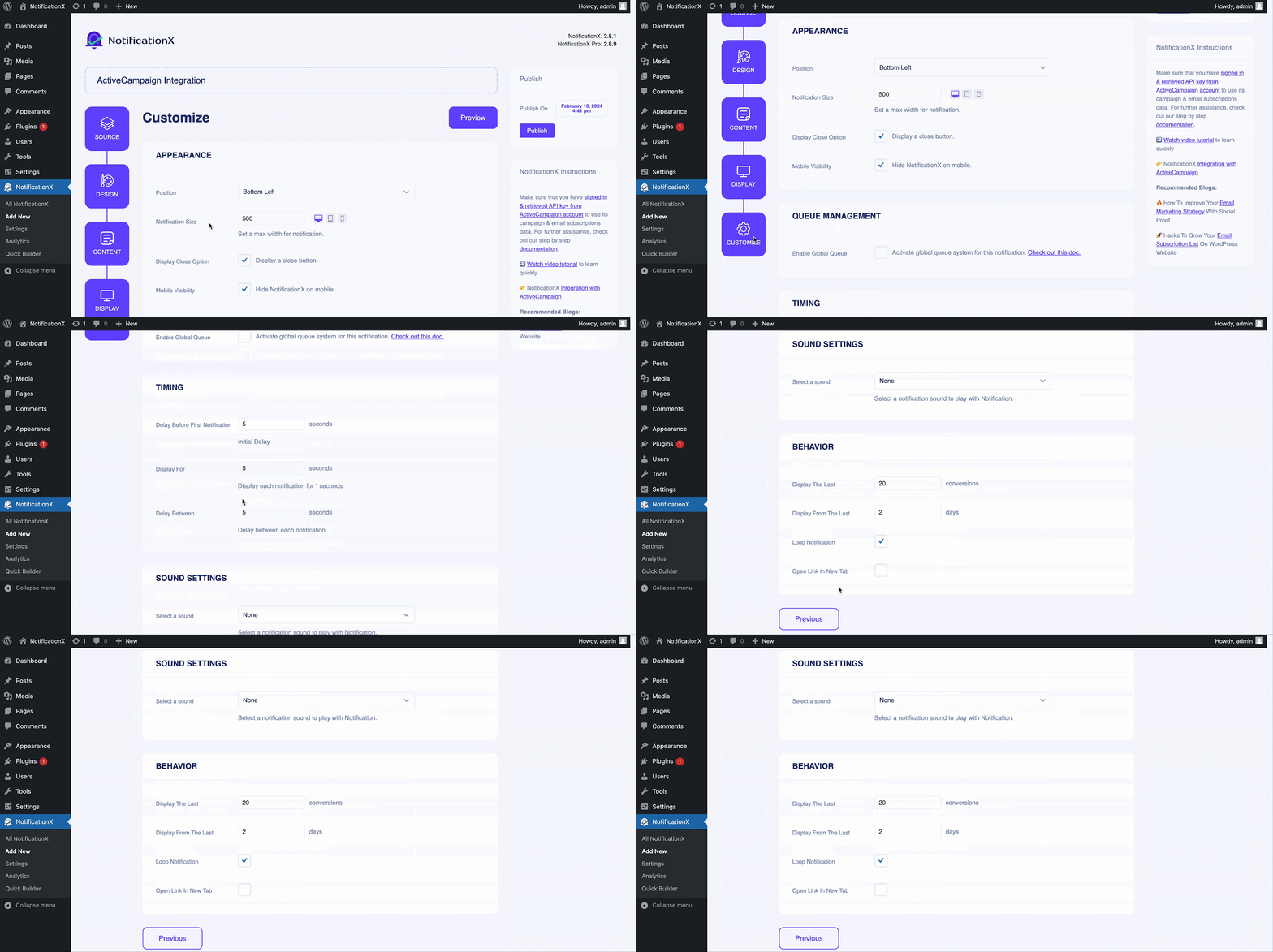
You can also set a time limit for how long you want each notification popup to be displayed by modifying the ‘Display For’ field. To choose a time interval between two notifications of Review, simply set the time in the ‘Display Between’ field. Or, if you want to display multiple types of notifications, you can simply activate the 'वैश्विक कतार प्रबंधन’option using NotificationX प्रो.
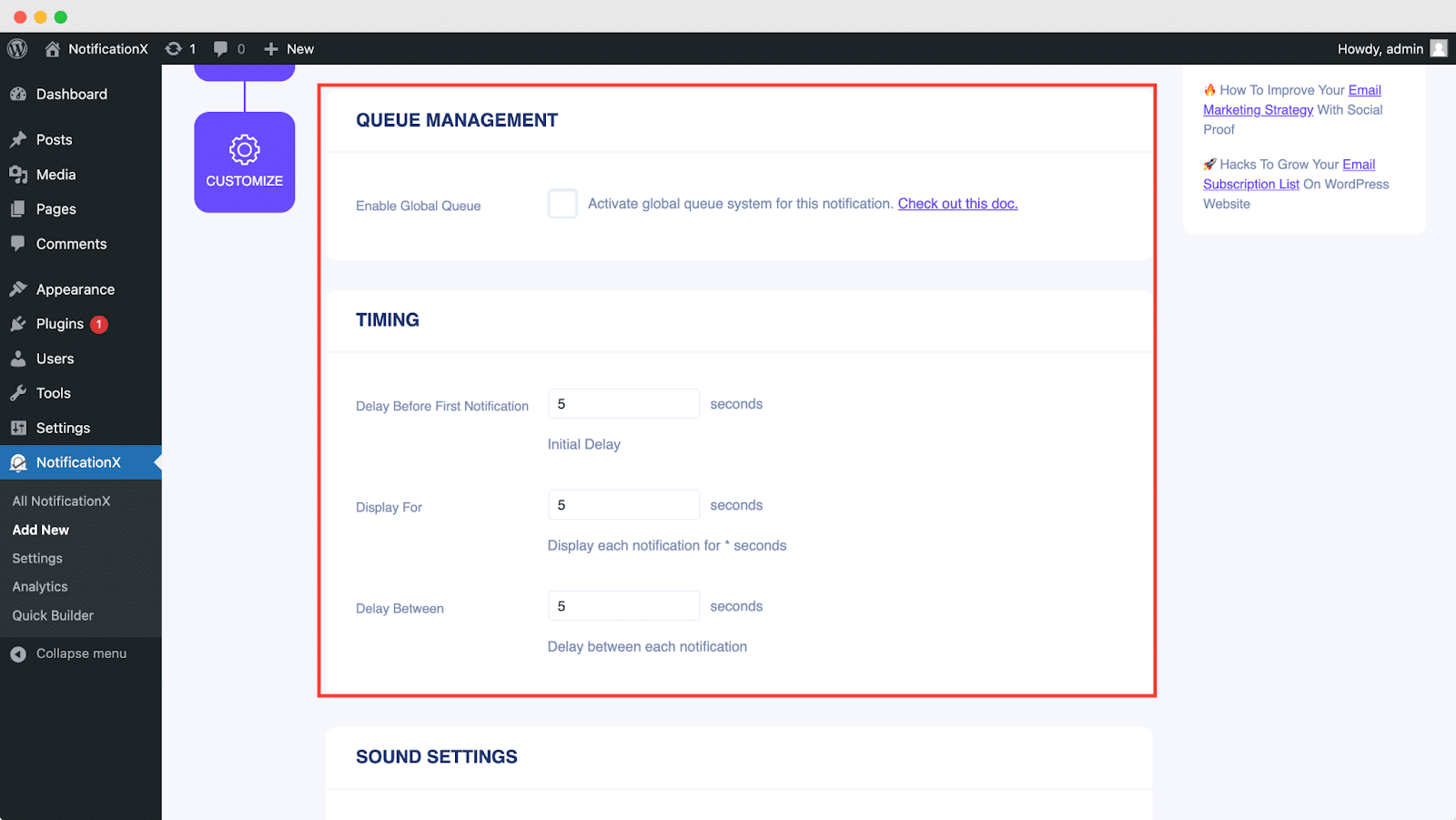
वहाँ से 'व्यवहार' section, you can choose to display a number of users who have subscribed to your Email Newsletter for certain past few days. By checking the ‘Loop Notification’ box, the notification popup will keep on displaying. You can disable this as well. When a visitor clicks on the notification popup, you can control whether you want the link to open in a new window or a new tab from the ‘Open link in new tab’ checkbox.
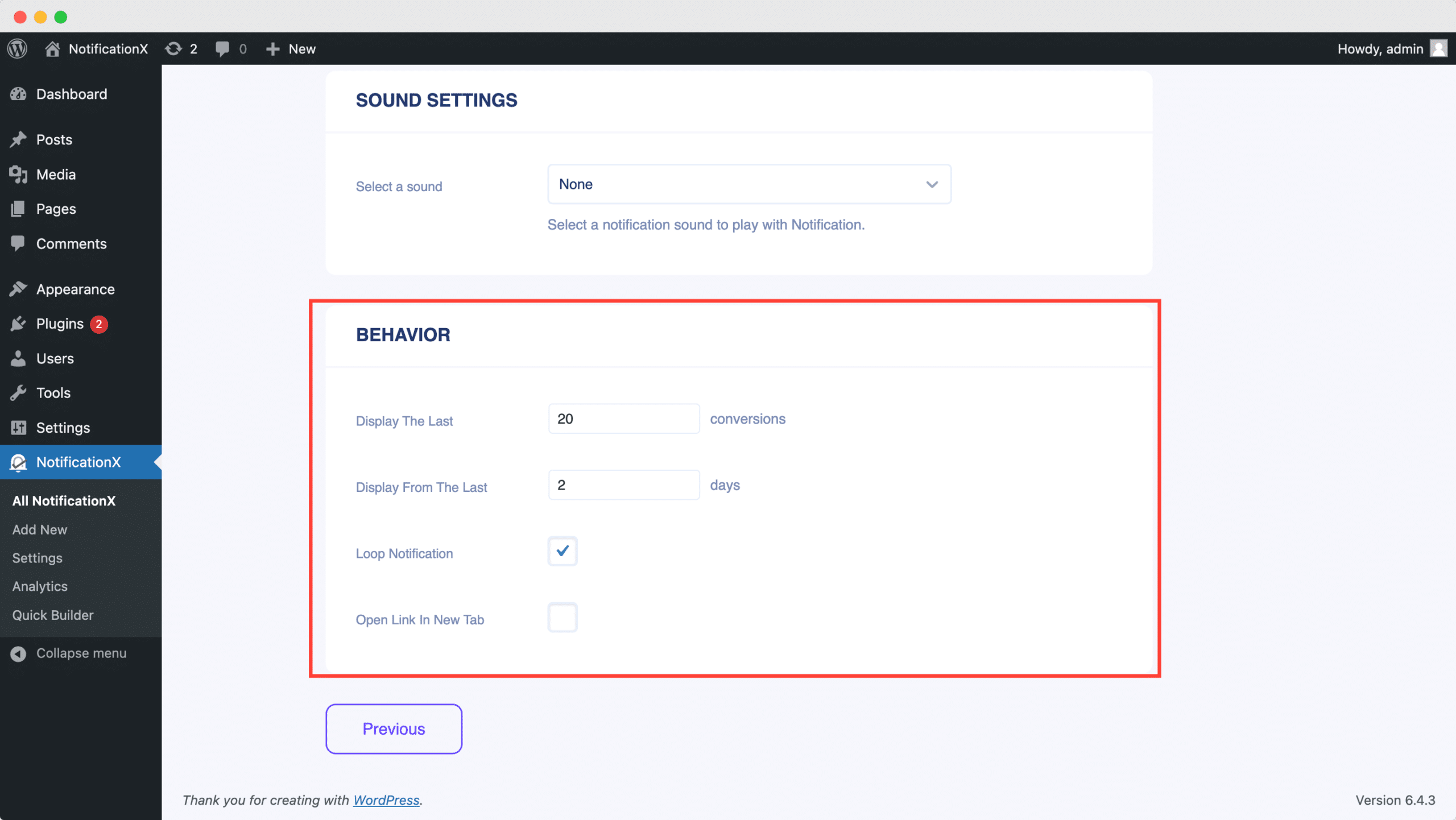
दूसरी ओर, ए 'ध्वनि सेटिंग' अनुभाग आपको अपने ईमेल सदस्यता पॉपअप के लिए एक ध्वनि चेतावनी लेने की अनुमति देता है। आप इसकी मात्रा को भी नियंत्रित कर सकते हैं।
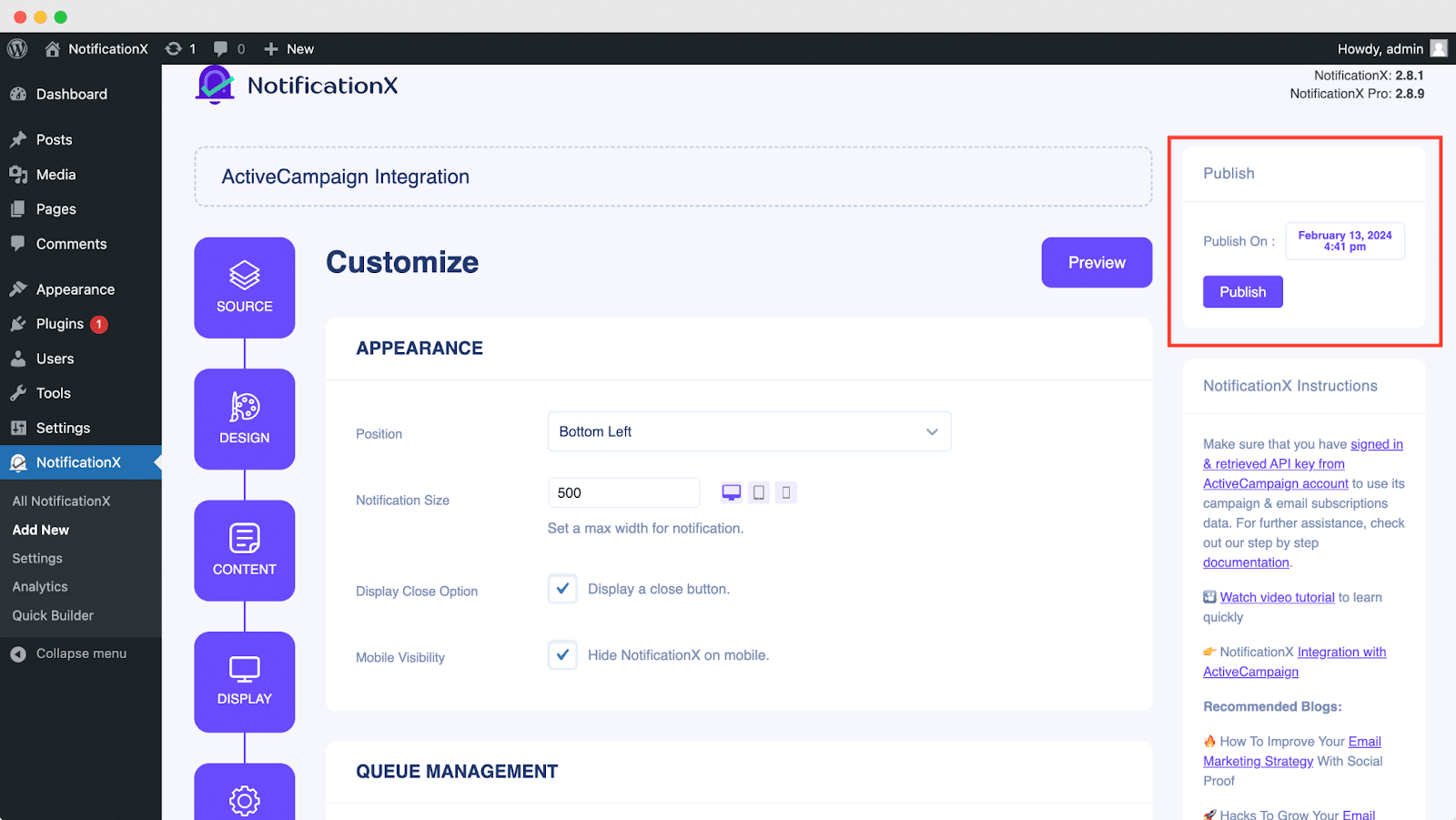
Step 7: Publish Your ActiveCampaign Notification #
चरण 6 पूरा करने के बाद, पर क्लिक करें 'प्रकाशित button. As a result, the ActiveCampaign Email Subscription alert will be successfully created.
By following these mentioned steps and a bit more modifying & styling, the final outcome of your ActiveCampaign email subscription alert would look something like this.
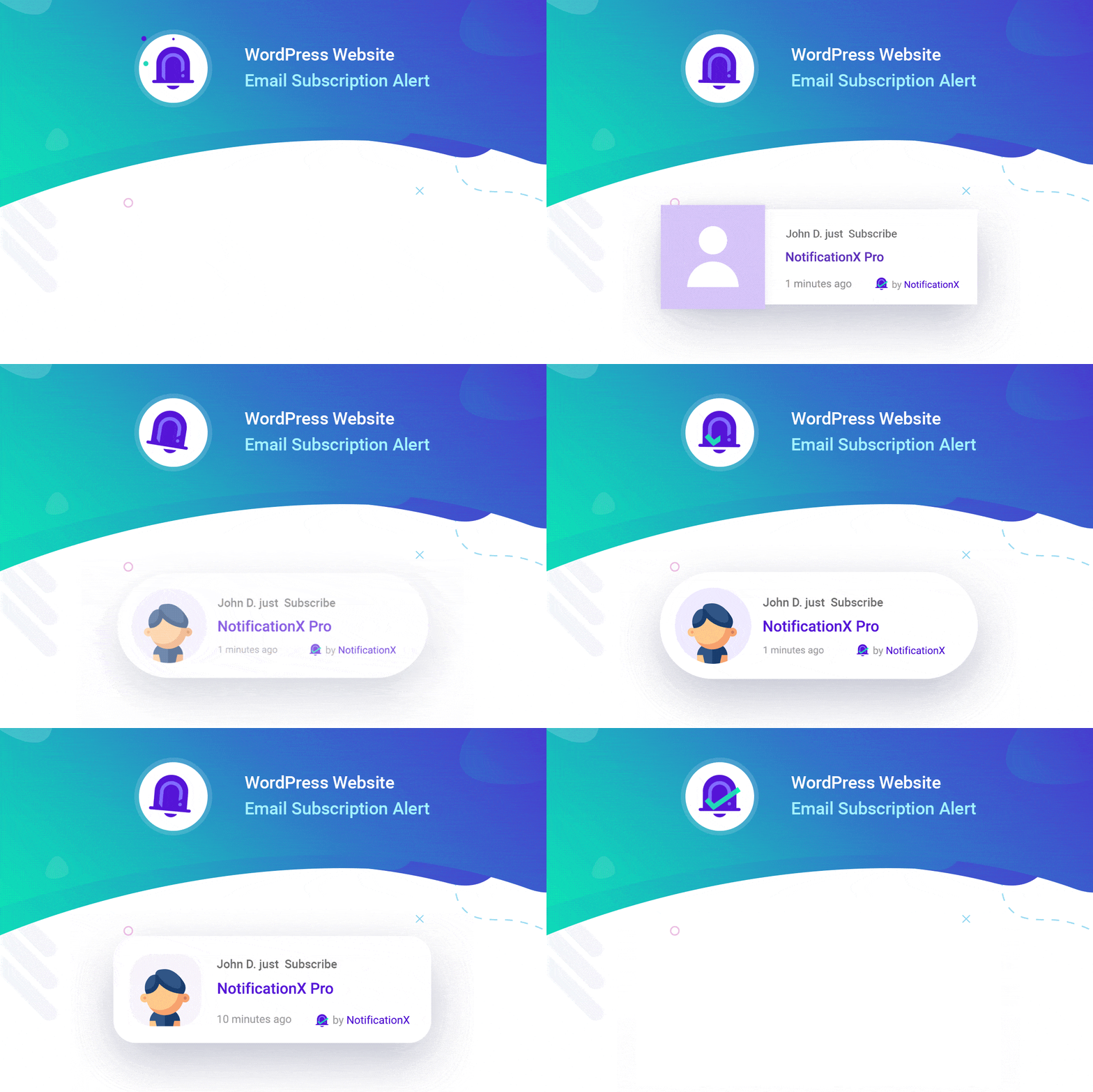
By using NotificationX, this is how you can easily design and display an attractive ActiveCampaign Email Subscription alert on your WordPress website & grow your user base.
यदि आप किसी भी मुद्दे या प्रश्नों का सामना करते हैं, तो आप कर सकते हैं हमारी सहायता टीम से संपर्क करें.
 English
  Arabic
  Indonesian
  Spanish
  Portuguese
  German
  Dutch
Dutch  Russian
  Hindi
Hindi  French
  Japanese
  Chinese
  Vietnamese
  Malay
Malay