
NotificationX allows you to display an exit intent popup on your website to bring someone back into your sales funnel when they are about to leave. With this feature, you can display your latest sales, discounts, or urgent announcements amazingly on the website to influence your potential customers to buy your products or take your services.
Let’s see how to configure the ‘Exit Intent Popup’ notification type with NotificationX.
How to Configure Exit Intent Popup in NotificationX #
Follow this step-by-step process to show an exit intent popup on your website with NotificationX.
Note: To use this freemium feature, make sure you have installed and activated NotificationX on your WordPress website before getting started.
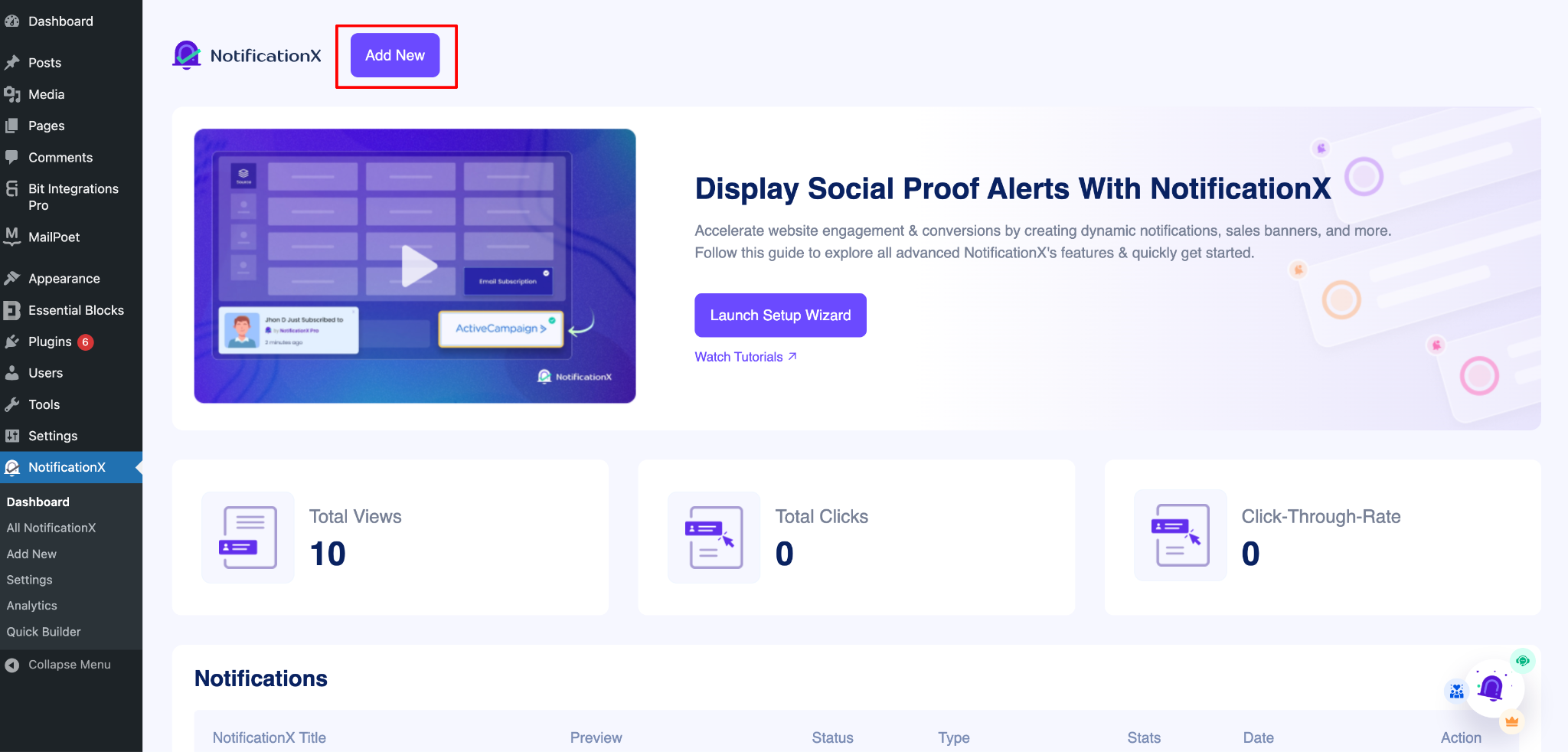
Шаг 1. Добавьте новое уведомление #
Перейдите на панель инструментов WordPress и перейдите к wp-admin -> NotificationX. Then, right at the top, click on ‘Добавить новое'.
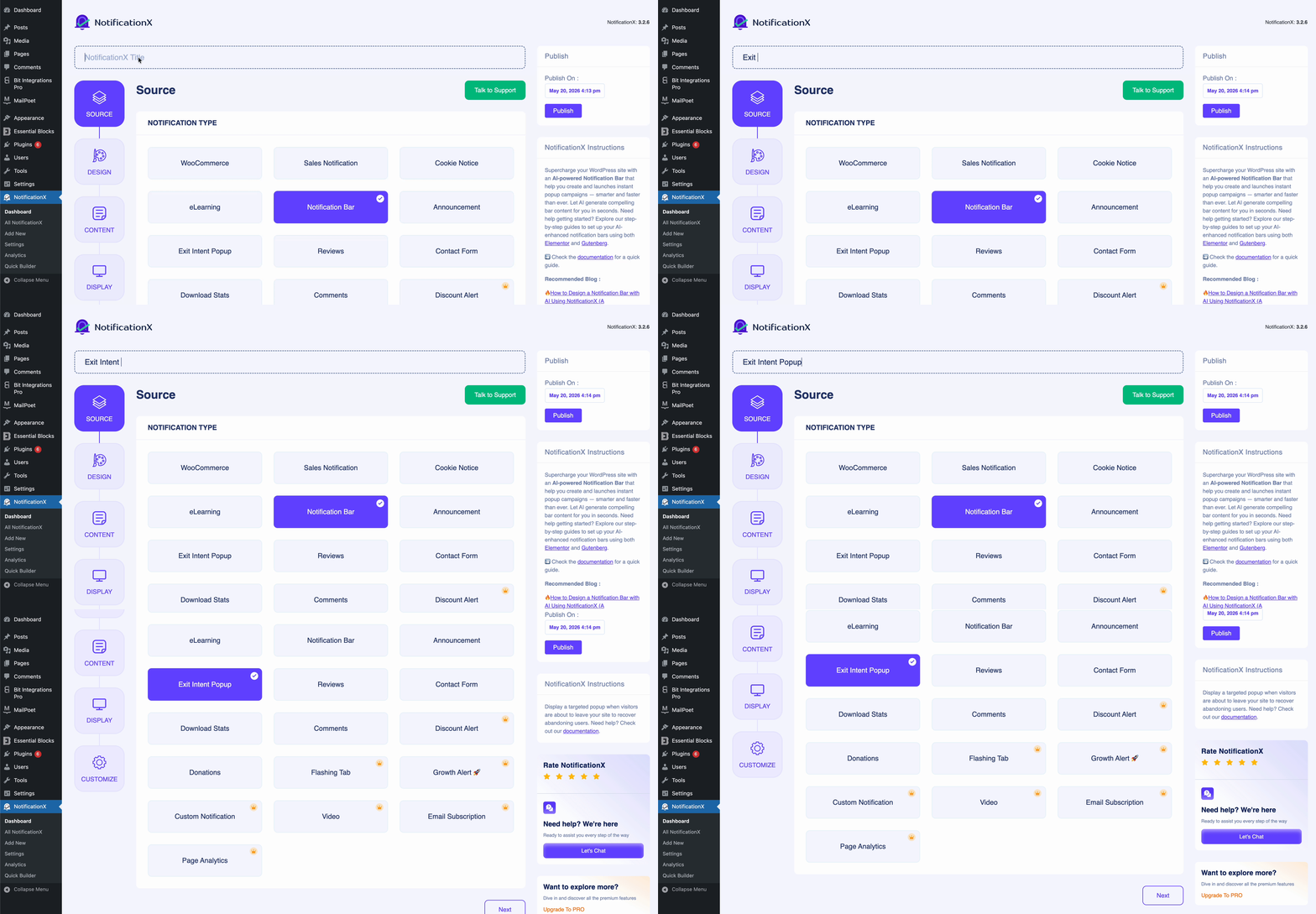
Step 2: Select Your Notification Type #
После того, как вы закончите с шагом 1, вы будете перенаправлены на страницу 'Источник’ tab page of your NotificationX. You can also put a title. From the options, select ‘Exit Intent Popup’ as your Source type.
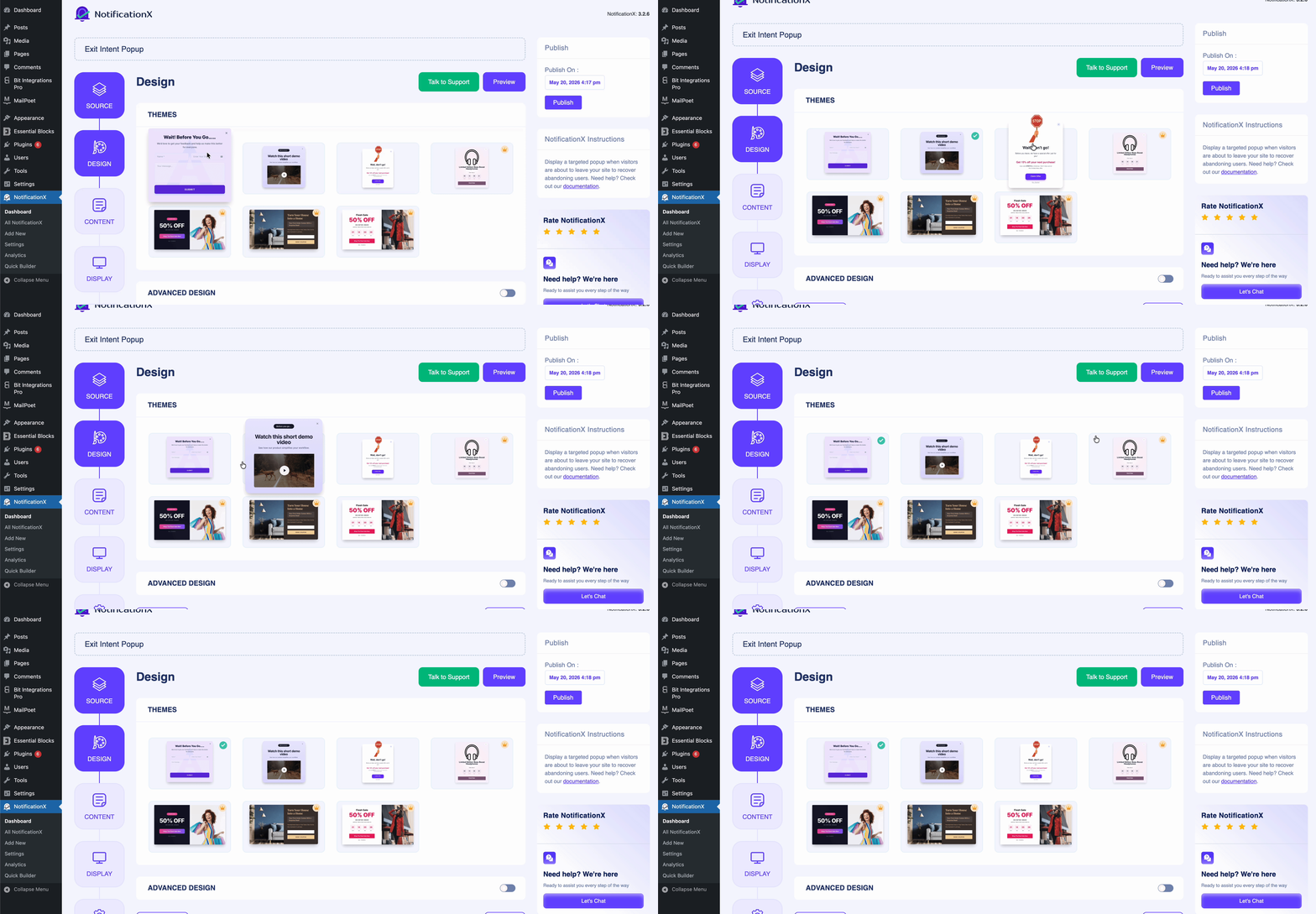
Step 3: Choose the Exit Intent Popup Theme & Design #
Из 'Дизайн’ tab, you can choose a theme based on your needs. The first 3 themes are totally FREE.
The next 4 themes are included in the PRO version. From the ‘Темы’ section, the chosen layout is how the ‘Exit Intent Popup’ will be displayed on your website.
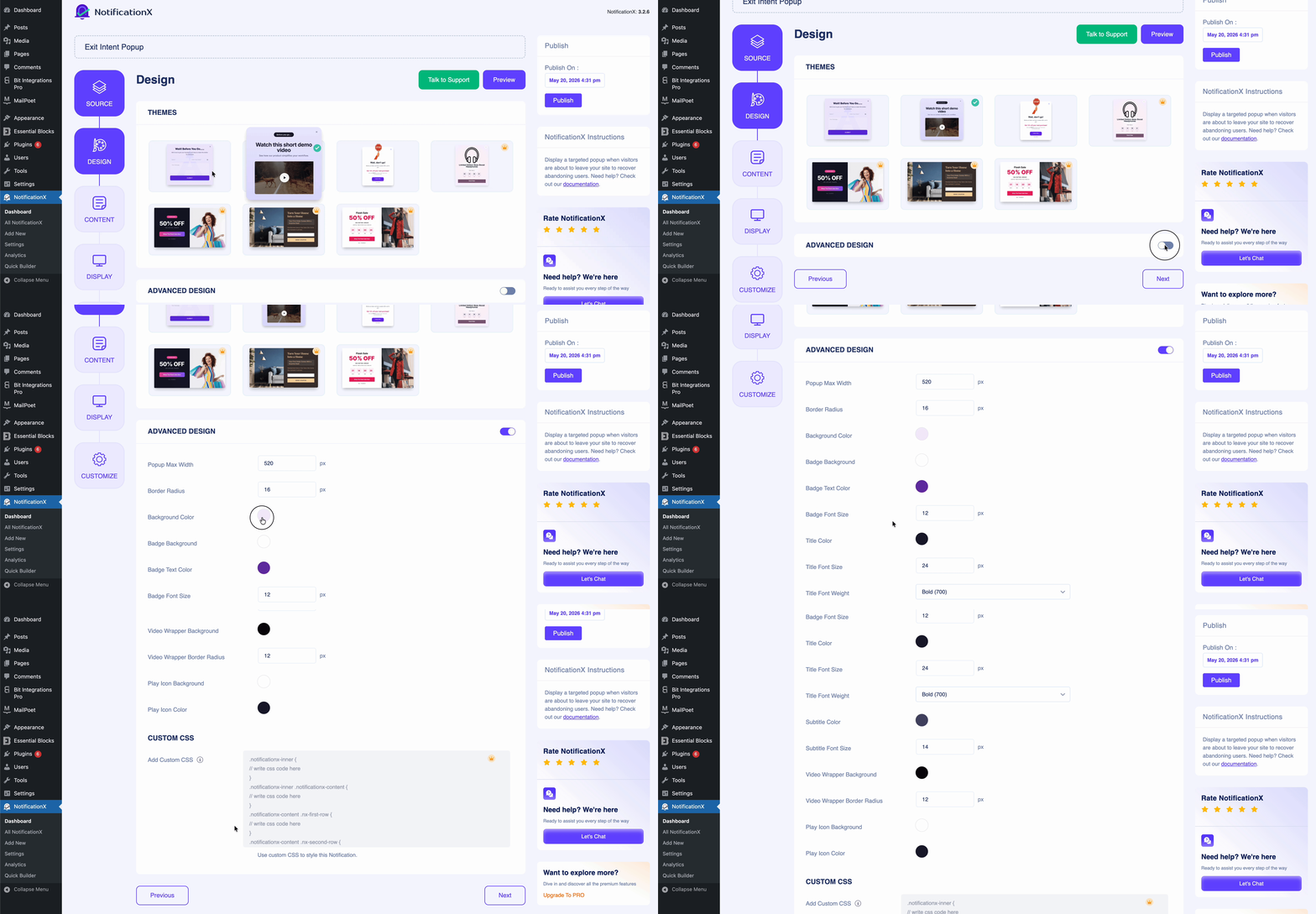
Next, to make the theme customizable, enable the ‘Advanced Design ' button. There you will be able to change the color of background color, overlay background color and control the popup width. You can even change the close button color for the popup.
You will also be able to adjust the typography and font/ size weight, content message color. Change the button design to a customized color in the button by adjusting font size, radius, padding and width.
Step 4: Customize the Content for Exit Intent Popup #
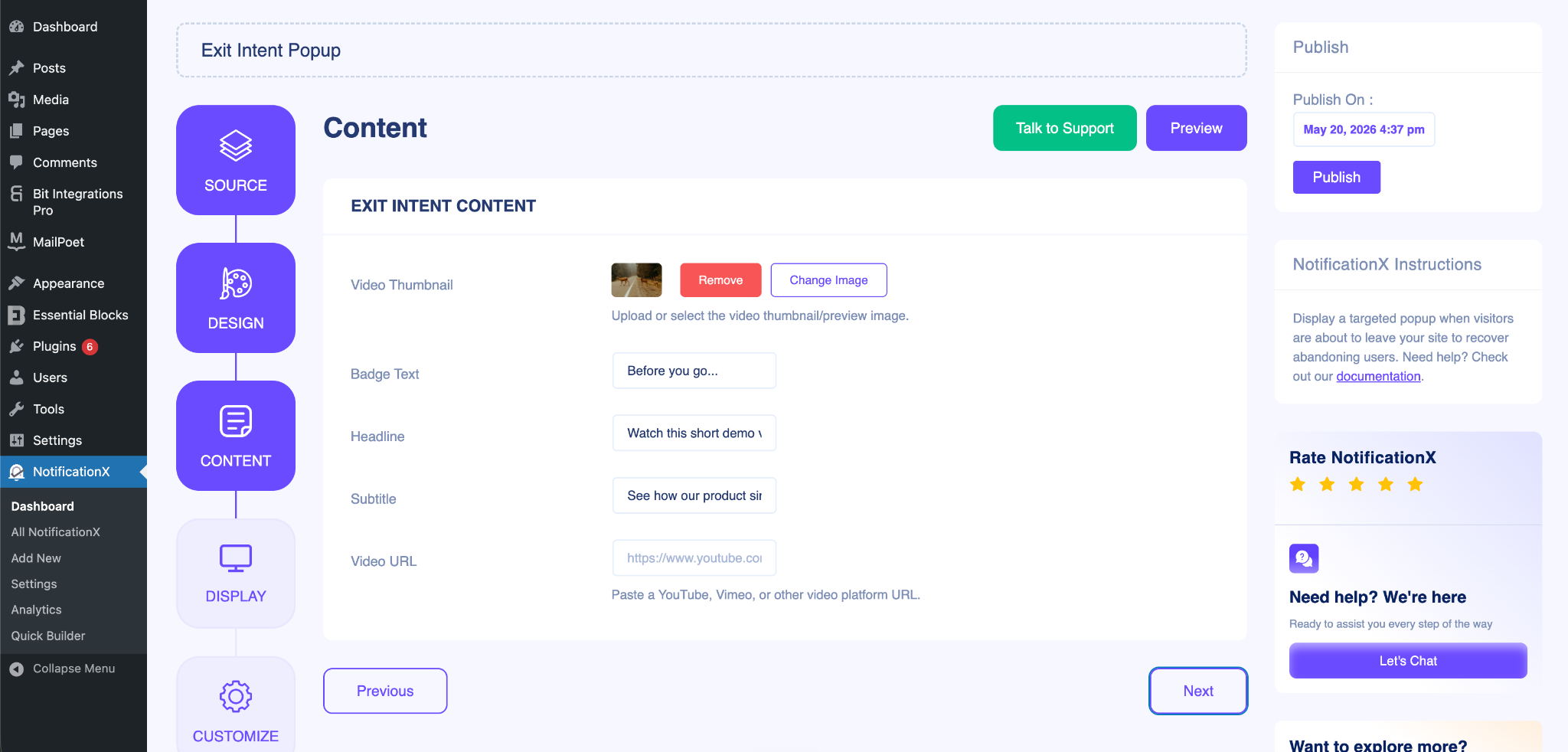
After clicking the ‘следующий’ button, you will find the ‘содержание’ tab. Here, you can choose the content for the popup. From setting the “Video Thumbnail”, to Badge Text, Headline, Subtitle & Video URL, you can set everything from this section.
After the setting, click on the ‘следующий’ button to control the visibility of the exit intent popup.
Step 5: Control the Visibility #
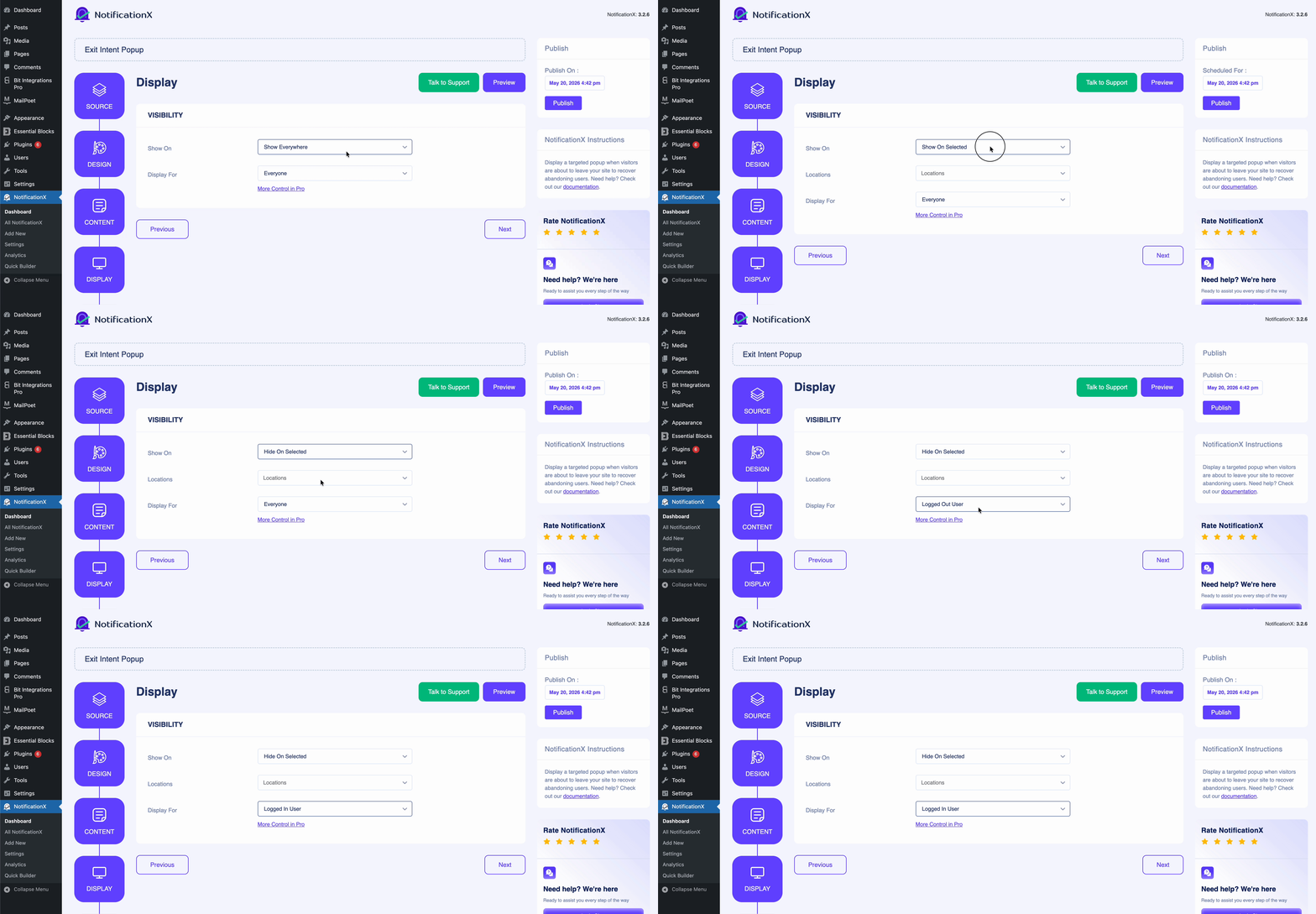
Next, from the ‘дисплей’ tab, select the visibility option where you want to show/ hide the exit intent popup on your website. You can also select to whom you want to display this notification type.
Step 6: Configure the Customization #
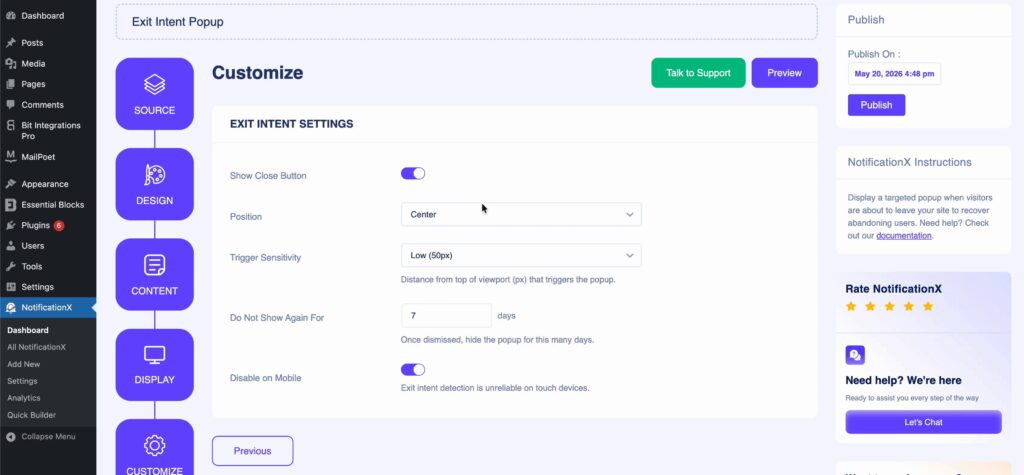
Next, under the ‘Настроить’ tab, you can choose the Appearance of the exit intent popup. That means in which position on your website you want to display the notification. You can also set Trigger Sensitivity and control the mobile visibility. Set the Timing to show a delay before the first notification. Click on the ‘Публиковать’ button to make the exit intent popup live on your website.
Окончательный результат #
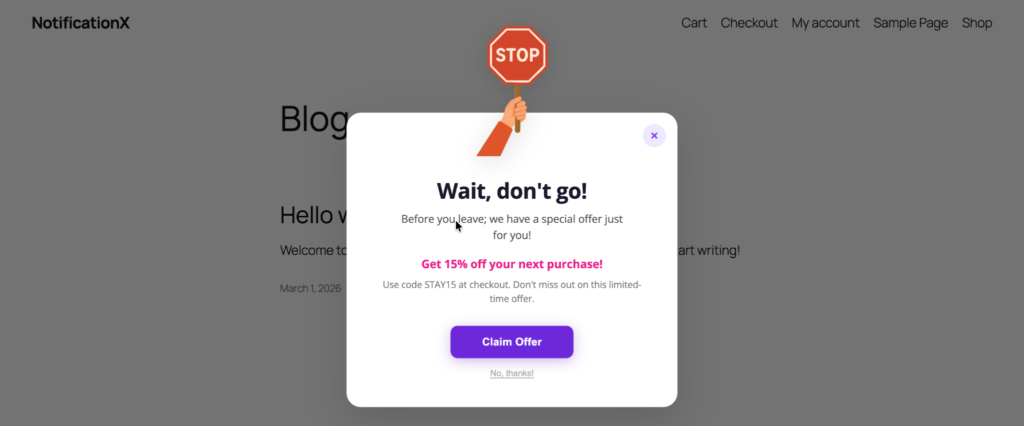
By following these steps and a bit more modification, this is how your Exit Intent Popup will appear on your WordPress website.
Если у вас возникнут какие-либо проблемы, вы можете связаться с нашими Группа поддержки.


 English
  Arabic
  Indonesian
  Spanish
  Bengali
  Portuguese
  German
  Dutch
Dutch  Russian
  Hindi
Hindi  French
  Japanese
  Chinese
  Vietnamese
  Malay
Malay