
NotificationX gives you the chance to integrate with your Bit Integrations account. As a result, you can display any sort of Bit Integrations Notification Alerts, such as Email Subscription, Review, Sales Notifications and others.
Before you connect NotificationX with your Bit Integrations account, you need to create a Bit Integrations notification alert on your website. Follow these steps to show the Bit Integrations Notification popup with NotificationX.
How to Create & Configure Bit Integrations Notification Alert #
To create and configure Bit Integrations notification alerts, follow the step-by-step guide mentioned below.
Schritt 1: Neue Benachrichtigung hinzufügen #
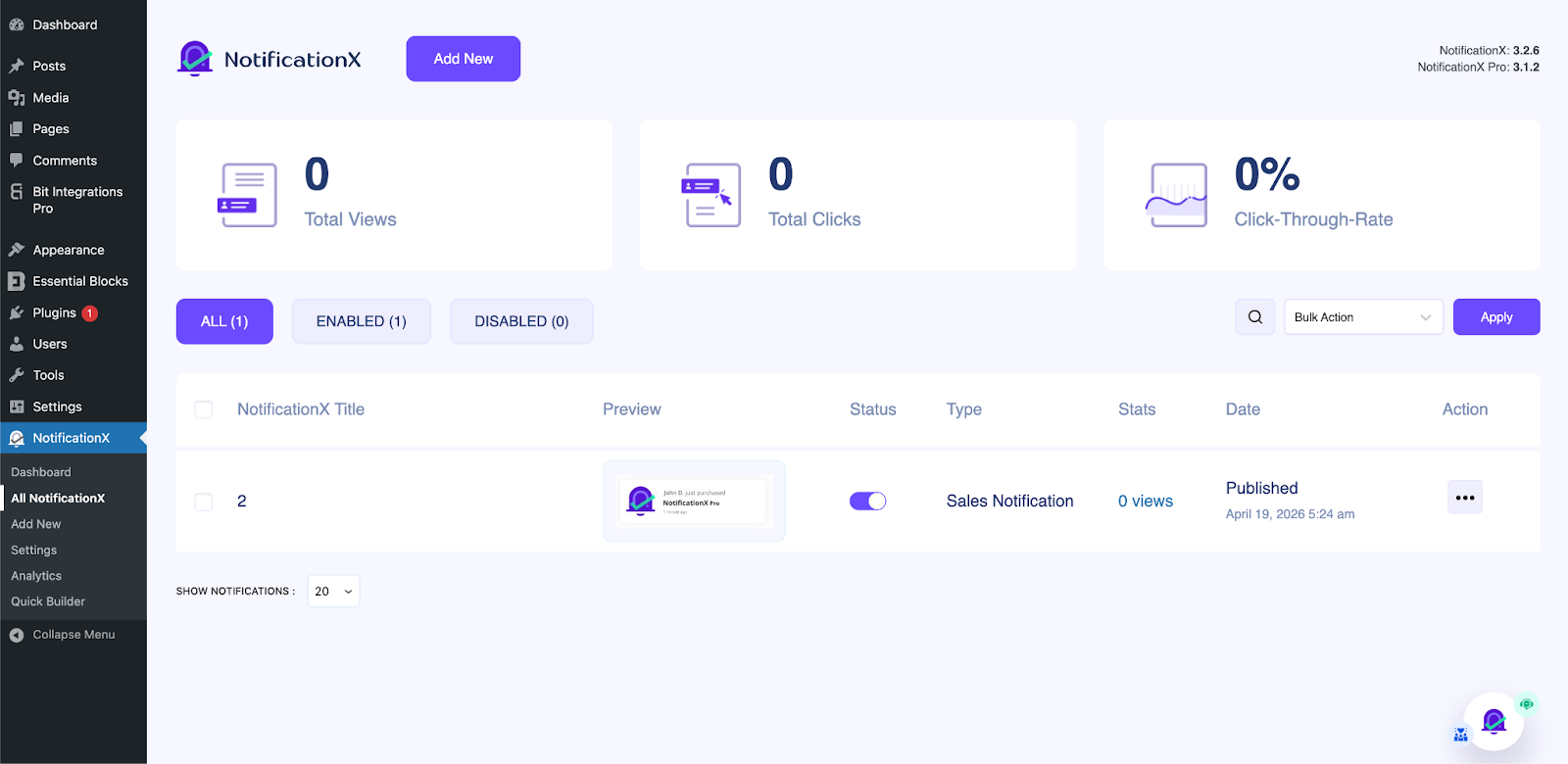
To begin, go to your WordPress Dashboard and navigate to ‘wp-admin’ → ‘All NotificationX.’. Then, right at the top, click on ‘Hinzufügen New.’
Schritt 2: Wählen Sie eine Quelle aus #
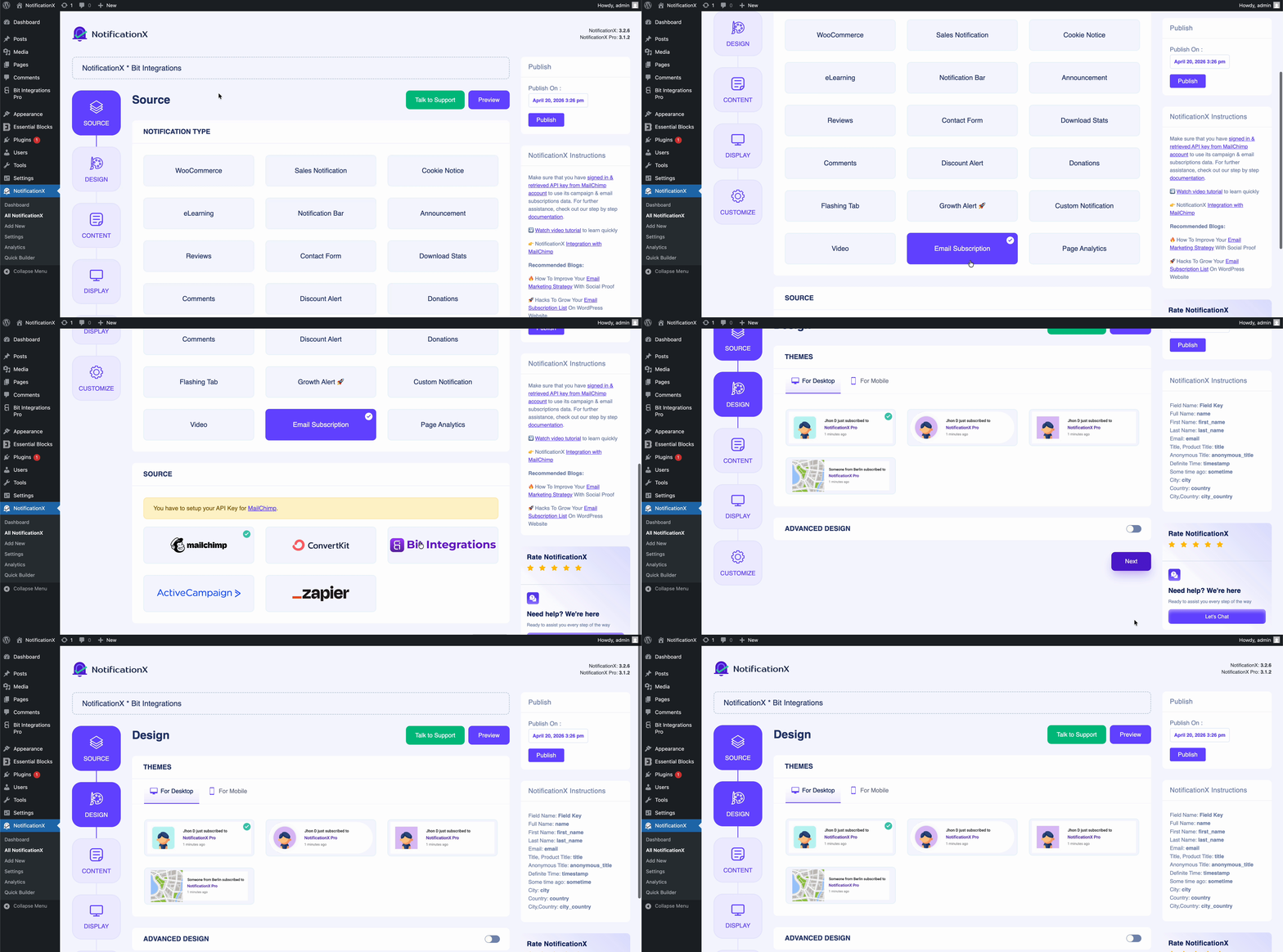
You will find ‘Bit Integrations’ source inside these Notification Types: Sales Notification, Reviews and Email Subscription. For instance, if you want to display a new email subscription in your store, you can pick the ‘Email Subscription’ option. After picking your preferred Notification Type, make sure to choose ‘Bit Integrations’ as your Source and click on ‘Next.‘
Schritt 3: Wählen Sie ein Designthema #
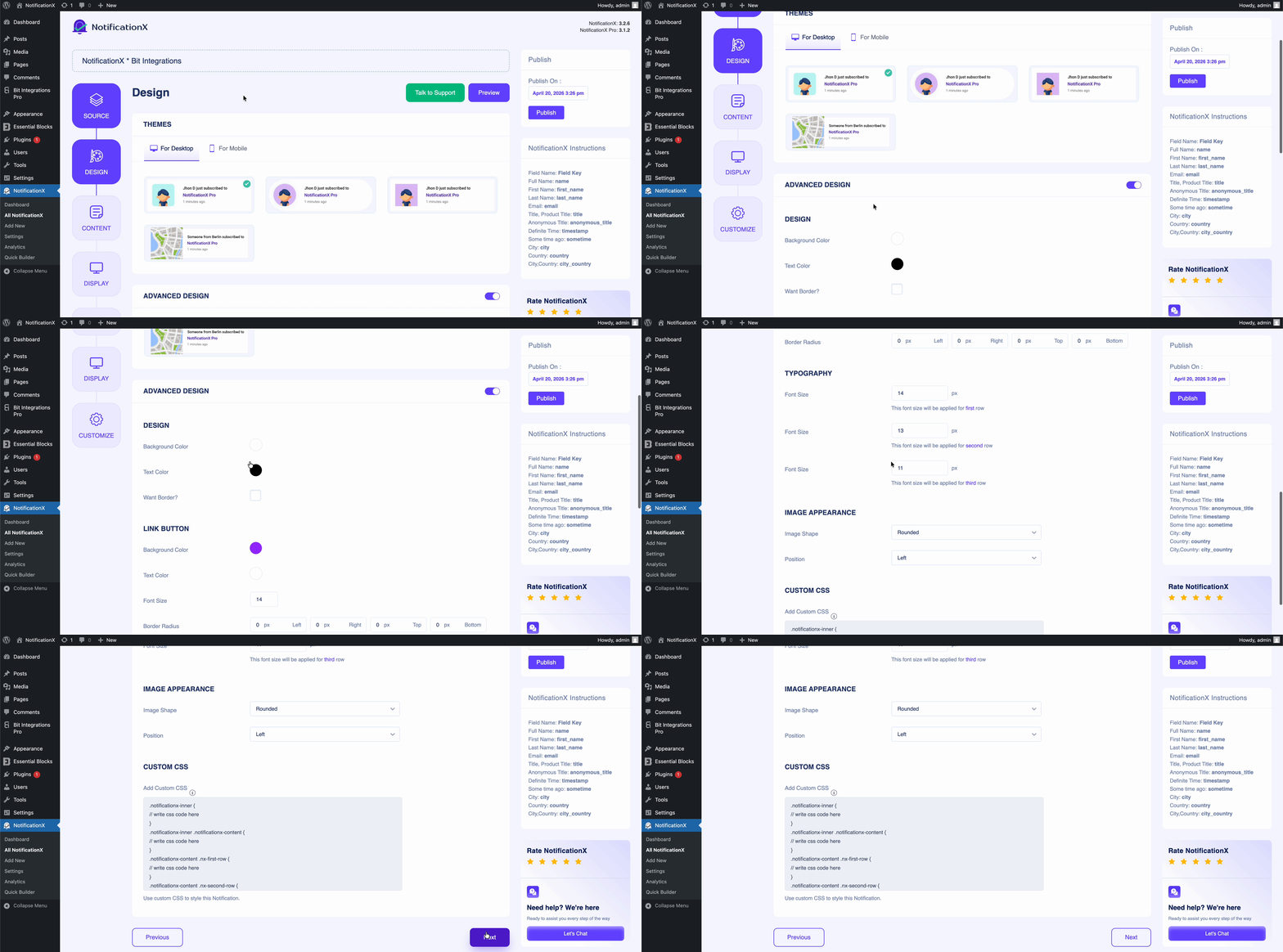
Von dem 'Entwurf’ tab, you can choose a layout and also have the flexibility to use the ‘Erweitertes Design’ option to customize it as per your preference. From the ‘Themen’ section, the chosen layout is how the notification alert will be displayed on your website. Besides, you can modify your chosen ‘Theme‘ by customizing it through the ‘Erweitertes Design’ option. From this section, you will be able to easily add styling to your design, image appearance, and typography.
Schritt 4: Vorlageninhalt konfigurieren #
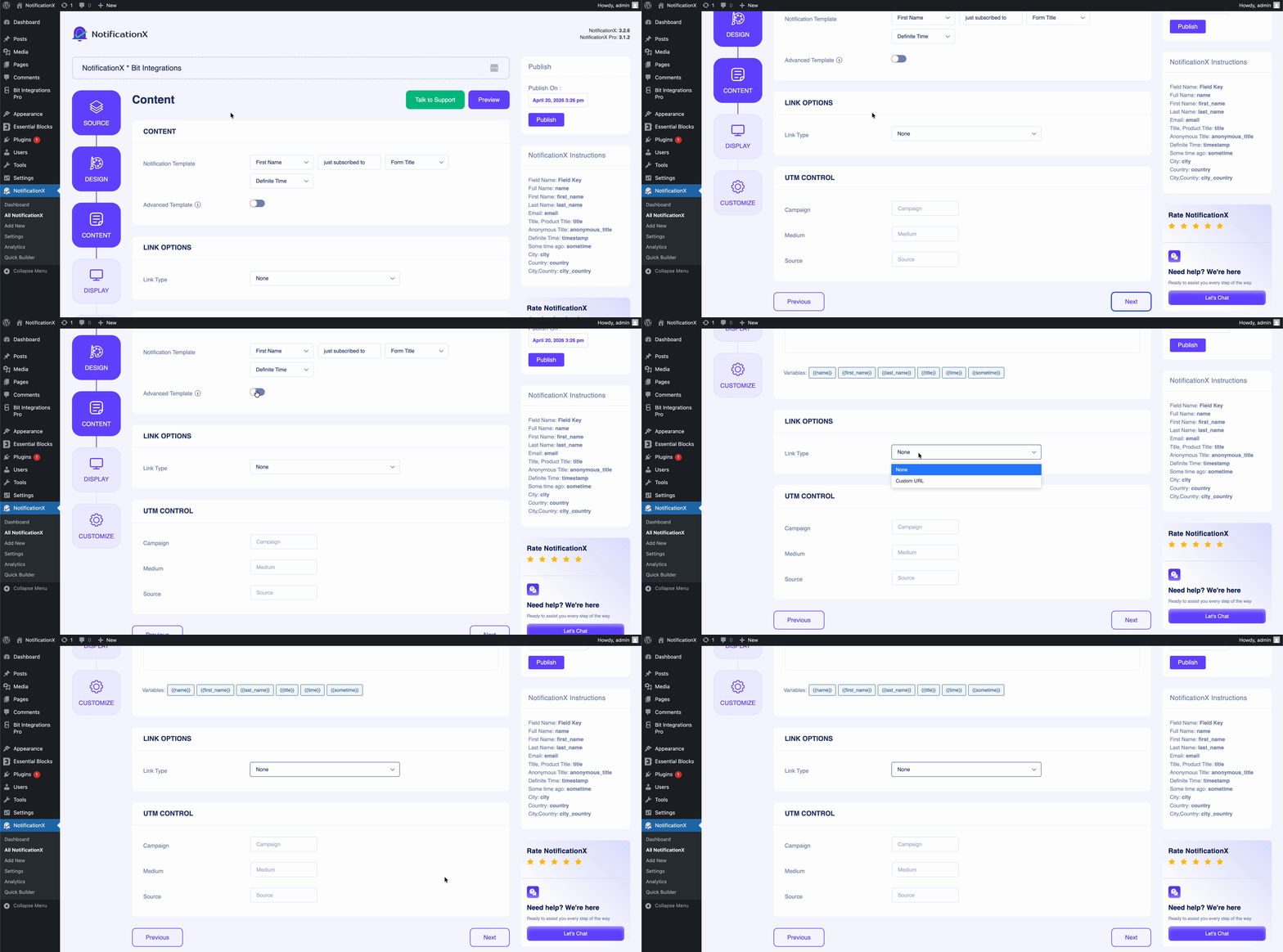
You will then be redirected to the ‘Inhalt’ tab, from where you can modify your ‘Benachrichtigungsvorlage’ and add your preferred content text. Besides, NotificationX offers a ‘Benachrichtigungsvorlage’ for your 'Inhalt'. You can easily go ahead and choose your preferred variables. On the other hand, ‘Erweiterte Vorlage’ gives you complete control to customize the entire ‘Content’. Moreover, you can even track the various types of campaigns through NotificationX through ‘UTM Control.’
Schritt 5: Anzeigeoptionen anpassen #
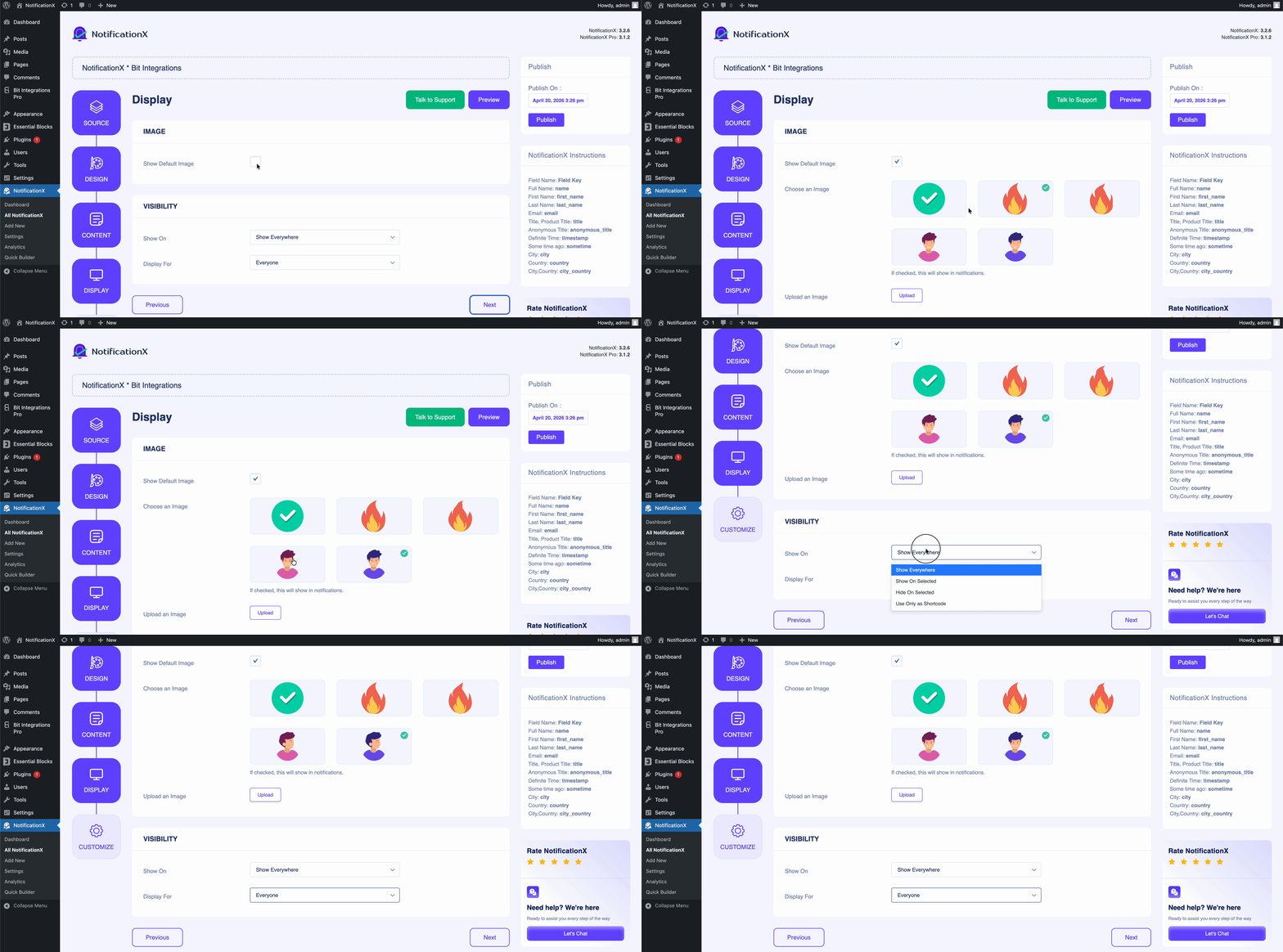
Von dem 'Bild’ section, you can use the checkbox to display a default image or an avatar in the notification popup. Whereas the ‘Sichtweite’ section allows you to set the pages where you want to display the Bit Integrations notification alert.
Schritt 6: Erscheinungsbild einrichten #
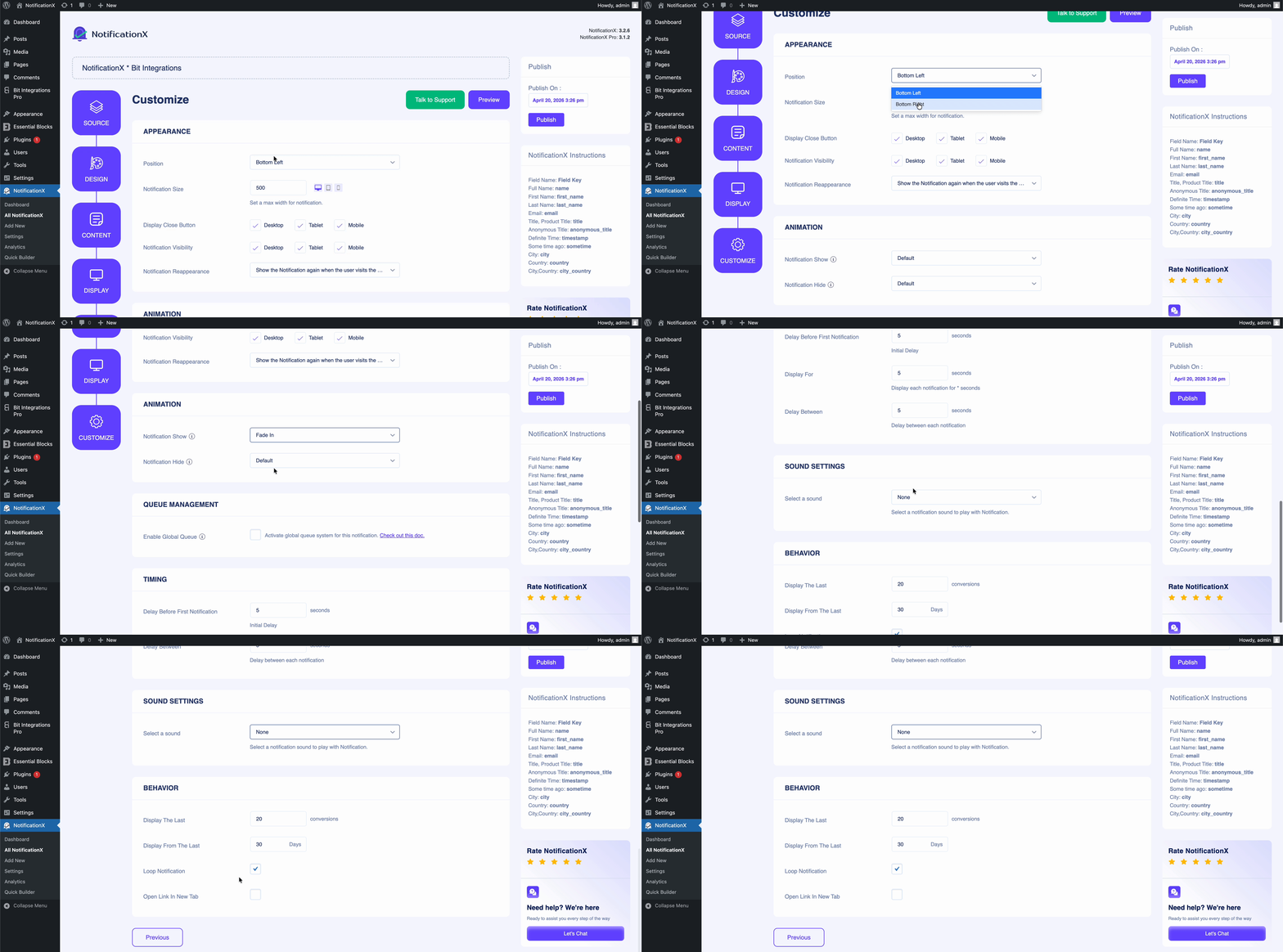
Von dem 'Aussehen’ section, you can set the position and width for the notification alert. From the ‘Zeitliche Koordinierung’ section, you can control the ‘Anzeige’ time duration and set an initial time after which your ‘Bit Integrations notification alert’ will pop up. The ‘Behaviour’ section allows you to pick a number of conversions and specify a certain number of days that will be considered for the notification popup. Besides, the ‘Toneinstellungen’ section lets you pick a ‘Sirenenalarm‘ for your notification popup.
Schritt 7: Veröffentlichen Sie Ihre Benachrichtigung #
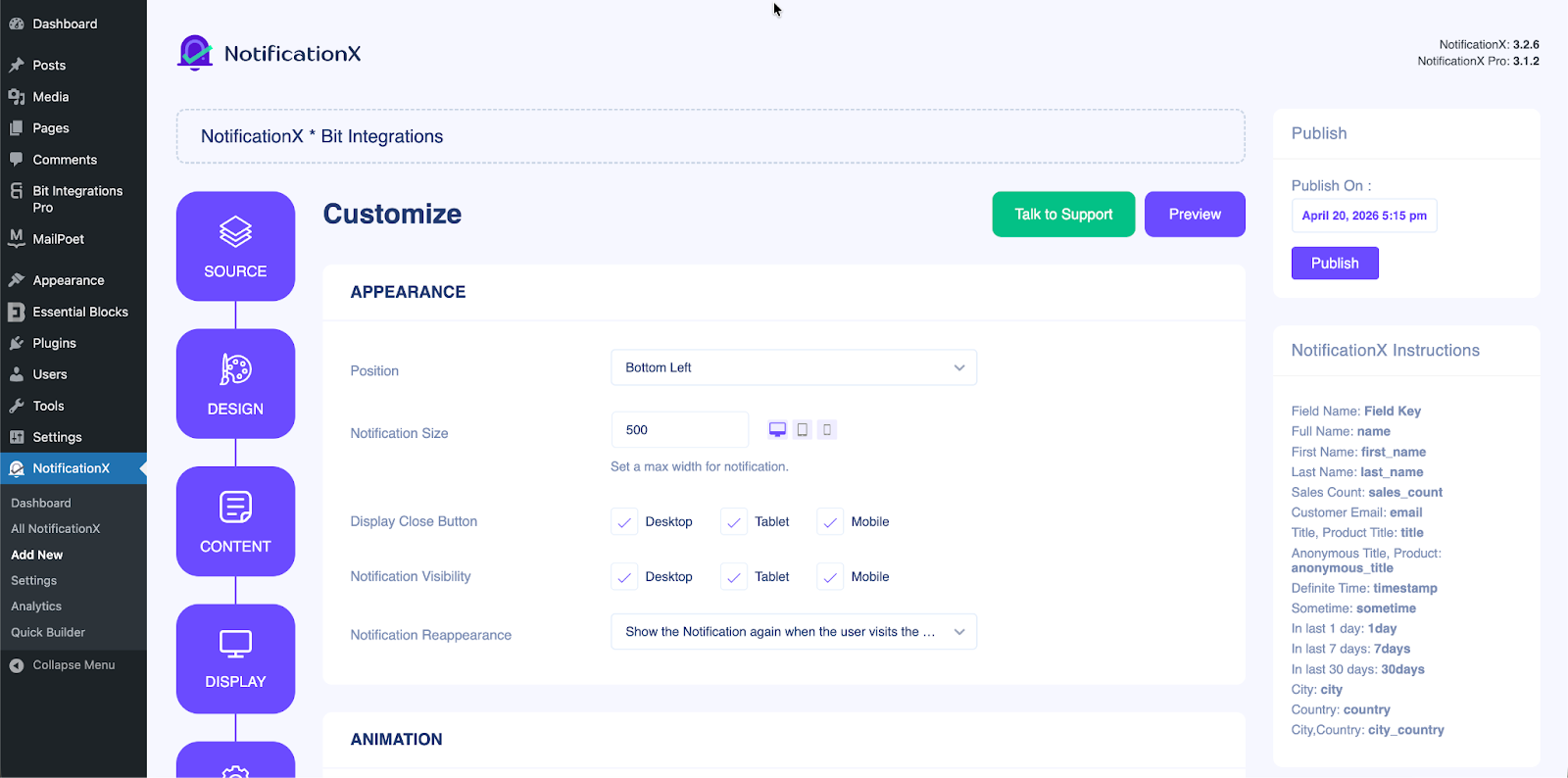
After you have completed step 6, click on the ‘Veröffentlichen’ button. As a result, the ‘Bit Integrations’ will be successfully created.
How to Connect Bit Integrations with NotificationX? #
After you have published your Bit Integrations Notification Alert, you will need to connect NotificationX with Bit Integrations. To do that, first of all, you need to log in to your Bit Integrations Dashboard & download the Bit Integrations plugin. Once you’re done, install and activate the plugin on your WordPress site & follow the steps below:
Step 1: Create Integration & Select The Trigger #
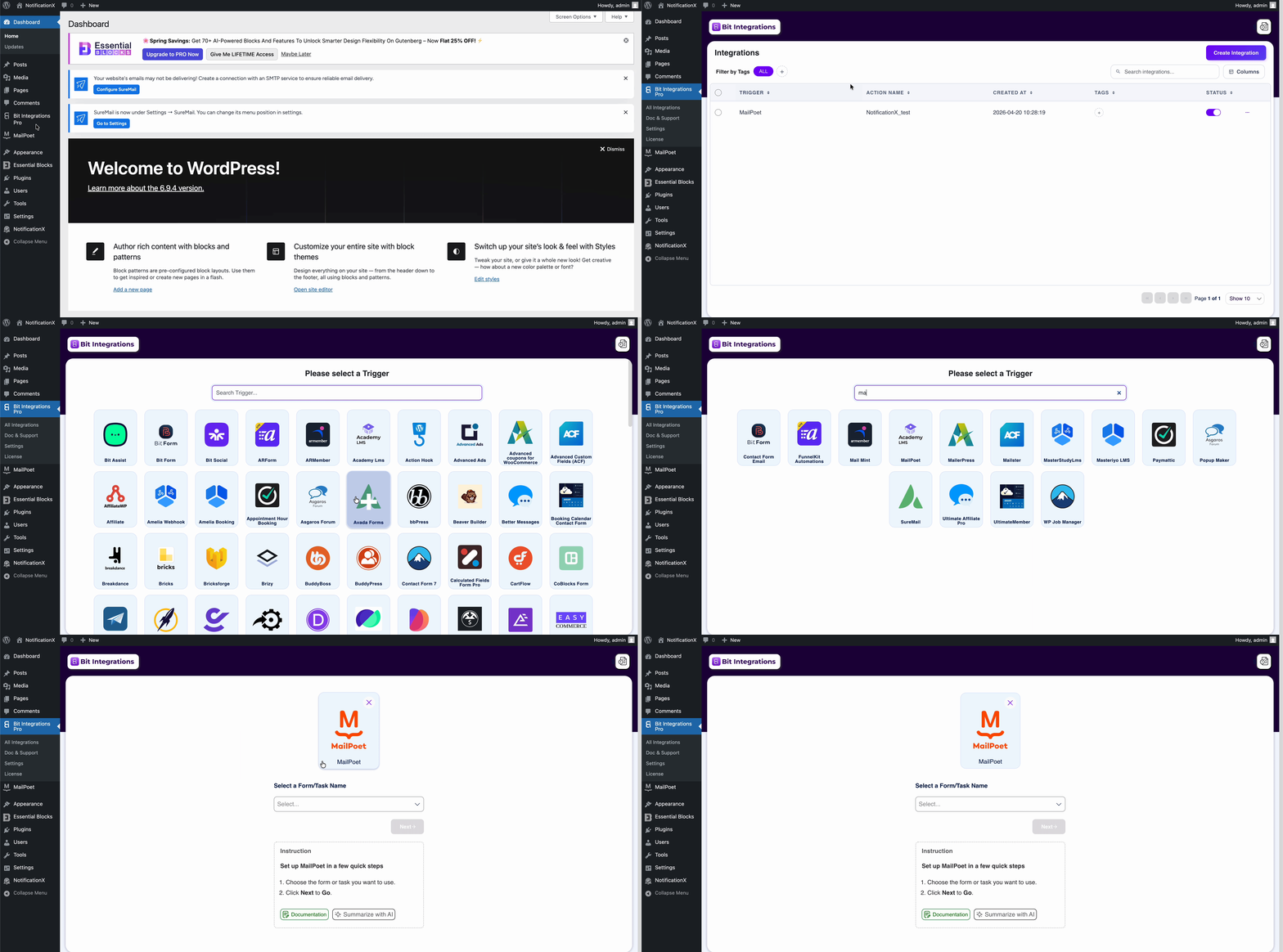
Navigate to Bit Integrations Pro & click on it. From the resulting page, click on ‘Create Integration,’ and select your ‘Trigger’ from where you want to pull the notification and display it using NotificationX.
Note: For this tutorial, we’ve picked MailPoet as the trigger, and that is why we’ve created and published the notification alert with the Email Subscription as the notification type above.
Step 2: Select Form & The Action #
Now select the ‘Form‘ or ‘Task‘ you’ve created and published on your website using MailPoet and click on ‘Next.’ After that, set NotificationX as the ‘Action.’
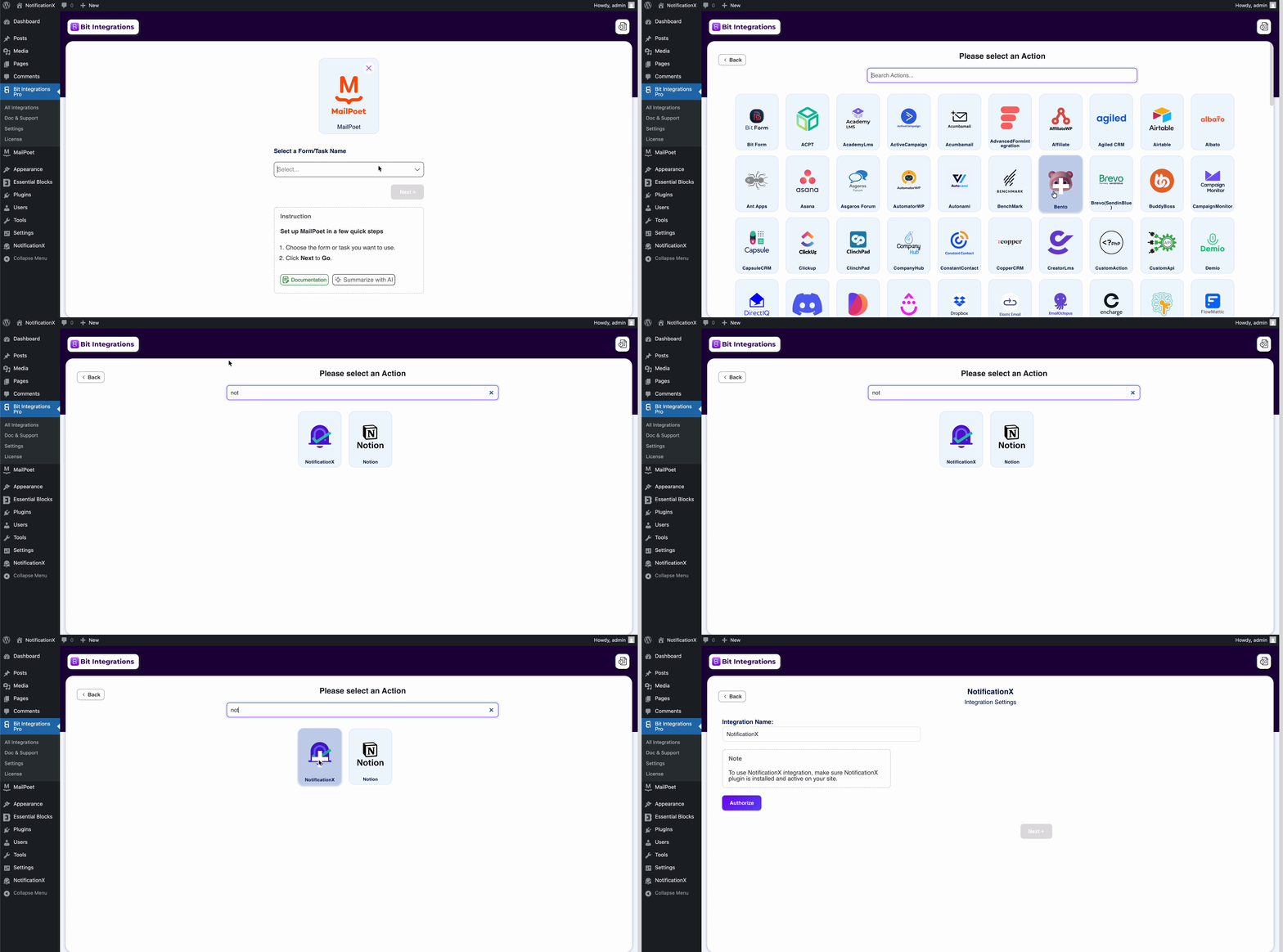
👉 Learn more: MailPoet Integration as a Trigger with Bit Integrations
Step 3: Authorize The Integration #
Give a name to your integration & click on ‘Authorize.’ Once it’s authorized, click on ‘Nächster.’
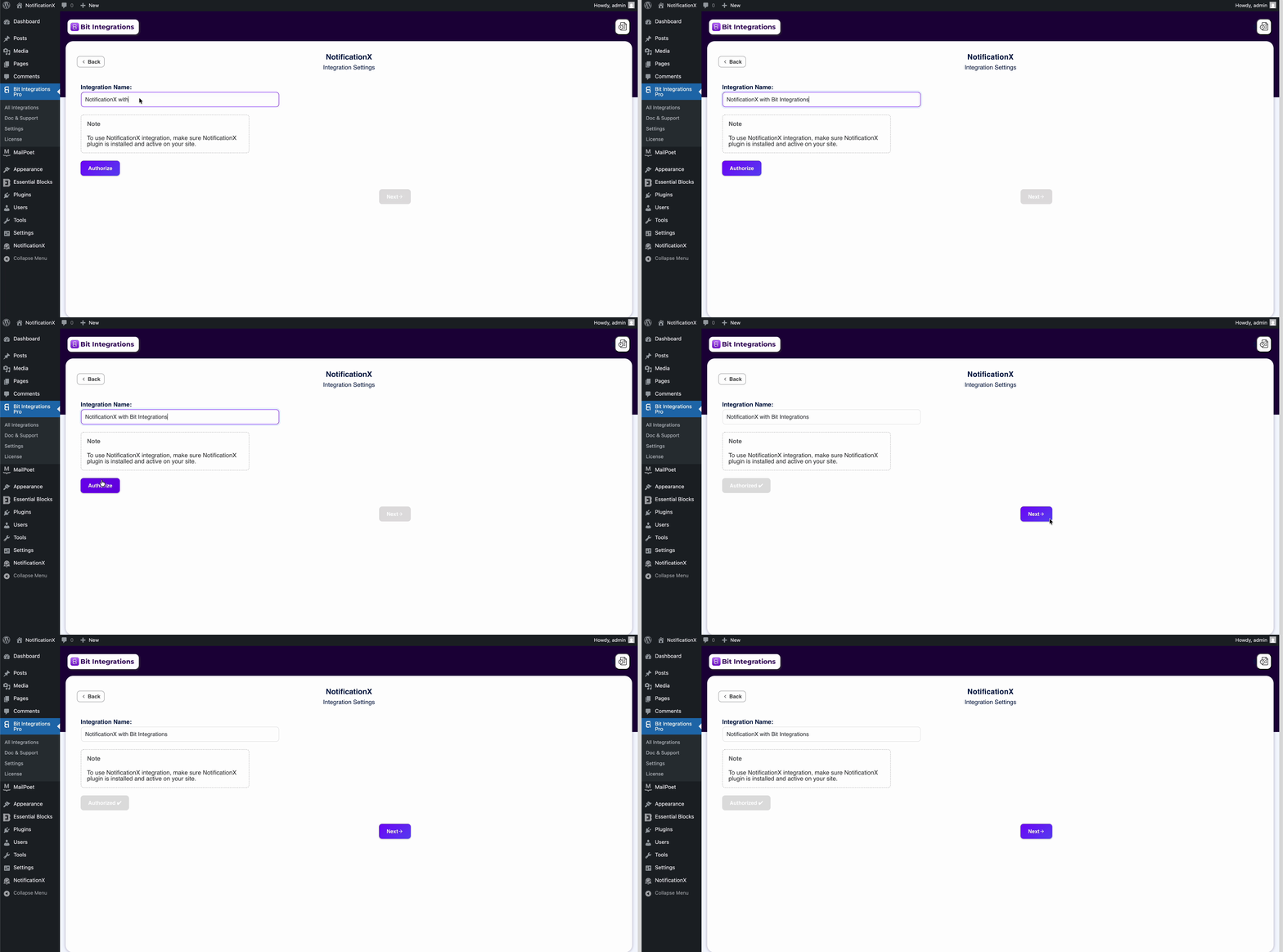
Step 4: Map Your Notification Fields #
After selecting the ‘Action’ & ‘Notification’ you’ve created earlier, you need to map your form fields with NotificationX fields. Once you are done with mapping, click on ‘Nächster.’
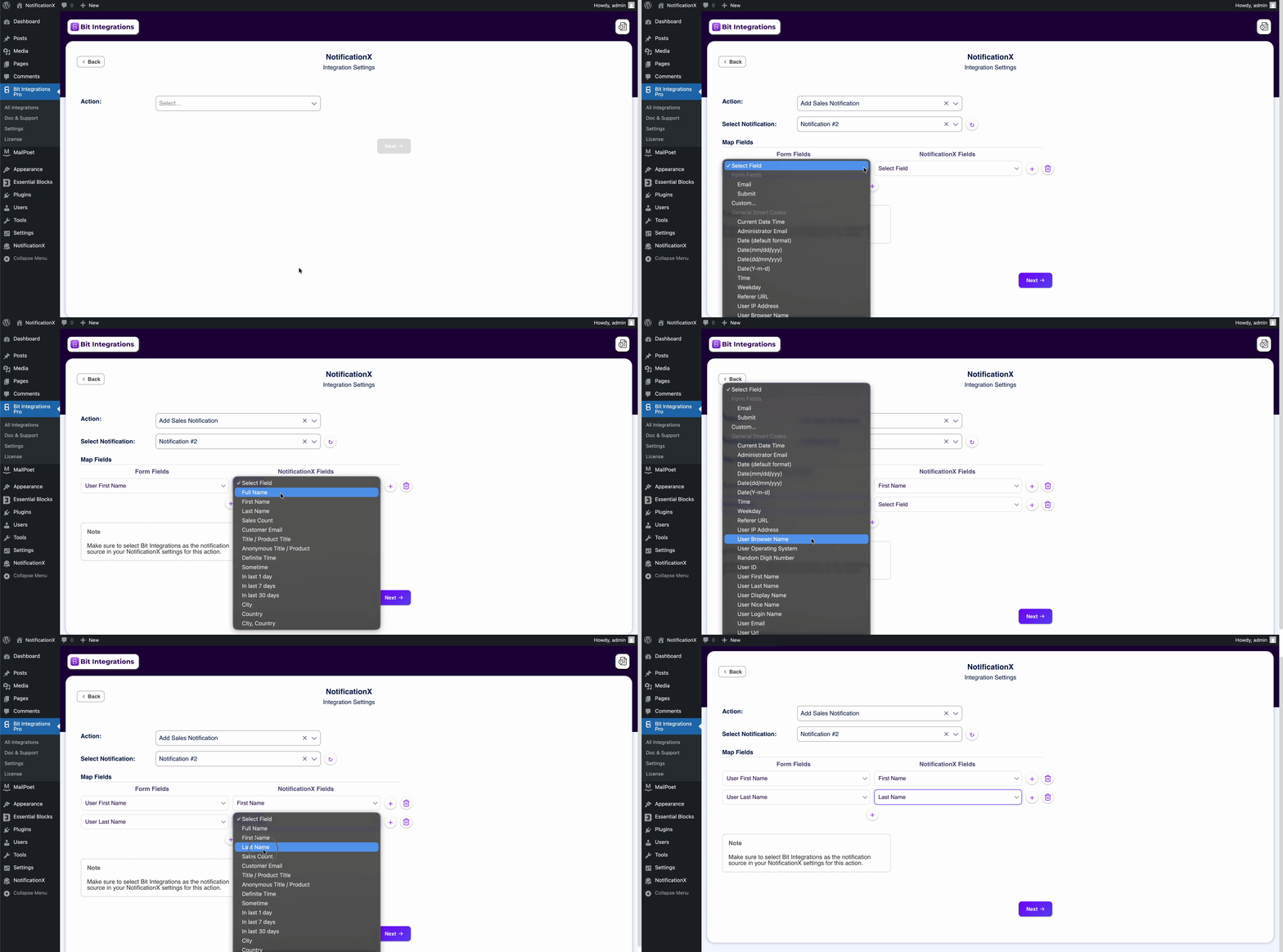
Step 4: Finish & Get The Integration List #
Click ‘Save & Finish’ from the resulting page & get your integration lists directly into your dashboard. You can further edit your integration right from here.
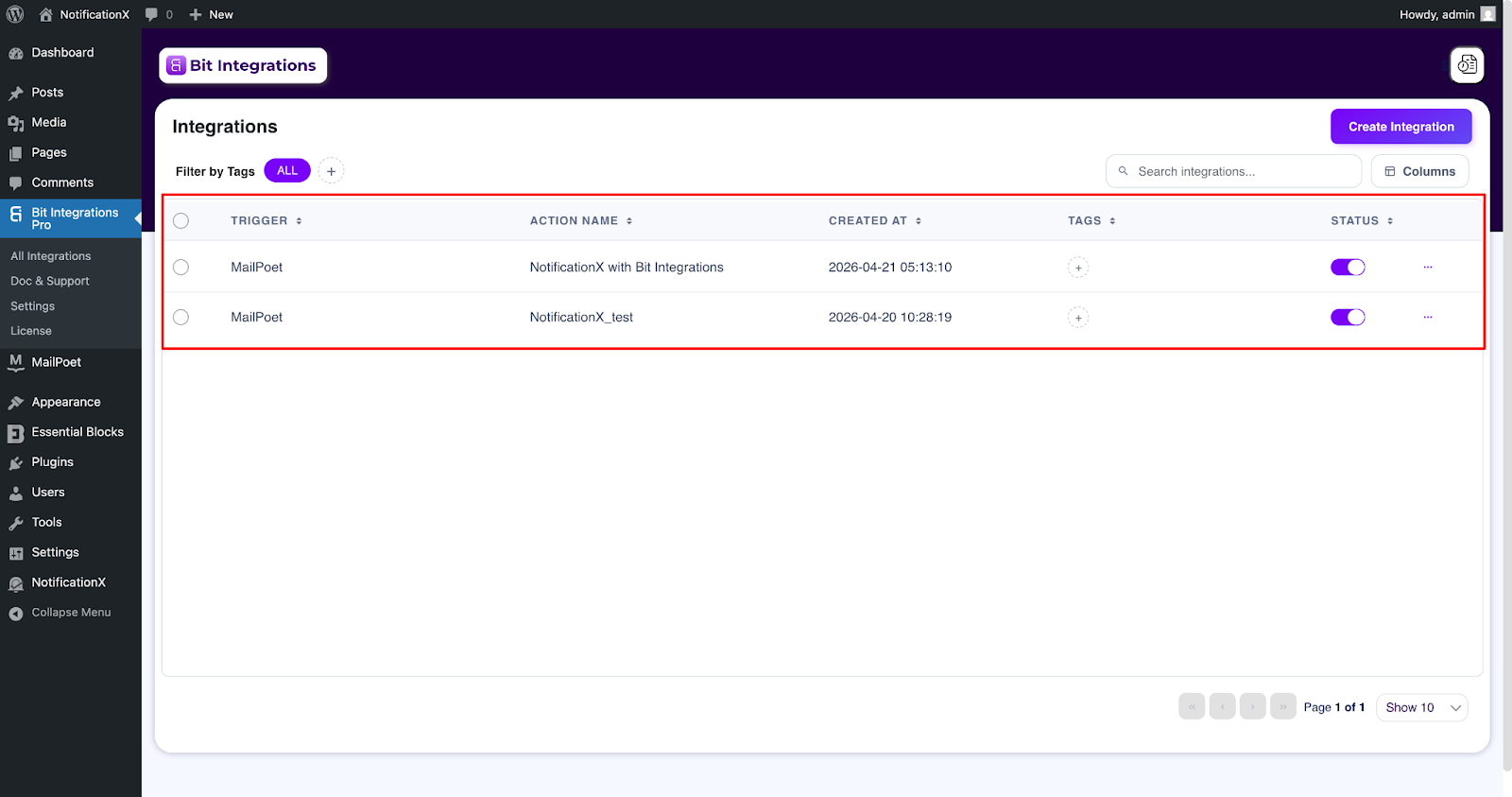
Endergebnis #
After you have completed all the steps mentioned above, go to your website, and you will find the notification alert popping up like this.
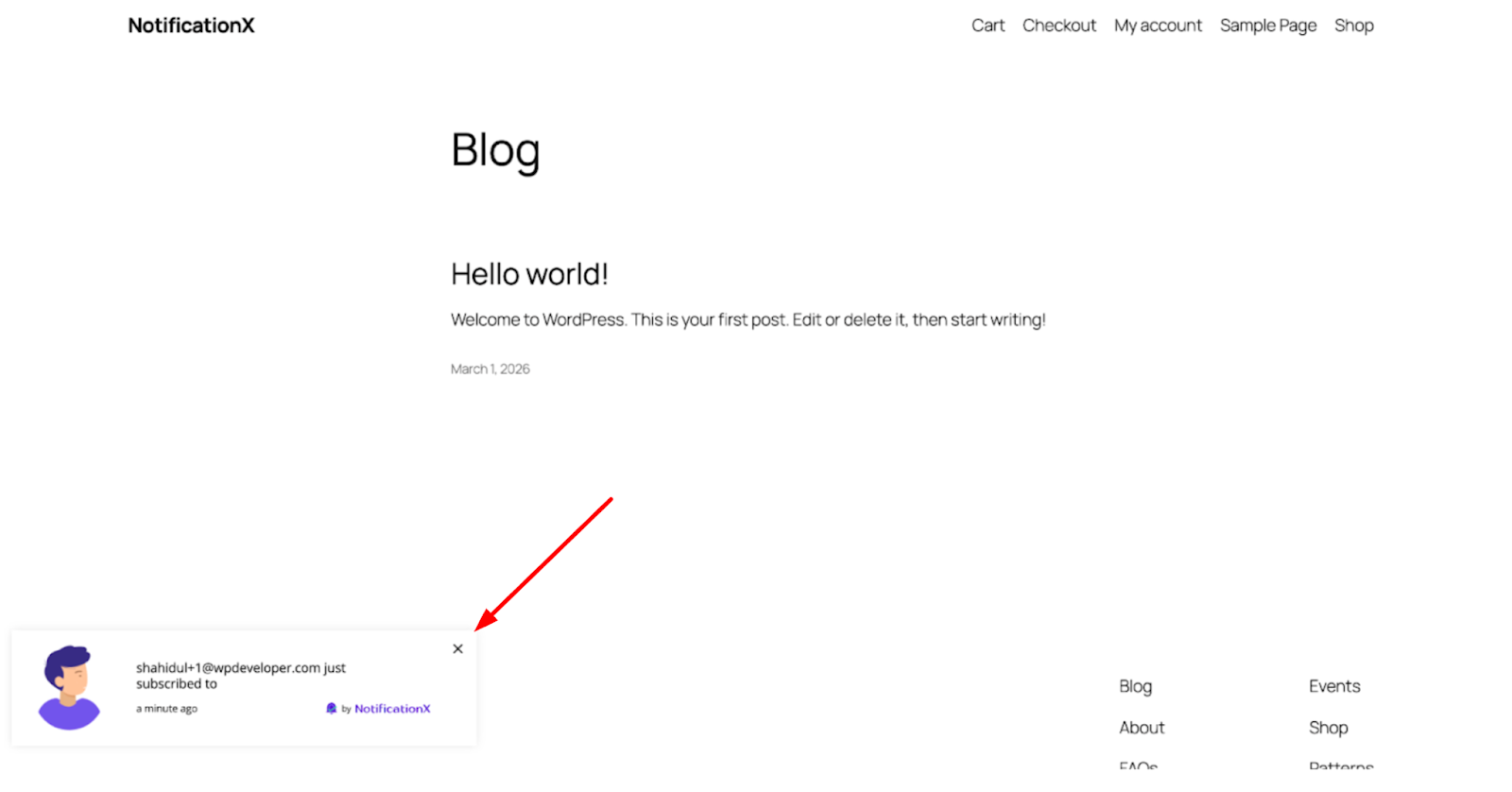
With NotificationX, you can easily design and display an amazing notification popup in Bit Integrations on your WordPress website & grow your user base.
If you get stuck or face any issues, contact our Support-team.
 English
  Arabic
  Indonesian
  Spanish
  Portuguese
  German
  Dutch
Dutch  Russian
  Hindi
Hindi  French
  Japanese
  Chinese
  Vietnamese
  Malay
Malay