
NotificationX प्रो allows you to integrate YouTube and lets you show your YouTube video activities popups on your WordPress sites. This is helpful for increasing engagement of your YouTube channel and gaining more credibility.
To display video activities popups with NotificationX, you need to retrieve the API key first. Follow the steps below to display YouTube video activities popups with NotificationX.
How To Configure YouTube Video Activities Popups? #
Once you are done retrieving the API key, it is time to configure YouTube with NotificationX. Go through the step-by-step guide below to configure YouTube video activity popups with NotificationX.
ध्यान दें: Before you start, ensure you have the free and PRO version of NotificationX installed and activated on your website as this is a premium feature.
Step 1: Login To Your WordPress Dashboard #
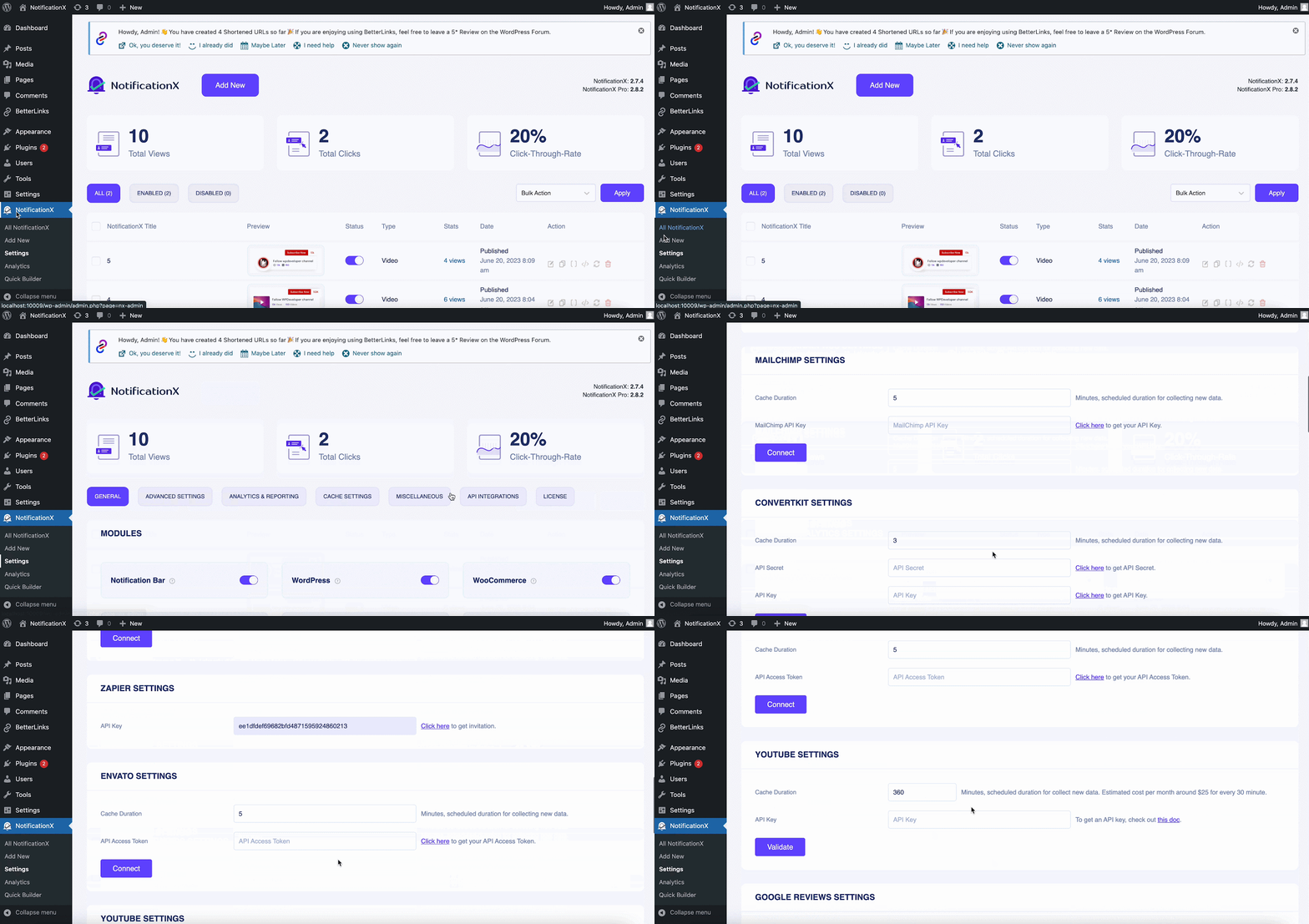
After you log in to your WordPress dashboard, go to ‘NotificationX’ → ‘Settings’ → ‘API Integrations’. Scroll down to ‘YouTube Settings‘.
Step 2: Paste The YouTube API Key #
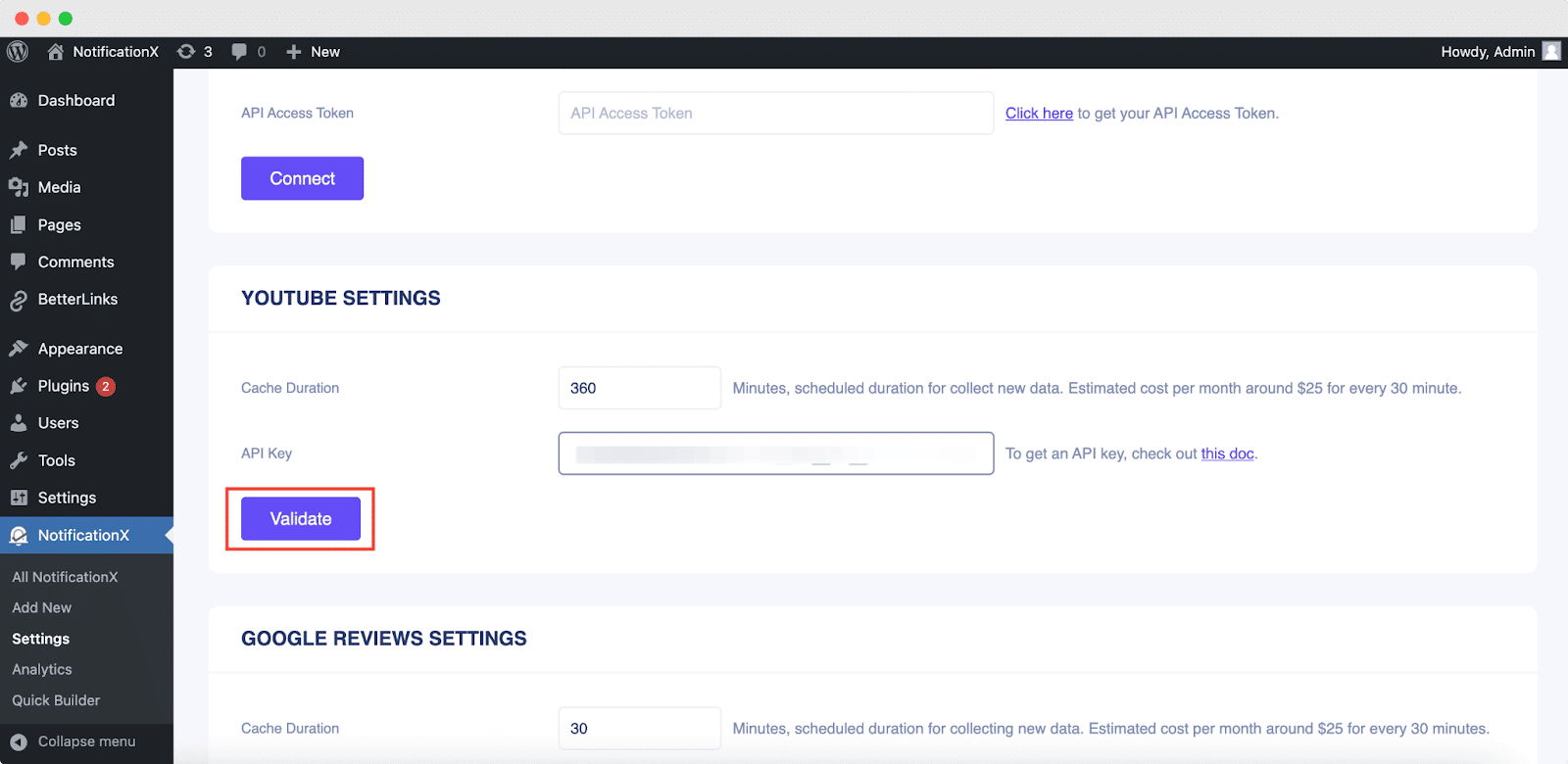
In the next step, you need to paste the API key you copied earlier in the ‘एपीआई कुंजी’ field. Once done, hit ‘Validate’
How To Show Video Engagement Popups With NotificationX? #
It’s time to create video engagement popups with NotificationX now. To create a video engagement notification, follow these quick steps.
चरण 1: एक नई अधिसूचना बनाएं #
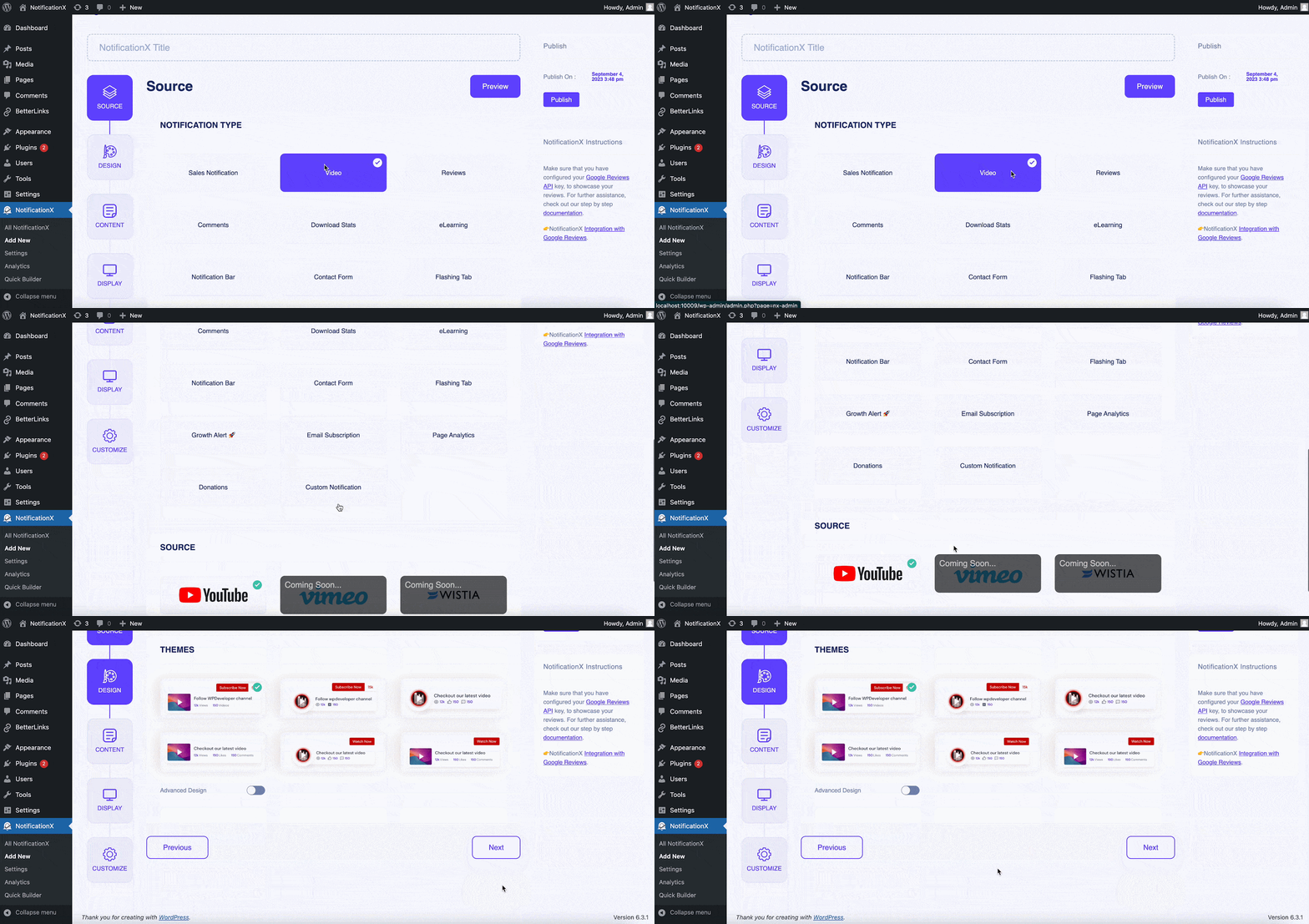
Now, click on ‘Add New’ to create a new notification. Select ‘Video’ as the Notification Type, choose यूट्यूब as the Video Source, and hit 'आगे'.
Step 2: Choose The Design Theme #
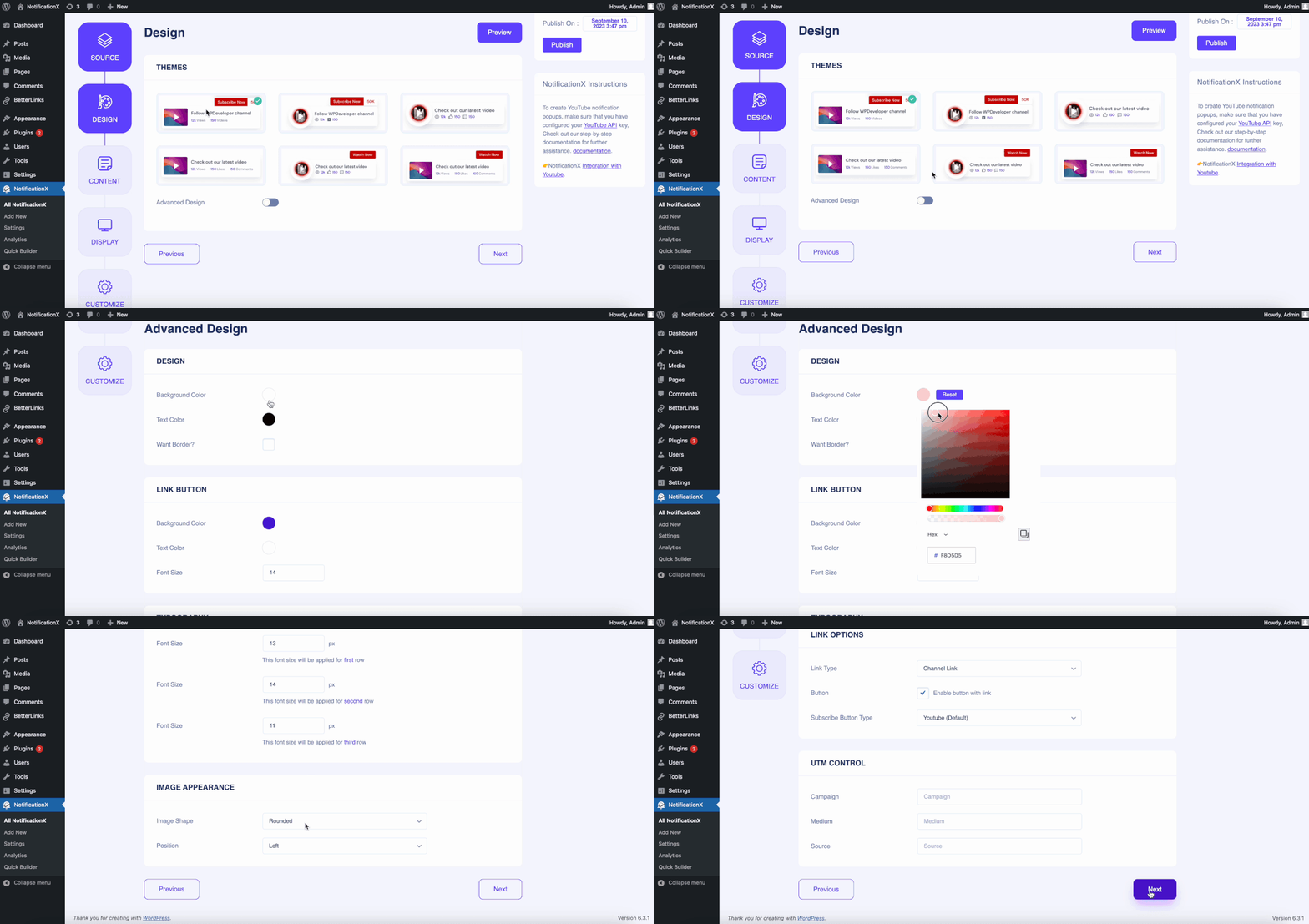
वहाँ से 'डिज़ाइन' tab, choose the design from the ready themes you prefer. Enable 'उन्नत डिजाइन' if you want to customize the styling and appearance of the template. Move to the 'आगे' step when done.
Step 3: Customize Content And Configure Link Settings #
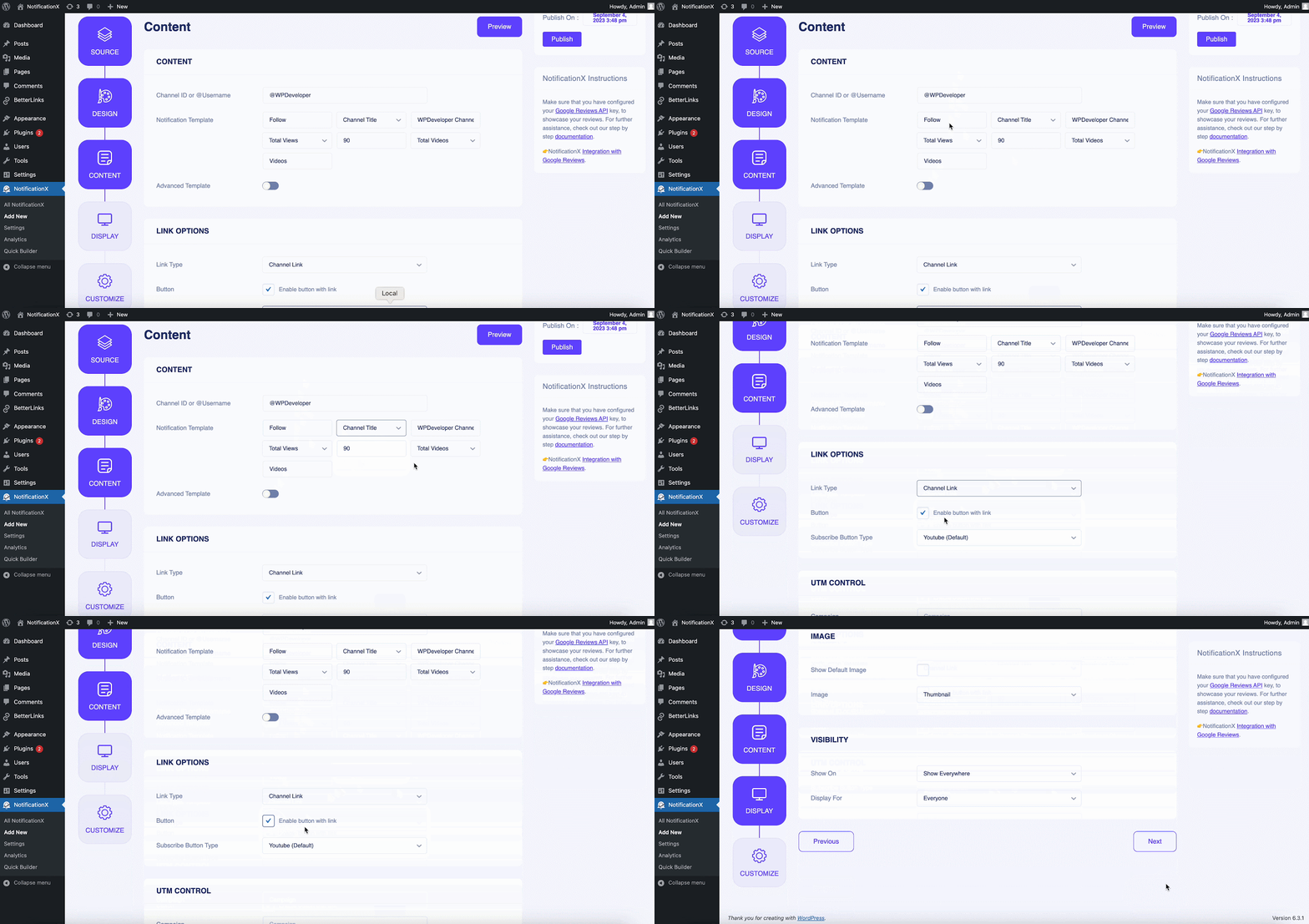
वहाँ से 'सामग्री’ section, add the YouTube Channel ID or Username in the respective field. Personalize the notification content as preferred. From the ‘लिंक विकल्प’, choose ‘लिंक प्रकार’ and check ‘Enable button with link’ if needed. Move to the next step.
Step 4: Configure Display Settings #
वहाँ से 'प्रदर्शन' tab, choose if you want to display the image along with the notification. In the 'दृश्यता' section, there are options to control which pages of your website you want to show the popup notification.
Step 5: Customize Appearance And Configure Timing #
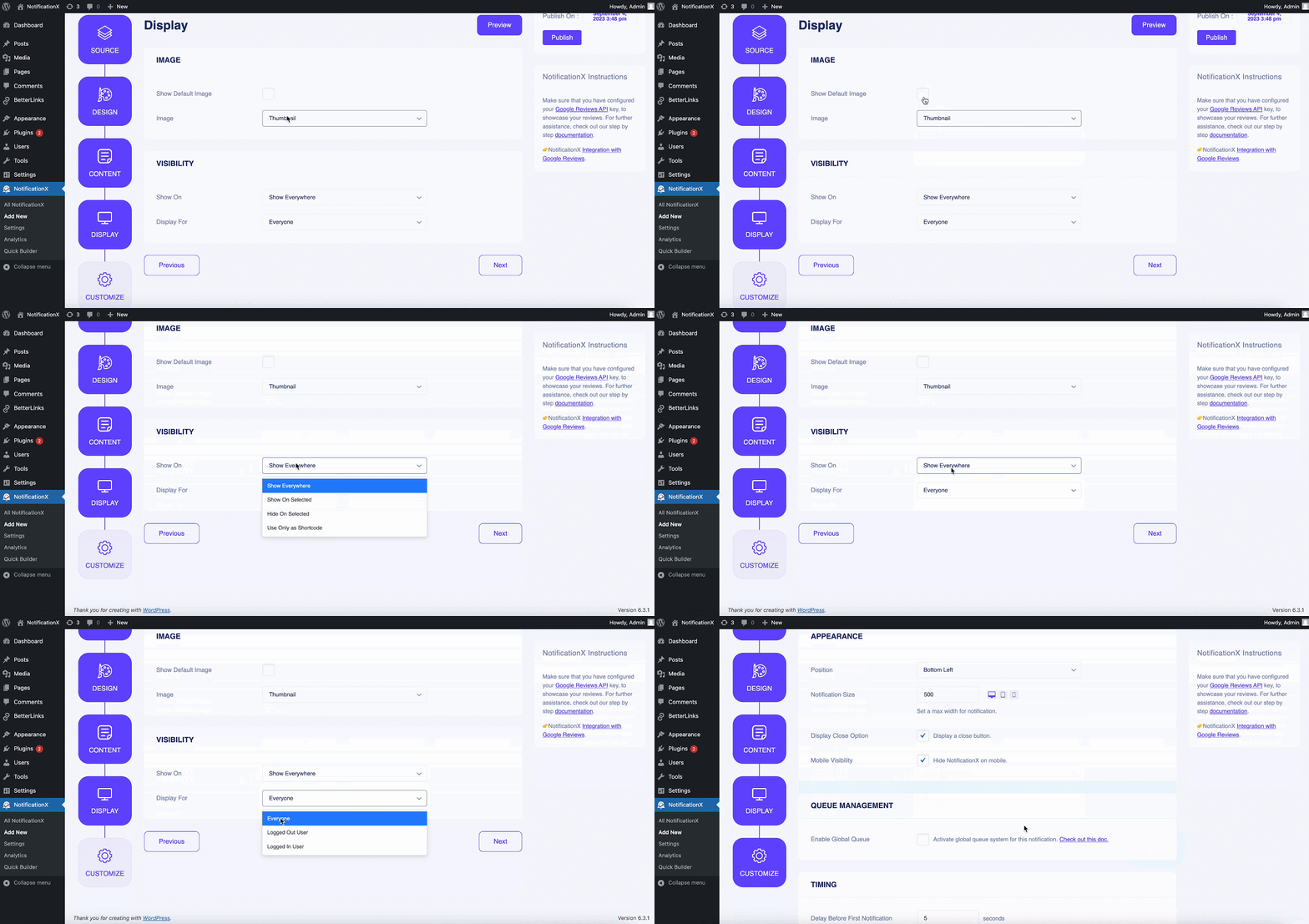
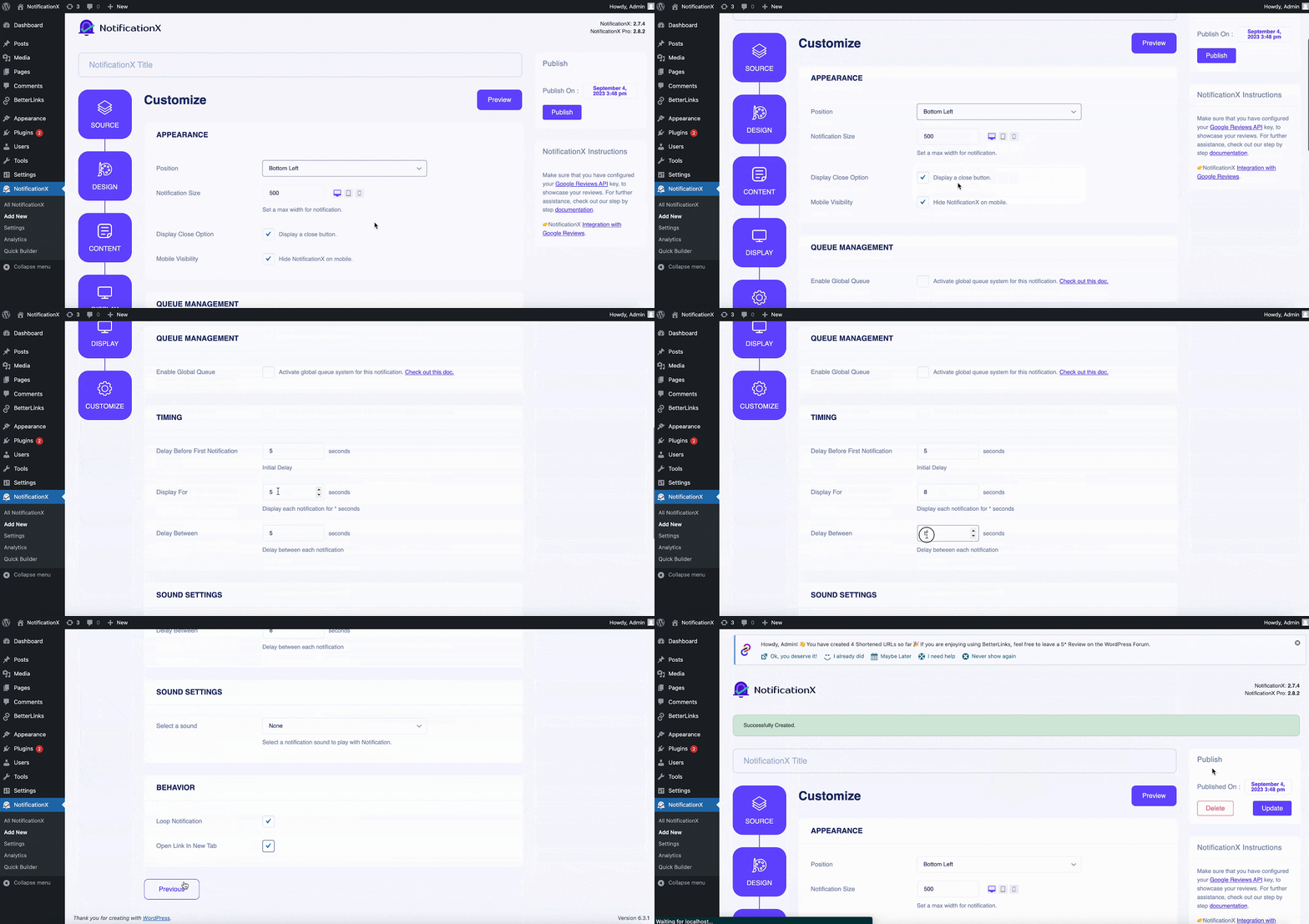
In the ‘अनुकूलित करें’ tab, there are more options to configure your notification settings. From the 'उपस्थिति' section, choose the position of the notification. Set timings for the notification as preferred. Click on 'प्रकाशित once you are done.
Let’s have a quick glimpse at what your newly created YouTube video engagement popup looks like on your website.
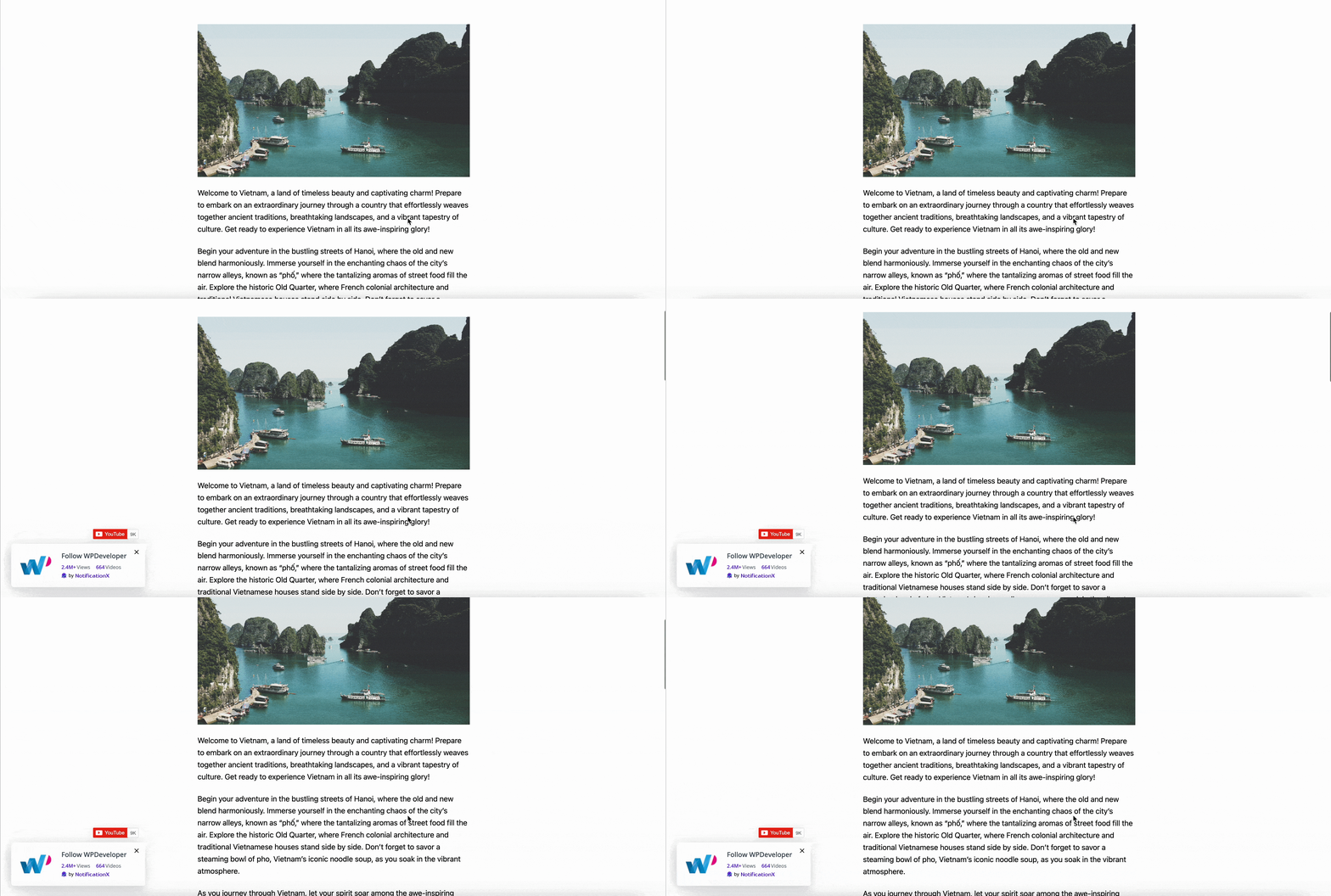
Thus, following the easy steps, you can create video engagement popups with using NotificationX. Getting stuck? Feel free to reach out to our support team अधिक सहायता के लिए।


 English
  Arabic
  Indonesian
  Spanish
  Bengali
  Portuguese
  German
  Dutch
Dutch  Russian
  Hindi
Hindi  French
  Japanese
  Chinese
  Vietnamese
  Malay
Malay