
With NotificationX, you can easily display announcements to show promotional offers, videos, collect feedback and leads within your WordPress website. With this freemium feature, you can now customize your announcement, manage its visibility and add targeted content with ease.
Let’s see how to configure the ‘Announcement’ notification type with NotificationX.
How to Configure Announcement in NotificationX #
Follow this step-by-step process to show an announcement on your website with NotificationX. Before getting started, make sure you have instalado y activado NotificationX and NotificationX PRO on your website.
Paso 1: agregar una nueva notificación #
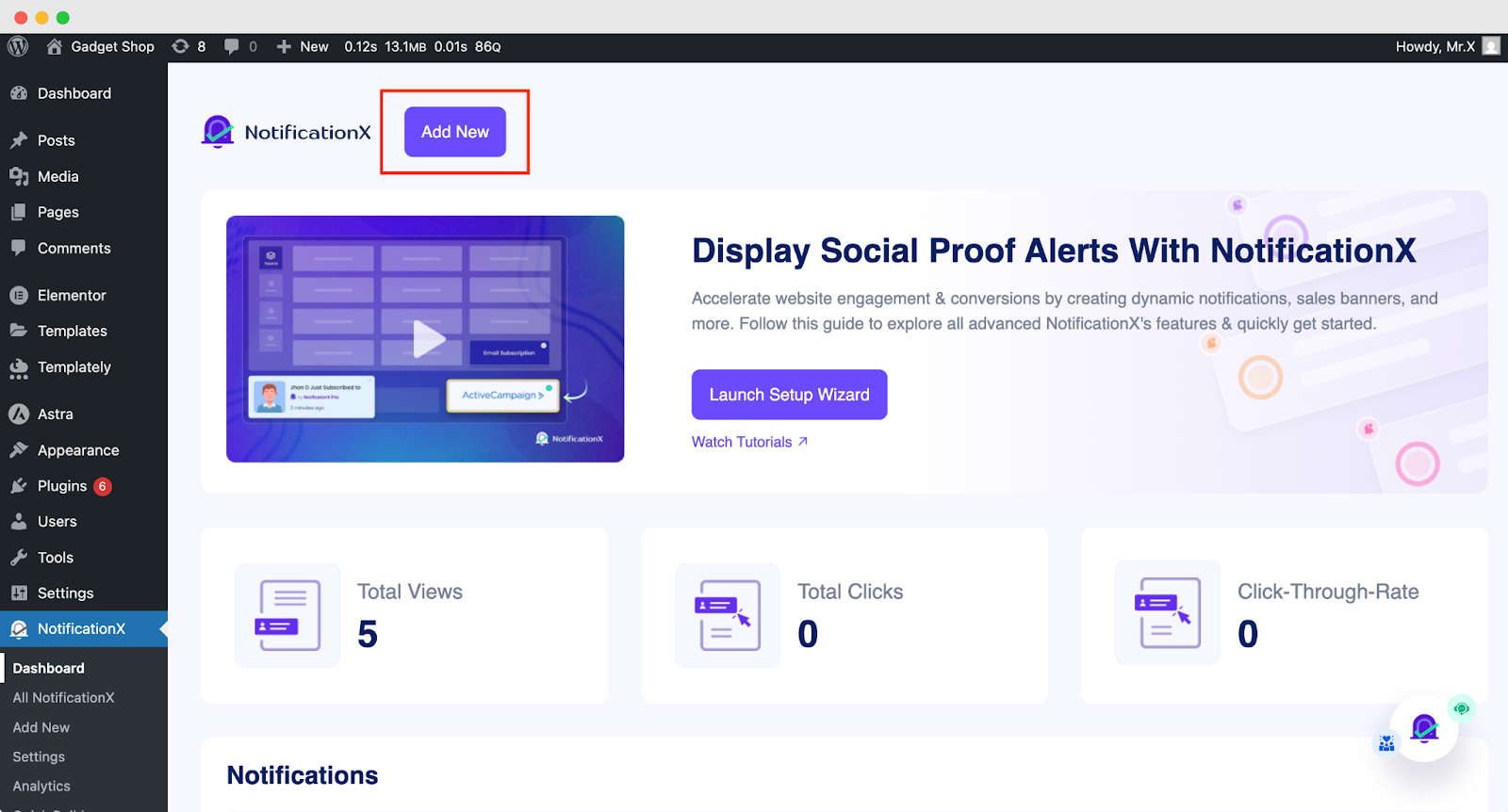
Vaya a su Panel de WordPress y navegue hasta wp-admin -> NotificationX. Then, right at the top, click on ‘Add New’.
Step 2: Select ‘Announcement’ as Your Notification Type #
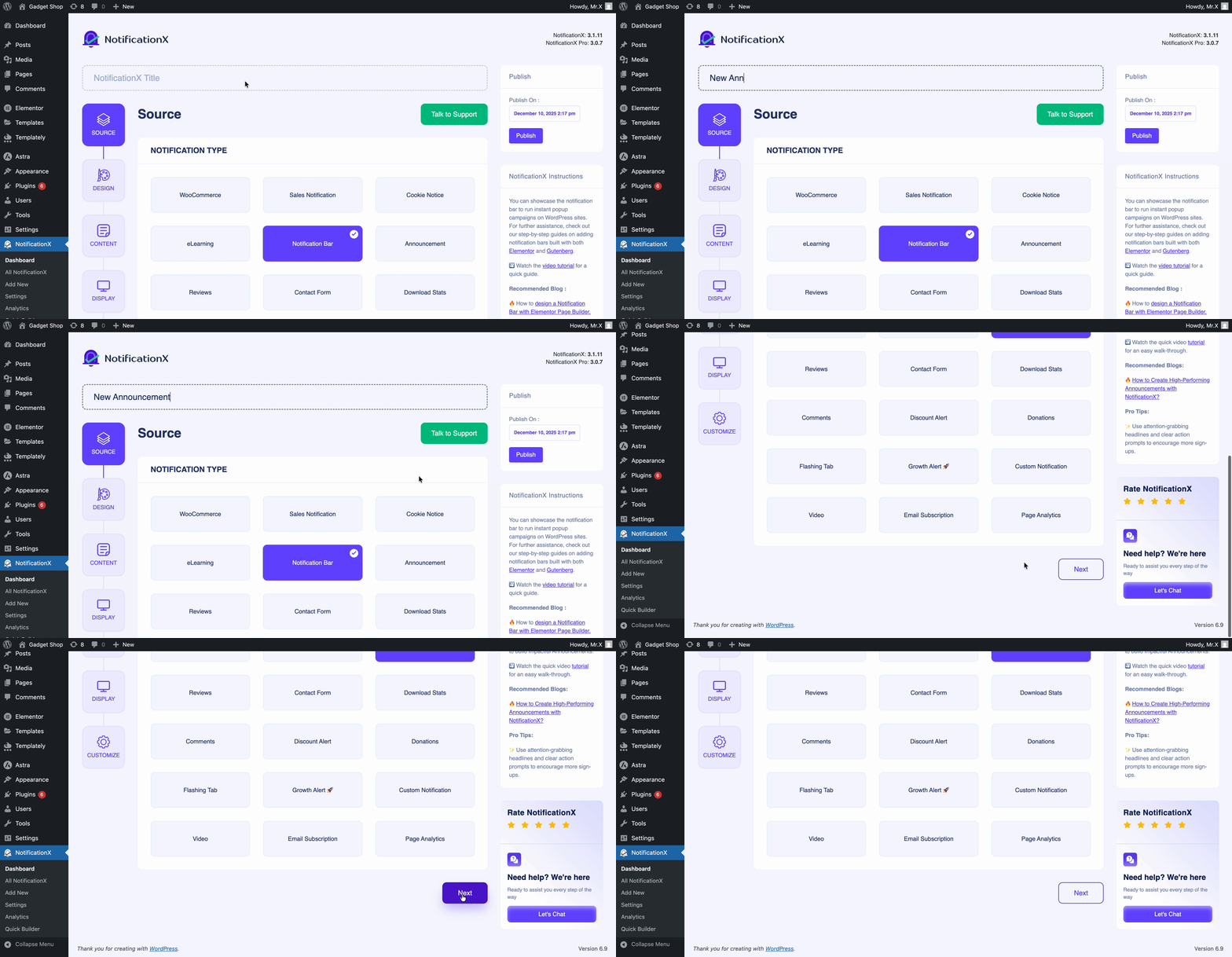
Una vez que haya terminado con el paso 1, será redirigido a 'Fuente' Tab page of your NotificationX. You can also put a title. From the options, select ‘Announcement’ como su tipo de fuente.
Step 3: Choose the Announcement Theme & Design #
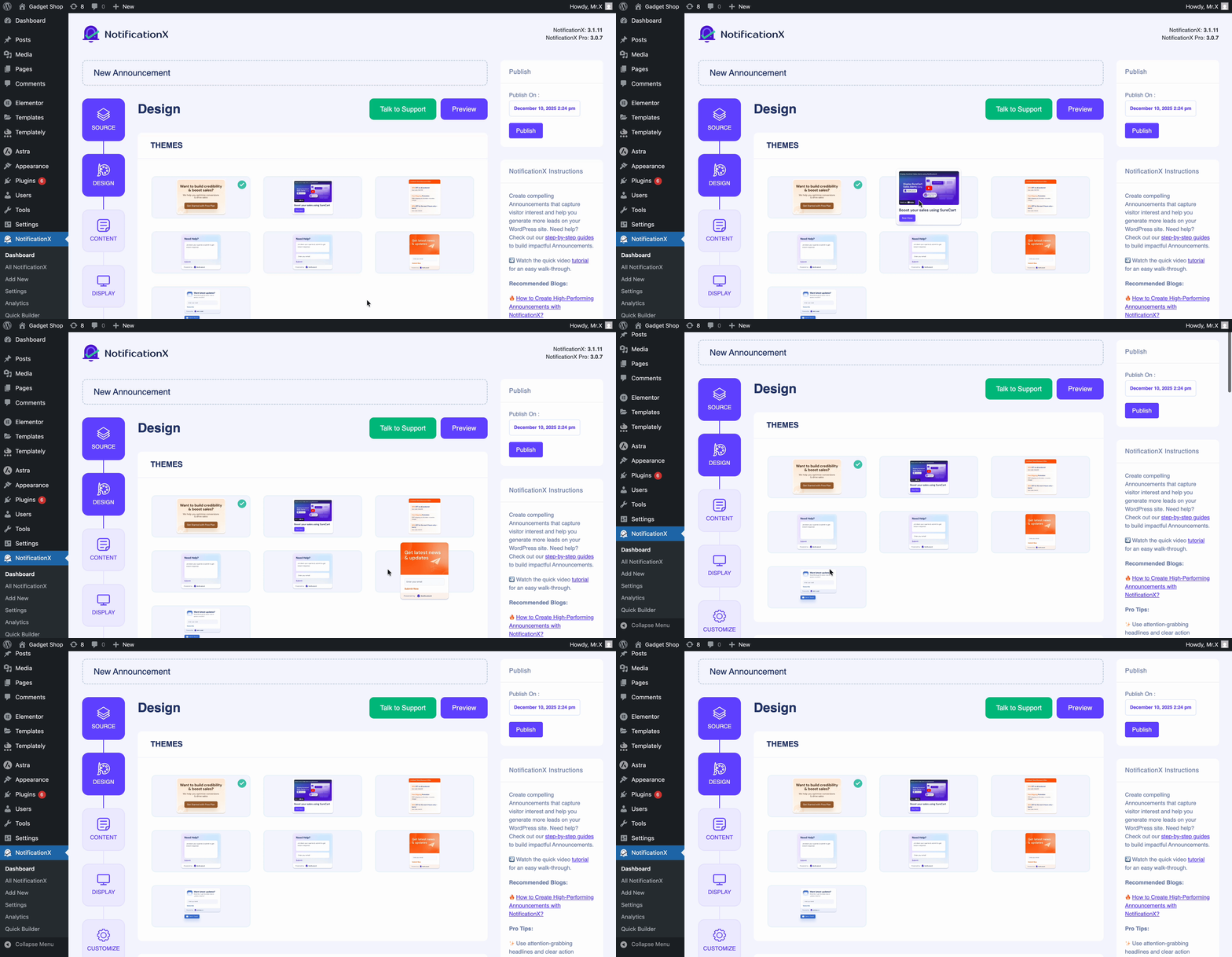
Desde el 'Diseño' tab, you can choose a theme based on your needs. The first 4 themes, which include showcasing ongoing offers and collecting visitors’ messages without their email addresses, are FREE.
The next 3 themes, where your website visitors can send a message and give their email, are included in the PRO version. From the ‘Temas’ section, the chosen layout is how the ‘Announcement’ will be displayed on your website.
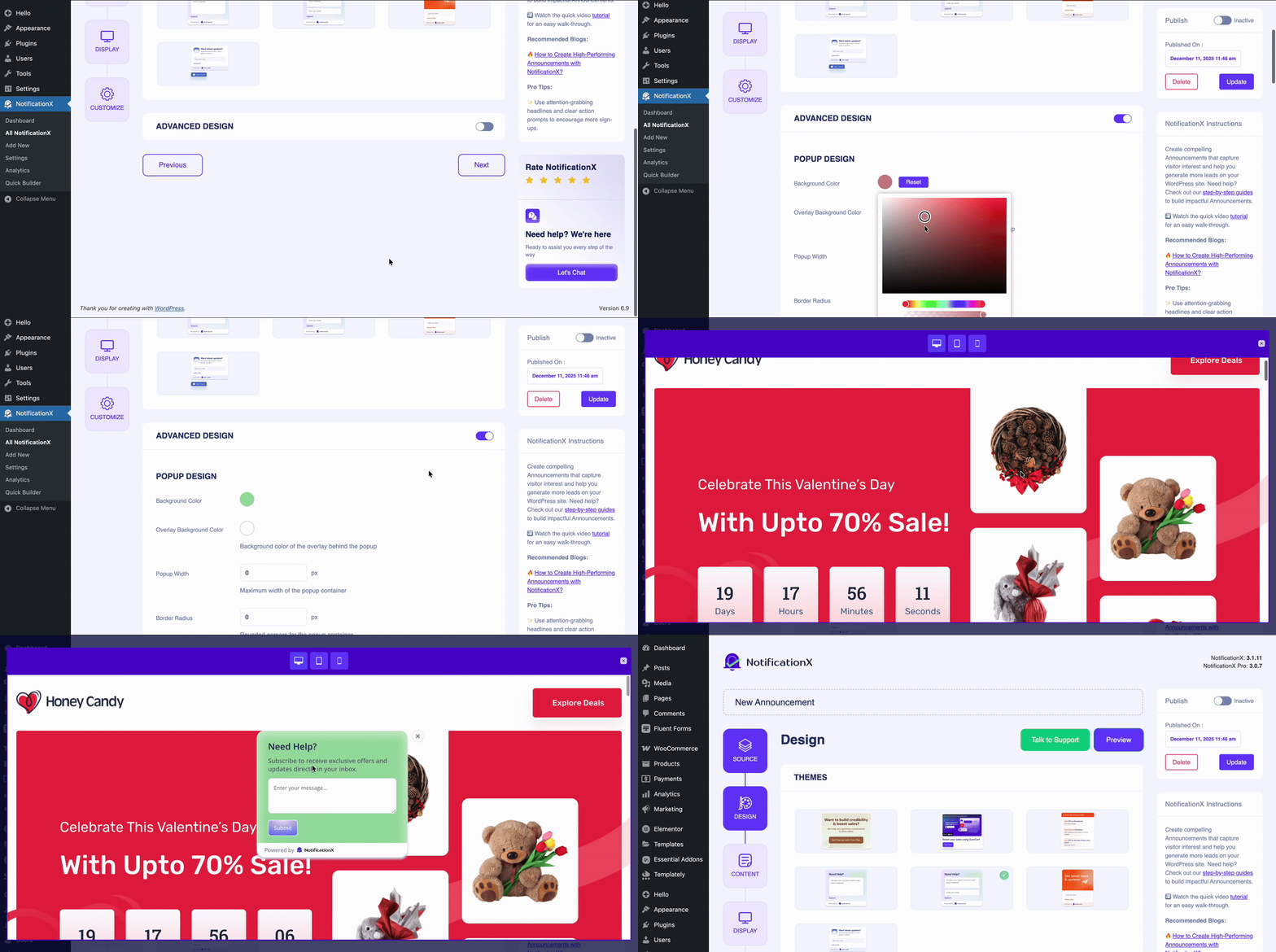
Next, to make the theme customizable, enable the ‘Diseño avanzado’ button. There you will be able to change the color of background color, overlay background color and control the popup width. You can even change the close button color for the popup.
You will also be able to adjust the typography and font/ size weight, content message color. Change the button design to a customized color in the button by adjusting font size, radius, padding and width.
Step 4: Customize the Content for Announcement #
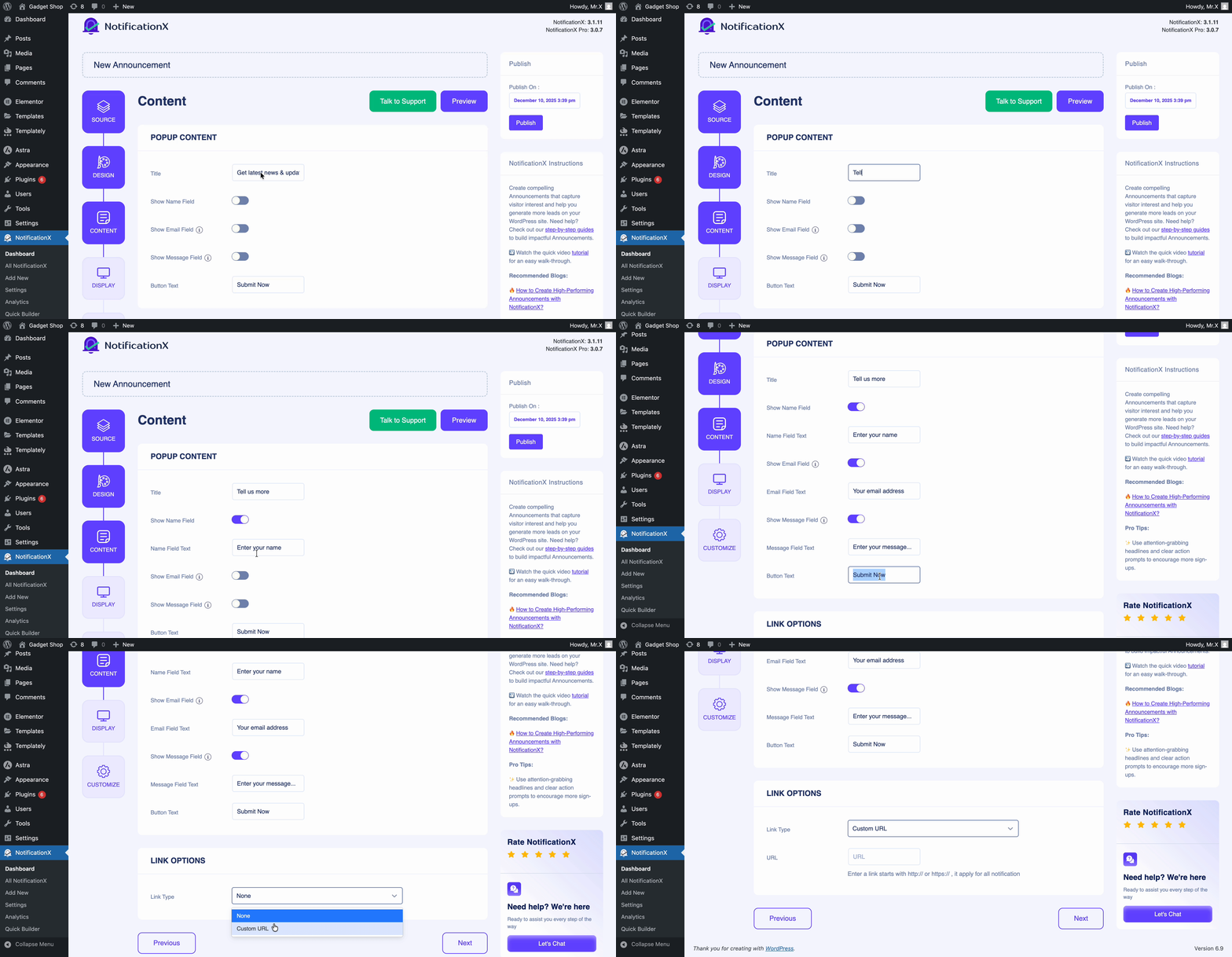
After clicking the ‘Next’ button, you will find the 'Contenido' tab. Here, you can choose the content for the popup. From the ‘Title’, choose the title you want to showcase for your popup. You can give a catchy headline in the title section. Next, enable the Name, Email, or Message field to collect users’ names, email addresses, or their messages, respectively. You also have available option to choose a catchy CTA for the button.
Below, you will also find an option to add a custom link for the CTA. After the setting, click on the 'Próximo' button to control the visibility of the announcement.
Step 5: Control the Visibility #
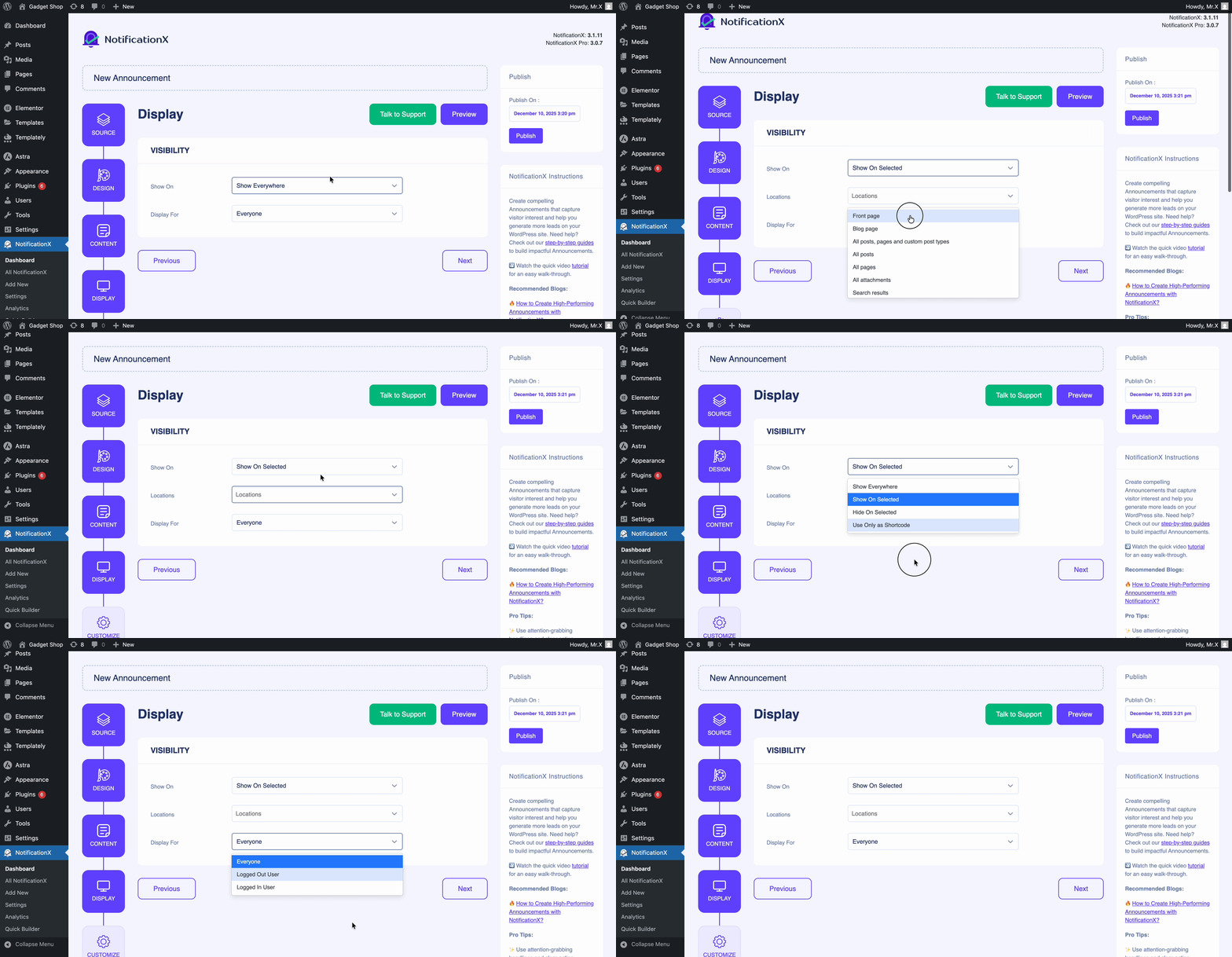
Next, from the 'Monitor' tab, select the visibility option where you want to show/ hide the announcement on your website. You can also select to whom you want to display this notification type.
Step 6: Configure the Customization #
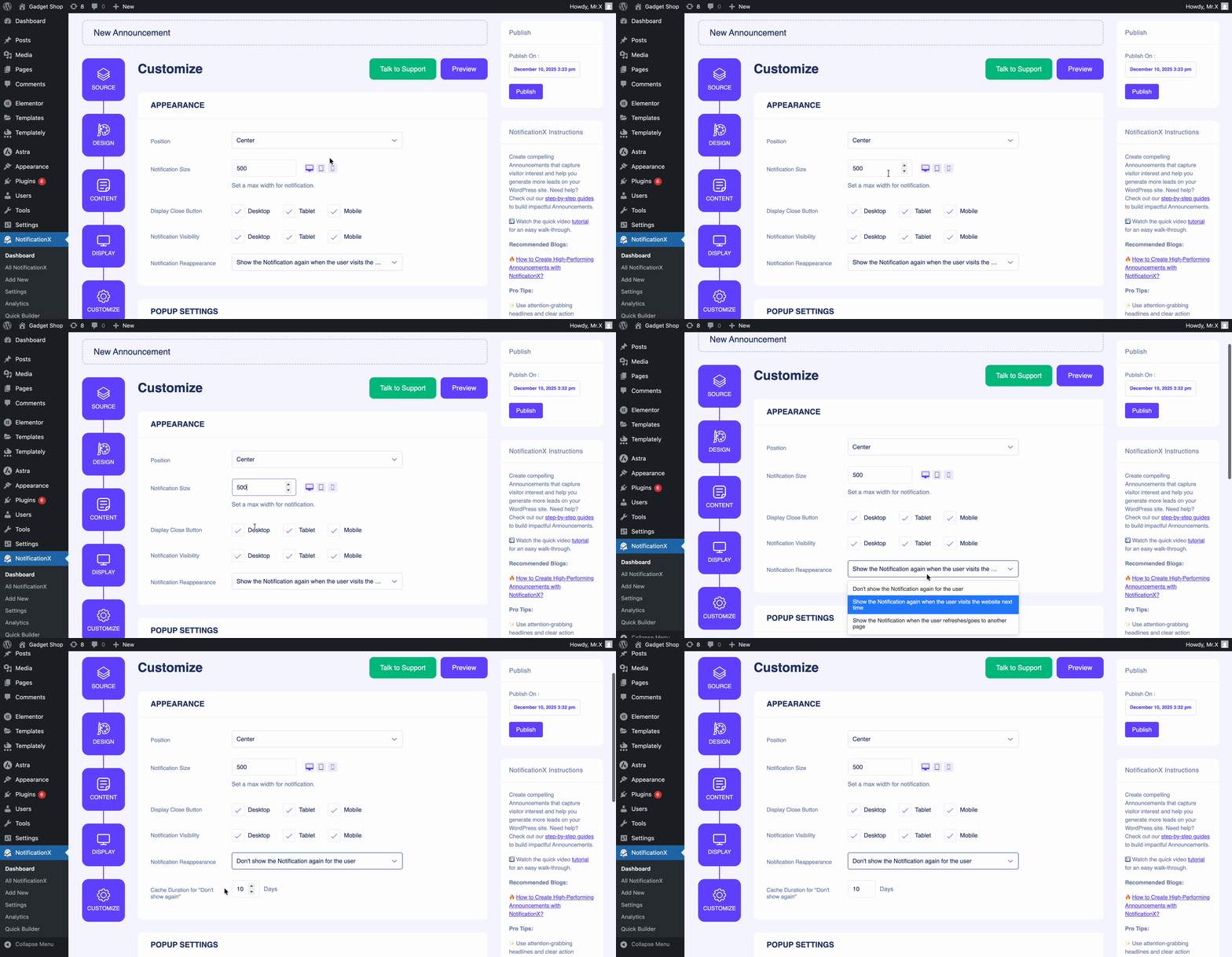
Next, under the 'Personalizar' tab, you can choose the Appearance of the announcement. That means in which position on your website you want to display the notification. Adjust the notification size and choose the type of device you want to display the close button and notification visibility. You can also control the notification reappearance for the users.
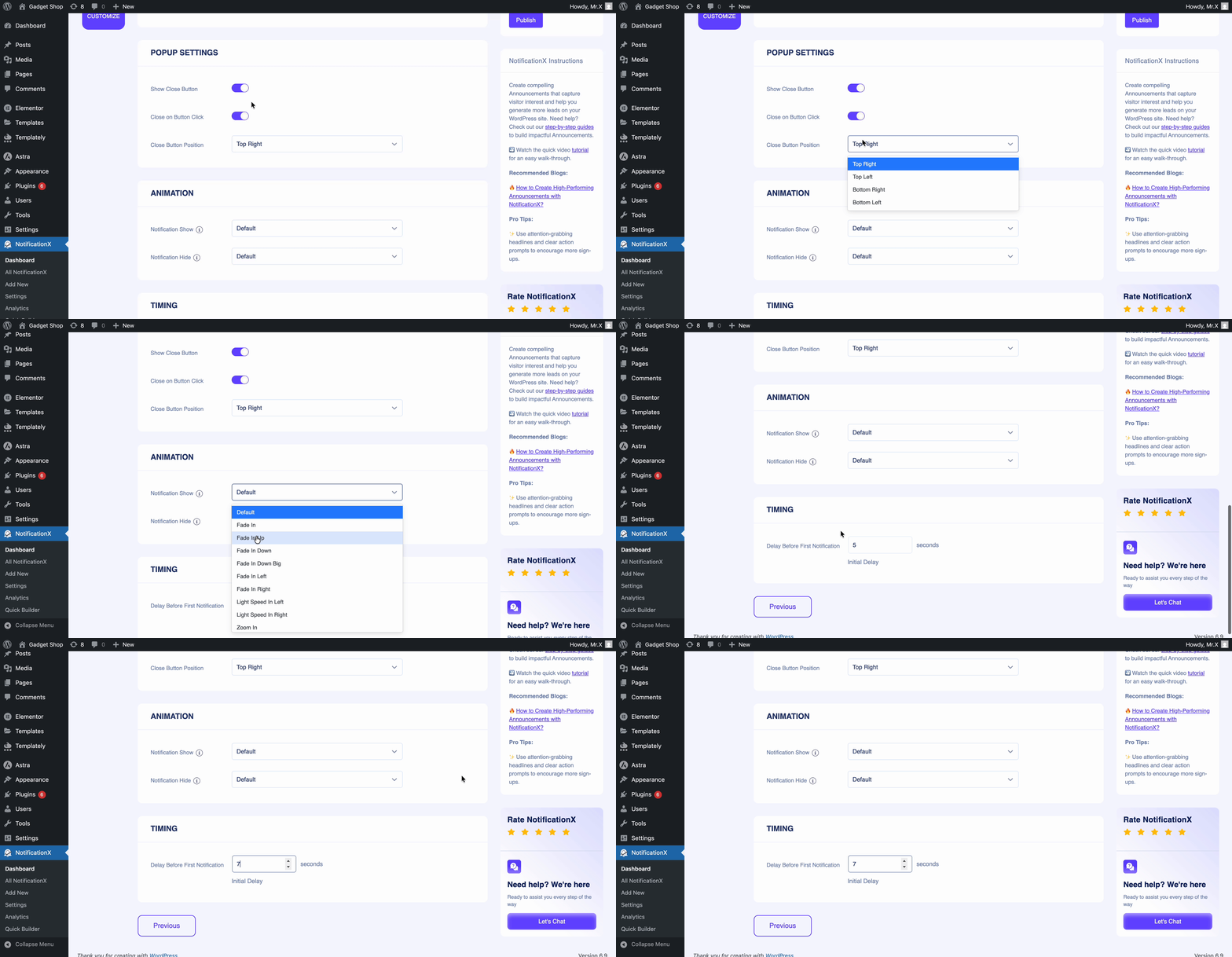
Next, you will find popup settings where you can enable or disable the ‘Show Close Button’ y ‘Close on Button Click.’ You can also adjust the close button position. Next, in the Animation section, you can animate the popup and set up the delay. Set the Timing to show a delay before the first notification. Click on the 'Publicar' button to make the announcement live on your website.
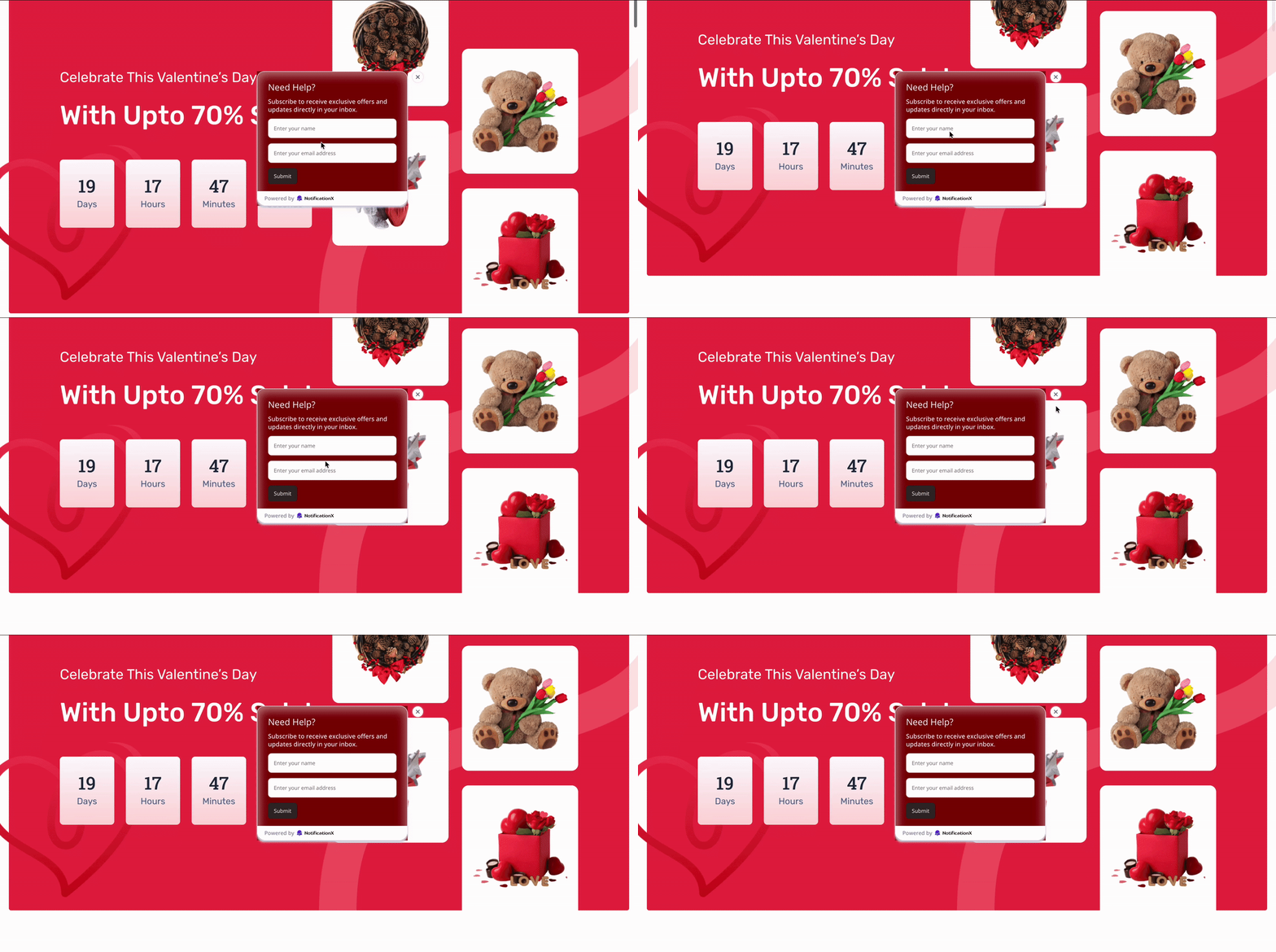
Resultado final #
By following these steps and a bit more modification, this is how your Announcement will appear on your WordPress website.
Si tiene algún problema, puede contactar a nuestro Equipo de apoyo.


 English
  Arabic
  Indonesian
  Spanish
  Bengali
  Portuguese
  German
  Dutch
Dutch  Russian
  Hindi
Hindi  French
  Japanese
  Chinese
  Vietnamese
  Malay
Malay