
NotificationX PRO ermöglicht die Anzeige WooCommerce Growth Alerts for products on your online store. It helps you show WooCommerce product sales count, stock-out alerts, and more.
How To Display WooCommerce Growth Alerts With NotificationX? #
Before getting started, you need to have WooCommerce installed and activated on your website to use this feature. Follow this step-by-step guide below to learn how to display WooCommerce Growth Alerts for products.
Schritt 1: Neue Benachrichtigung hinzufügen #
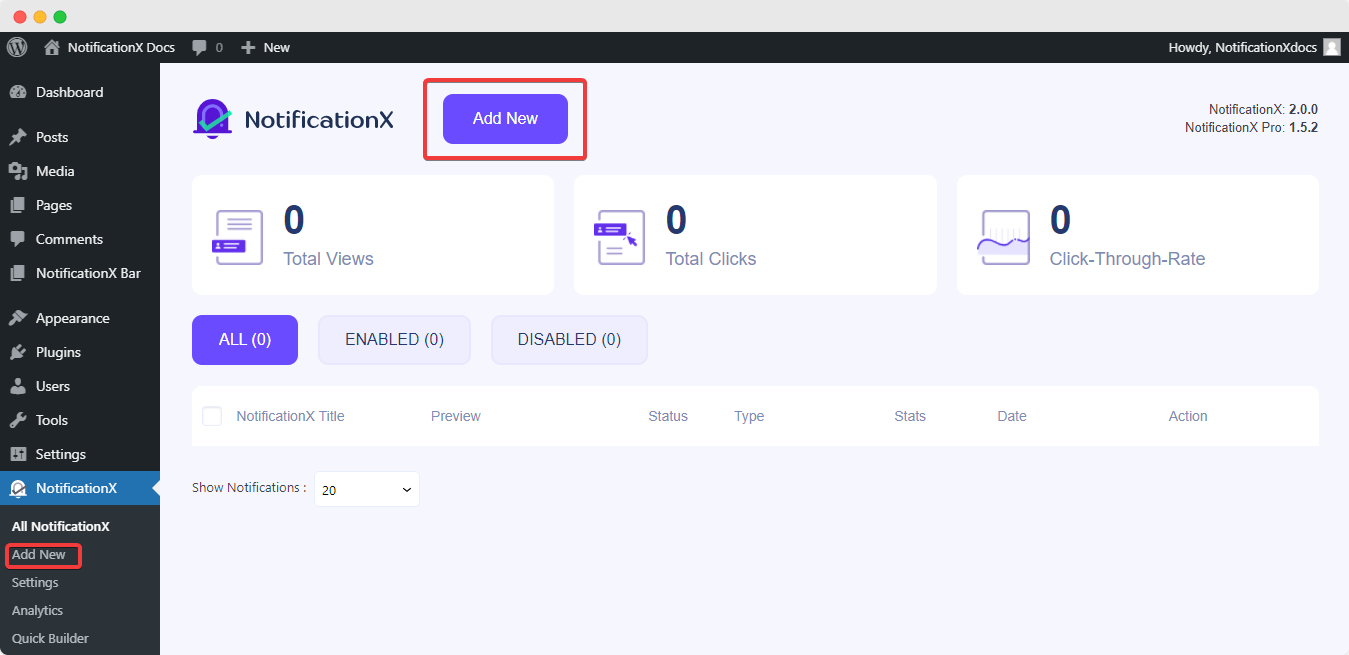
Gehen Sie zu Ihrem WordPress-Dashboard und navigieren Sie zu wp-admin –> NotificationX. Then, right at the top, click on ‘Add New'.
Step 2: Select Notification Source #
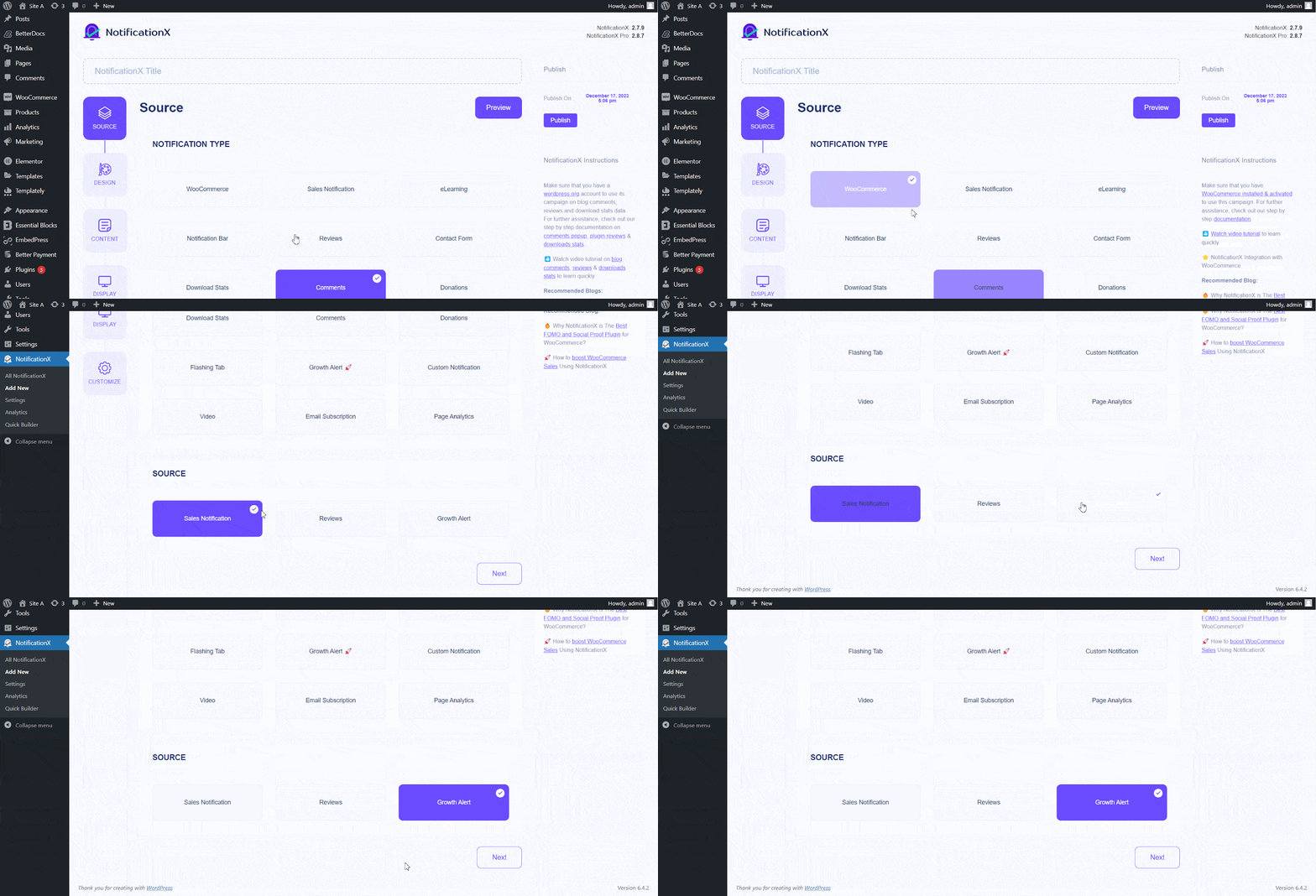
Nachdem Sie mit Schritt 1 fertig sind, werden Sie zu weitergeleitet 'Quelle' Registerkarte Ihres NotificationX. Sie können auch einen Titel einfügen. Verwenden Sie das Dropdown-Menü zur Auswahl "WooCommerce" als Benachrichtigungstyp.
Drop down and choose „Wachstumsalarm“ from the ‘Source’ options to choose your preferred notification type. There are also options to choose ‘Verkaufsbenachrichtigung' und 'Bewertungen’ to display those alerts for your WooCommerce store. Afterward, go ahead & click on the ‘Nächster’ Button.
Step 3: Customize The Design #
Von dem 'Entwurf’ tab, you can choose a layout and have the flexibility to use the ‘Erweitertes Design’ option to customize it according to your preference. From the "Themen" section, the chosen layout is how the growth notification will be displayed on your website.
You can customize your chosen Theme through the ‘Advanced Design’ option. You can easily add styling to your design, image appearance, and typography from this section. You can add a Background or Text color for the notification popup. Besides you can also add a Border and add styling to it.
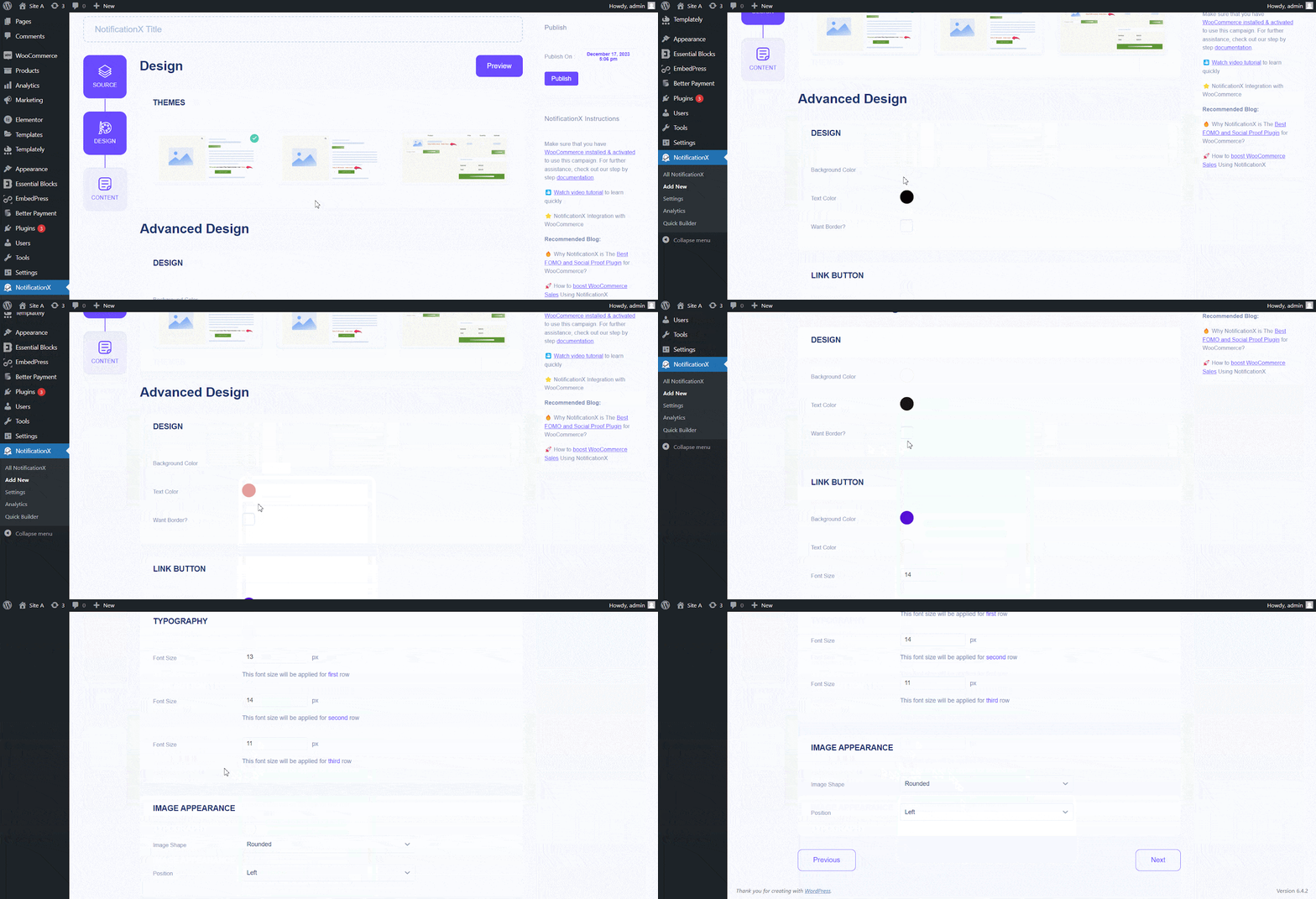
"Bilddarstellung" section lets you change the ‘Image Shape’ to out of these three: Rounded, Circle & Square. You can also use the drop-down menu ‘Position’ to change the position of the image: Left or Right. Basically, this consists of Three rows. From ‘Typography’ section, you can change the Font Size for each row as well.
Step 4: Modify Notification Content #
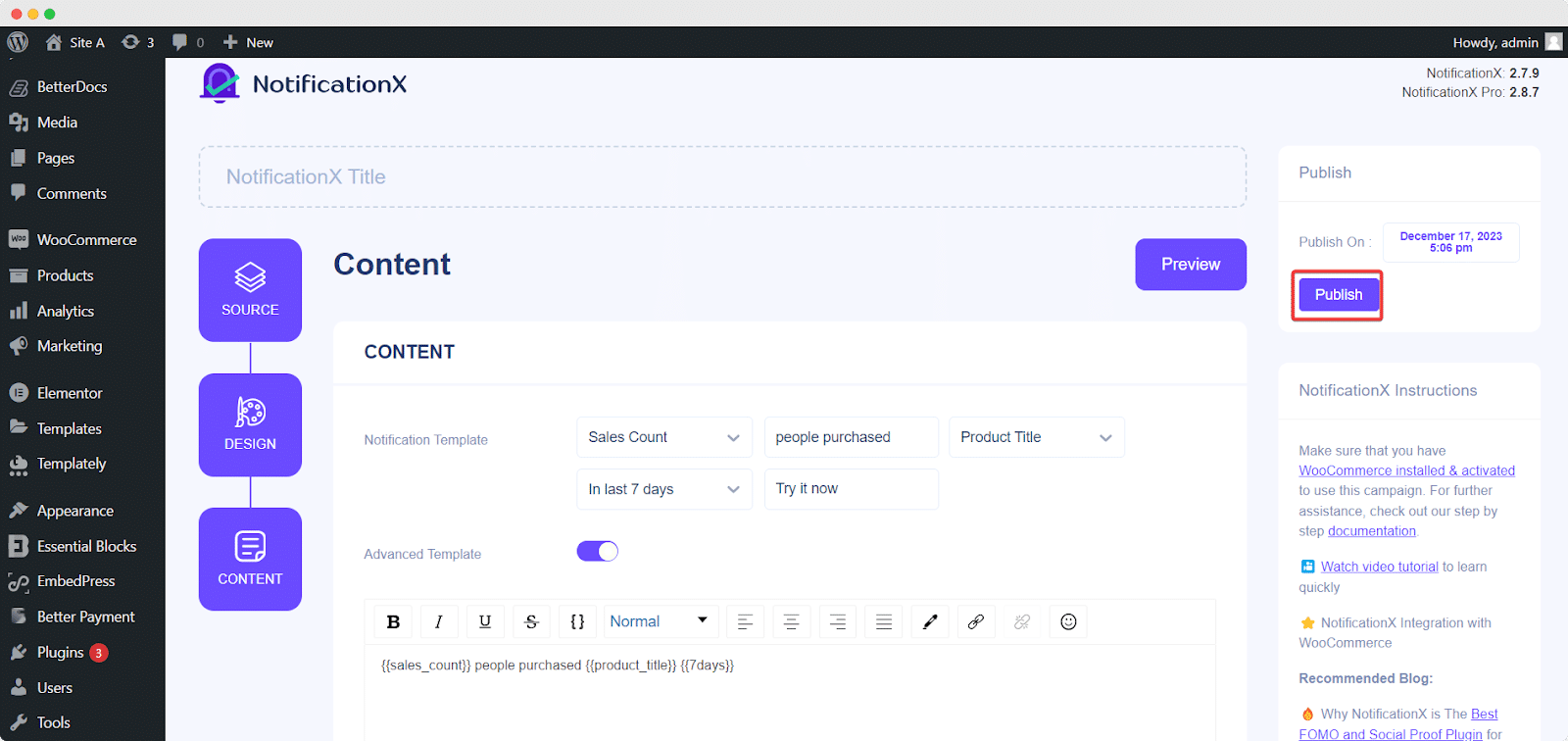
Sie werden dann zu weitergeleitet 'Inhalt' tab, where you can modify your 'Benachrichtigungsvorlage' and add your preferred content text. These settings vary depending on the notification type you are working with.
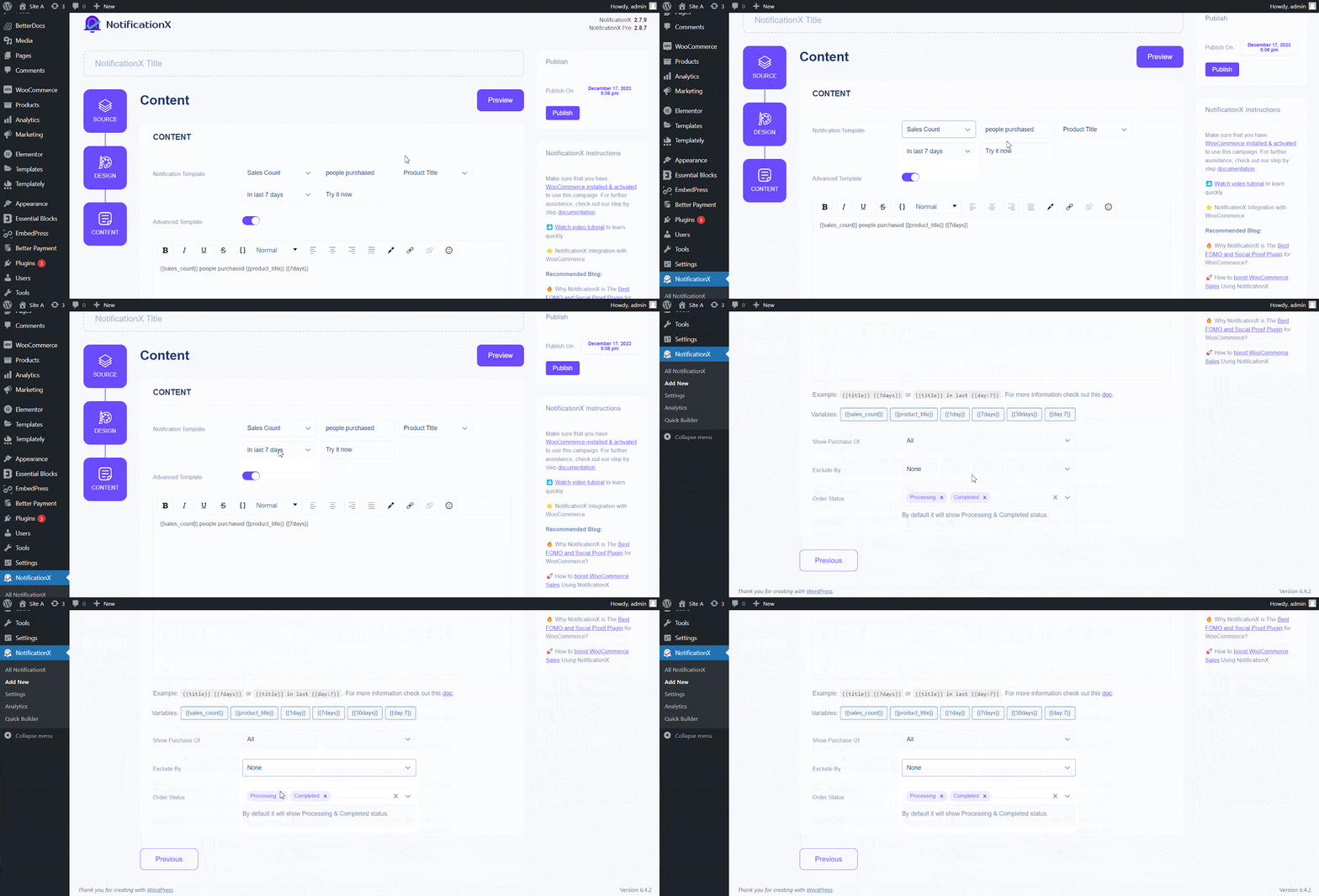
NotificationX bietet ein ‘Notification Template’ for your Content. You can easily go ahead and choose your preferred variables. These variables help display the user’s name who has purchased a specific product within a certain time interval. You can also add your text, which will appear in the notification popup.
Step 5: Publish The Notification #
After you have completed step 4, click on the 'Veröffentlichen' Taste.
As a result, the growth notification will be successfully created. By following these steps and slightly modifying & styling, your final outcome would look like this.
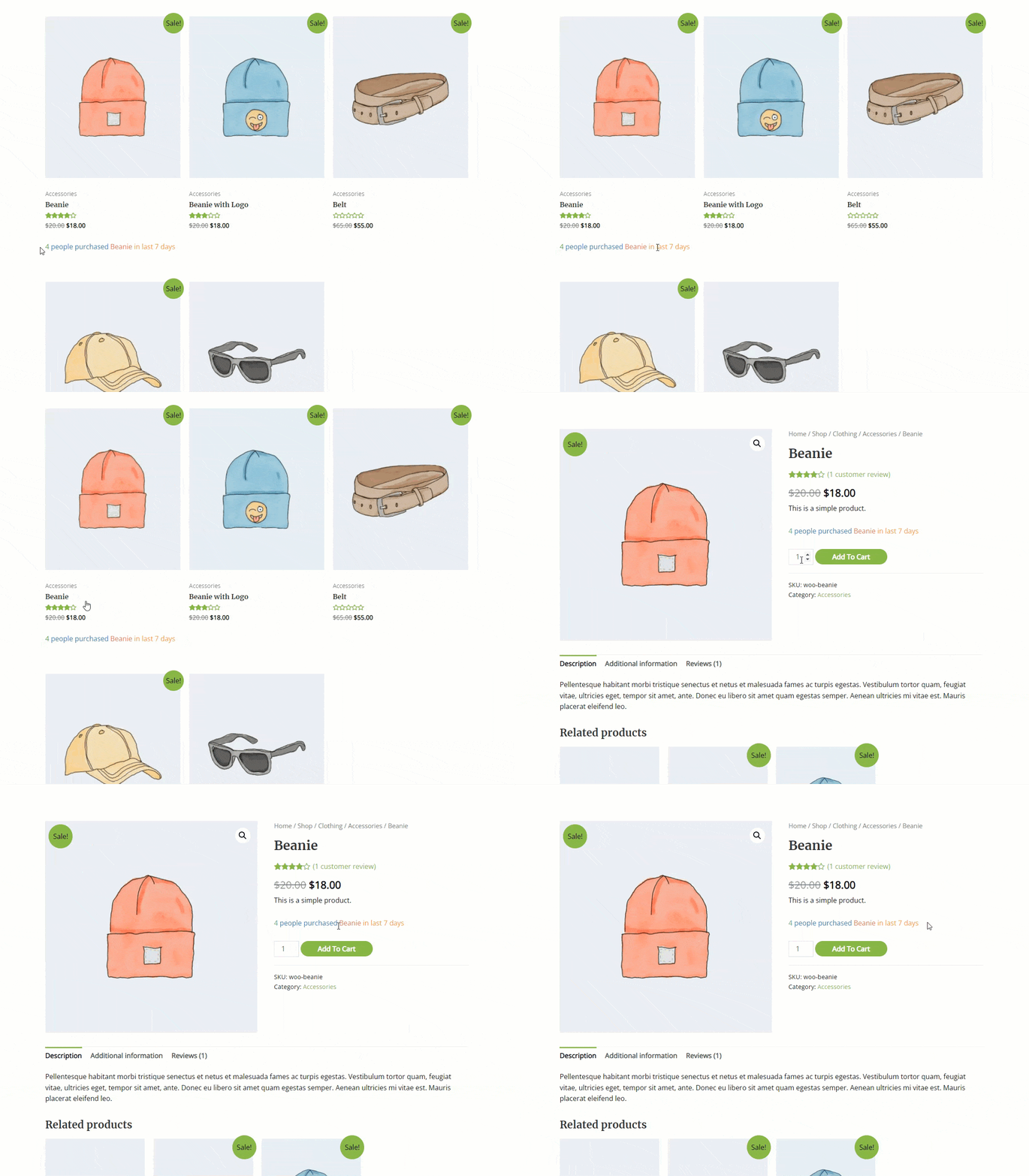
This is how you can easily design and display appealing ‘WooCommerce Growth Alerts’ for products auf Ihrer WordPress-Website mit NotificationX.
Wenn Sie auf Probleme stoßen, können Sie sich an unsere wenden Support-team.


 English
  Arabic
  Indonesian
  Spanish
  Bengali
  Portuguese
  German
  Dutch
Dutch  Russian
  Hindi
Hindi  French
  Japanese
  Chinese
  Vietnamese
  Malay
Malay