
Como mostrar o alerta de notificação do Zapier usando NotificationX? #
NotificationX gives you the chance to integrate with your Zapier Account. As a result, you are able to display any sort of Zapier Notification Alerts, such as Email Subscription, Review, Sales Notifications and others.
Before you connect NotificationX with your Zapier Account, you need to create a Zapier Notification Alert on your website. Follow these steps to show the Zapier Notification popup with NotificationX:
Como criar e configurar o alerta de notificação do Zapier #
Etapa 1 - Adicionar nova notificação #
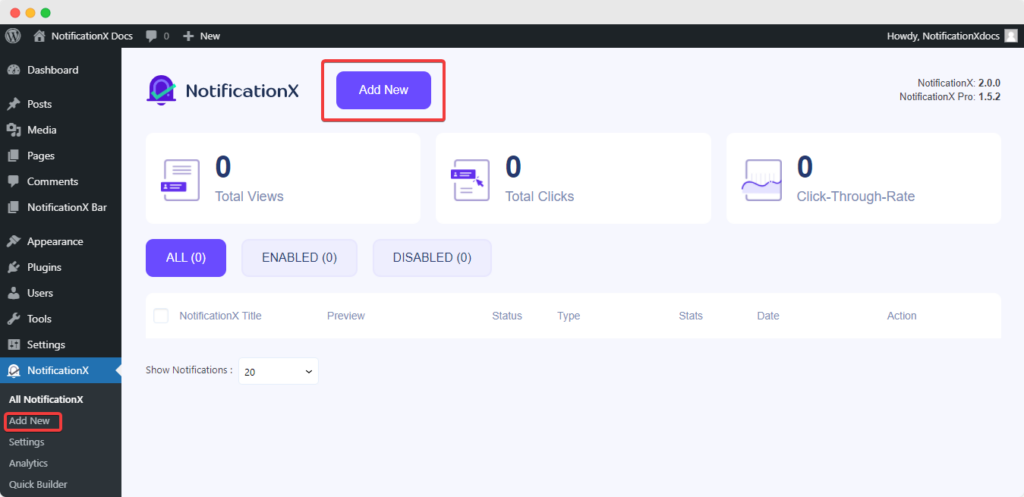
Para começar, acesse o Painel do WordPress e navegue até wp-admin -> Todos os NotificationX -> NotificationX. Then, right at the top, click on ‘Add New’.
Etapa 2 - Escolha uma fonte #
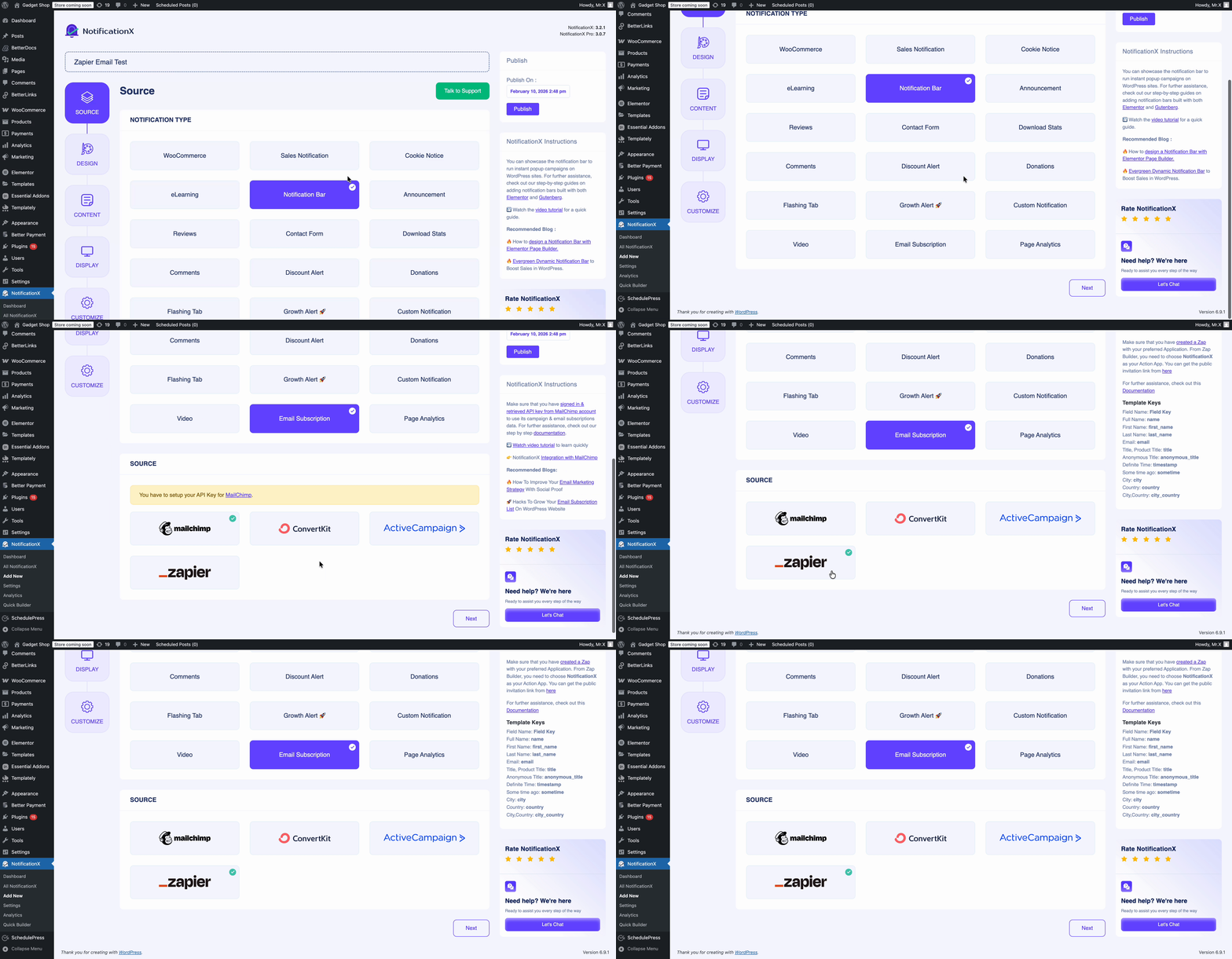
Você encontrará ‘Zapier’ fonte dentro desses tipos de notificação: Notificação de vendas, Avaliações e Assinatura de Email. For instance, if you want to display new emails from your Gmail account, you can pick the ‘Email Subscription’ opção. Depois de escolher o seu tipo de notificação preferido, escolha ‘Zapier’ como sua fonte e clique em 'Próximo'.
Etapa 3 - Escolha um tema de design #
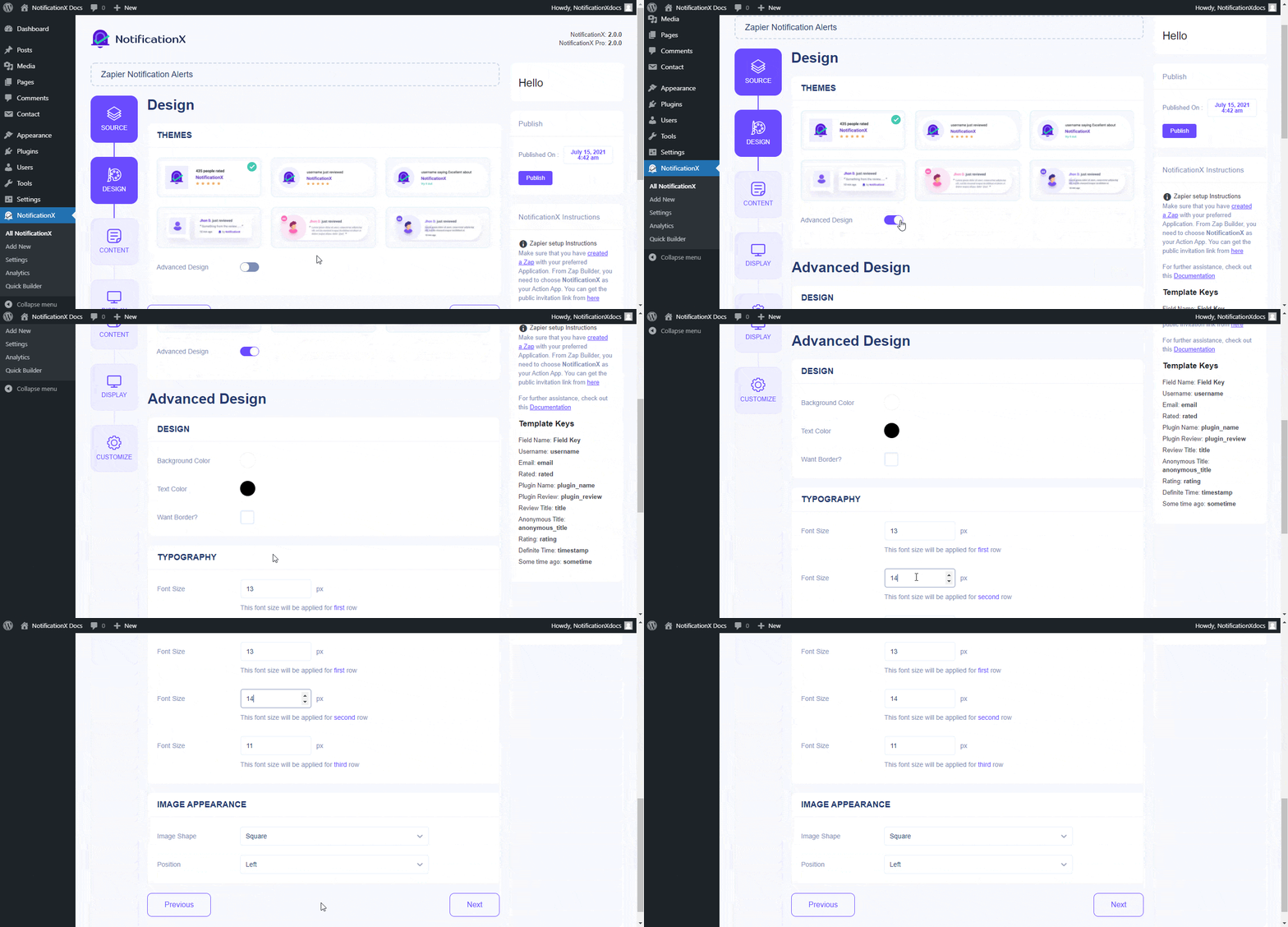
De 'Projeto' Na guia, você pode escolher um layout e também ter a flexibilidade de usar o 'Design Avançado' opção para personalizá-lo conforme sua preferência. De 'Temas' Na seção, o layout escolhido é como o alerta de notificação será exibido no seu site. Além disso, você pode modificar o tema escolhido personalizando-o através de 'Design Avançado ' opção. Nesta seção, você poderá adicionar estilo facilmente ao seu design, aparência da imagem e tipografia.
Etapa 4 - Configurar o conteúdo do modelo #
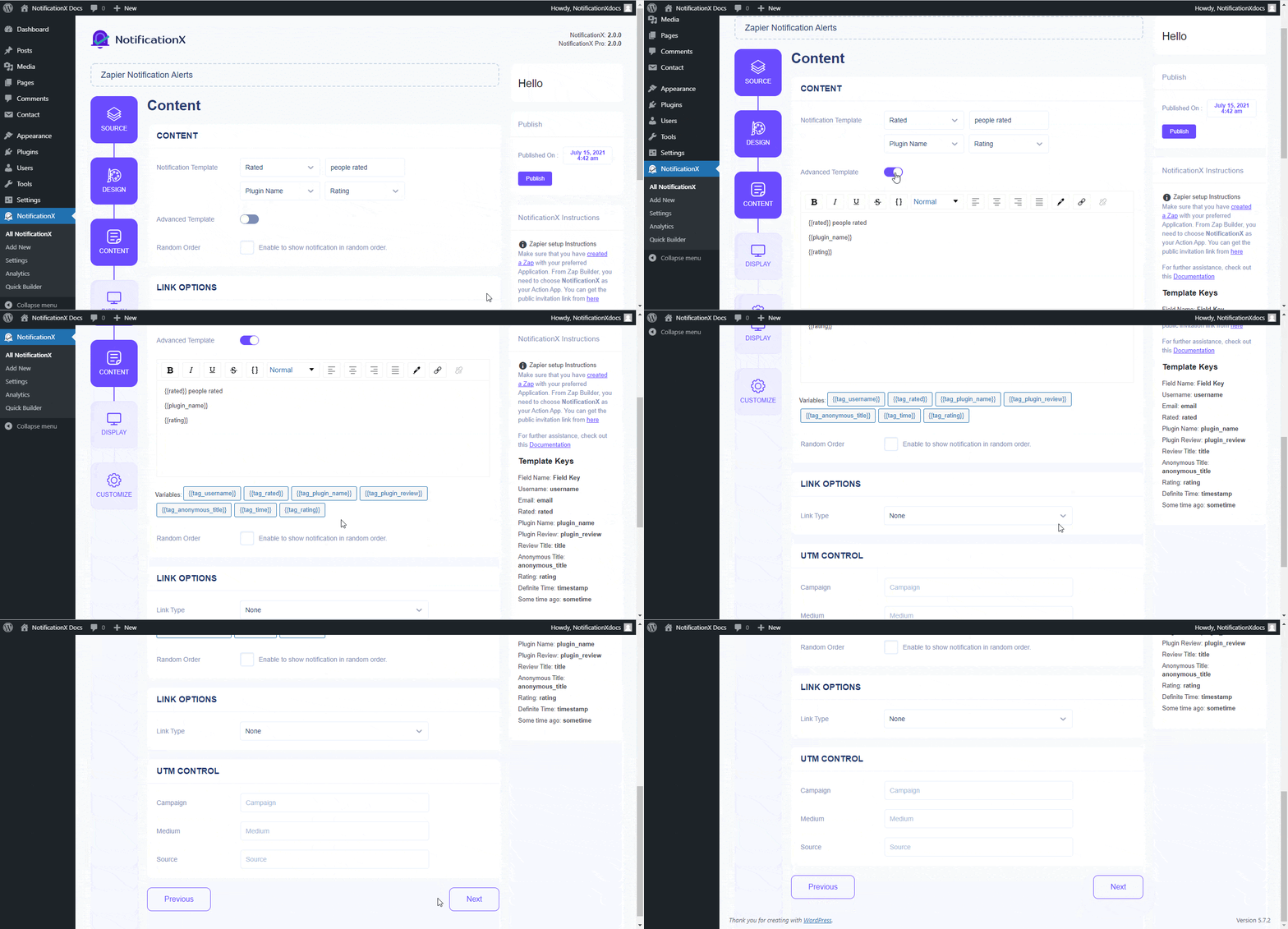
Você será redirecionado para o 'Conteúdo' guia de onde você pode modificar seu 'Modelo de notificação' e adicionar seu texto de conteúdo preferido. Além disso, o NotificationX oferece 'Modelo de notificação' para o seu conteúdo. Você pode facilmente prosseguir e escolher suas variáveis preferidas. Por outro lado, 'Modelo avançado' fornece controle total para personalizar todo o conteúdo. Além disso, você pode acompanhar os vários tipos de campanhas através do NotificationX 'Controle UTM'.
Etapa 5 - Ajustar as opções de exibição #
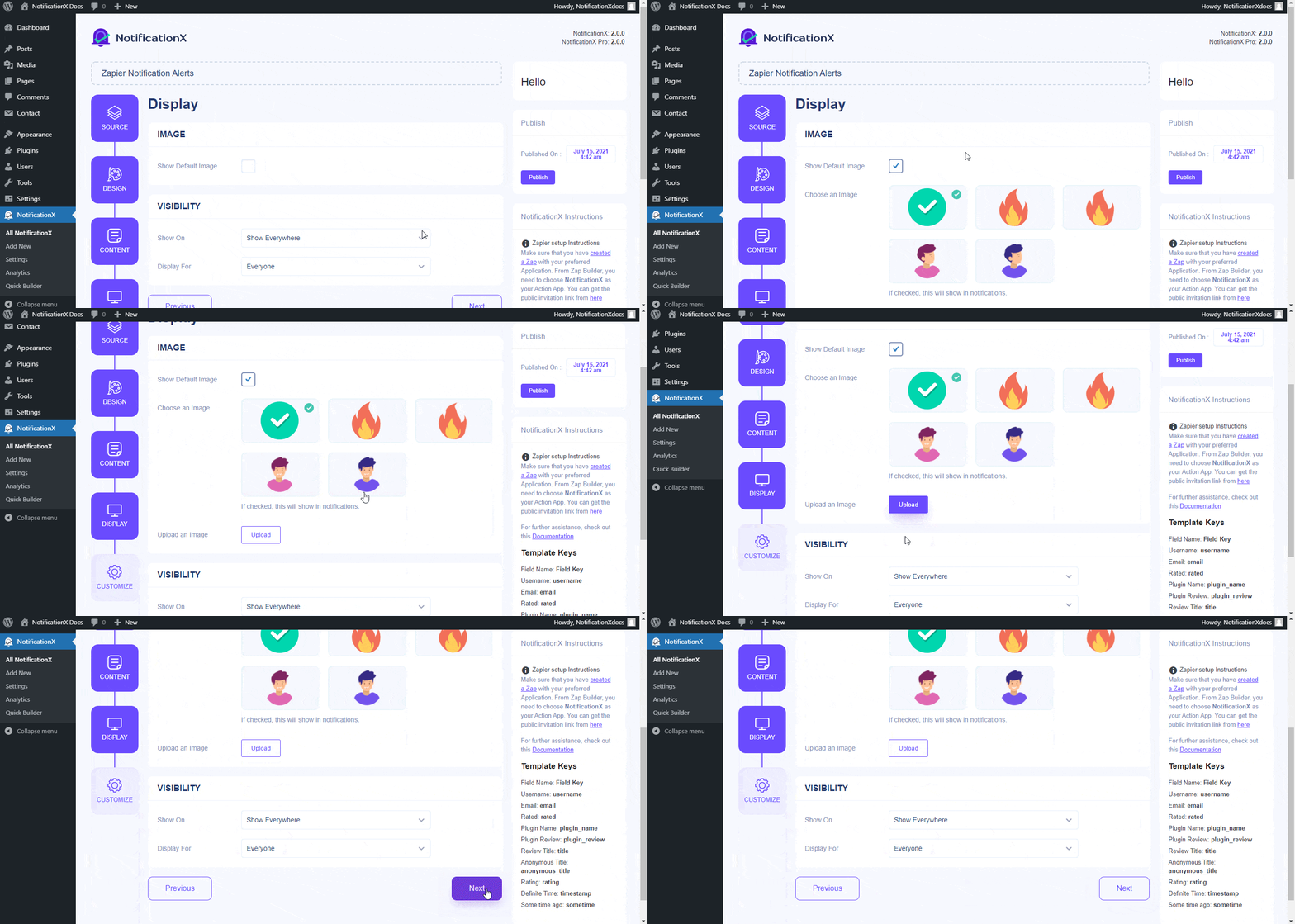
De 'Imagem' section, you can use the checkbox to display a default image or an avatar in the notification popup. Whereas the 'Visibilidade' A seção permite definir as páginas nas quais você deseja exibir o alerta de notificação do Zapier.
Etapa 6 - Configurar aparência #
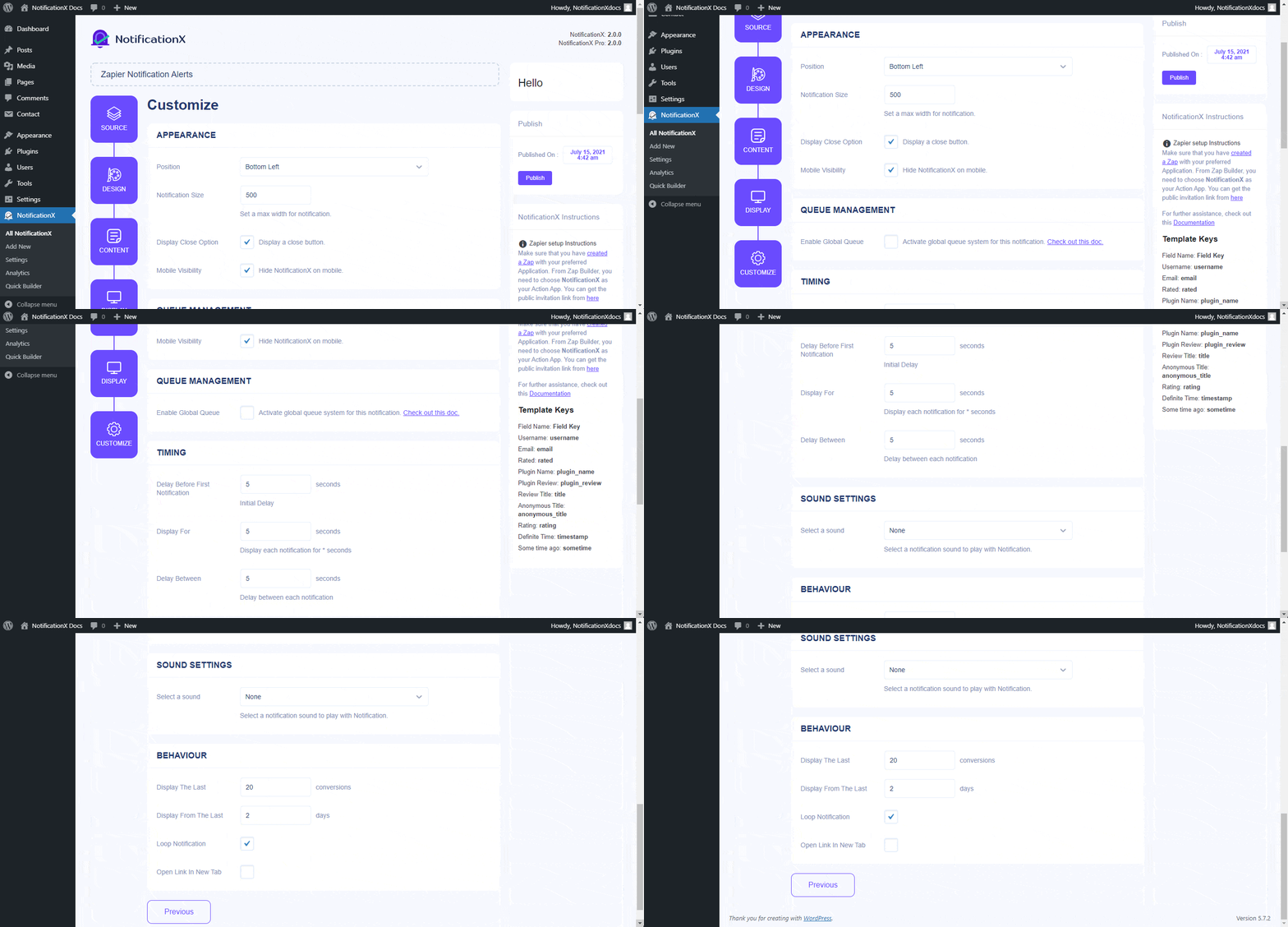
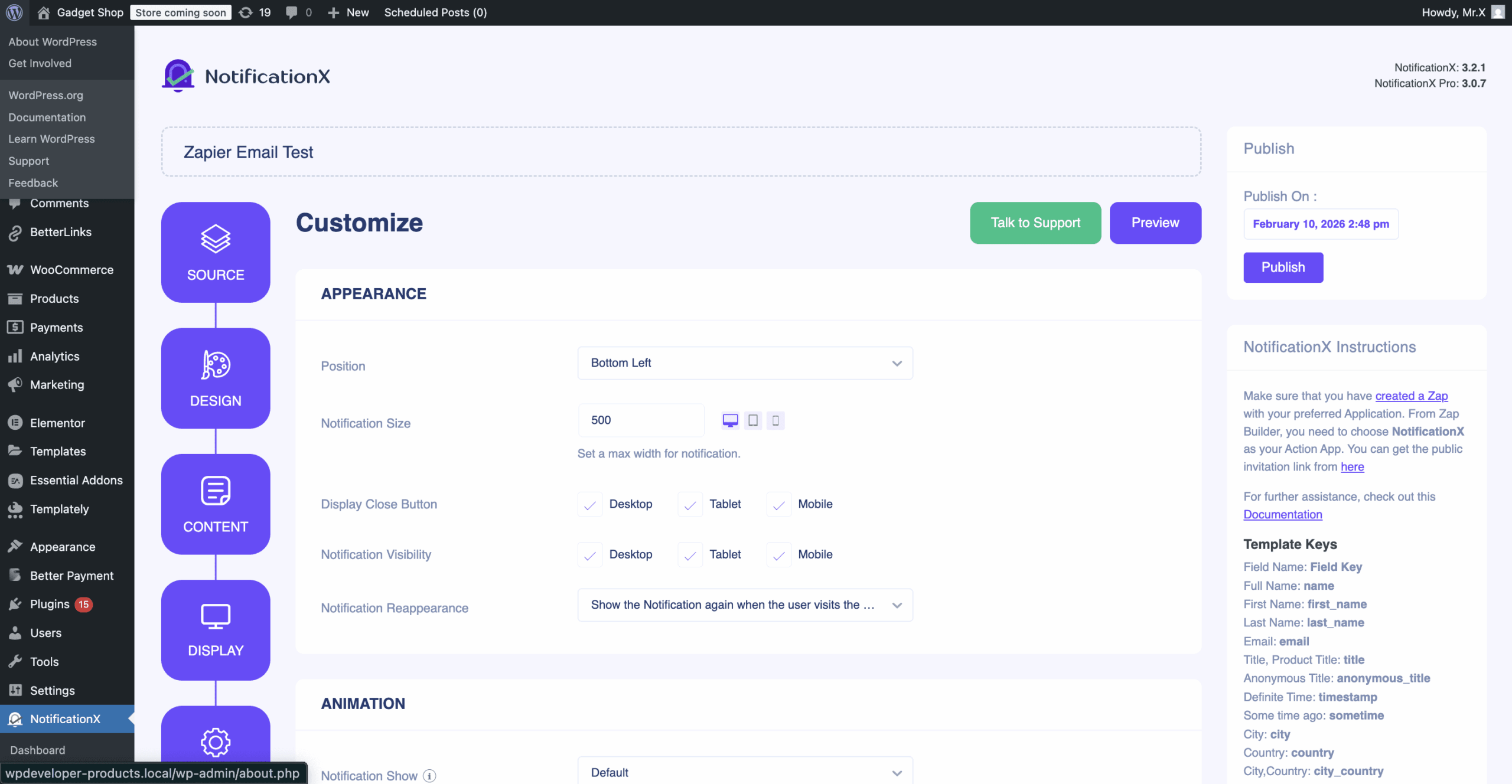
De'Aparência' section, you can set the position and width for notificiation alert. From the ‘Timing’ section, you can control the ‘Display’ time duration and set an initial time after which your ‘Zapier notification alert’ will pop up. The ‘Behaviour’ section allows you to pick a number of conversions and specify a certain number of days that will be considered for the notification popup. Besides, the ‘Sound Settings’ section lets you pick a Sound Alert for your notification popup.
Etapa 7: Publique sua notificação #
Depois de concluir a etapa 6, clique no botão 'Publicar' botão. Como resultado, o 'Alerta de envio do formulário de contato' será criado com sucesso.
Como conectar NotificationX com Zapier #
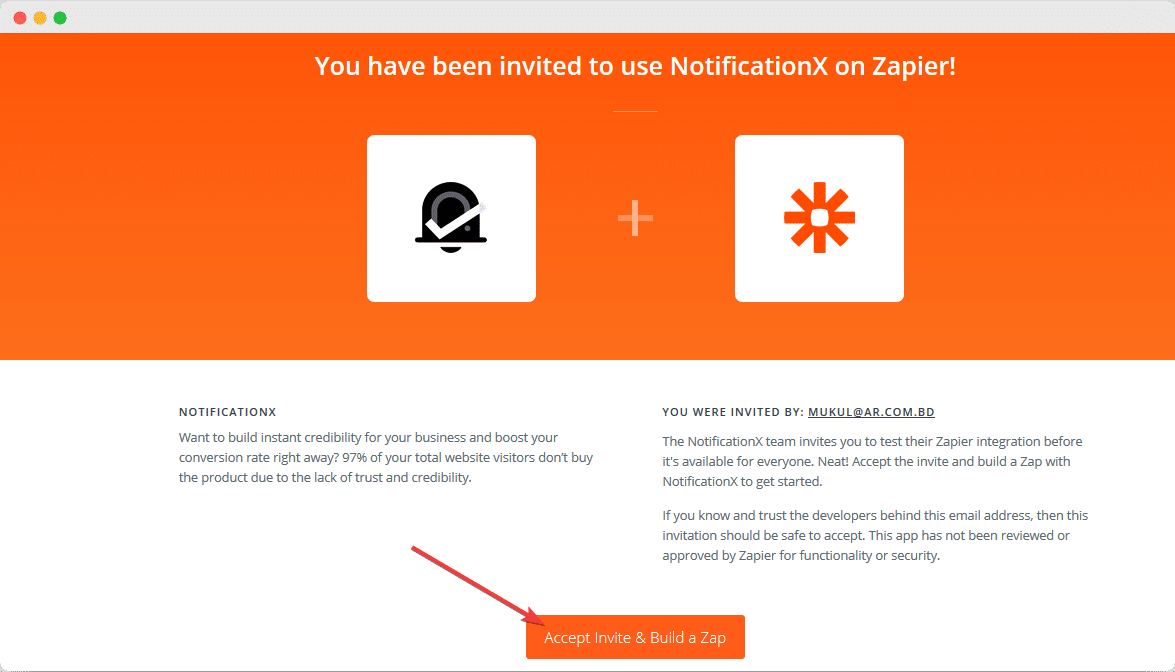
Depois de publicar seu alerta de notificação do Zapier, você precisará conectar o NotificationX ao Zapier. Para fazer isso, primeiro de tudo, você precisa faça login no seu painel Zapier. Para usar NotificationX no Zapier, aceite as instruções link de convite público de NotificationX. Em seguida, basta ir em frente e clicar no ‘Accept Invite & Build a Zap’ botão.
Nota: You will find the Zapier API key in the NotificationX settings option. There will be an API key, and you will get a public invitation link. You can add the link from the settings and get the invitation link here.
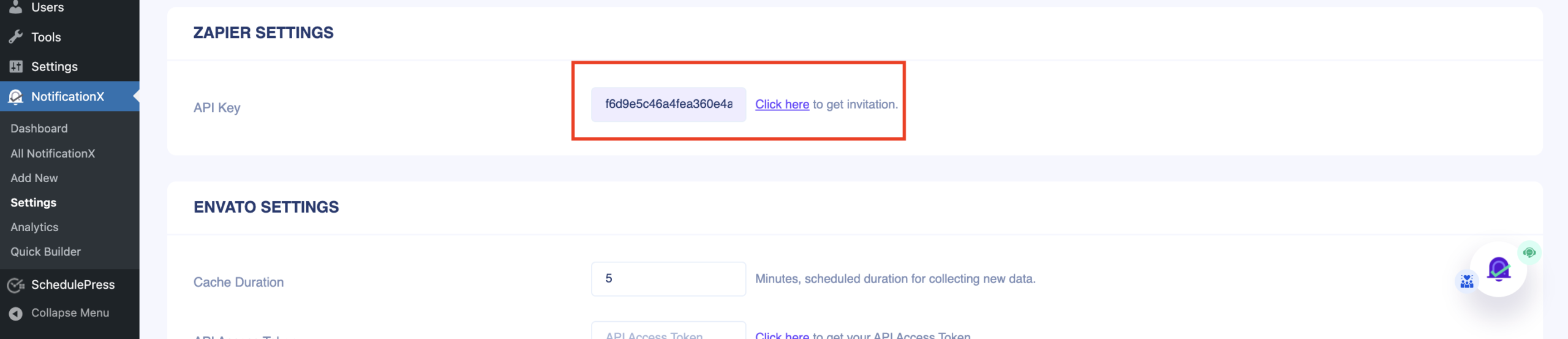
Etapa 1 - Crie um Zap #
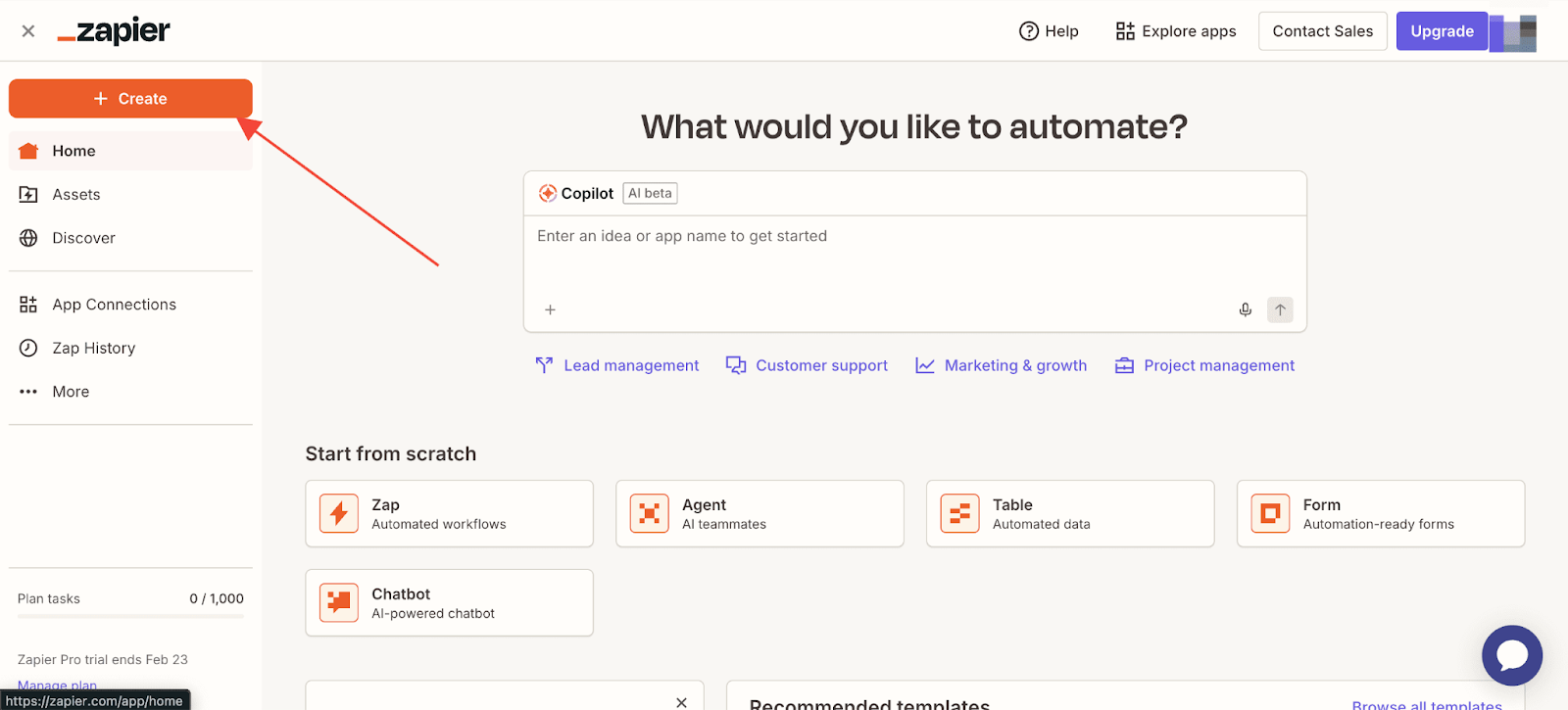
Para conectar o NotificationX ao Zapier, você precisa criar um Zap com seu aplicativo preferido. Você encontrará o ‘Create’ button on your Zapier Dashboard. Simply go ahead and click on it. After that, click on ‘Zaps’ to start automating your notification.
Step 2 – Choose App & Event #
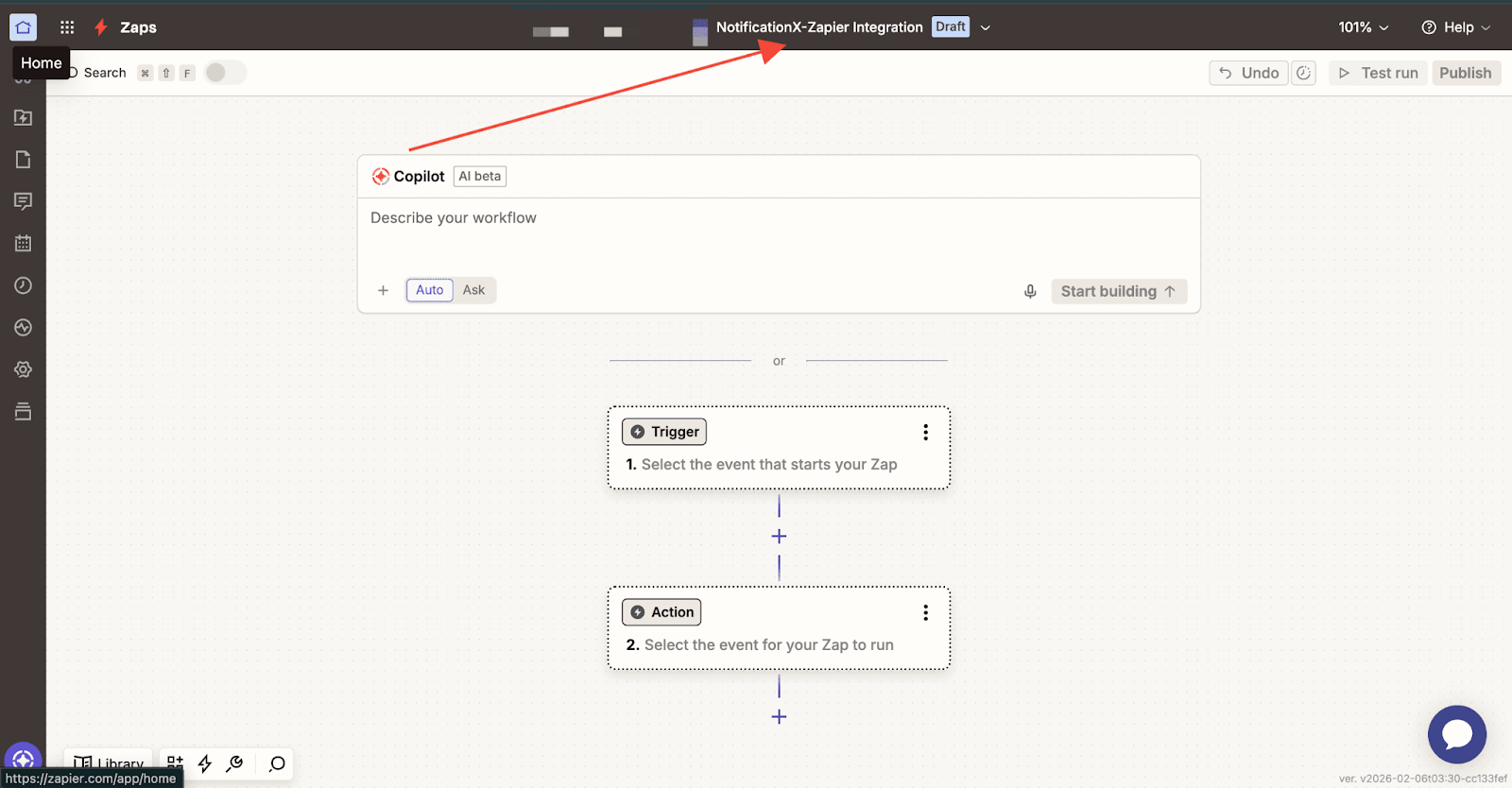
Quando estiver na página do Editor Zapier, você poderá definir um nome for the Zap you are creating from the top bar of the Editor. Click on the dropdown and click on ‘Rename’. You can name it whatever you want.
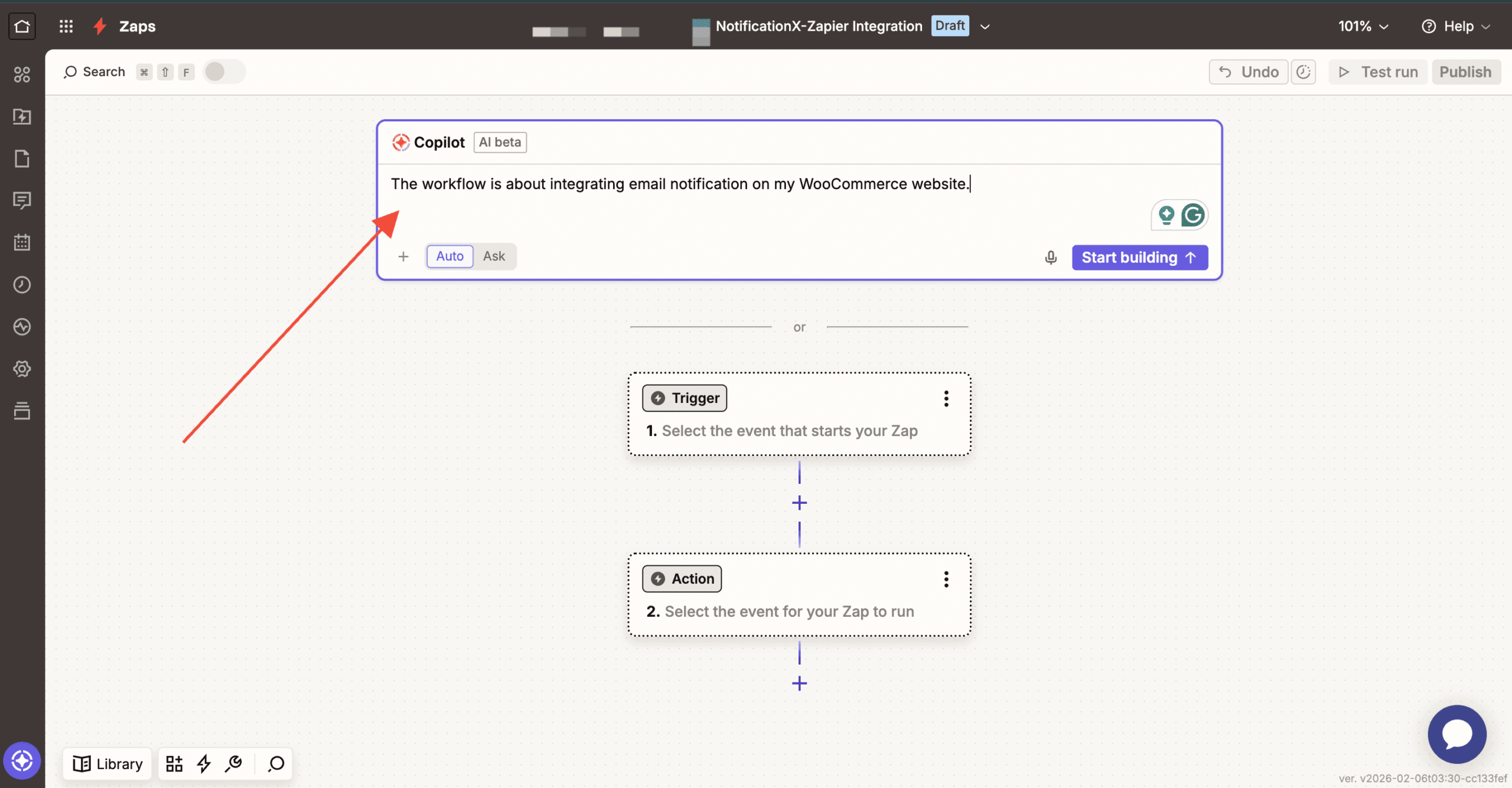
Afterward, you can describe the workflow. Here, you can write what this workflow is about and how it works on your website.
Alternatively, choose the app you want to integrate. Click on ‘Trigger,’ and then you will find a lot of options to choose the app. From there, select your preferred app.
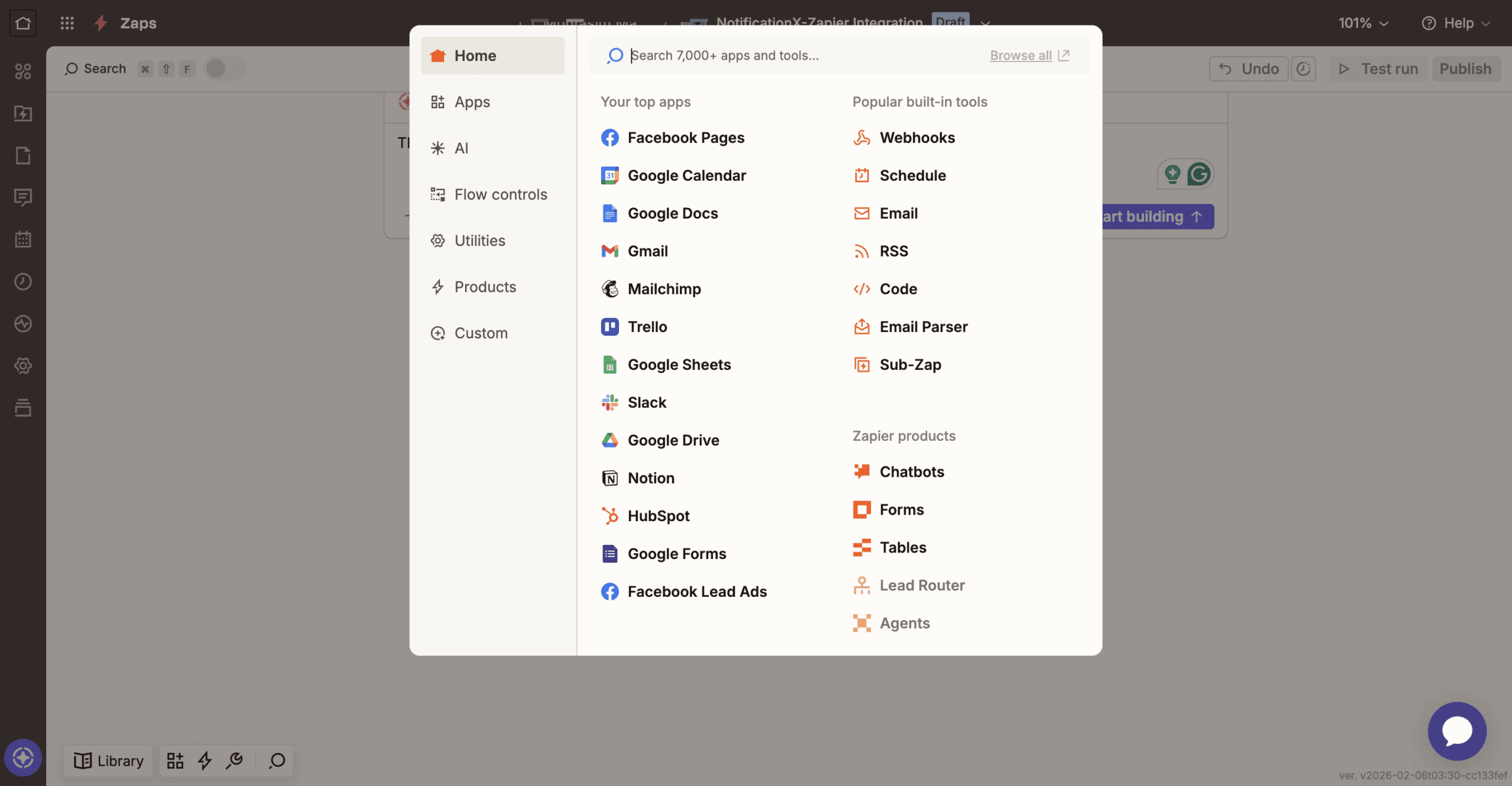
Depois de escolher seu aplicativo, vá em frente e escolha um Evento de Disparo por isso. (Exemplo: if you want to show a new email notification from your Gmail, then pick ‘New Email’ as your Trigger Event).
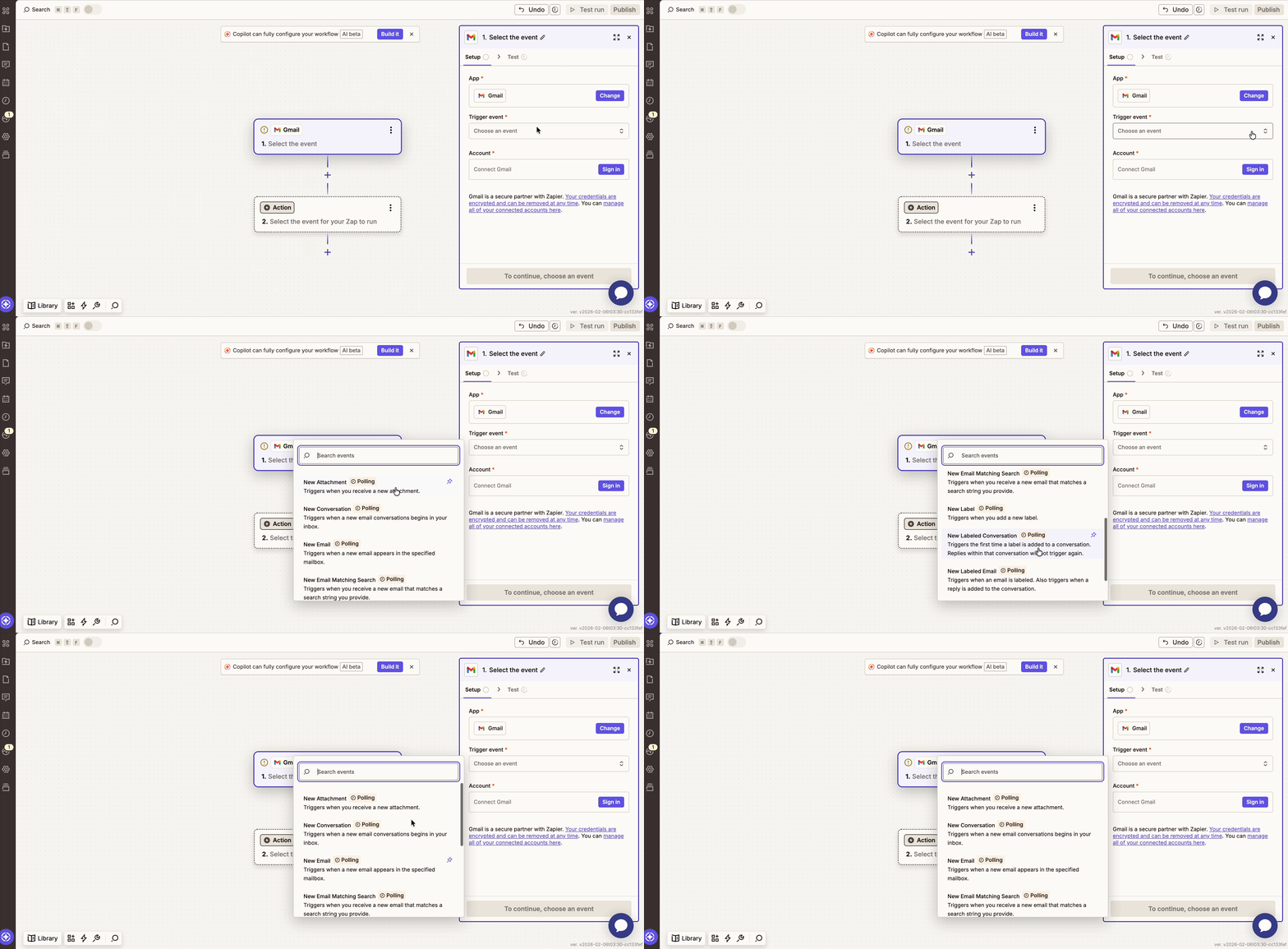
Depois, você será solicitado a conecte sua conta do aplicativo com Zapier. Depois que a conexão for estabelecida, basta seguir em frente e continuar.
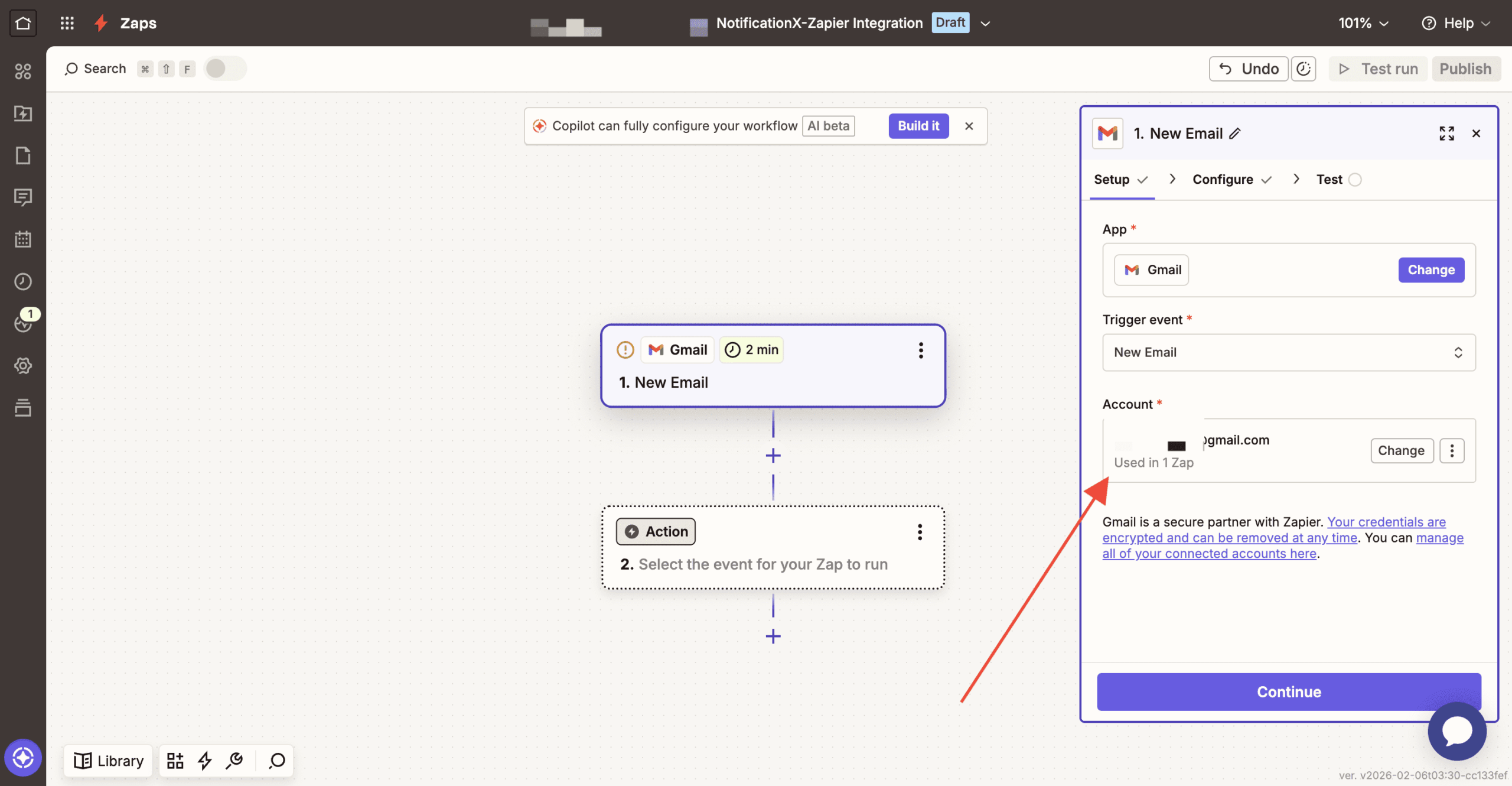
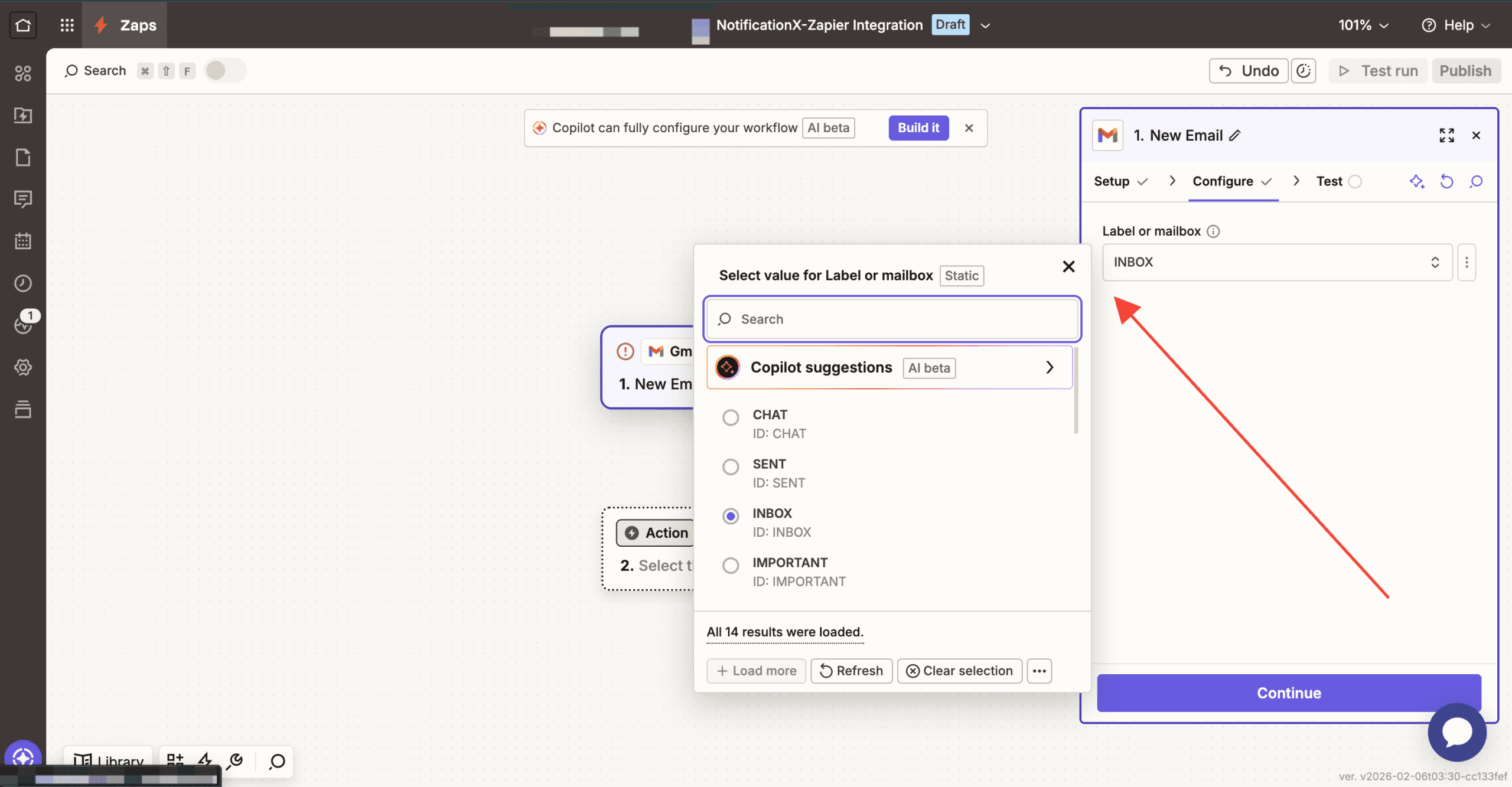
After that, click on the “Continue” button for the next stage. Then you have to add the ‘Configure’ section. In the ‘Configure’ section, choose the type of value label you want to choose.
For smooth flow in Zapier, next go to the ‘Test’ section. Here you can test if your email integration is working properly or not. Click on the ‘Test Trigger’ button to start the test.
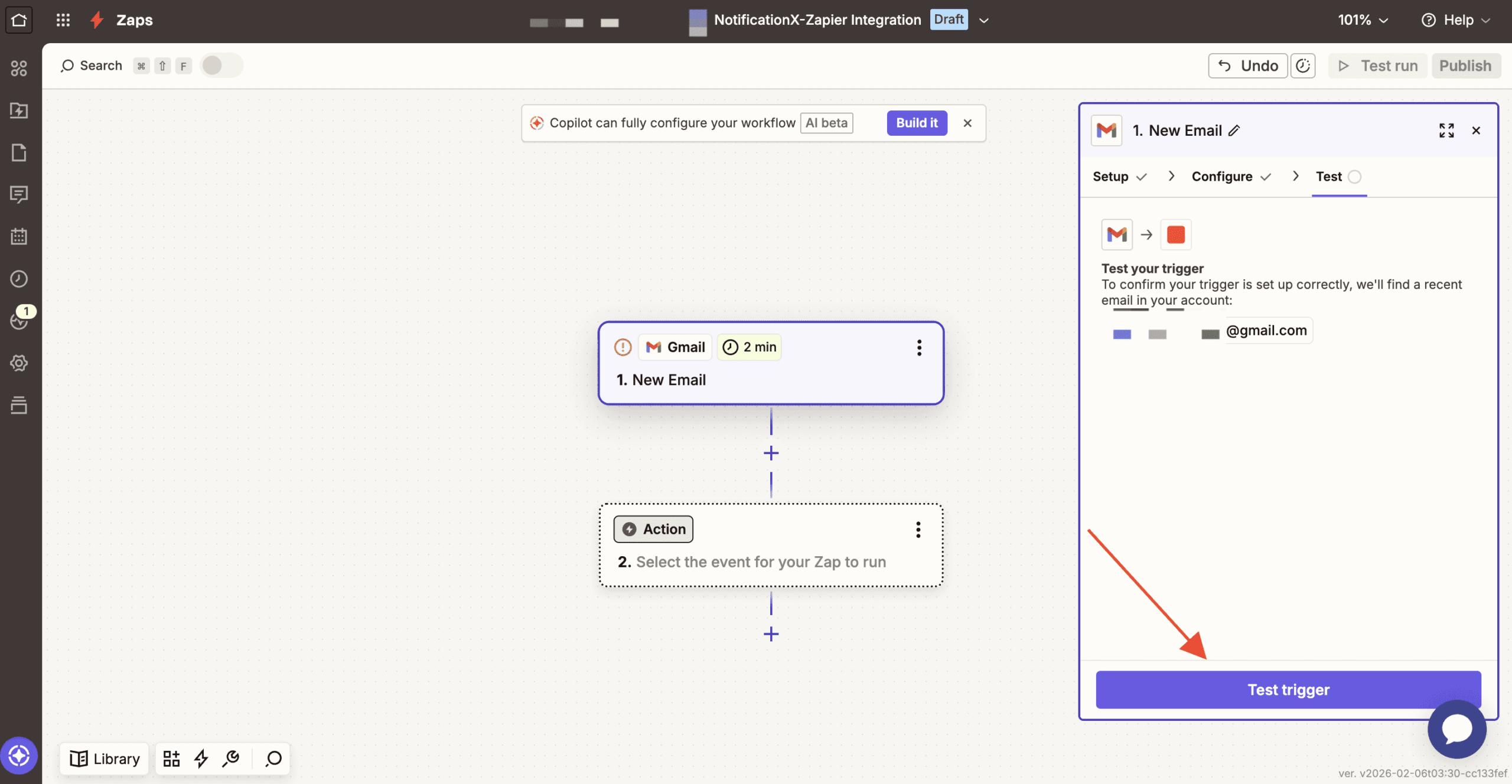
After that, from the fetched records by Zapier, you can start your testing. Click on “Continue with Selected Records” to get started.
Step 3 – Choose Action App & Action Event #
After you have successfully completed the previous step, from the action app, search for “NotificationX”. Afterward, choose‘Action Event’.
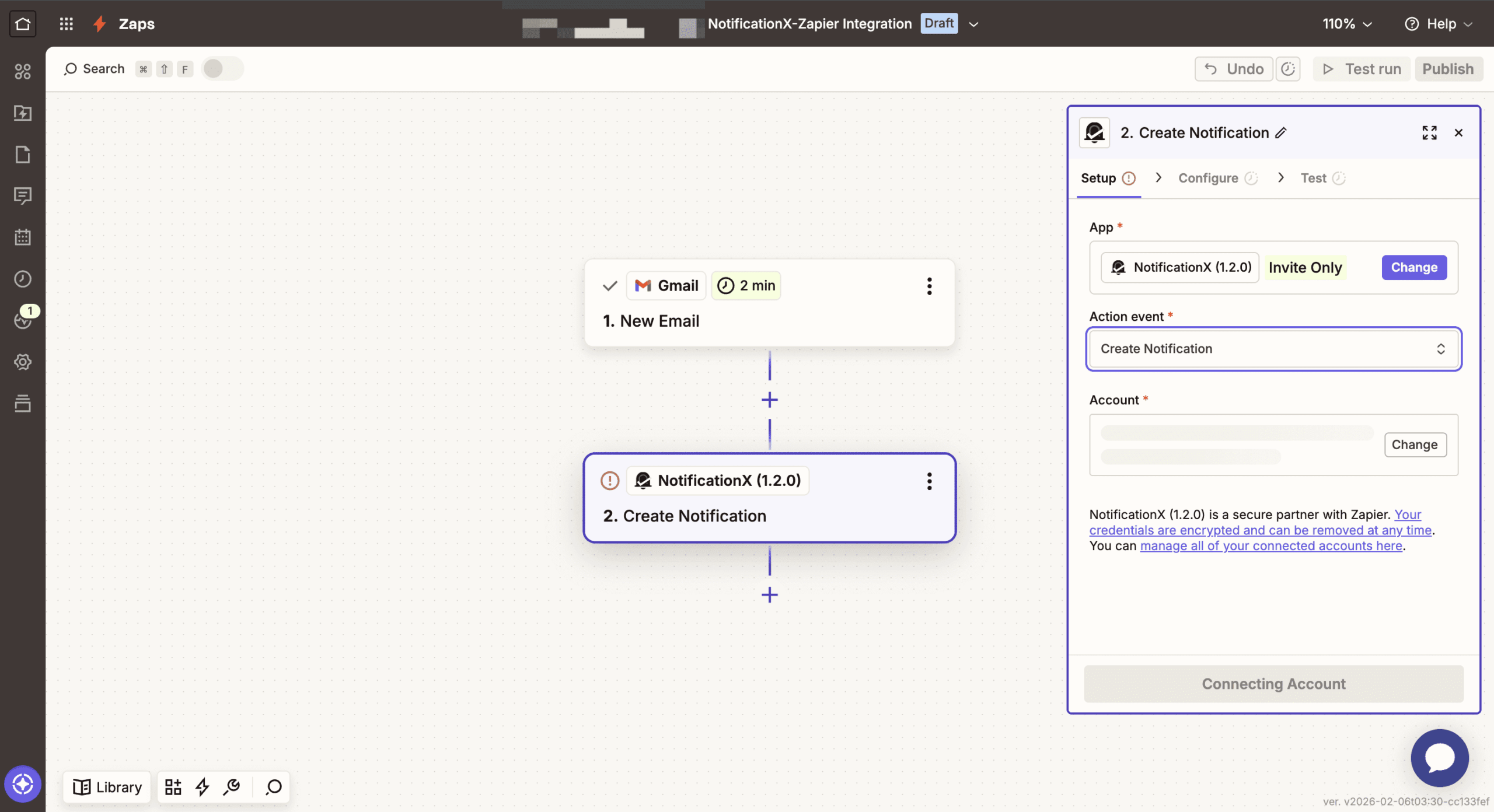
After that, connect your NotificationX account. After that, click on the “Yes, Continue to NotificationX” button. Then your account will be connected to the notification trigger. Then click on the “Continue” button.
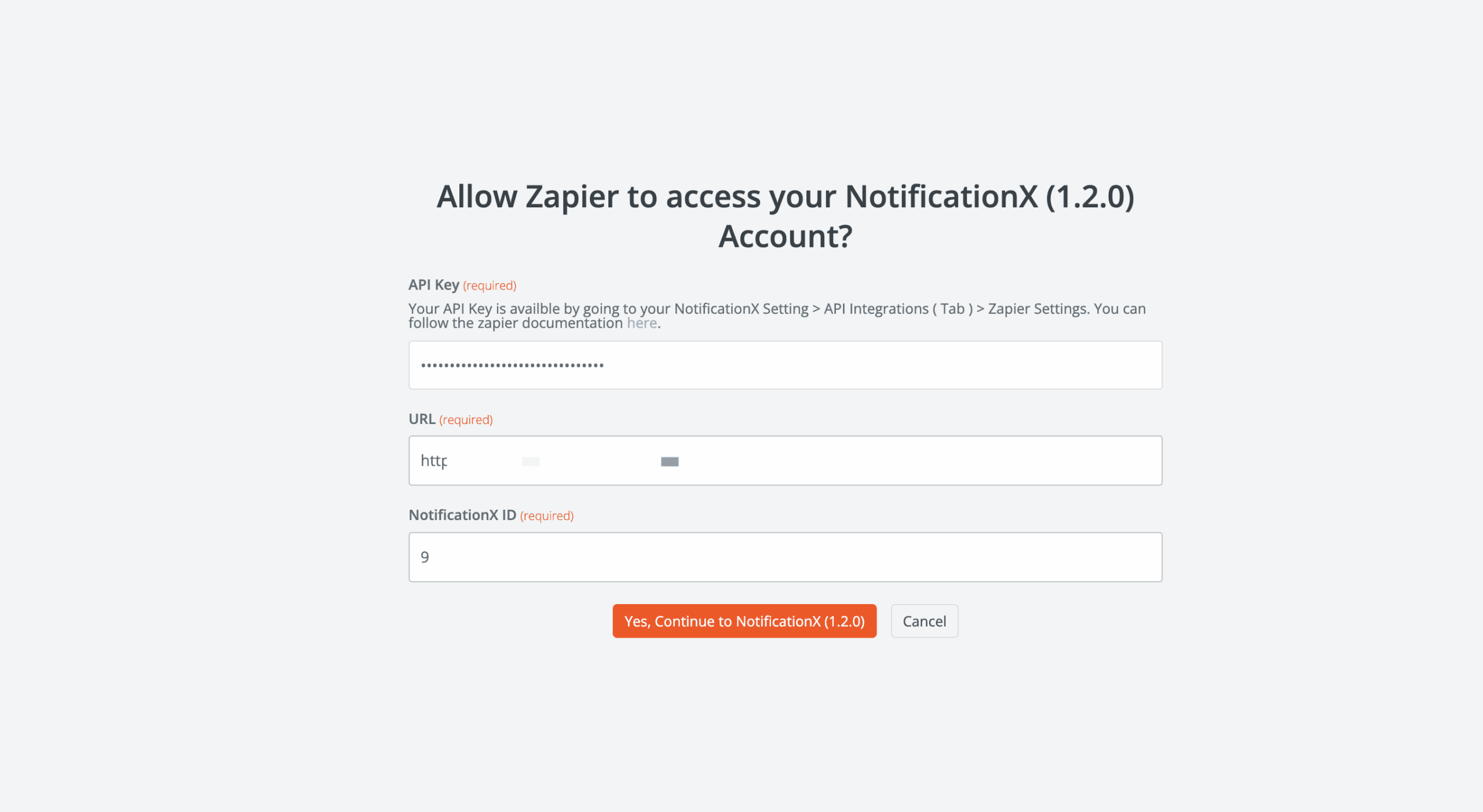
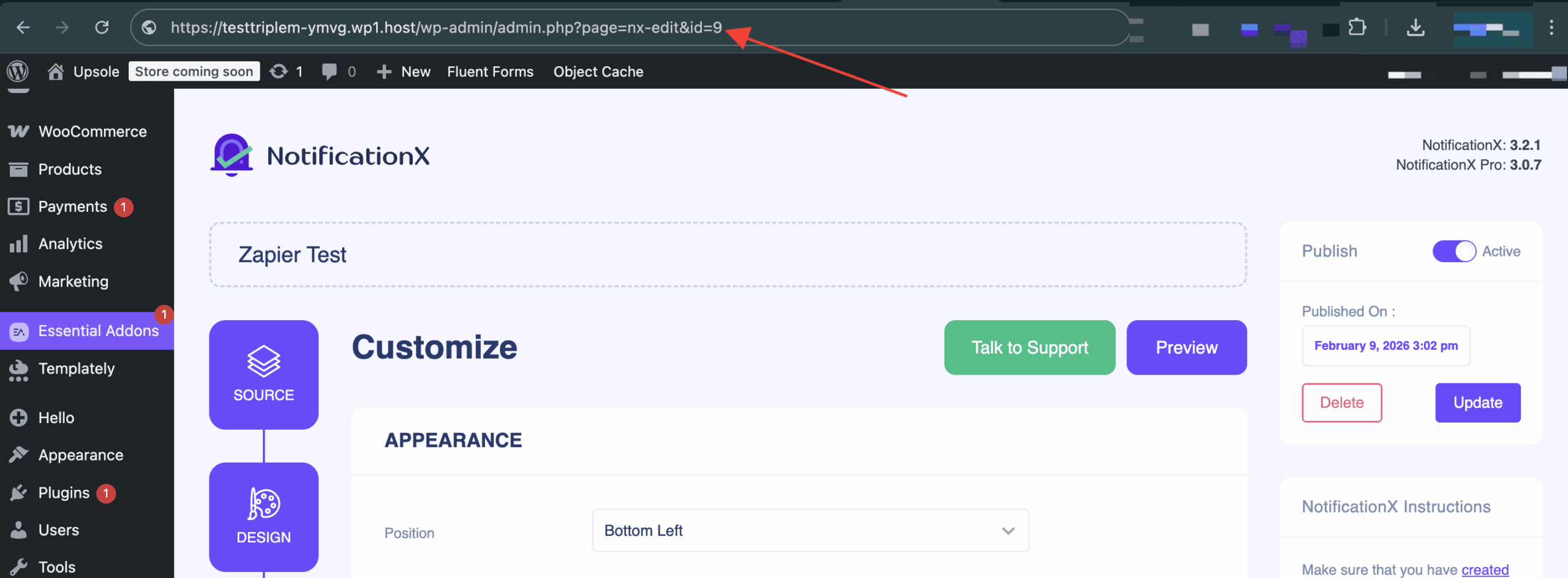
Você pode encontrar o seu NotificiationX ID no alerta de notificação Zapier que você criou anteriormente. Para encontrar isso, vá para: wp-admin -> Todos os NotificationX -> NotificationX. Open the Zapier Notification alert and just simply check the end of the URL as you can see in the screenshot. That’s your NotificationX ID.
After that, configure the notification type. Select the specific value you want to display. Select the value and then go to the next step. There, for different types of notification you will find different options. Fill in all the fields to complete the setup.
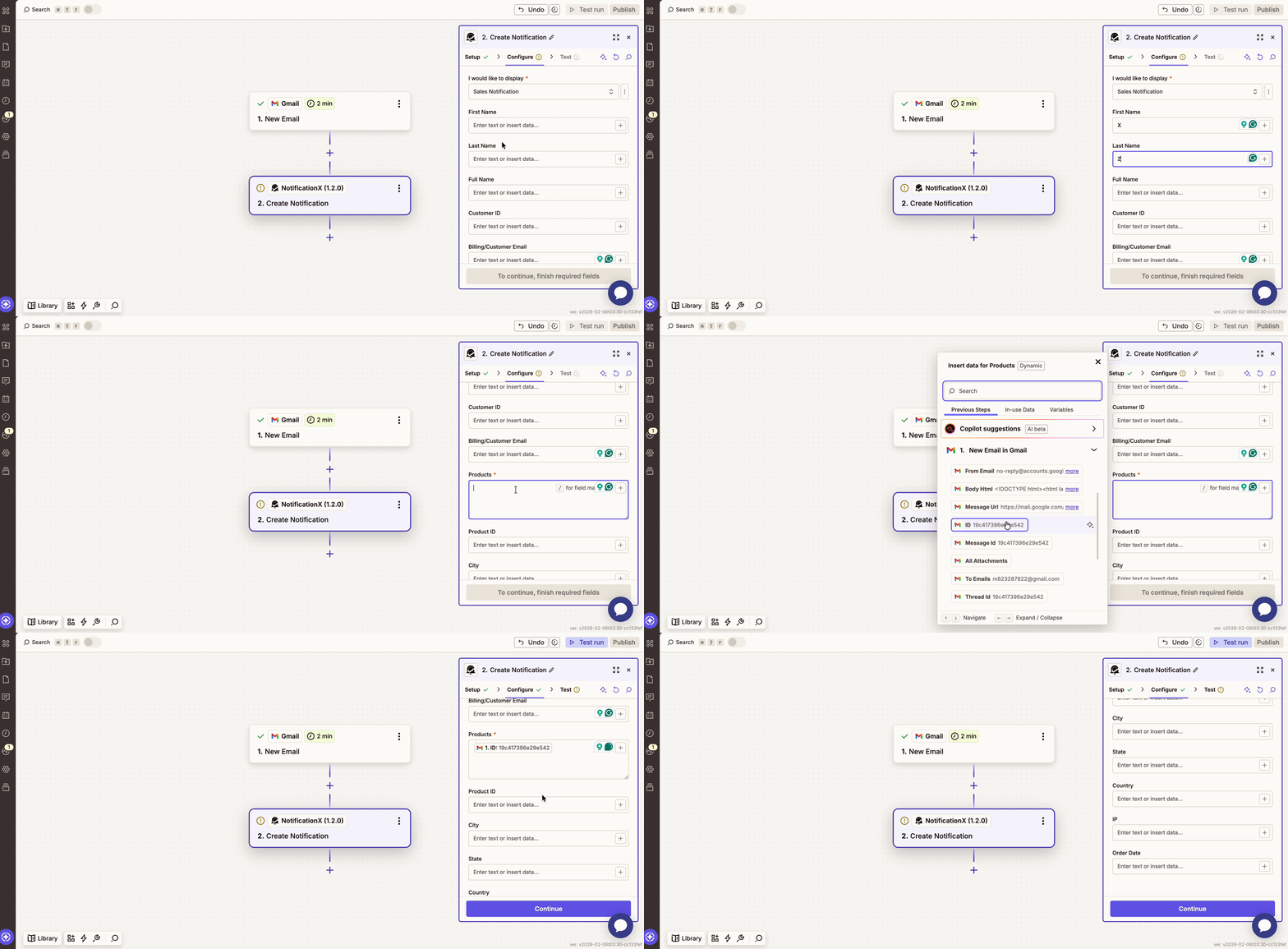
Then, from the ‘Test’ section, you can either set a test or skip this part. After skipping, click on the “Publish” button to make the notification LIVE on your website.
After you have completed all the steps mentioned above, go to your website and you will find the Alerta de notificação Zapier aparecendo assim:

By using NotificationX, this is how you can easily design and display an amazing Pop-up de notificação Zapier no seu site WordPress e aumente sua base de usuários.
Se você tiver algum problema, entre em contato com nossa equipe de suporte aqui.


 English
  Arabic
  Indonesian
  Spanish
  Bengali
  Portuguese
  German
  Dutch
Dutch  Russian
  Hindi
Hindi  French
  Japanese
  Chinese
  Vietnamese
  Malay
Malay