
كيفية إظهار تنبيه إعلام Zapier باستخدام NotificationX؟ #
NotificationX gives you the chance to integrate with your Zapier Account. As a result, you are able to display any sort of Zapier Notification Alerts, such as Email Subscription, Review, Sales Notifications and others.
Before you connect NotificationX with your Zapier Account, you need to create a Zapier Notification Alert on your website. Follow these steps to show the Zapier Notification popup with NotificationX:
كيفية إنشاء وتكوين تنبيه إعلام Zapier #
الخطوة 1 - إضافة إشعار جديد #
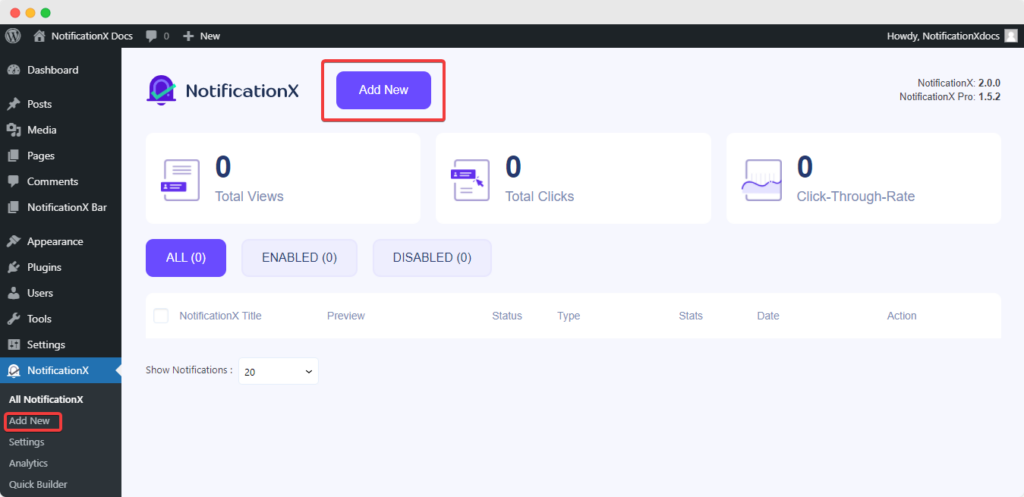
للبدء ، انتقل إلى لوحة تحكم WordPress الخاصة بك وانتقل إلى wp-admin -> كل NotificationX -> NotificationX. Then, right at the top, click on ‘Add New’.
الخطوة 2 - اختر المصدر #
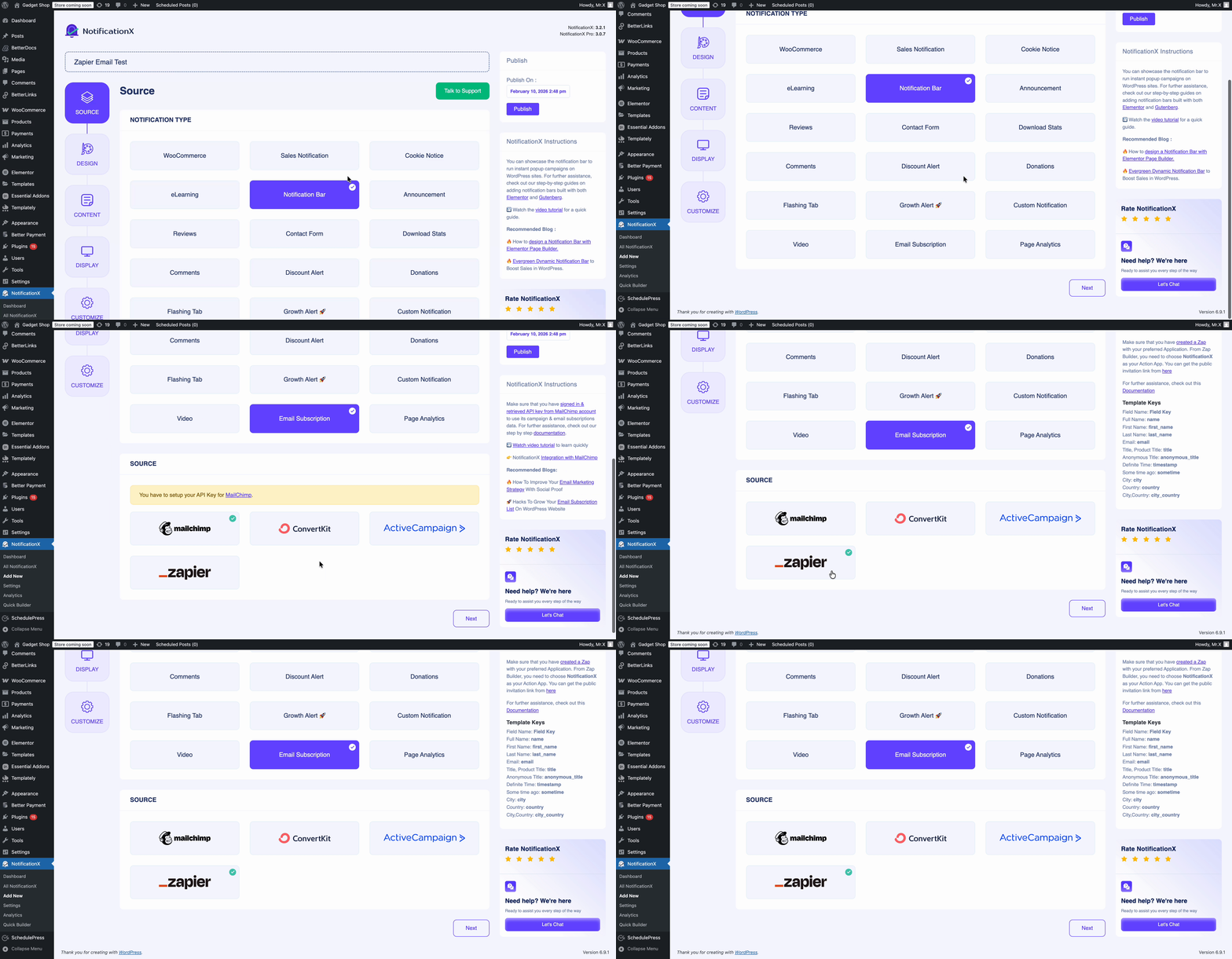
سوف تجد ‘Zapier’ المصدر داخل أنواع الإشعارات هذه: إشعار المبيعات, المراجعات و اشتراك البريد الإلكتروني. For instance, if you want to display new emails from your Gmail account, you can pick the ‘Email Subscription’ اختيار. بعد اختيار نوع الإشعار المفضل لديك ، تأكد من الاختيار ‘Zapier’ كمصدر الخاص بك وانقر فوق 'التالي'.
الخطوة 3 - اختر سمة التصميم #
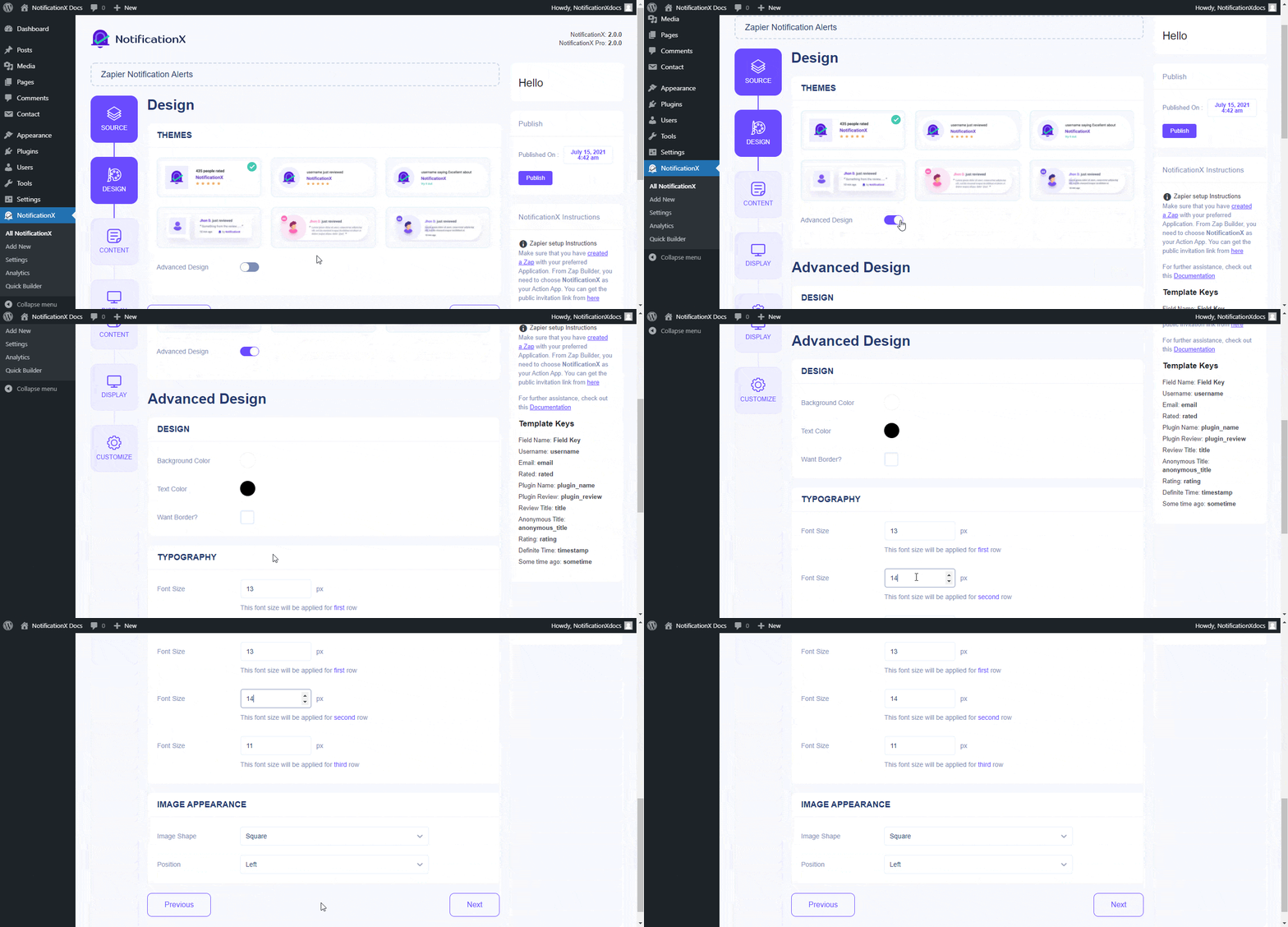
من 'تصميم' علامة التبويب ، يمكنك اختيار تخطيط ولديك أيضًا المرونة في استخدام ملف "تصميم متقدم" خيار لتخصيصه حسب تفضيلاتك. من "ثيمات" ، فإن التخطيط المختار هو كيفية عرض تنبيه الإشعارات على موقع الويب الخاص بك. إلى جانب ذلك ، يمكنك تعديل المظهر الذي اخترته عن طريق تخصيصه من خلال "التصميم المتقدم اختيار. من هذا القسم ، ستتمكن بسهولة من إضافة نمط إلى التصميم الخاص بك ومظهر الصورة والطباعة.
الخطوة 4 - تكوين محتوى القالب #
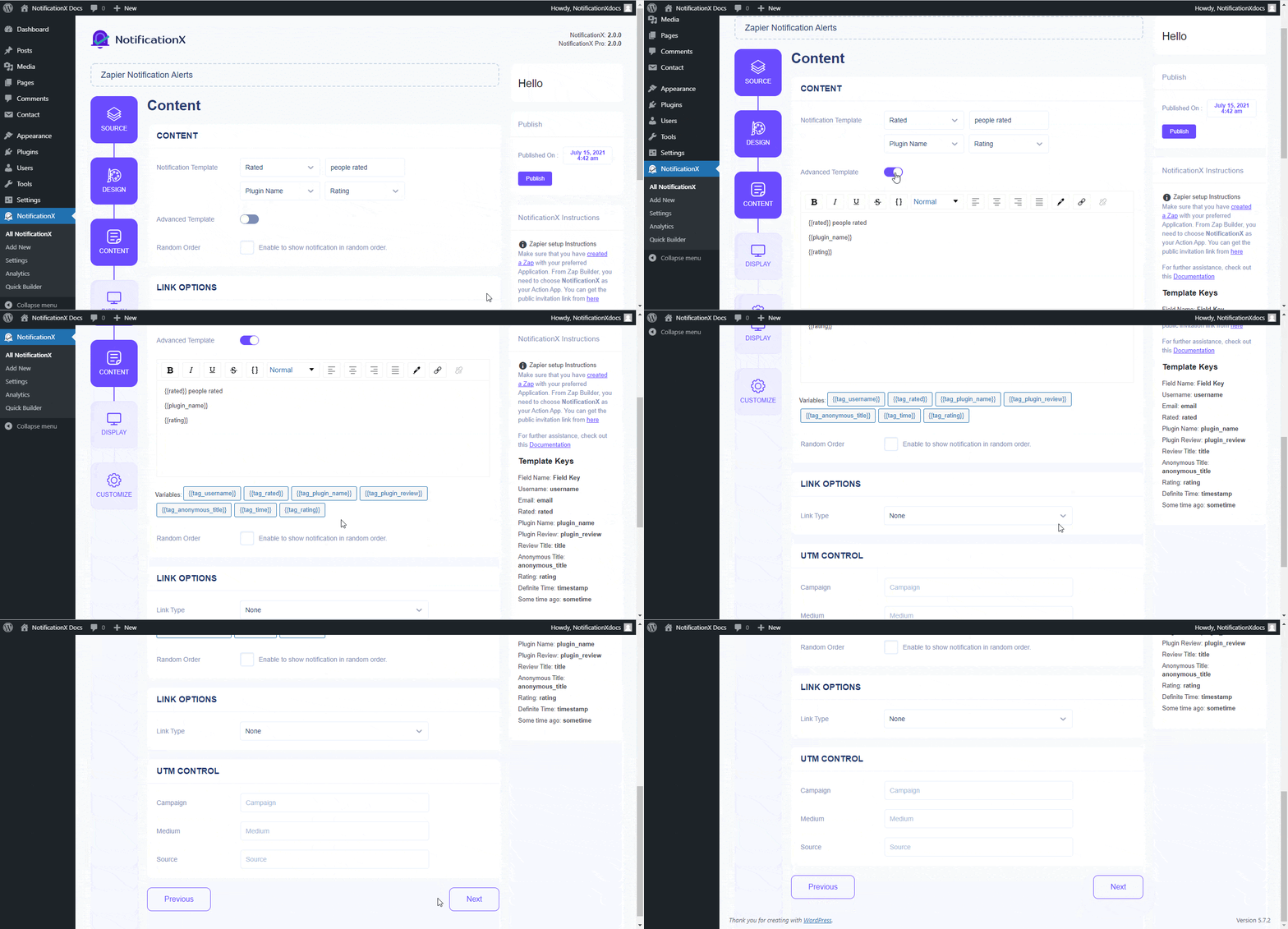
ستتم إعادة توجيهك بعد ذلك إلى ملف 'المحتوى' علامة التبويب حيث يمكنك تعديل "نموذج الإخطار" وإضافة نص المحتوى المفضل لديك. الى جانب ذلك ، عروض NotificationX "نموذج الإخطار" للمحتوى الخاص بك. يمكنك المضي قدمًا بسهولة واختيار المتغيرات المفضلة لديك. من ناحية أخرى، "نموذج متقدم" يمنحك التحكم الكامل في تخصيص المحتوى بالكامل. علاوة على ذلك ، يمكنك حتى تتبع أنواع مختلفة من الحملات من خلال NotificationX "التحكم UTM".
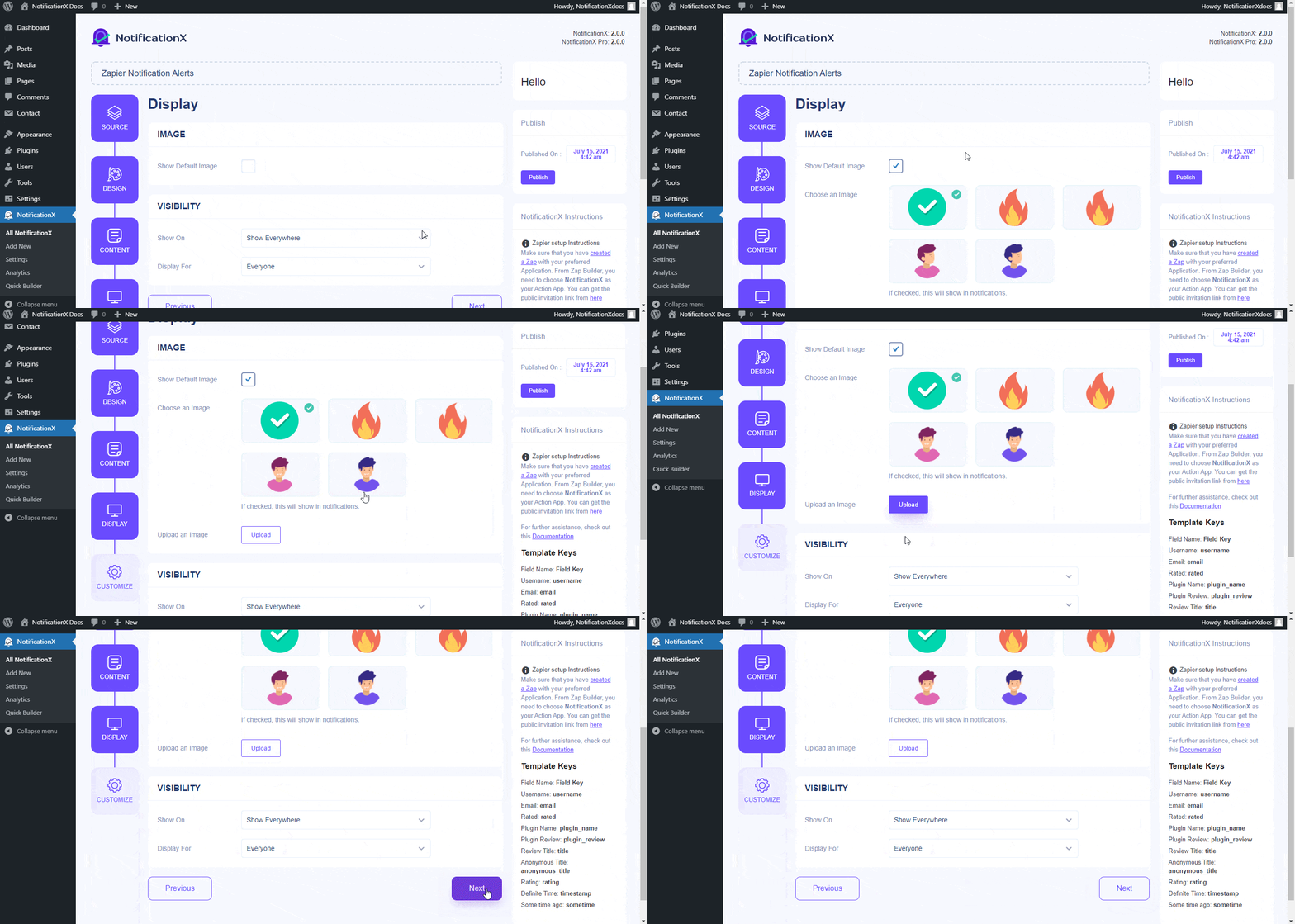
الخطوة 5 - ضبط خيارات العرض #
من 'صورة' section, you can use the checkbox to display a default image or an avatar in the notification popup. Whereas the "الرؤية" يسمح لك القسم بتعيين الصفحات التي تريد عرض تنبيه إخطار Zapier فيها.
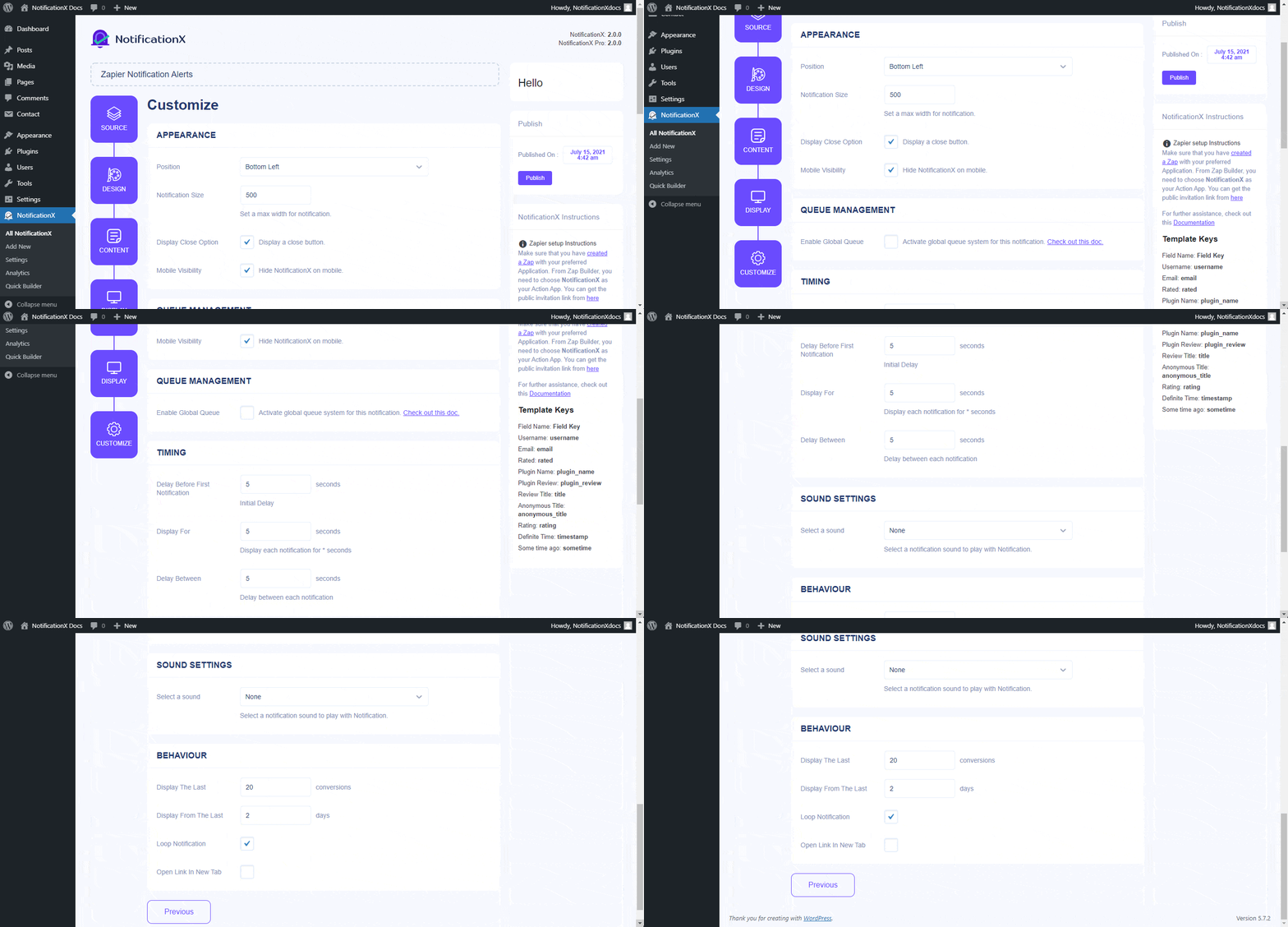
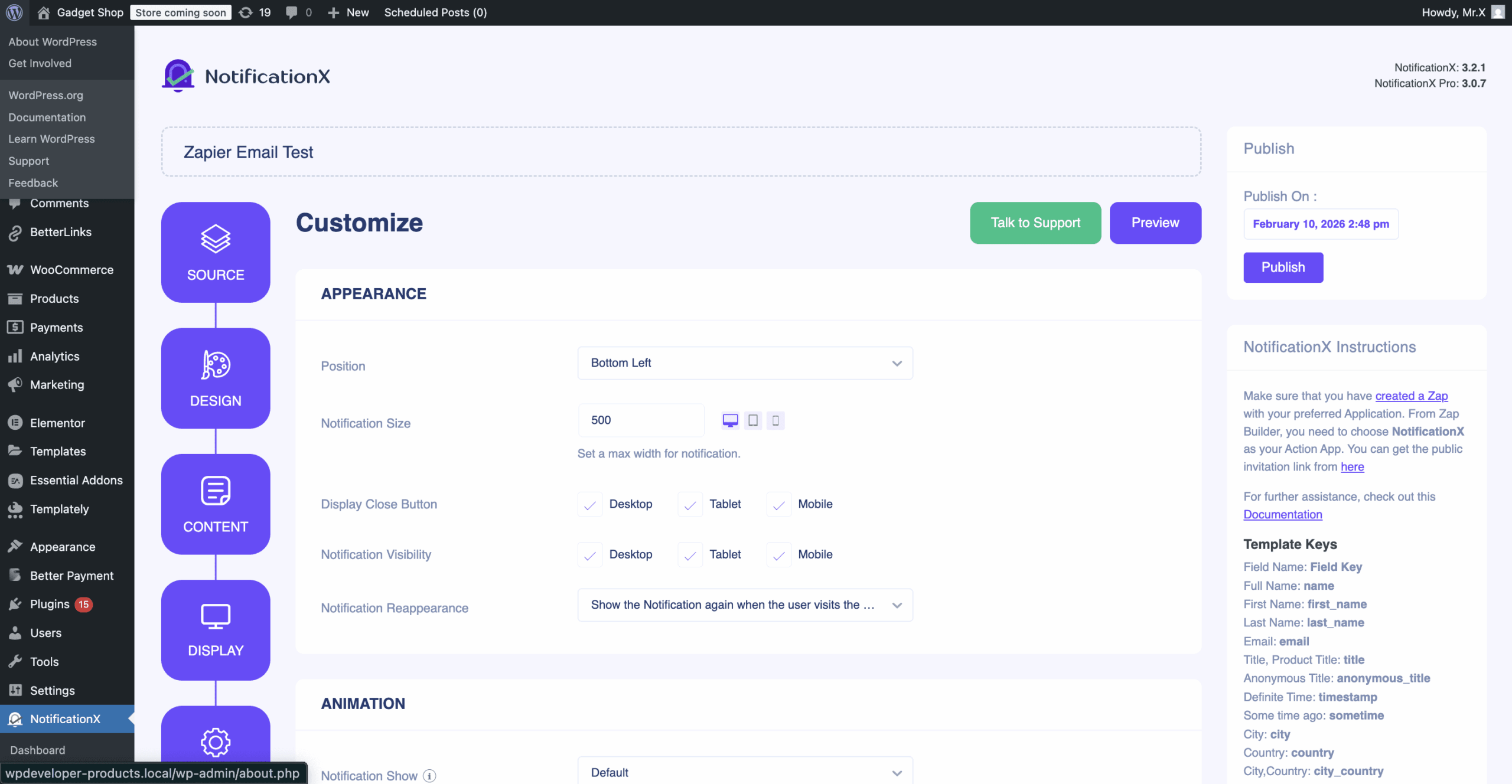
الخطوة 6 - إعداد المظهر #
من'مظهر خارجي' section, you can set the position and width for notificiation alert. From the ‘Timing’ section, you can control the ‘Display’ time duration and set an initial time after which your ‘Zapier notification alert’ will pop up. The ‘Behaviour’ section allows you to pick a number of conversions and specify a certain number of days that will be considered for the notification popup. Besides, the ‘Sound Settings’ section lets you pick a Sound Alert for your notification popup.
الخطوة 7: انشر إخطارك #
بعد الانتهاء من الخطوة 6 ، انقر فوق 'ينشر' زر. نتيجة لذلك ، فإن "تنبيه إرسال نموذج الاتصال" سيتم إنشاؤه بنجاح.
كيفية توصيل NotificationX مع Zapier #
بعد نشر تنبيه الإخطار الخاص بـ Zapier ، ستحتاج إلى توصيل NotificationX بـ Zapier. للقيام بذلك ، عليك أولاً وقبل كل شيء تسجيل الدخول إلى لوحة تحكم Zapier الخاصة بك. لاستخدام NotificationX في Zapier ، تأكد من قبول ملف رابط الدعوة العامة NotificationX. بعد ذلك ، ما عليك سوى المضي قدمًا والنقر فوق ‘Accept Invite & Build a Zap’ زر.
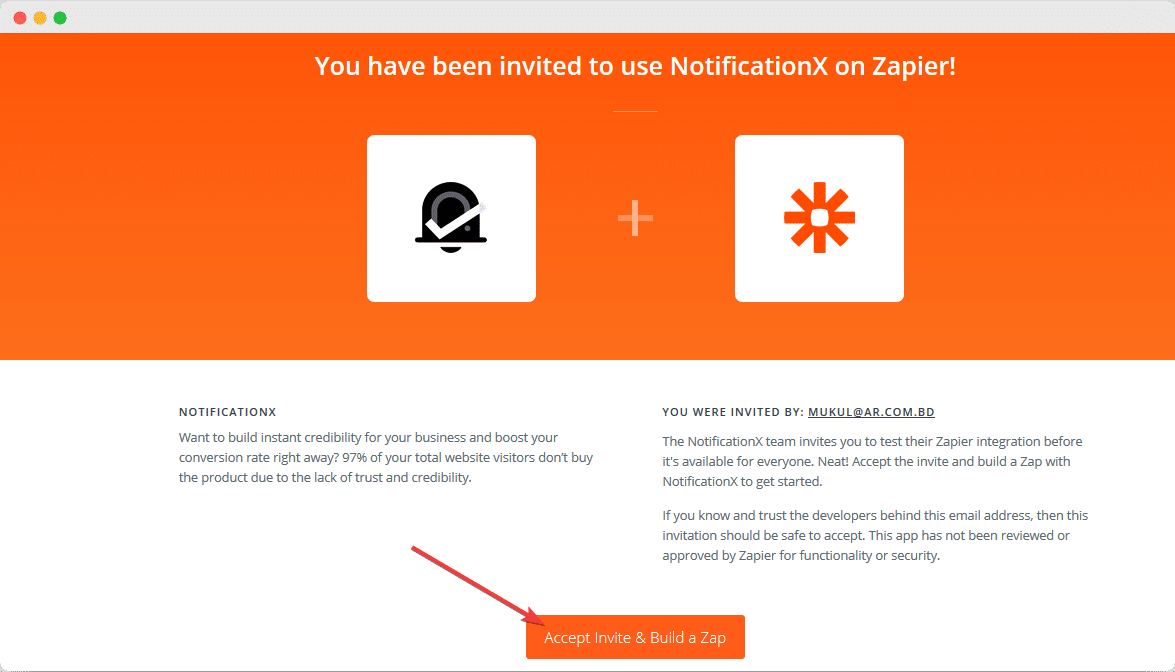
ملحوظة: You will find the Zapier API key in the NotificationX settings option. There will be an API key, and you will get a public invitation link. You can add the link from the settings and get the invitation link here.
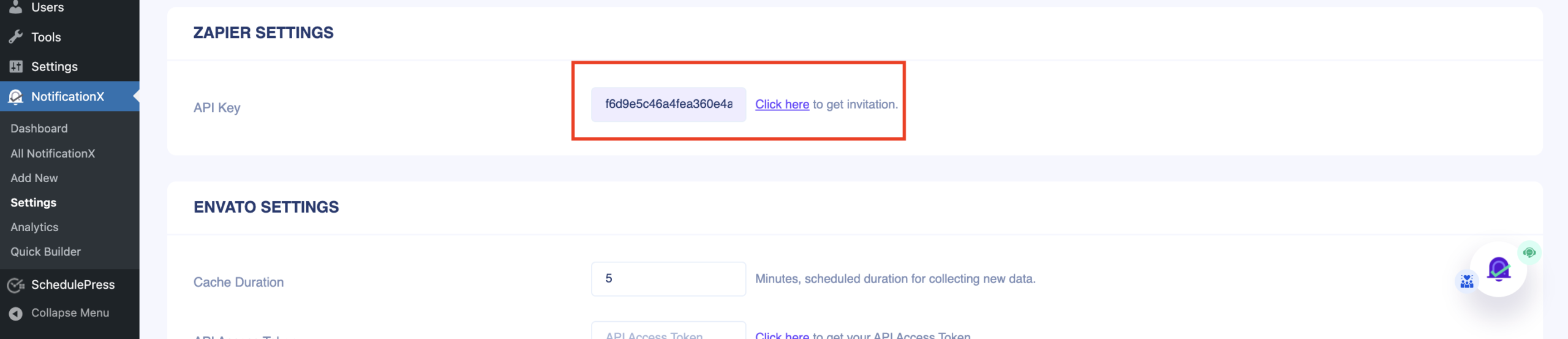
الخطوة 1 - إنشاء Zap #
لتوصيل NotificationX بـ Zapier ، تحتاج إلى إنشاء Zap مع التطبيق المفضل لديك. سوف تجد ملف ‘Create’ button on your Zapier Dashboard. Simply go ahead and click on it. After that, click on ‘Zaps’ to start automating your notification.
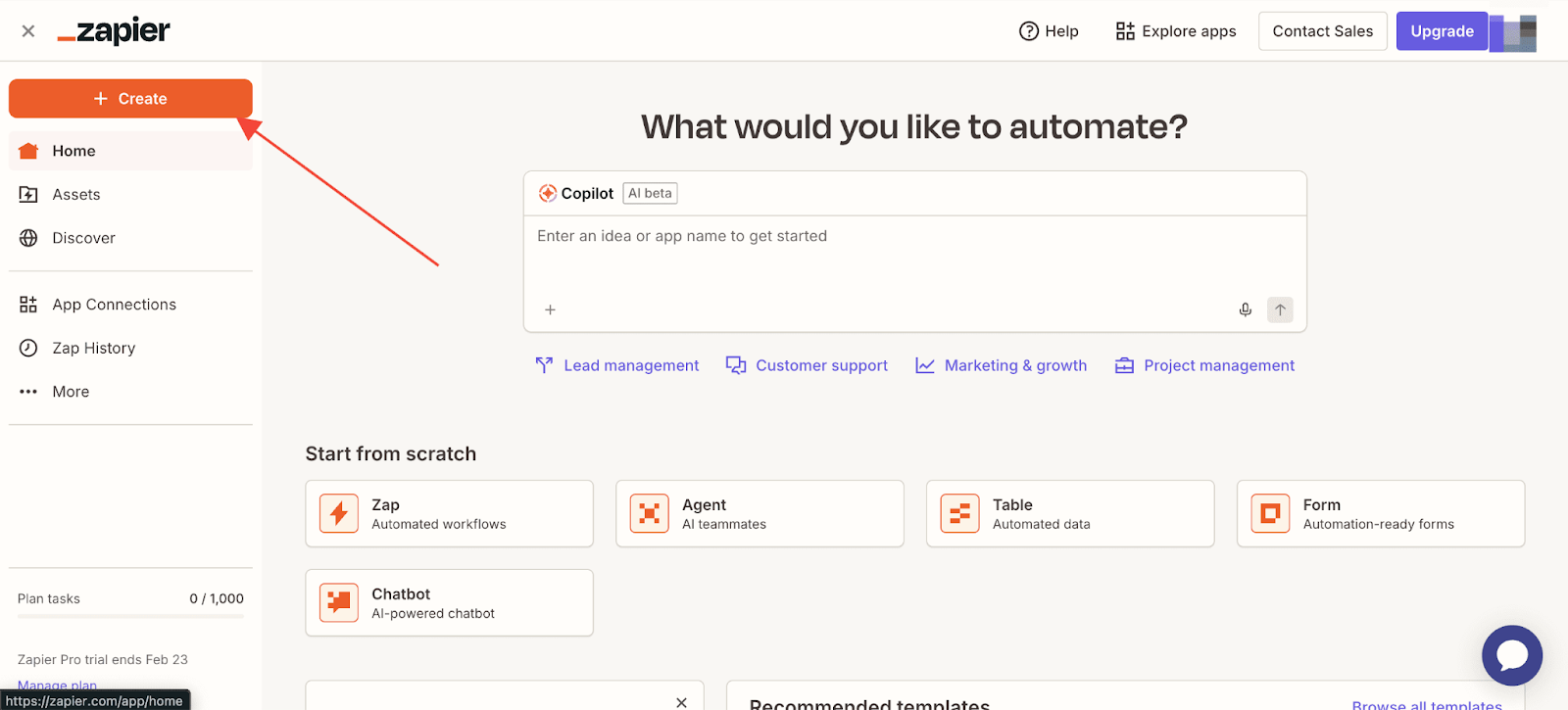
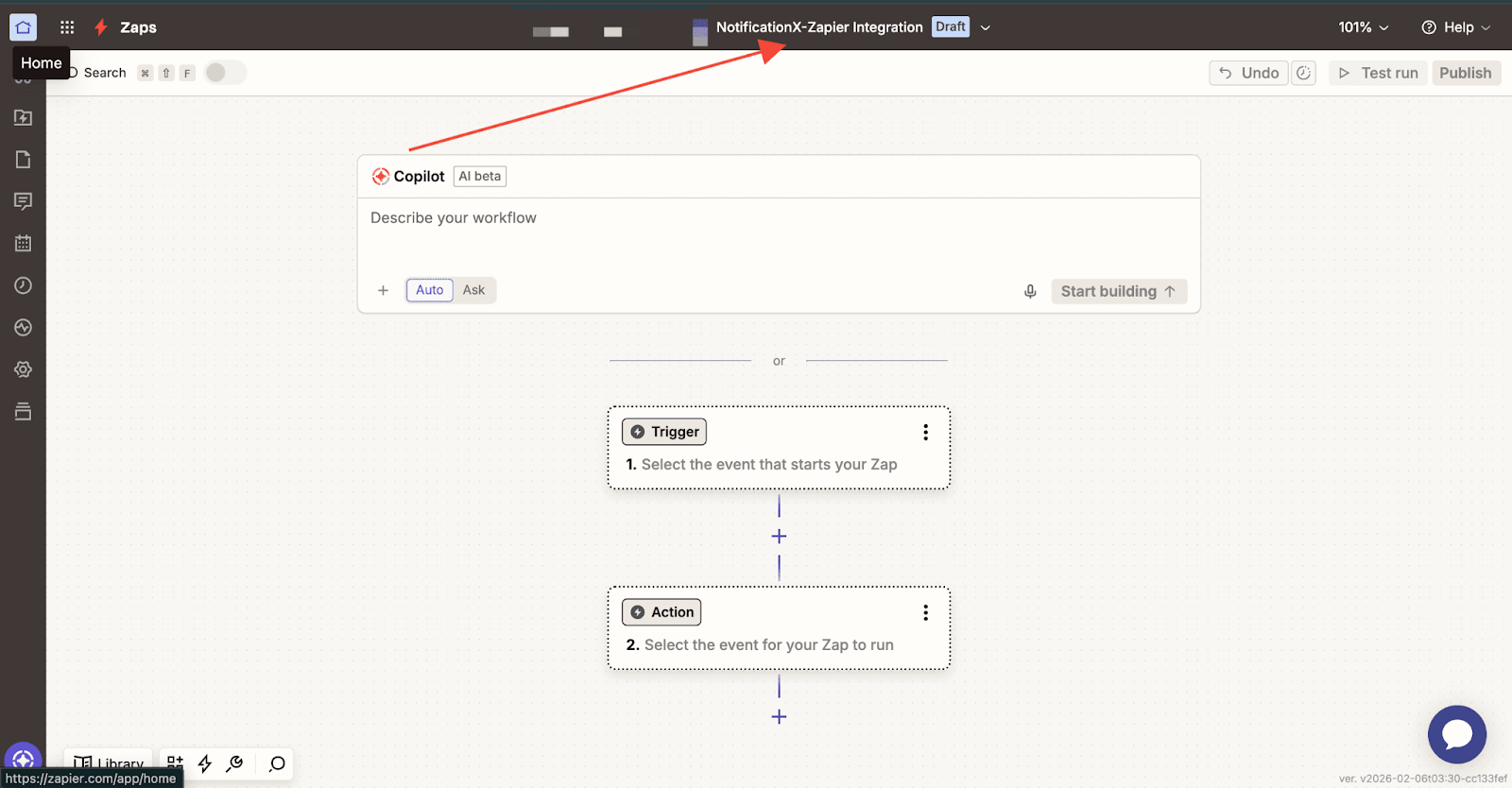
Step 2 – Choose App & Event #
بمجرد دخولك إلى صفحة Zapier Editor ، يمكنك ذلك حدد الاسم for the Zap you are creating from the top bar of the Editor. Click on the dropdown and click on ‘Rename’. You can name it whatever you want.
Afterward, you can describe the workflow. Here, you can write what this workflow is about and how it works on your website.
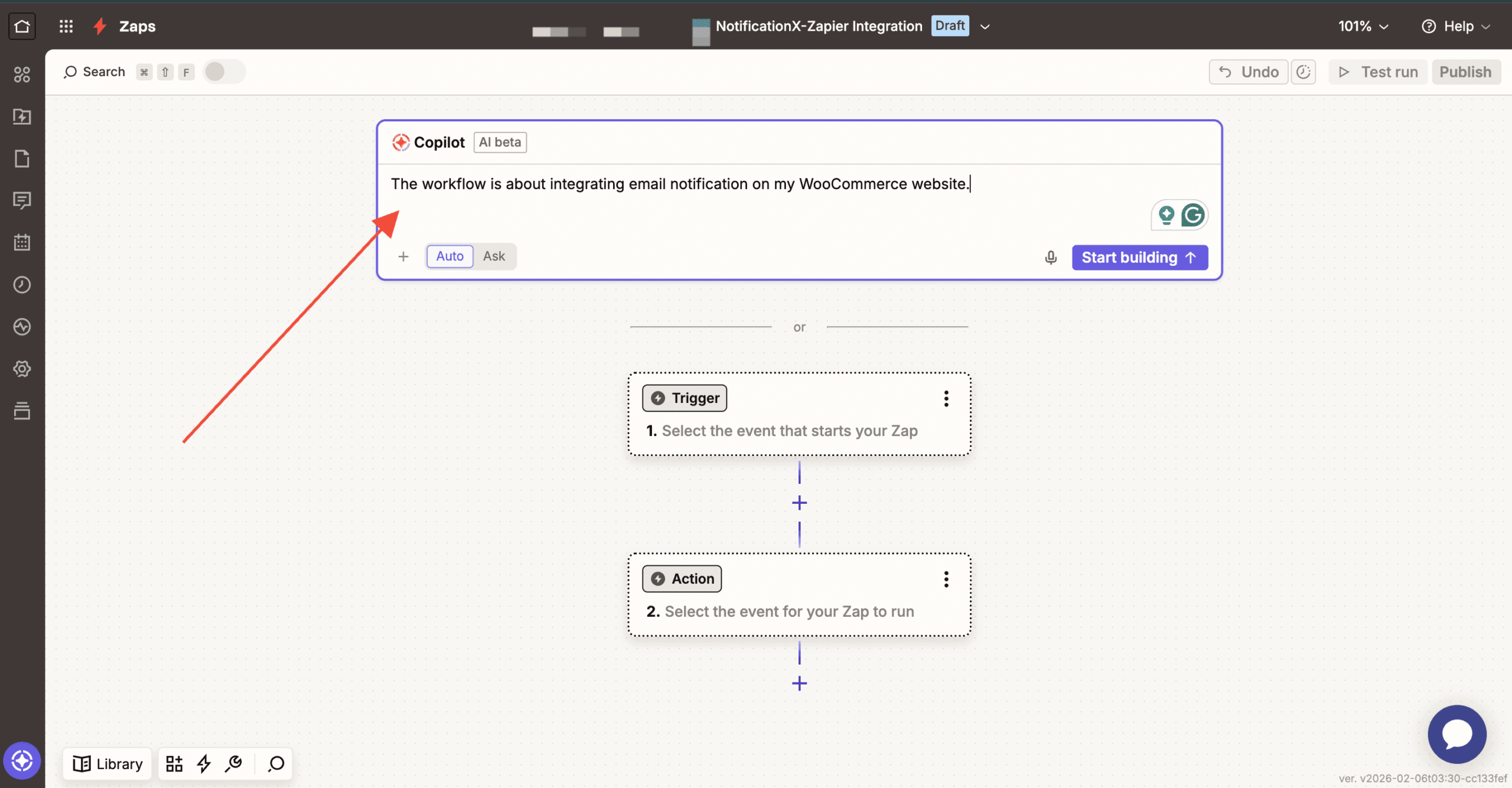
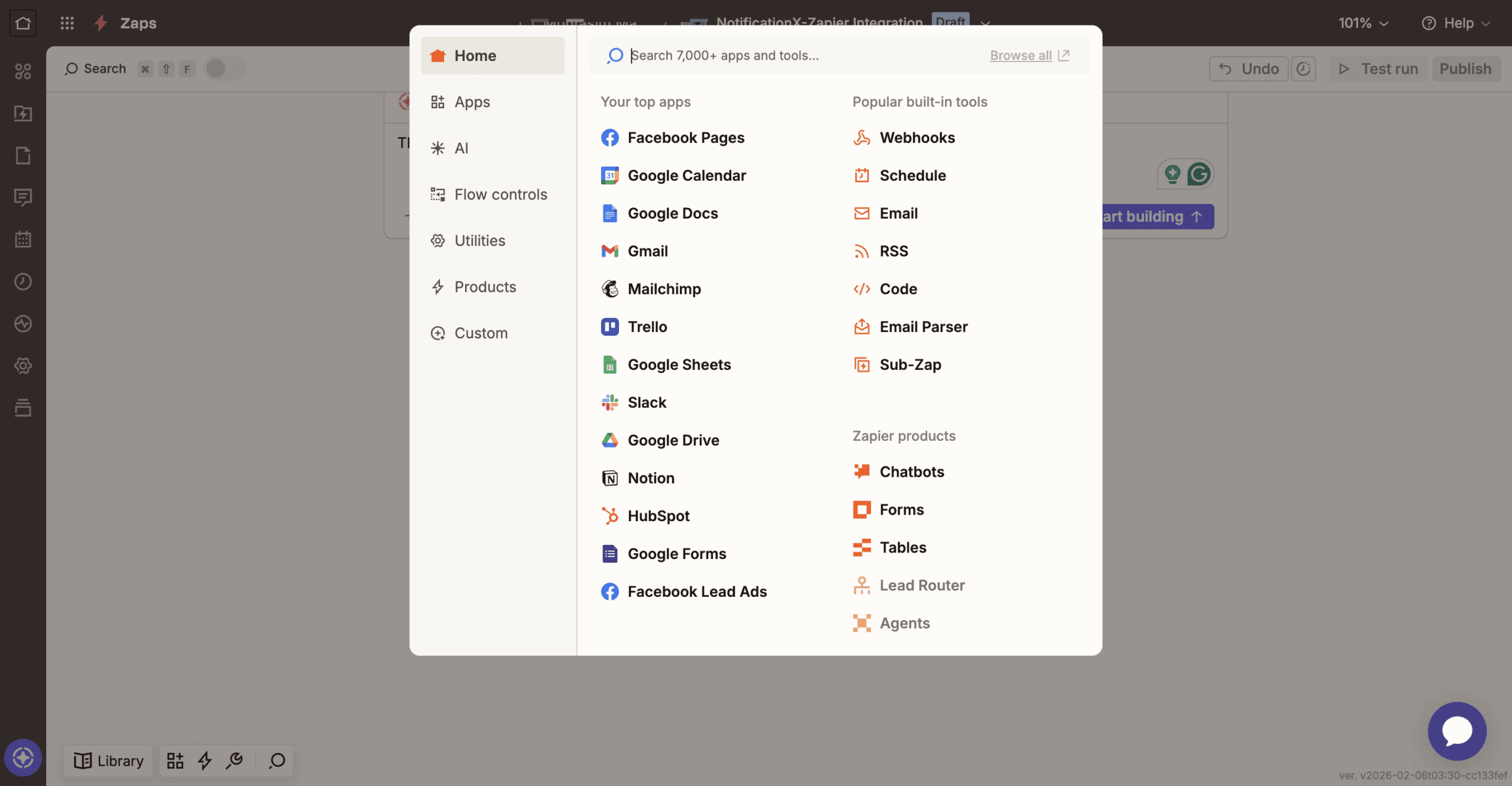
Alternatively, choose the app you want to integrate. Click on ‘Trigger,’ and then you will find a lot of options to choose the app. From there, select your preferred app.
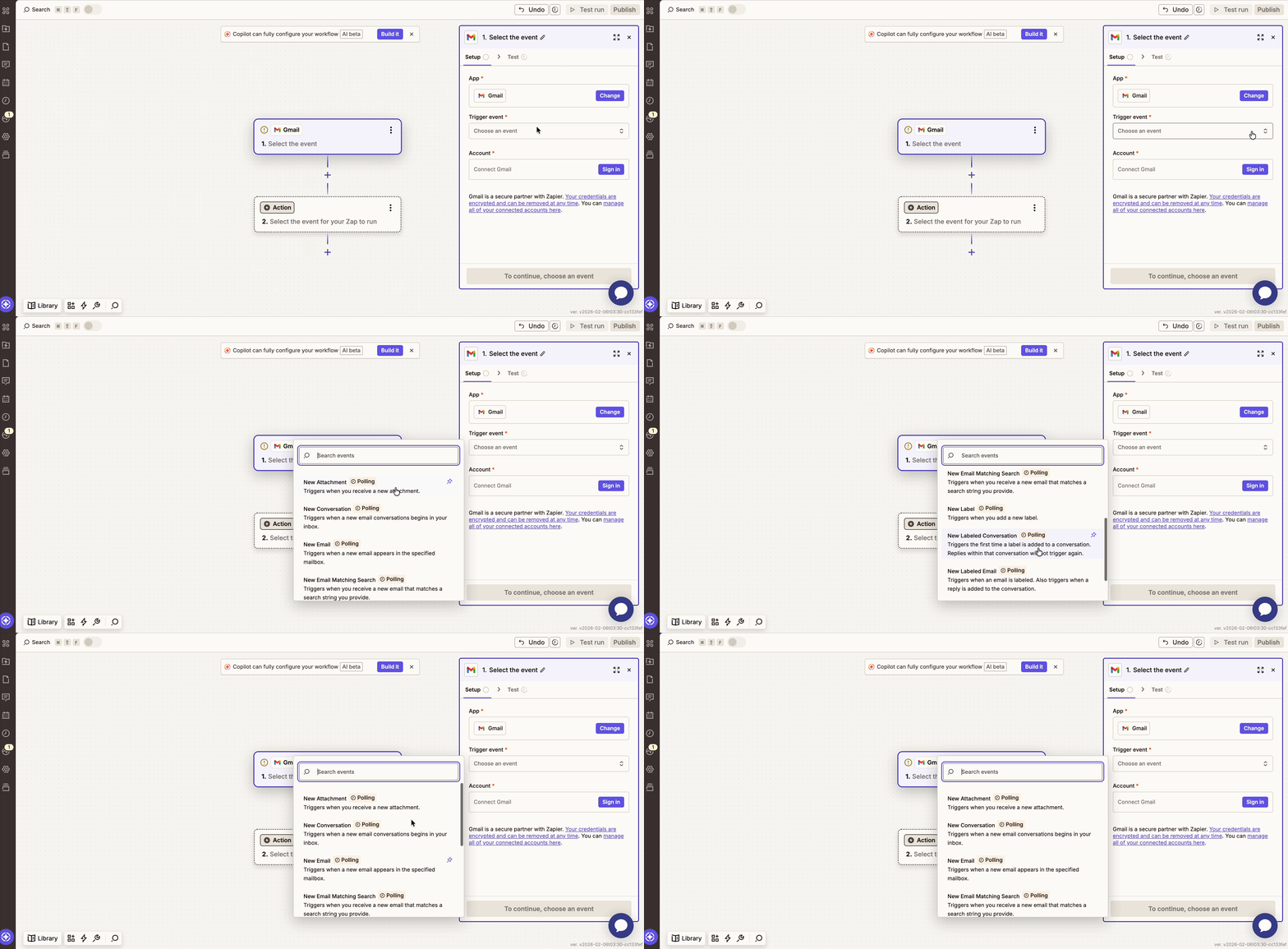
بعد اختيار التطبيق الخاص بك ، انطلق واختر ملف حدث مسبب لذلك. (مثال: if you want to show a new email notification from your Gmail, then pick ‘New Email’ as your Trigger Event).
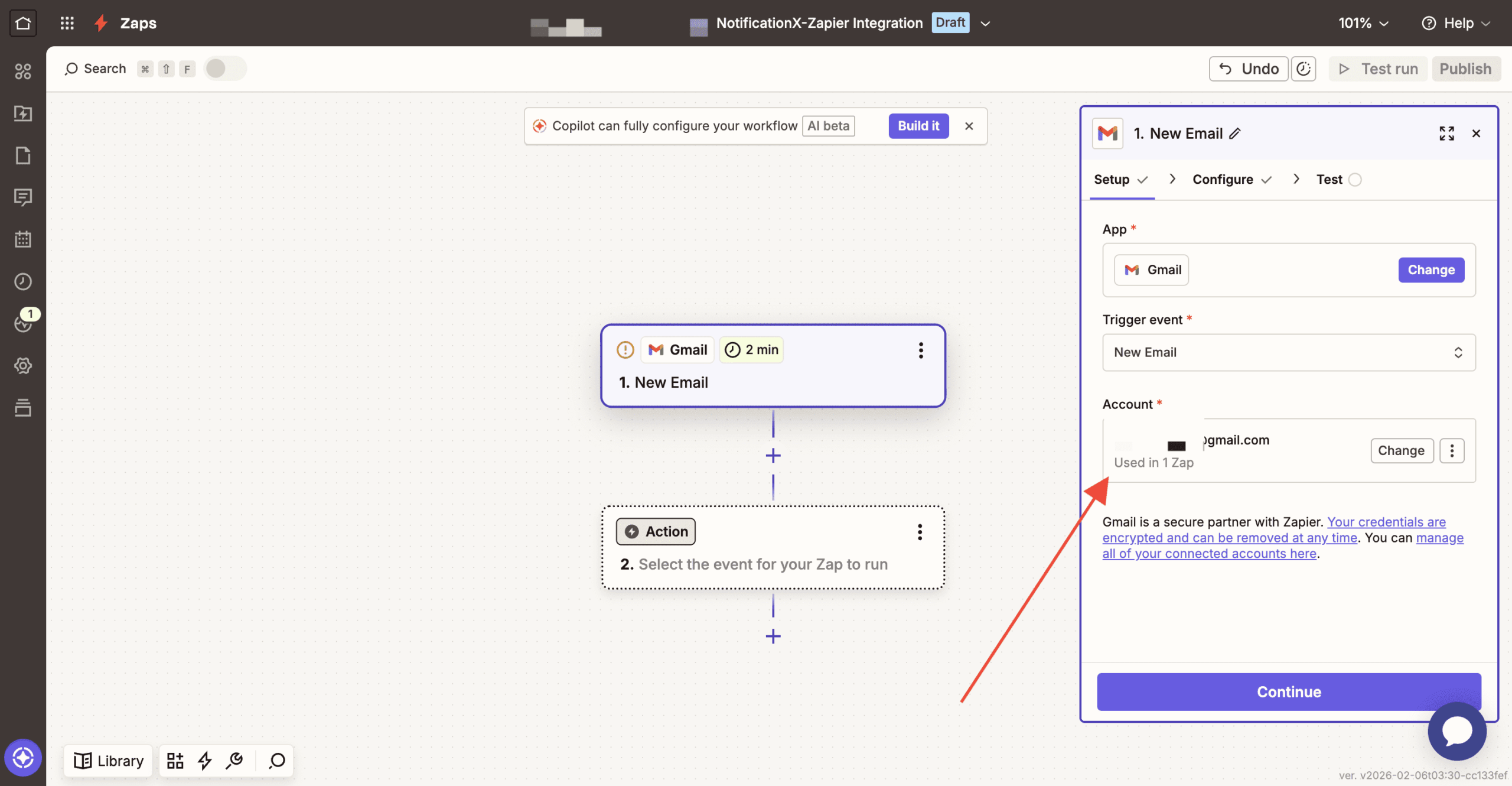
بعد ذلك ، سيُطلب منك ذلك ربط حساب التطبيق الخاص بك مع زابير. بمجرد إنشاء الاتصال ، ما عليك سوى المضي قدمًا والمتابعة.
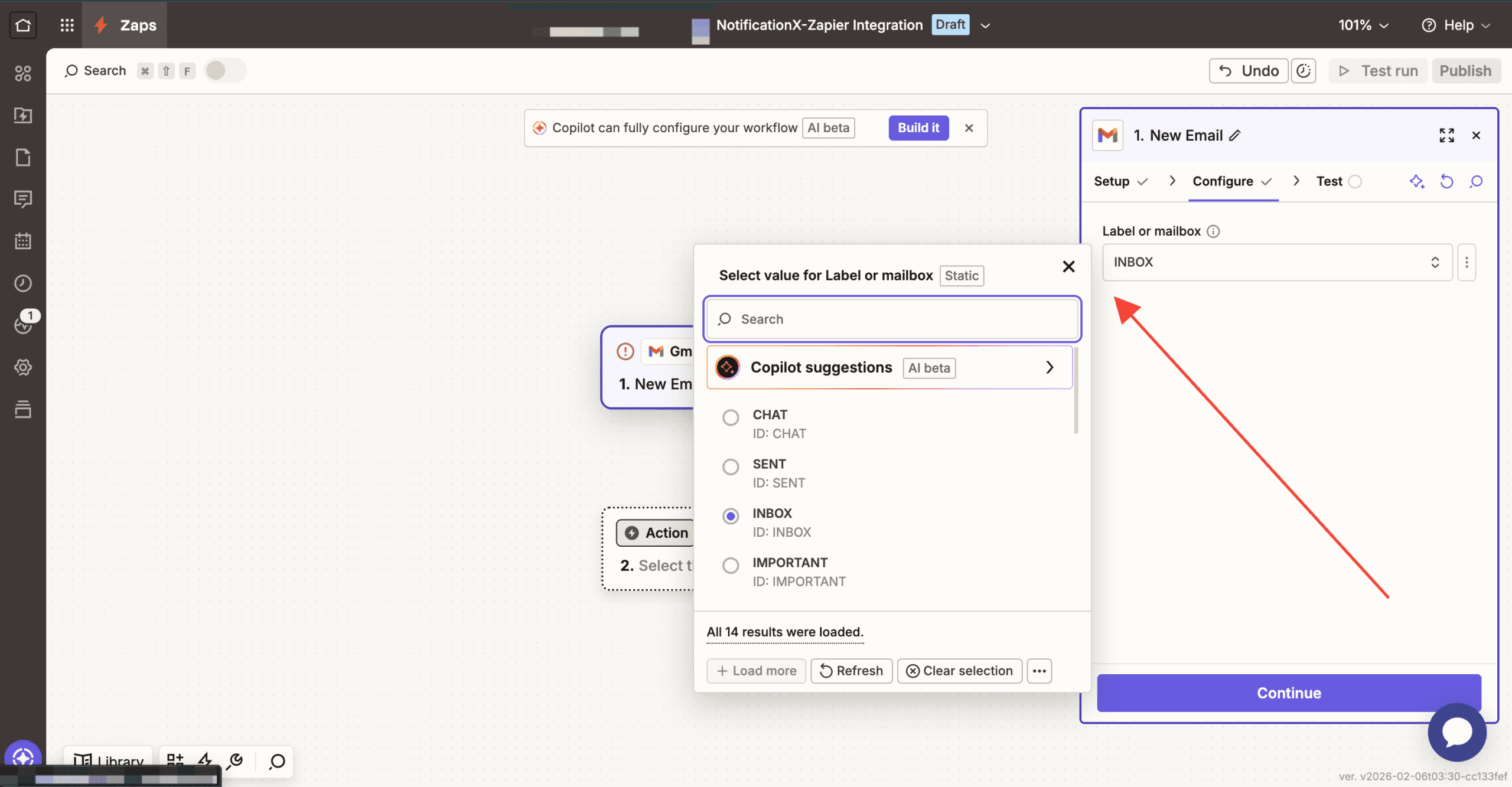
After that, click on the “Continue” button for the next stage. Then you have to add the ‘Configure’ section. In the ‘Configure’ section, choose the type of value label you want to choose.
For smooth flow in Zapier, next go to the ‘Test’ section. Here you can test if your email integration is working properly or not. Click on the ‘Test Trigger’ button to start the test.
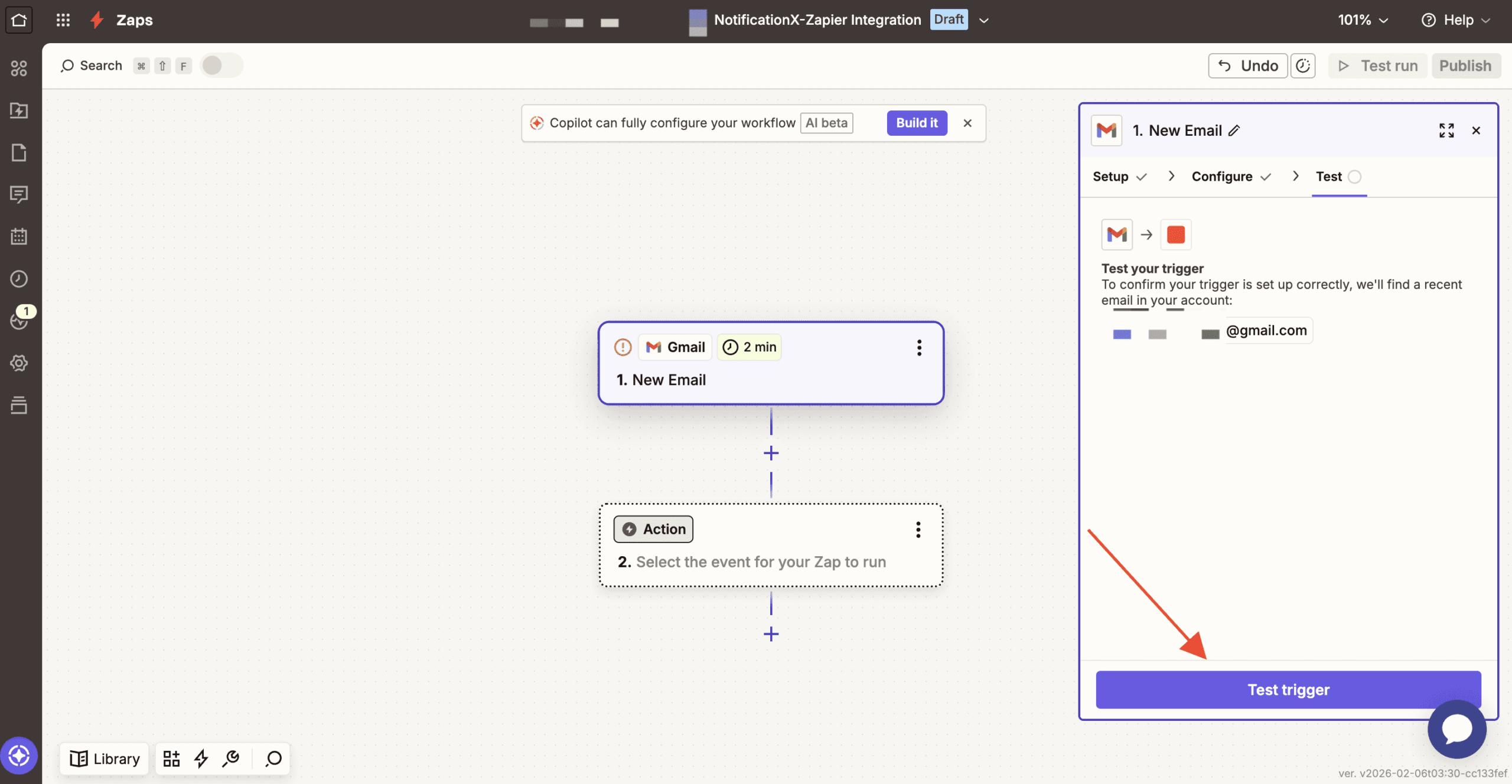
After that, from the fetched records by Zapier, you can start your testing. Click on “Continue with Selected Records” to get started.
Step 3 – Choose Action App & Action Event #
After you have successfully completed the previous step, from the action app, search for “NotificationX”. Afterward, choose‘Action Event’.
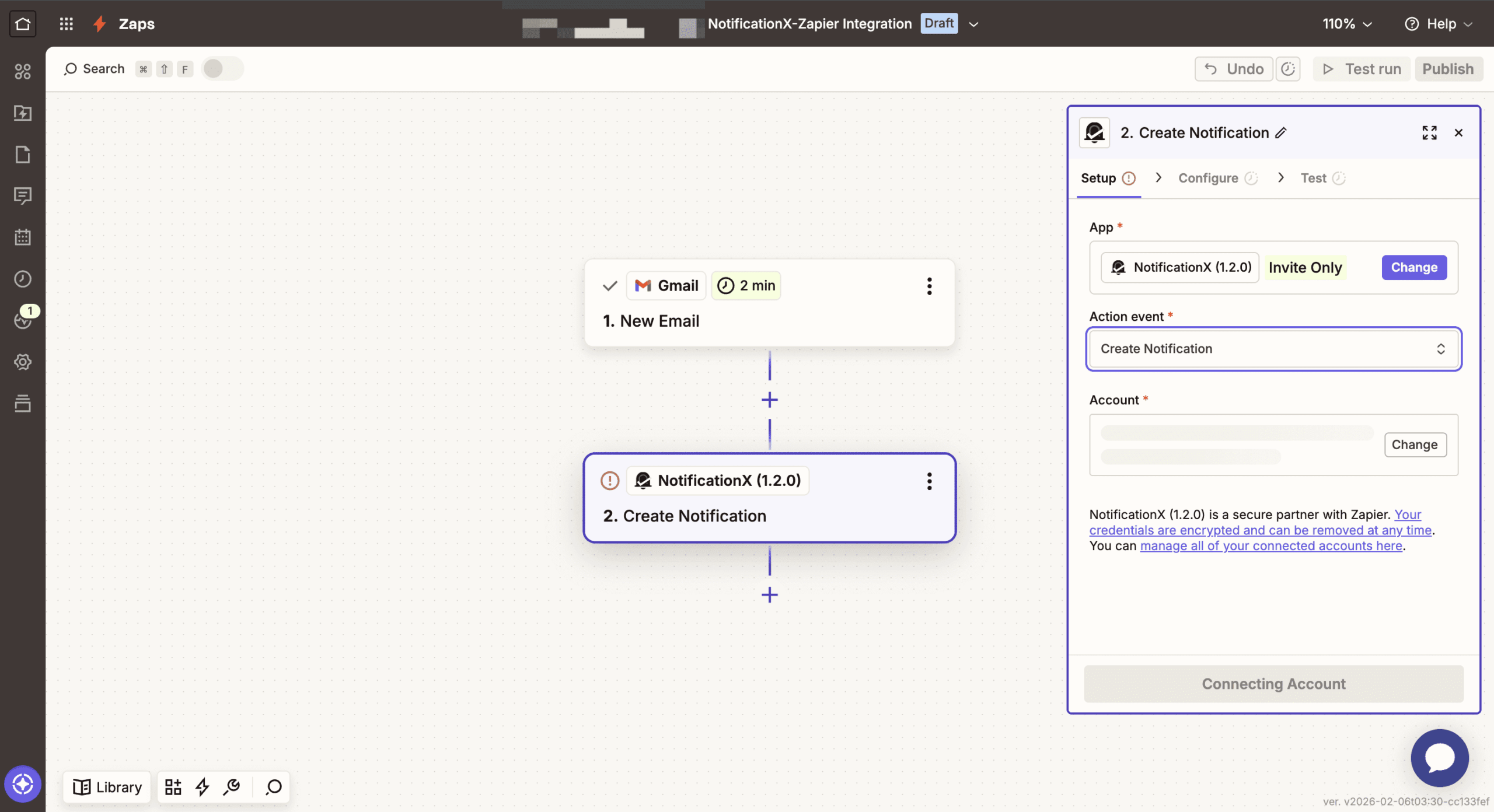
After that, connect your NotificationX account. After that, click on the “Yes, Continue to NotificationX” button. Then your account will be connected to the notification trigger. Then click on the “Continue” button.
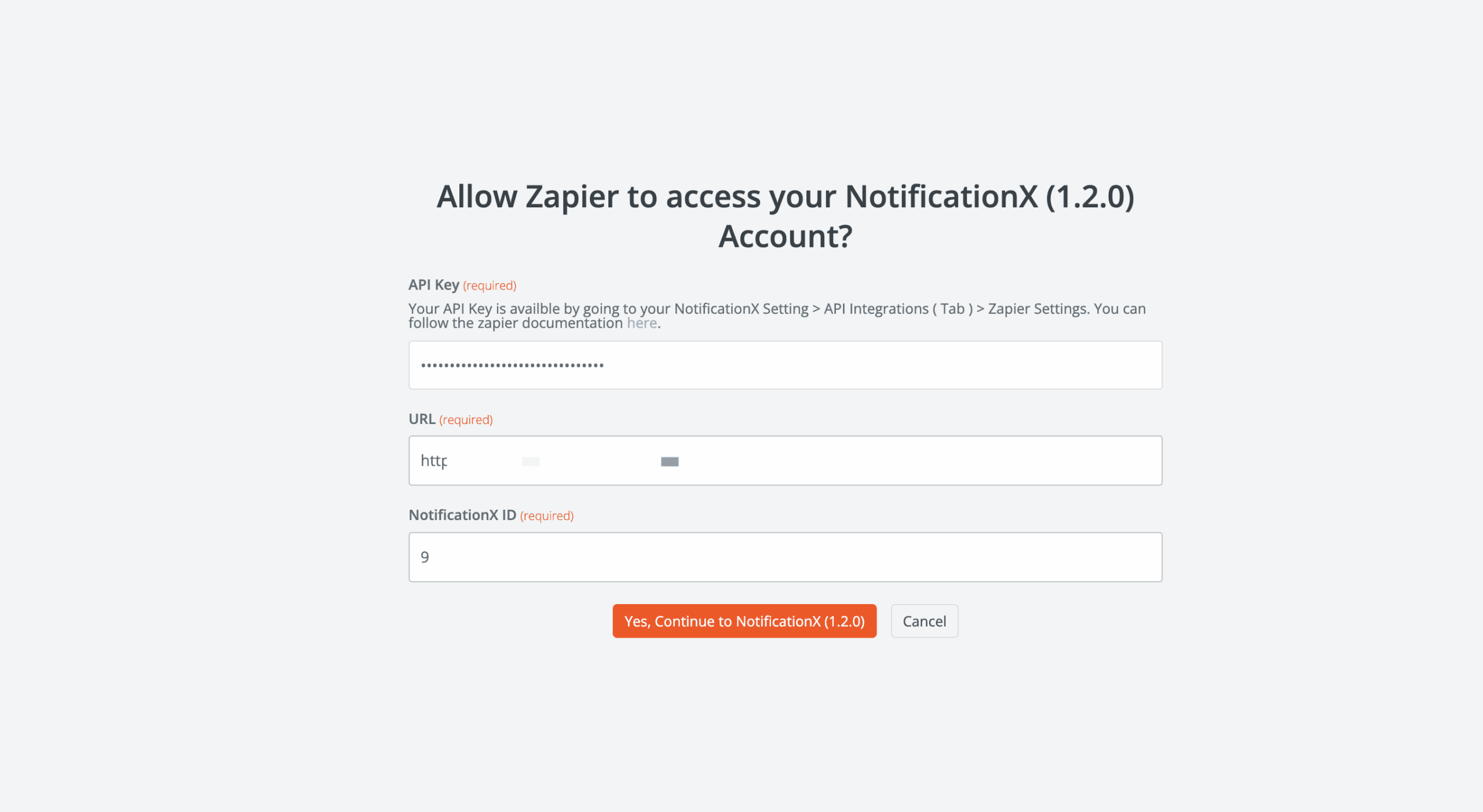
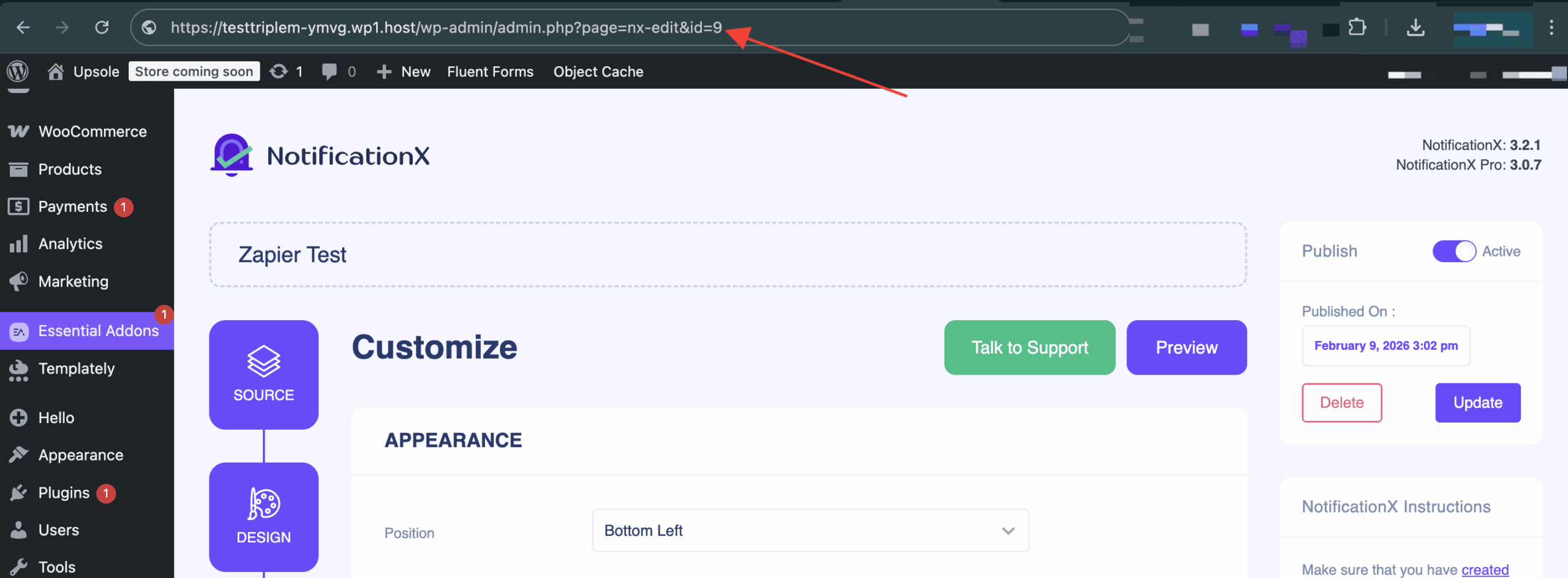
يمكنك العثور على ملف معرف الإشعار X من تنبيه إعلام Zapier الذي أنشأته مسبقًا. للعثور على ذلك ، انتقل إلى: wp-admin -> كل NotificationX -> NotificationX. Open the Zapier Notification alert and just simply check the end of the URL as you can see in the screenshot. That’s your معرف NotificationX.
After that, configure the notification type. Select the specific value you want to display. Select the value and then go to the next step. There, for different types of notification you will find different options. Fill in all the fields to complete the setup.
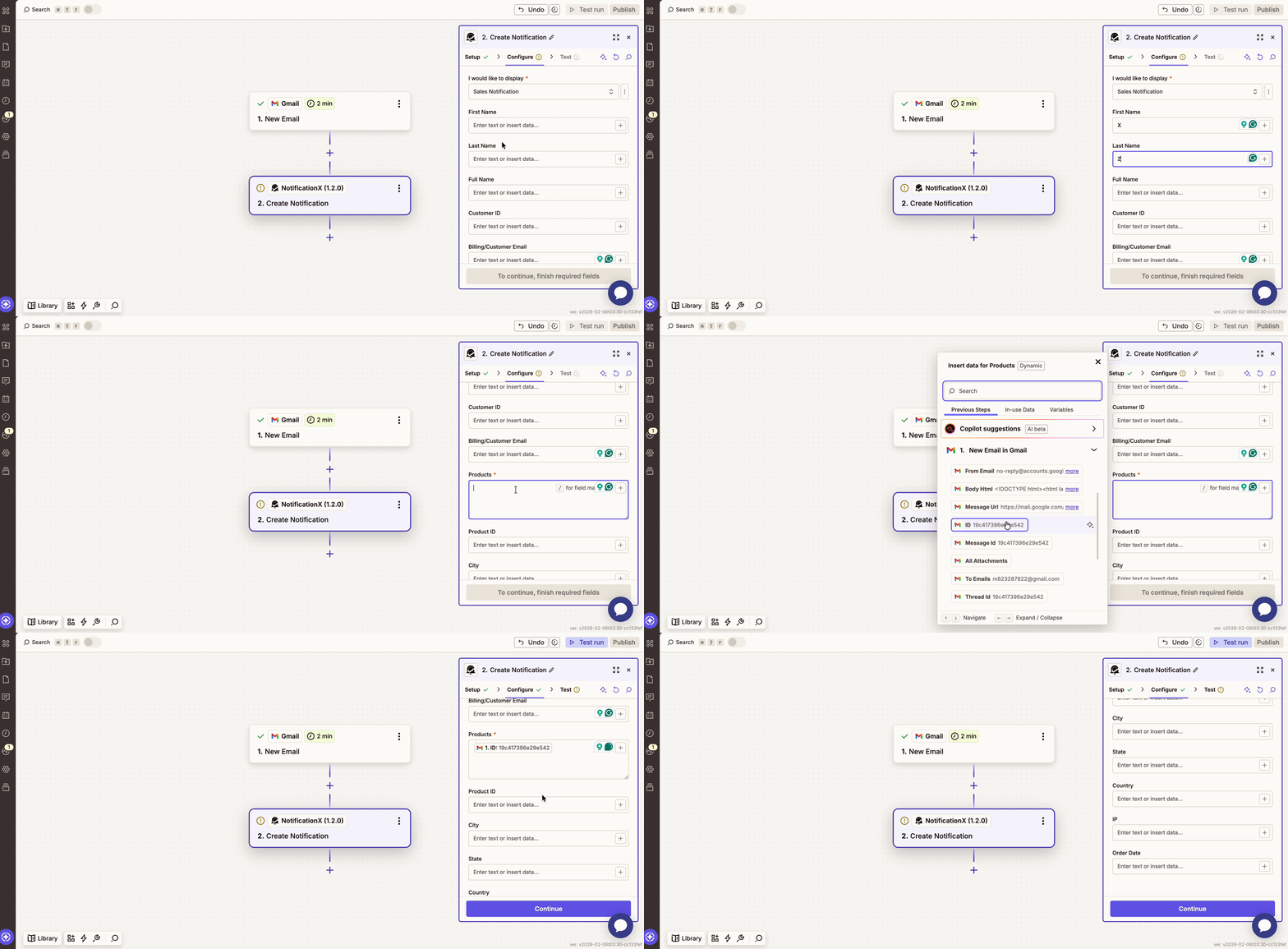
Then, from the ‘Test’ section, you can either set a test or skip this part. After skipping, click on the “Publish” button to make the notification LIVE on your website.
After you have completed all the steps mentioned above, go to your website and you will find the تنبيه إخطار زابير ظهرت مثل هذا:
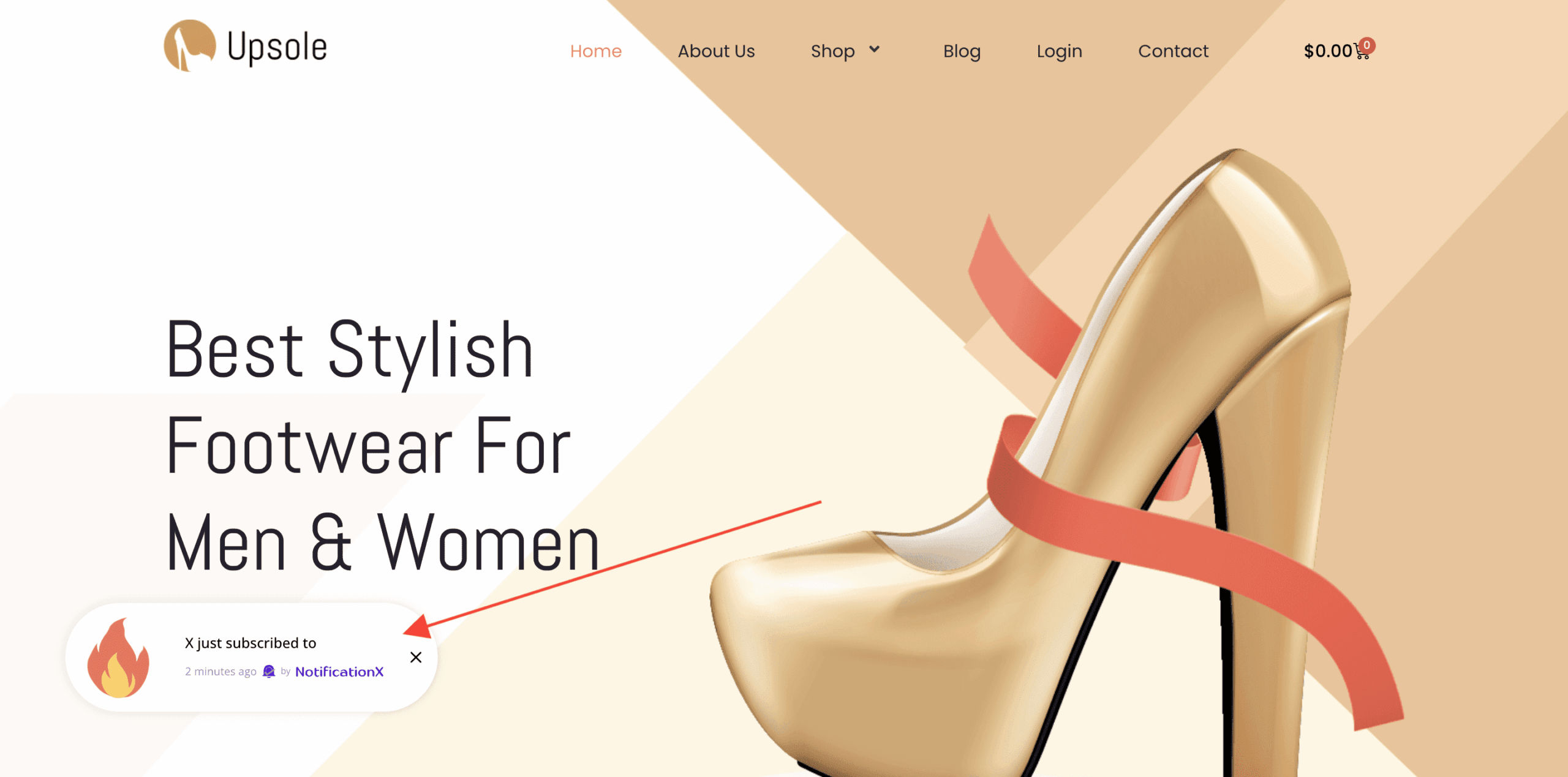
By using NotificationX, this is how you can easily design and display an amazing نافذة منبثقة لإعلام زابير على موقع WordPress الخاص بك وتنمية قاعدة المستخدمين الخاصة بك.
إذا واجهت أي مشاكل ، يمكنك الاتصال بفريق الدعم الخاص بنا هنا.


 English
  Arabic
  Indonesian
  Spanish
  Bengali
  Portuguese
  German
  Dutch
Dutch  Russian
  Hindi
Hindi  French
  Japanese
  Chinese
  Vietnamese
  Malay
Malay