
Notification Bars on the top of a web page help you display product discounts, announcements, promotions, CTAs, and other critical information. With PemberitahuanX, you can easily configure a notification bar in Gutenberg and display your required information or sales promotions on your website for free. Follow the step-by-step guide below to learn how you can do that.
How To Configure A Notification Bar In Gutenberg With NotificationX? #
Before getting started, make sure you have diinstal dan diaktifkan NotificationX on your WordPress website.
Langkah 1: Tambahkan Pemberitahuan Baru #
Buka Dashboard WordPress Anda dan arahkan ke wp-admin → NotificationX. Then, right at the top, click on ‘Tambah baru'.
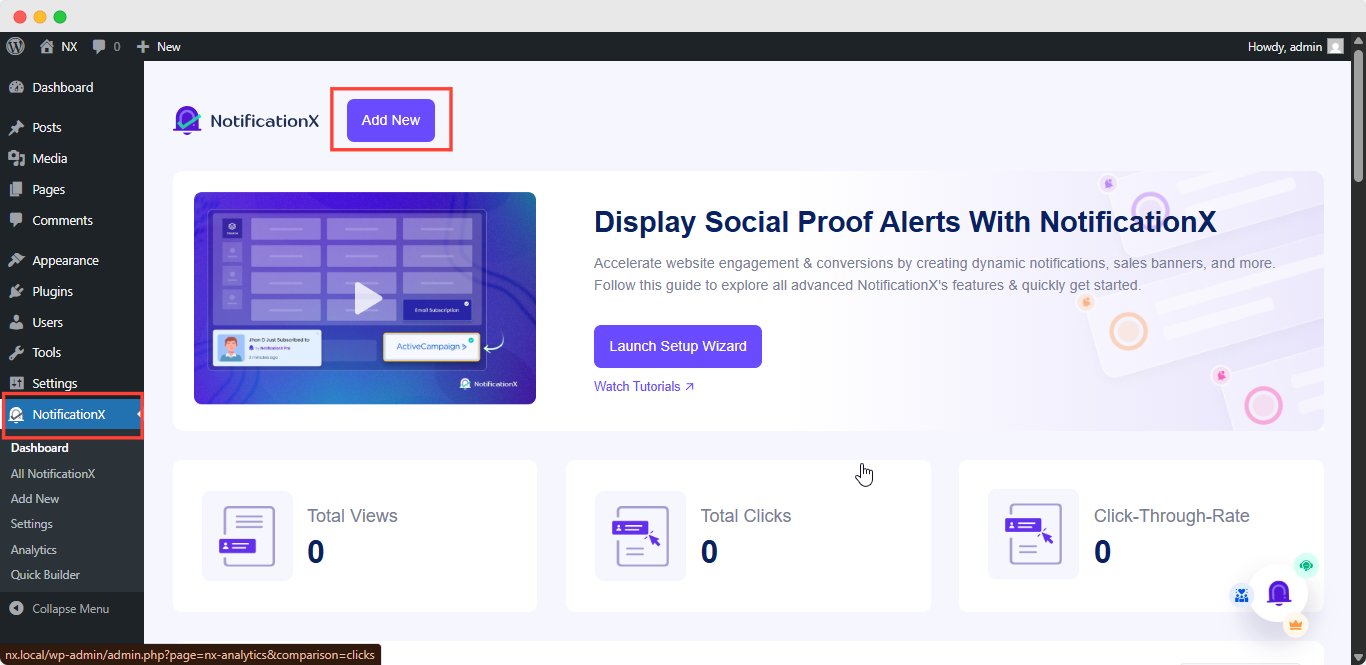
Step 2: Choose Notification Type #
After completing step 1, you will be redirected to the ‘Sumber’ tab page of your NotificationX. You can also set a title and select ‘Bilah Pemberitahuan’ as your Notification type. Afterward, go ahead & click on the ‘Lanjut' tombol.
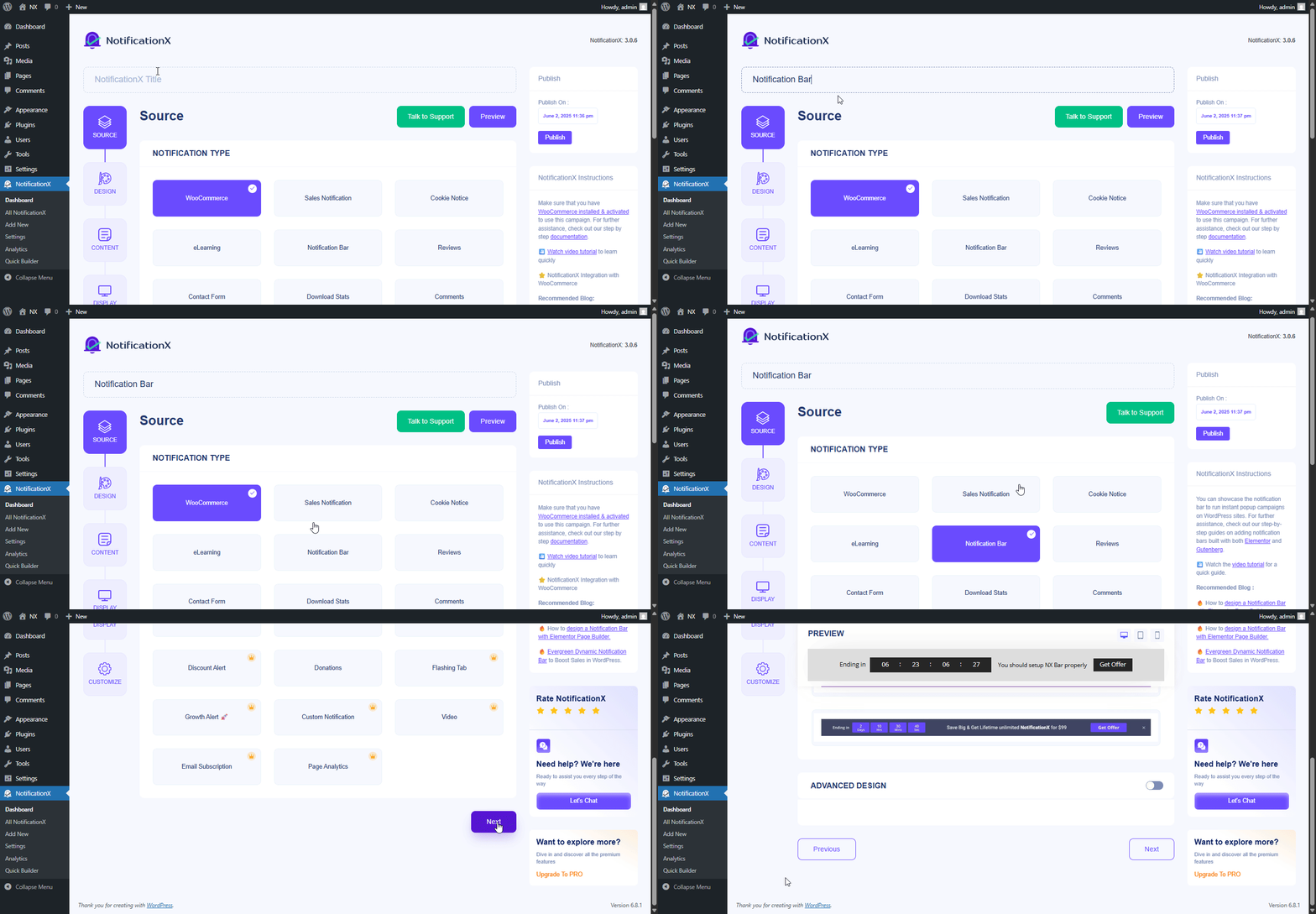
Step 3: Customize The Design #
Dari 'Desain’ tab, you can choose a theme and customize it as per your preference. To use a notification bar in Gutenberg, turn the ‘Desain canggih toggle on.
If you do so, you’ll get the option ‘Built with Gutenberg’, click on it & you will get all the notification bar design options. Choose the one that you prefer most & click on ‘Import.’
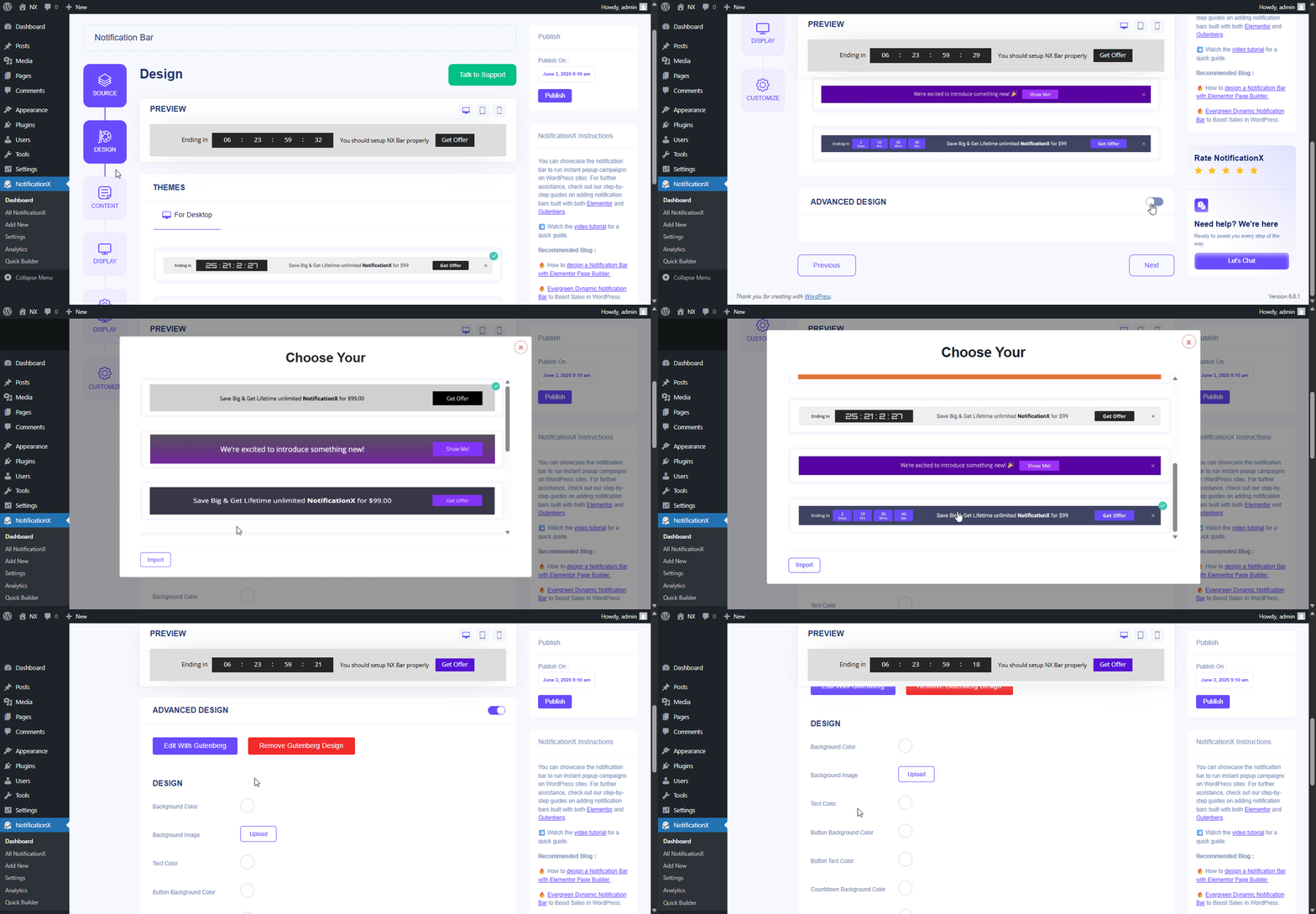
In ‘Desain Lanjutan’ you also get the flexibility to modify the notification bar to reach the maximum potential of it.
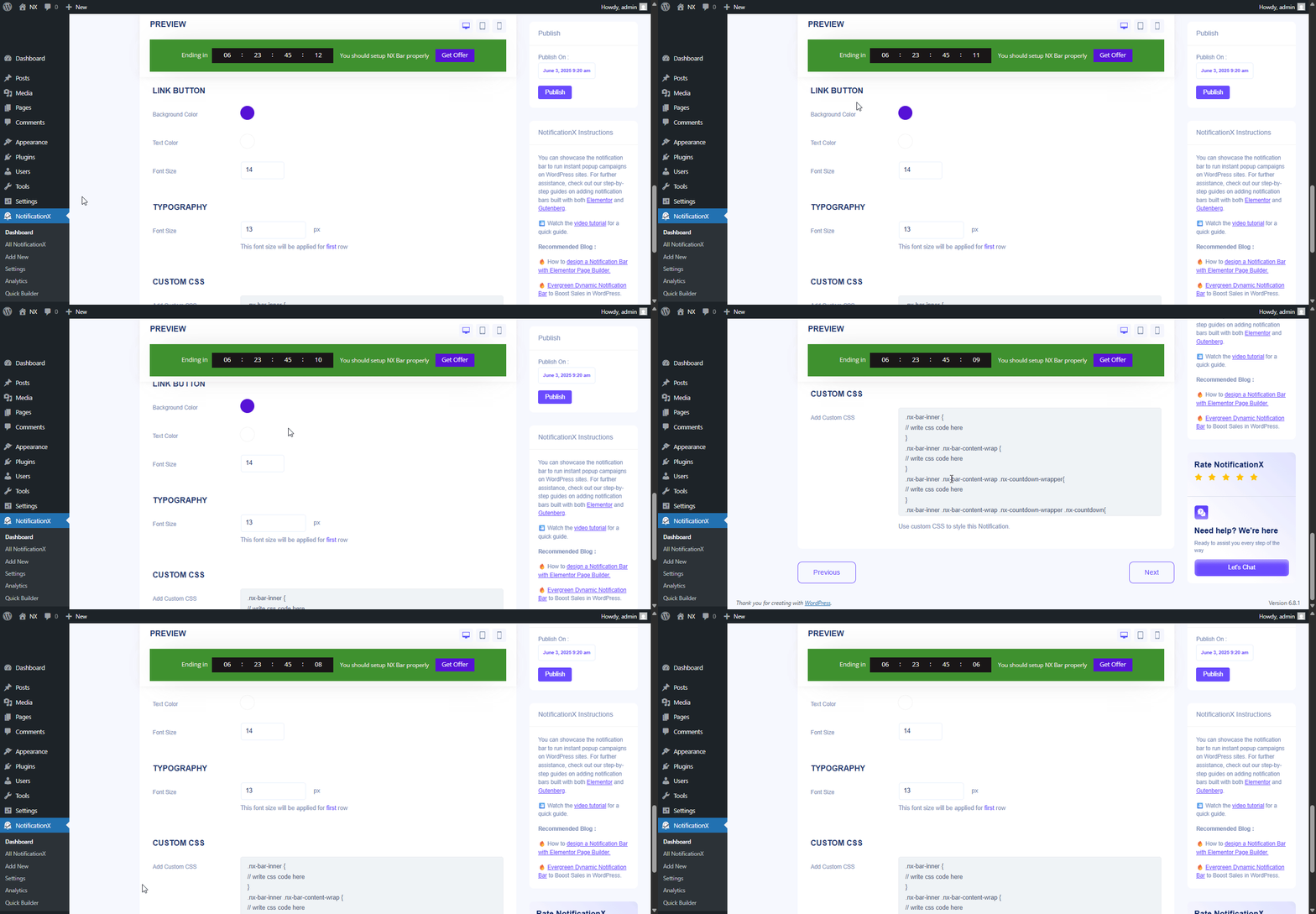
Di bawah 'Rancangan' option, you can do a lot of customization to make your notification bar stand out. Such as changing the background color and image, making your own button color, countdown background color, countdown text color, closing button color, close button size, and position.
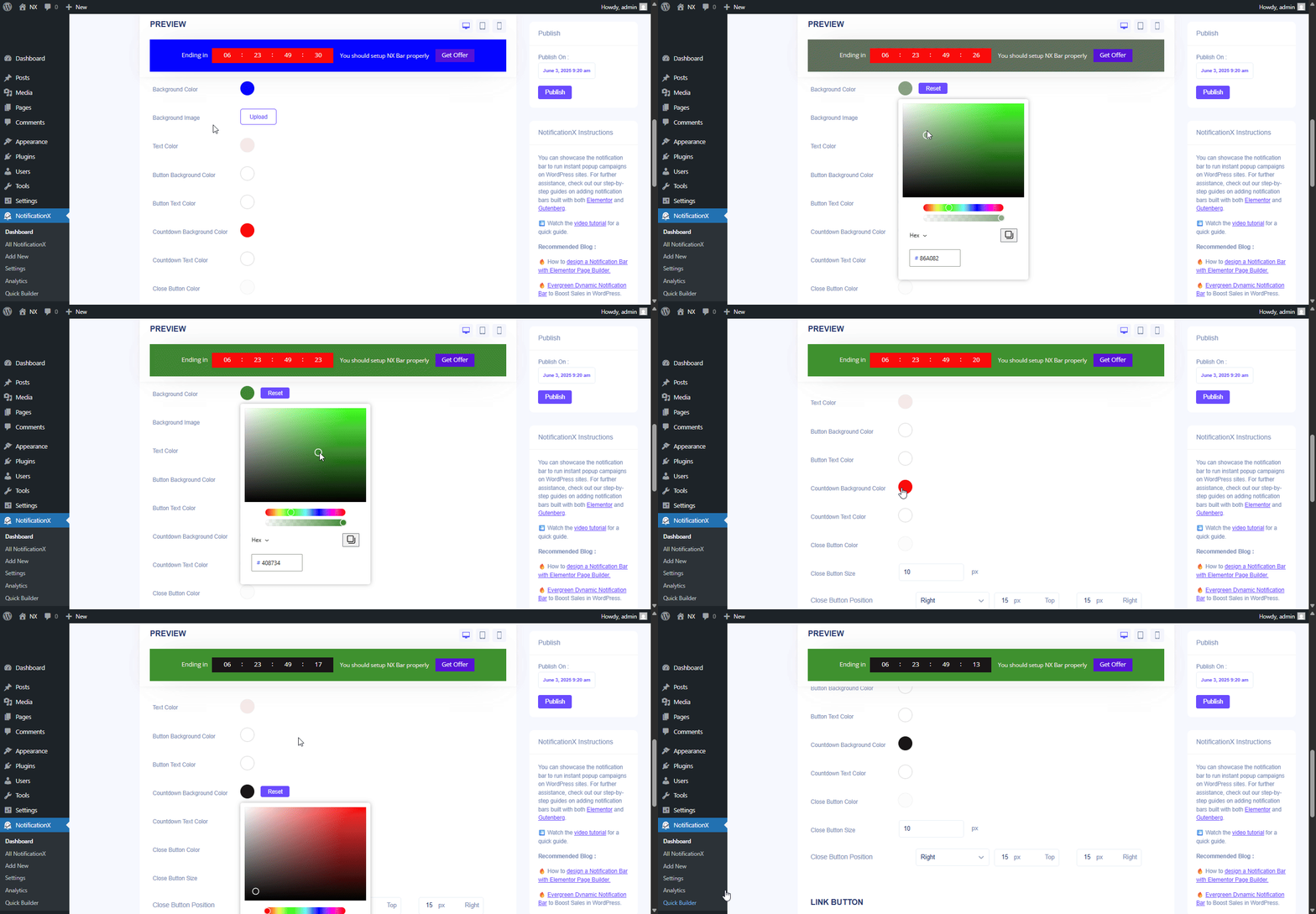
Plus, you can also customize the Link Button, Typography & add Custom CSS to your Gutenberg Notification from this section.
Step 4: Customize Your Notification Bar Directly From Gutenberg Editor #
To edit everything live, click on ‘Edit with Gutenberg’ under ‘Advanced Design.’ It’ll redirect you to the Gutenberg editor.
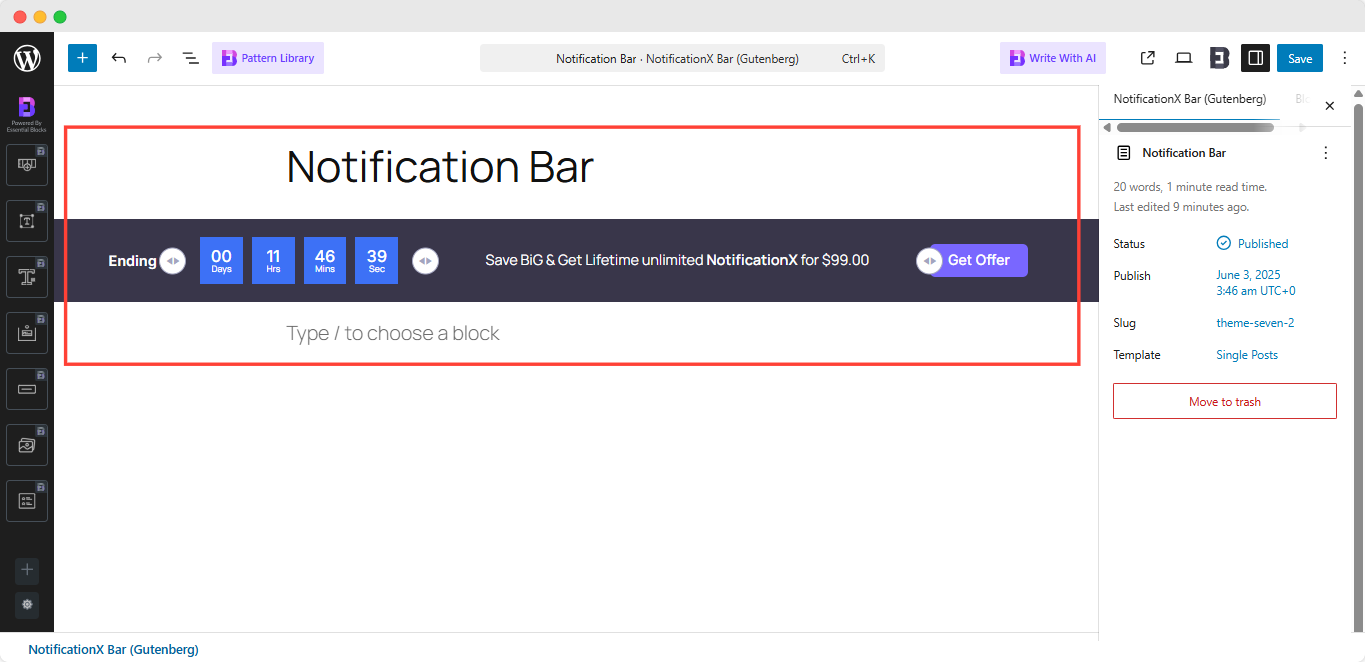
Note: Instead of seeing something like the above images, if you see a few broken blocks, make sure you have the Essential Blocks for Gutenberg installed & activated on your WordPress website.
Now Gutenberg gives you the flexibility of editing everything in your picked notification bar.
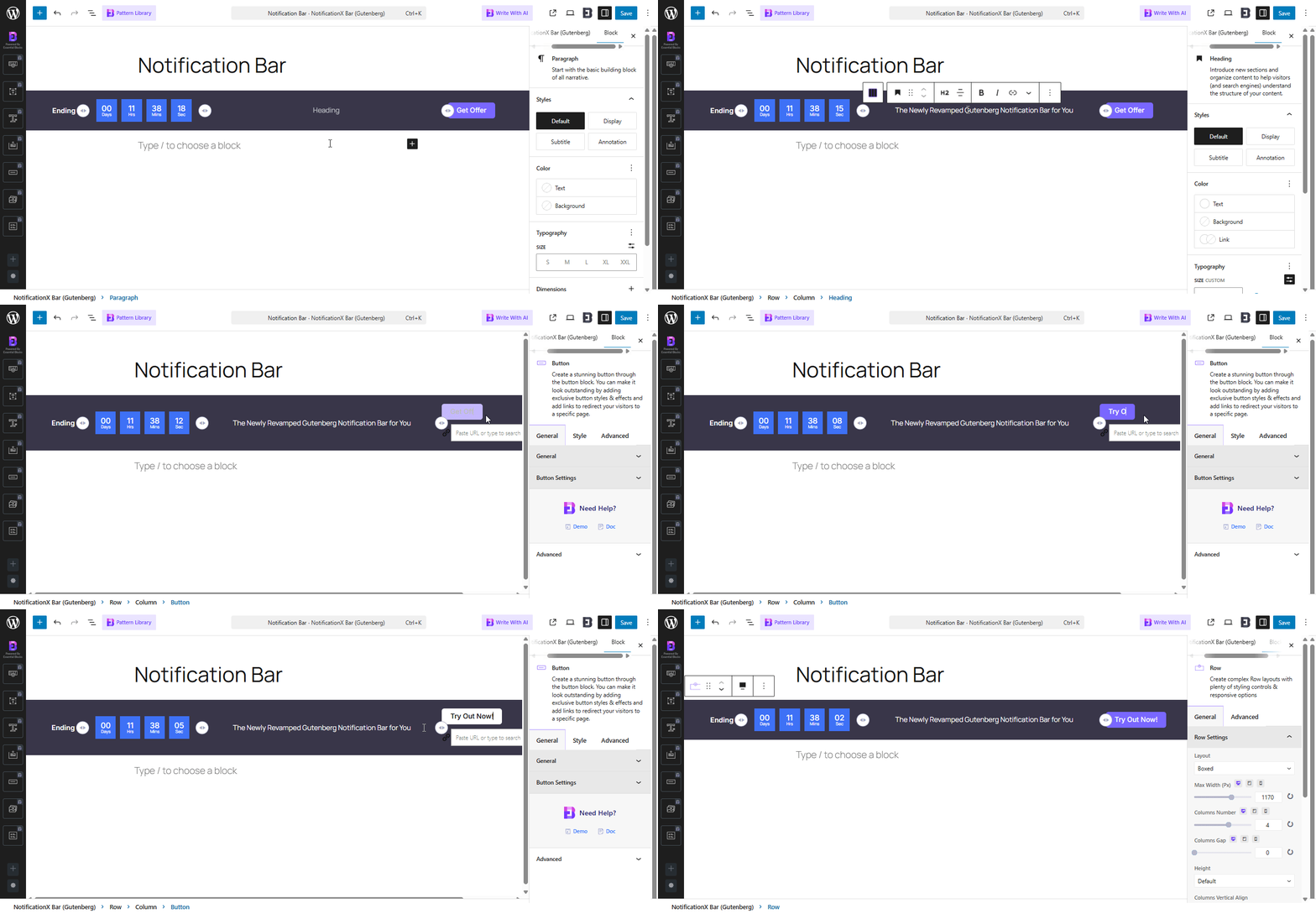
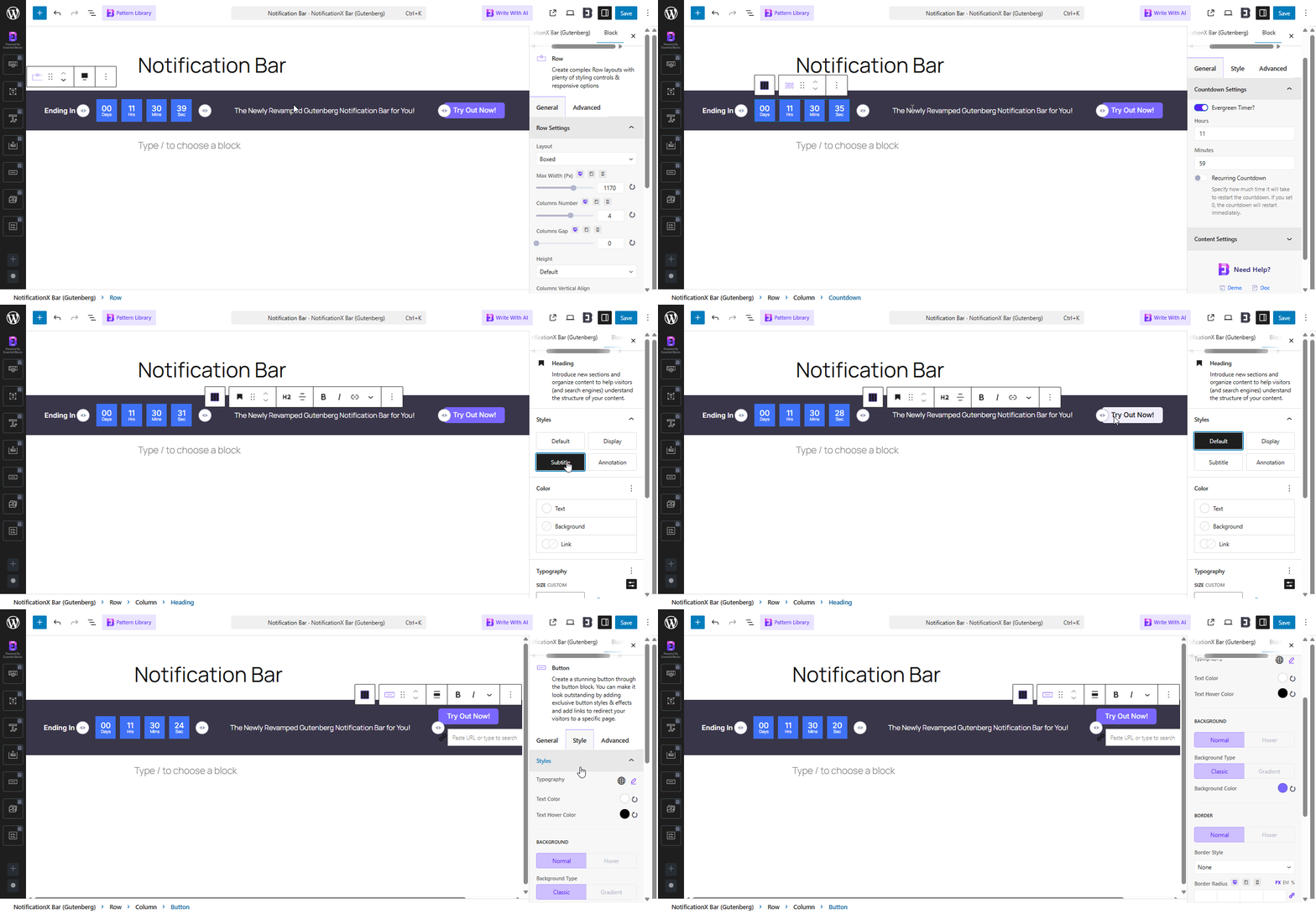
Click on the portion you want to edit and style the way you want from the right-side control panel. Set your notification bar exactly how you imagined. Once you’re done, revert back to NotificationX dashboard to do a few more customization.
Step 5: Set Your Notification Bar Visibility #
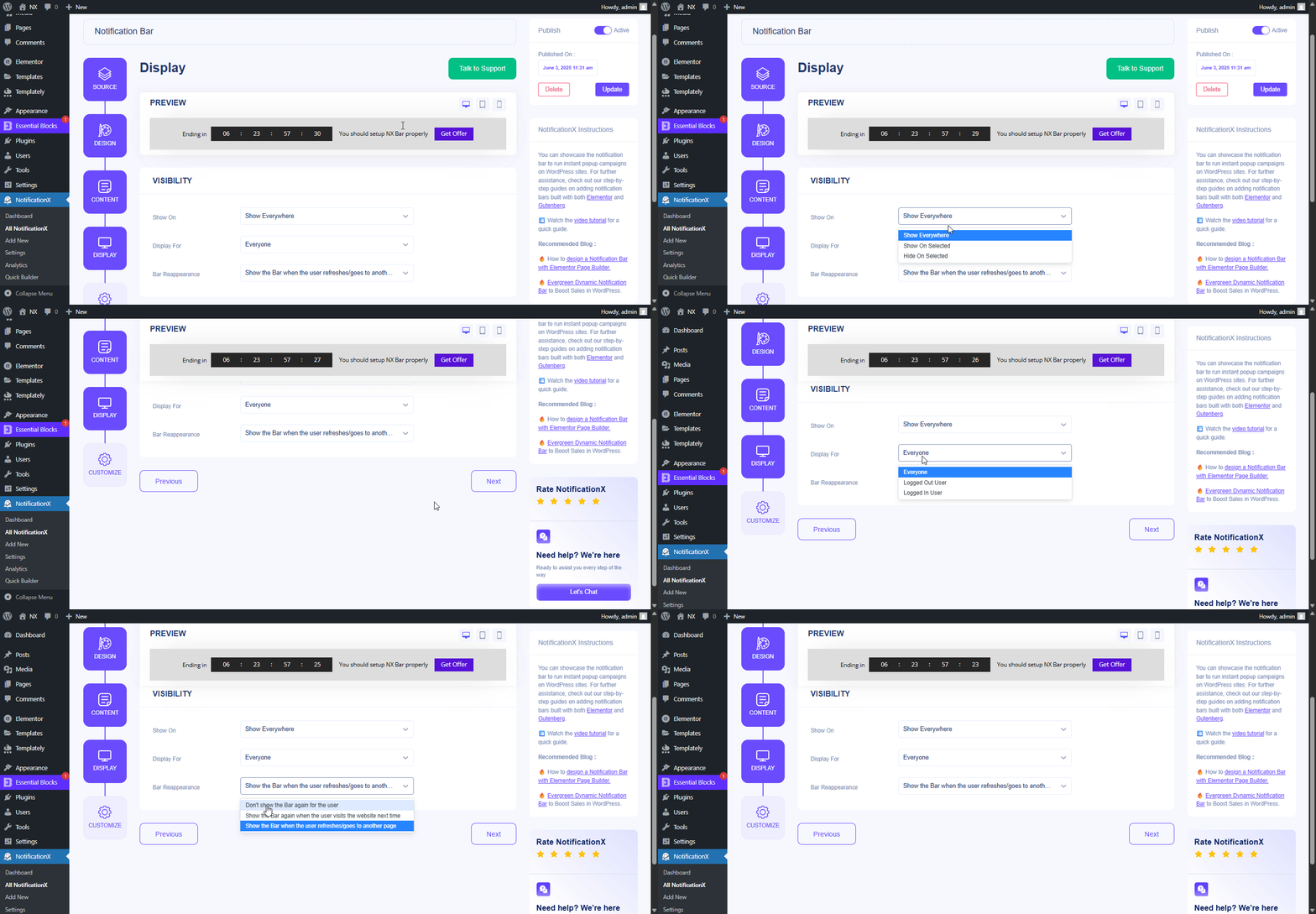
Dalam 'Tampilan' tab, you can now configure its settings to choose the location of your site where you want to display your notification bar and for whom you want to display the alert.
Step 6: Customize Your Notification Bar As You Prefer #
Setelah itu, cukup konfigurasikan pengaturan dari 'Sesuaikan' tab dan konfigurasikan tampilan, waktu, dan perilaku bilah notifikasi. Anda dapat memilih posisi untuk menampilkan bilah notifikasi di situs WordPress Anda, apakah Anda ingin menampilkan bilah di perangkat seluler, dan juga memilih apakah Anda ingin menambahkan tombol tutup.
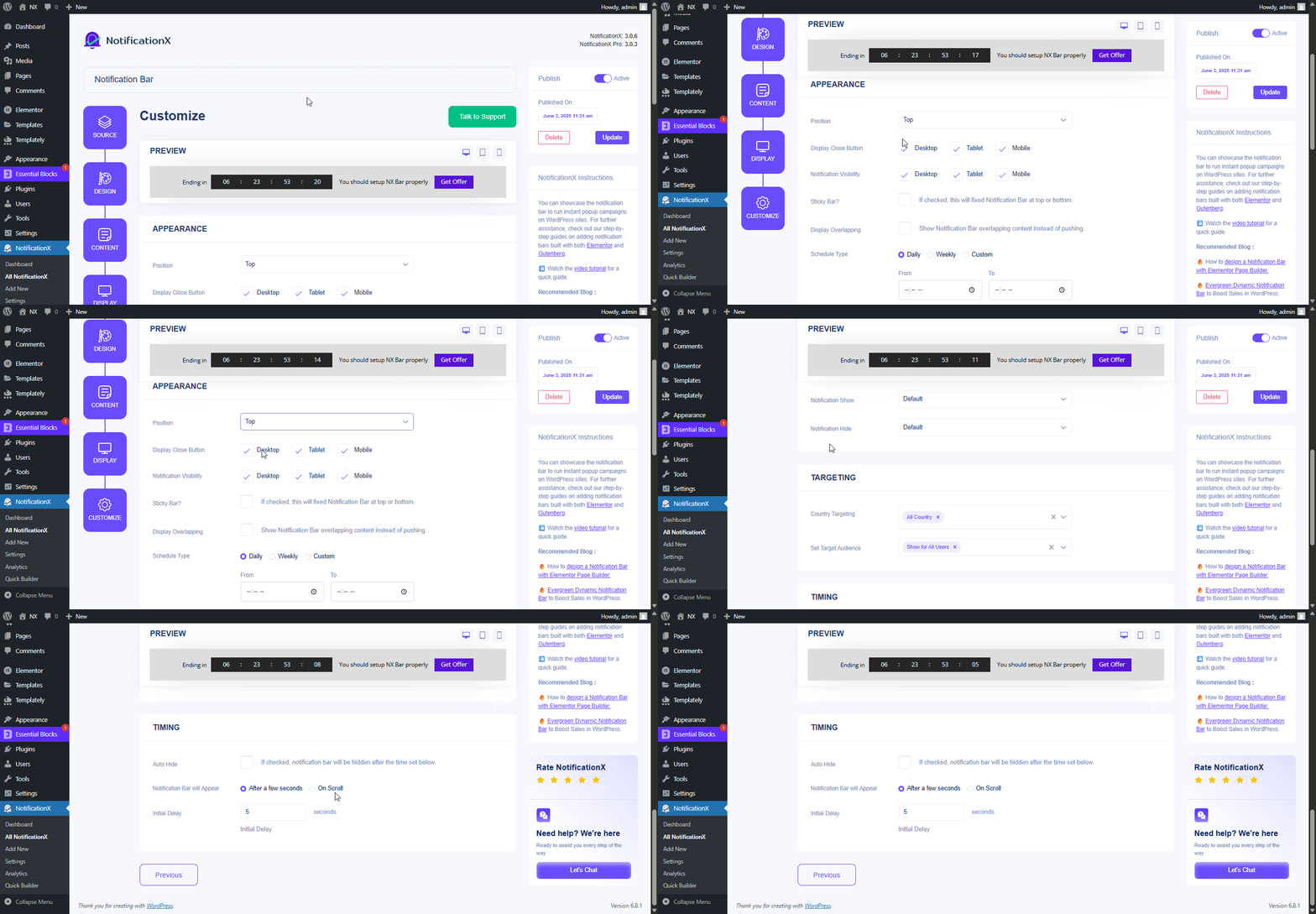
Dengan ‘Targeting’ option, you can target users who will be able to see the bar and who are not. The timing of the notification bar can also be customized from the ‘Timing’ section.
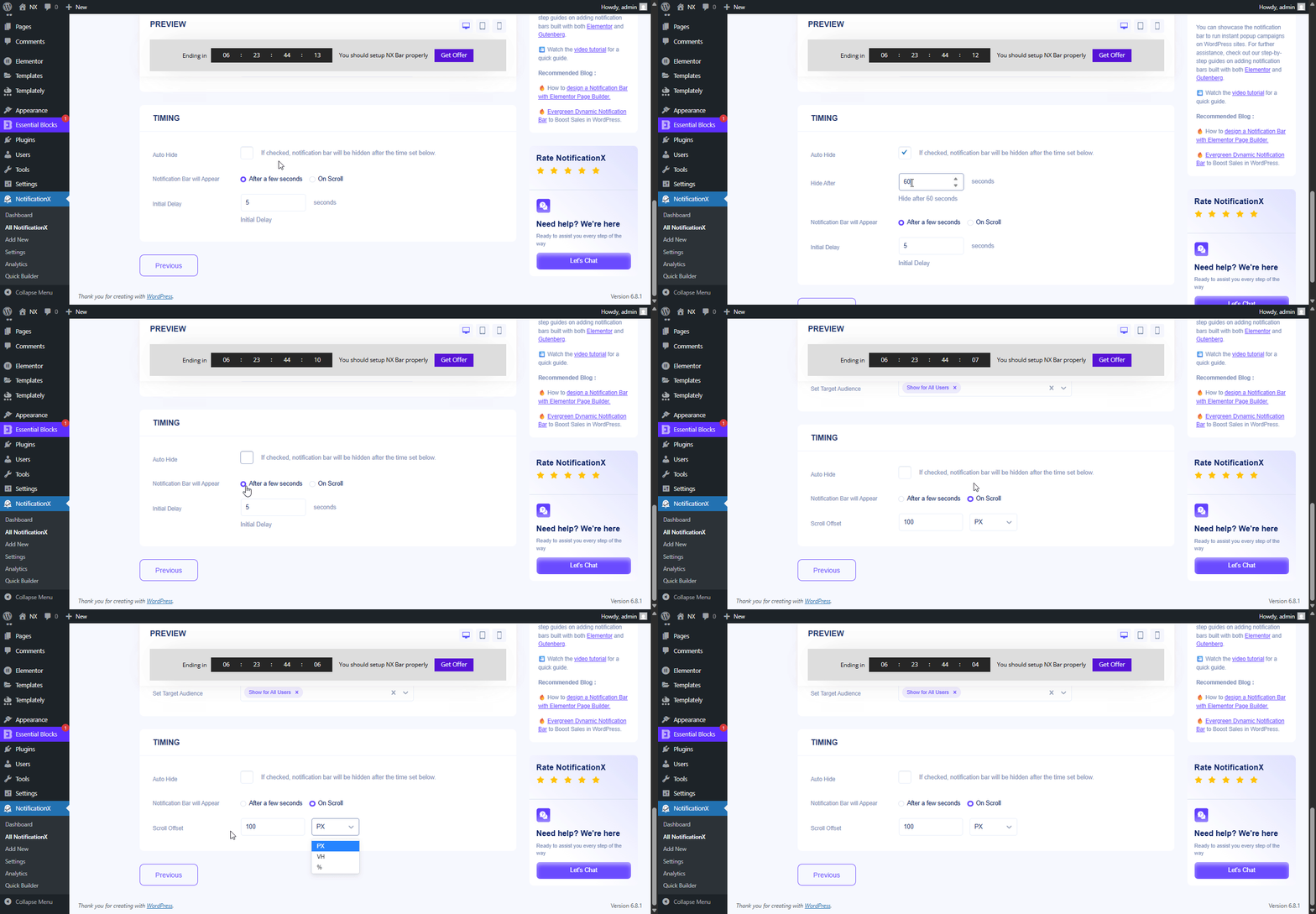
If you want to hide your bar automatically, you can do that by simply clicking on the ‘Auto Hide’ option. You have the flexibility of setting the timer for your auto-hiding.
If you want your notification bar will pop up after a few seconds your visitor come to your website, you can set that as well. You can also do this based on your visitor’s scrolling timing here.
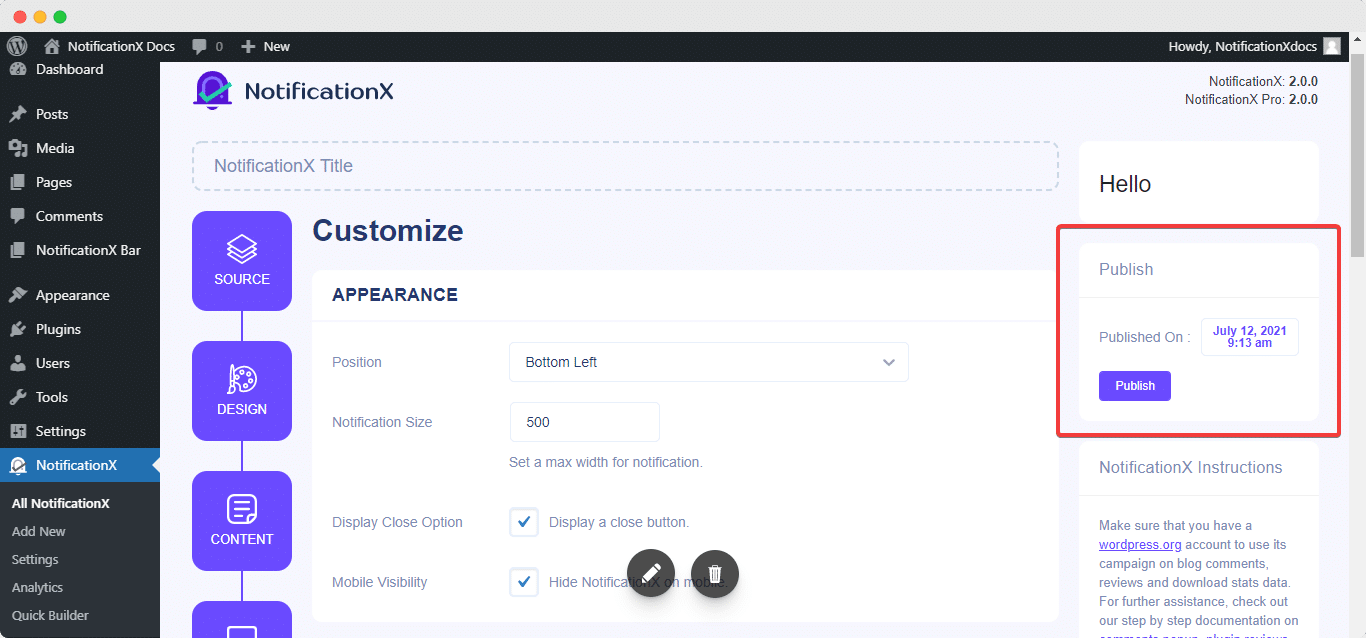
After you have completed all the steps, click on the 'Menerbitkan' tombol.
Hasil akhir #
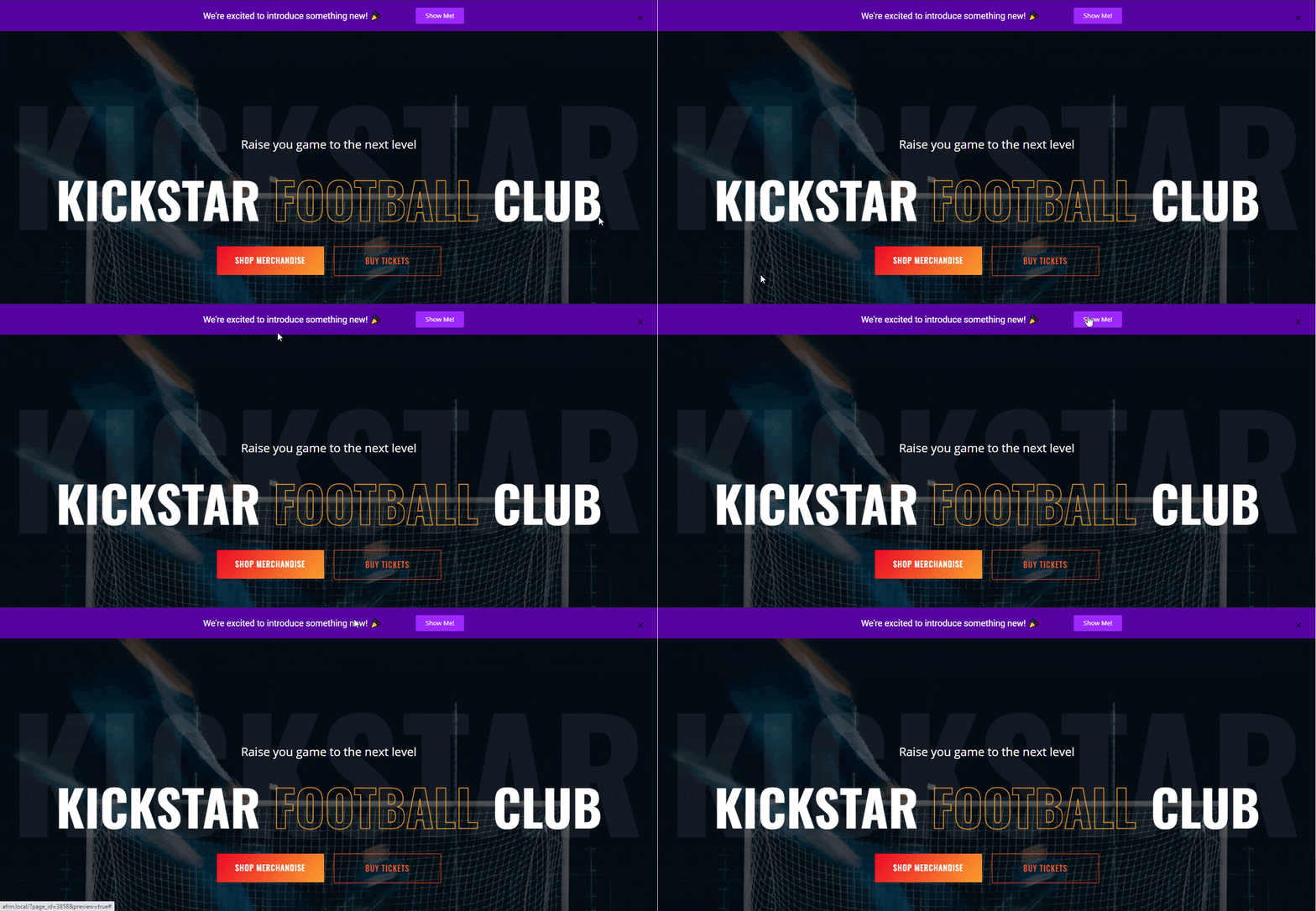
By following these mentioned steps and a bit more modifying, this is how your Notification Bar will appear on your Gutenberg website. For more information on cara mengkonfigurasi bilah notifikasi, kamu bisa lihat dokumentasi terperinci ini.
Dengan bantuan NotificationX, inilah cara Anda dapat dengan mudah membuat dan mendesain memukau Bilah Pemberitahuan dengan Elementor & tingkatkan konversi Anda dalam prosesnya.
Terjebak? Jika Anda menghadapi masalah atau pertanyaan, Anda dapat hubungi Tim Dukungan kami.


 English
  Arabic
  Indonesian
  Spanish
  Bengali
  Portuguese
  German
  Dutch
Dutch  Russian
  Hindi
Hindi  French
  Japanese
  Chinese
  Vietnamese
  Malay
Malay