
Shoppers rarely buy from a store they are unsure about. They look for proof that real people are buying, and that is exactly what the FluentCart Integration in NotificationX delivers. It connects your FluentCart store with NotificationX, so recent purchases and store milestones appear as eye-catching popups on your WordPress site, without a single line of code.

In this guide, we will explain what FluentCart is, how FluentCart and NotificationX work together, and why this setup matters for your store. You will also learn how to configure both the FluentCart Sales Alert and the FluentCart Growth Alert, step by step.
What Is FluentCart?
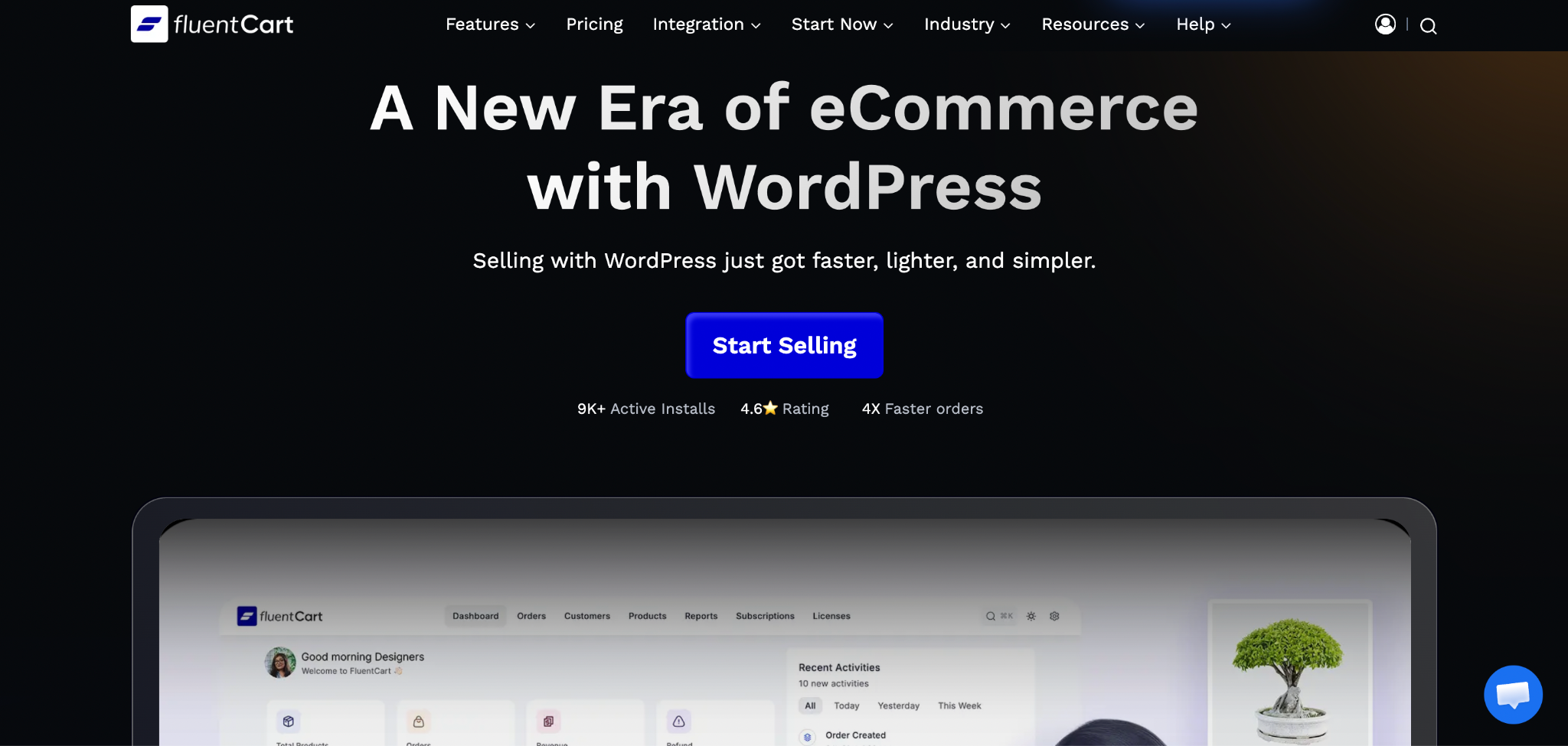
FluentCart is a WordPress eCommerce plugin that helps you sell products, manage orders and run an online store right from your own dashboard. Store owners choose it when they want full control over their shop without depending on a hosted platform. Because it lives inside WordPress, your store data stays on your own site, which makes it a natural fit for plugins that react to store activity. That is where NotificationX comes in. Instead of leaving your sales hidden in the backend, you can turn them into visible social proof that nudges new visitors to complete their own purchase.
What Is the FluentCart Integration in NotificationX?
The FluentCart Integration is a built-in source in NotificationX. Once FluentCart is installed and activated, you simply choose FluentCart as the source of integration while creating a notification. NotificationX then pulls your store activity and displays it in a popup that you can style, time, and place anywhere on your site. Two notification types are supported: the Sales Alert and the Growth Alert. You can explore the full FluentCart integration page to see how it fits into the wider NotificationX toolkit.
FluentCart Sales Alert
The FluentCart Sales Alert displays recent purchases made by your customers as a popup notification. When a visitor lands on your store and sees that someone just bought a product, it instantly answers the question every first-time buyer has: “Is anyone else buying from this store?”
You control what the popup says through an editable notification template, and you can show either a default image or the customer’s avatar.
FluentCart Growth Alert
The FluentCart Growth Alert is a NotificationX PRO feature that showcases growth numbers for the products in your store. It can display sales counts, stock-out alerts, and more, which helps you build both trust and urgency at the same time.
Instead of showing a single buyer, it highlights the bigger picture, such as how many times a product has been sold. You can learn more about this notification type on the Groeiwaarschuwing feature page.
Why the FluentCart Integration Is Important
Online buyers cannot touch a product or talk to a salesperson, so they rely on signals from other customers. The FluentCart Integration puts those signals right in front of them at the moment they are making a decision. A live Sales Alert shows real activity in your store, while a Growth Alert adds momentum and urgency. Here is why that combination matters.
Builds Trust with First-Time Visitors
A new visitor knows nothing about your store. They do not know whether your products are good, whether your checkout is safe, or whether anyone has bought from you before. A FluentCart Sales Alert answers these doubts silently. When a pop-up shows that someone just purchased a product, the visitor sees proof that your store is active and that real customers are completing orders.
This matters most for newer stores, where reviews and brand recognition are still growing. Instead of waiting months to collect testimonials, you can let your live order activity do part of the convincing from day one.
Creates Urgency Without Pressure Tactics
Urgency works best when it is honest. The FluentCart Growth Alert displays sales counts and stock-out alerts based on your actual store data, so the message is true rather than manufactured. A shopper who sees that a product has sold many times, or that stock is running out, understands that waiting could mean missing out.
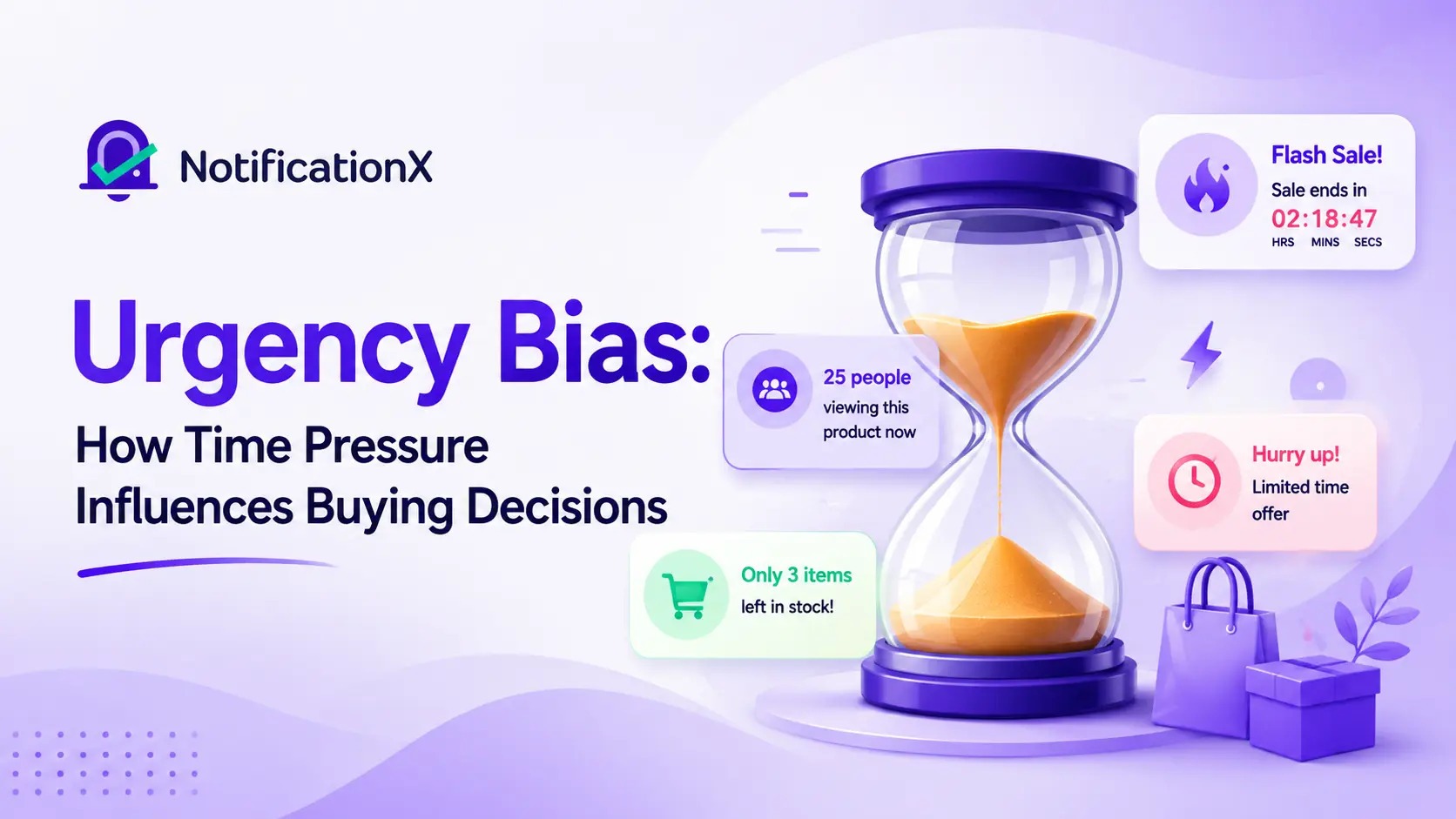
That gentle push can shorten the gap between interest and purchase. Because the numbers come from FluentCart itself, visitors feel informed, not pressured, and your store keeps its credibility.
Keeps Visitors Engaged And Reduces Hesitation
Many shoppers browse, hesitate, and leave. Popups that appear at the right moment give them a reason to stay and look again. A Verkoopwaarschuwing placed on a product page can reassure someone who is comparing options, while an alert on the checkout page can calm last-minute doubts.
Best of all, the click-through link in each notification can guide visitors toward the product being highlighted. This turns a simple popup into a small but effective navigation path.
Saves Time And Needs No Technical Skills
Setting up social proof manually would mean custom code, extra scripts and constant maintenance. With the FluentCart Integration, everything is handled inside the NotificationX builder in your WordPress dashboard. You pick a source, choose a theme, edit the template, and publish.
This lets marketers and store owners launch and adjust alerts on their own, without waiting for a developer. If you want to change the message tomorrow, it takes a few clicks.
How to Set Up the FluentCart Sales Alert
Before you start, make sure FluentCart is installed and activated on your site, and that you have installed NotificationX.
Step 1: Create the Notification And Choose the Source
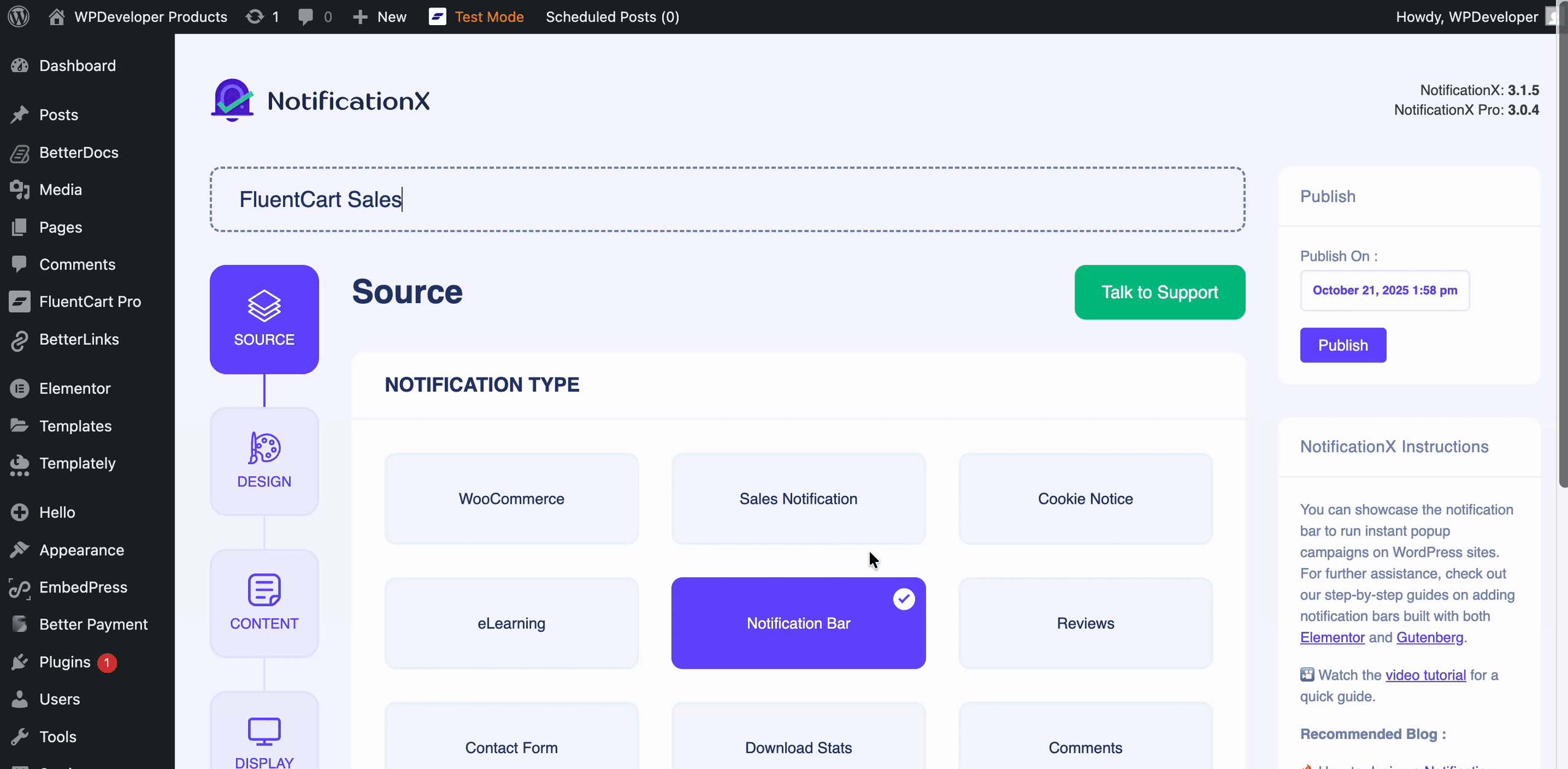
Go to wp-admin → NotificationX → Add New. In the Source tab, add a title so you can track the notification later. Select Verkoopmelding as the type and FluentCart as the source, then click Next.
Step 2: Design And Edit the Content
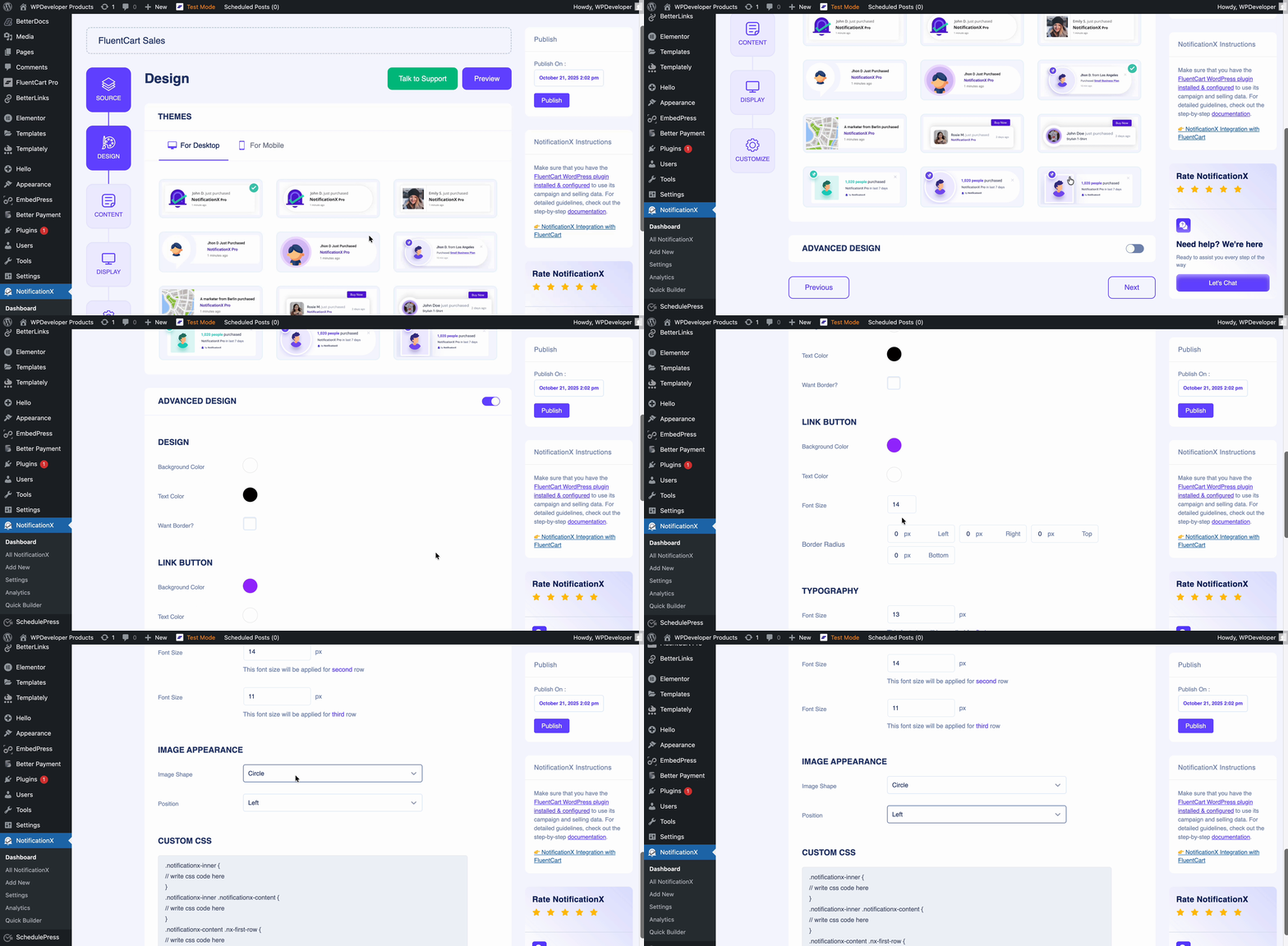
In the Design tab, choose one of the 12 ready-made themes and personalize it with Advanced Design. You can change the typography, image style, background, text color, and borders to match your brand. Then, in the Content tab, edit the notification template and customize the text your visitors will read.
Step 3: Configure Display Settings
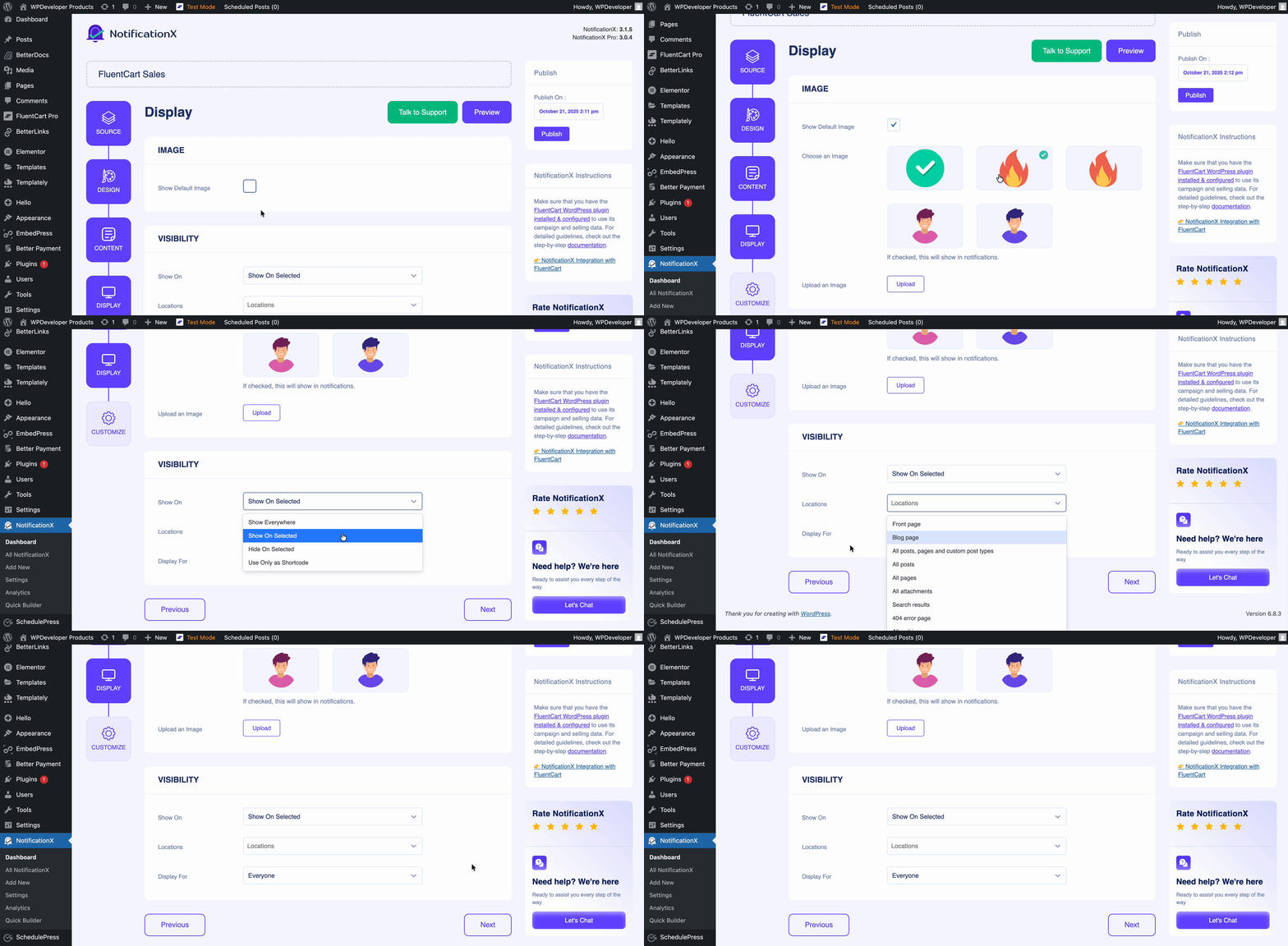
In the Display tab, choose whether to show a default image or the user’s avatar. If a customer has no avatar, enable the Default Image option and upload your own. Under Visibility, the notification shows everywhere by default, but you can choose specific pages to show or hide it.
Step 4: Customize Appearance, Timing, and Behavior
The Customize tab lets you set the position, close button, animation, queue management, timing, and sound. The delay before the first notification is 5 seconds by default. In the Behavior section, you can show the number of sales over the past few days, loop the popup, and open the link in a new tab. When everything looks right, click Publiceren.
How to Set Up the FluentCart Growth Alert
The process is almost identical. Navigate to NotificationX → Add New, select Groeiwaarschuwing as the notification type, and choose FluentCart as the source. Then work through the remaining tabs:
- Design: Pick a theme and fine-tune it with Advanced Design.
- Content: Edit the notification template. NotificationX offers variables you can combine with your own text.
- Visibility: Control where the alert appears, and show or hide it on mobile devices.
- Publish: Click Publish and your FluentCart Growth Alert goes live.
Best Practices for Better Results
A great alert is not only about turning it on. How you place, time, and style your FluentCart notifications decides whether they help or annoy your visitors. Follow these practices to get the most out of the FluentCart Integration.
Place Alerts Where Buying Decisions Happen
Show your FluentCart Sales Alert on pages where visitors weigh a purchase, such as product pages, pricing pages, and checkout. These are the moments when a little reassurance has the biggest effect. On the other hand, pages like your privacy policy or contact page rarely benefit from sales popups.
In de Display tab, the Visibility section lets you show alerts everywhere or choose specific pages to show or hide them. Use this to keep popups focused on high-intent pages.
Get the Timing Right
Timing controls how natural your popups feel. The delay before the first notification is 5 seconds by default, which gives visitors a moment to settle in before the first alert appears. You can also set how long each notification stays visible and the gap between consecutive popups.
A slightly longer gap usually feels calmer and less intrusive. Test a few combinations and see which one fits your store’s pace.
Match the Design to Your Brand
An alert that looks like part of your store feels trustworthy, while one that clashes can look like an ad. Start with one of the 12 ready-made themes for the Sales Alert, then use Advanced Design to adjust typography, image styling, background, text color, and borders.
Keep the contrast high enough for easy reading, especially on mobile screens.
Write Clear, Relevant Content
The notification template is where you shape the message. Keep it short, specific, and easy to scan, and combine the available variables with your own text. For the Sales Alert, decide whether to display a default image or the customer’s avatar, and upload a fallback image for customers without one.
For the Growth Alert, make sure the wording highlights the number or stock status clearly, so visitors understand it at a glance.
Avoid Overloading Visitors
Too many popups can distract people from buying. If you are running several notifications at once, use queue management to control how they appear, and avoid stacking alerts on the same page. You can also hide the Growth Alert on mobile devices if screen space feels tight.
A good rule is to let one alert do one job at a time.
Combine Sales Alerts and Growth Alerts Thoughtfully
The two alert types work well together because they play different roles. The Sales Alert proves that people are buying right now, while the Groeiwaarschuwing shows the bigger picture, such as total sales or limited stock. For example, you could show a Growth Alert on a product page and a Sales Alert on the checkout page.
This way, visitors receive the right message at each stage of their journey.
Test, Measure, and Refine
No two stores behave exactly alike, so review how your alerts perform. NotificationX includes an analytics tool that helps you see how your notifications are doing. Try changing the position, template, or timing, then compare the results and keep what works best.
Start Building Trust with the FluentCart Integration Today
The FluentCart Integration turns your store activity into persuasive social proof. With the Sales Alert, you show visitors that real customers are buying. With the Growth Alert, you add urgency and momentum. Together, FluentCart and NotificationX give you a simple, code-free way to build trust and lift conversions.
Als je deze blog nuttig genoeg vindt, abonneer op onze blog om meer van dit soort blogs te lezen en meer te weten te komen over meer handige functies van NotificationX. Sluit je aan bij onze gemeenschap en deel uw waardevolle mening over deze functie.





 English
  Arabic
  Indonesian
  Spanish
  Portuguese
  German
  Dutch
Dutch  Russian
  Hindi
Hindi  French
  Japanese
  Chinese
  Vietnamese
  Malay
Malay