
In 2026, a static website is not just outdated, it is suspicious.
As AI-generated content saturates the web, users have developed a trust-first mindset. Modern buyers no longer ask “Is this product good?”—they ask “Can I trust this brand?” before taking any action. This shift has fundamentally changed how conversion rate optimization (CRO) benchmarks are measured in 2026.
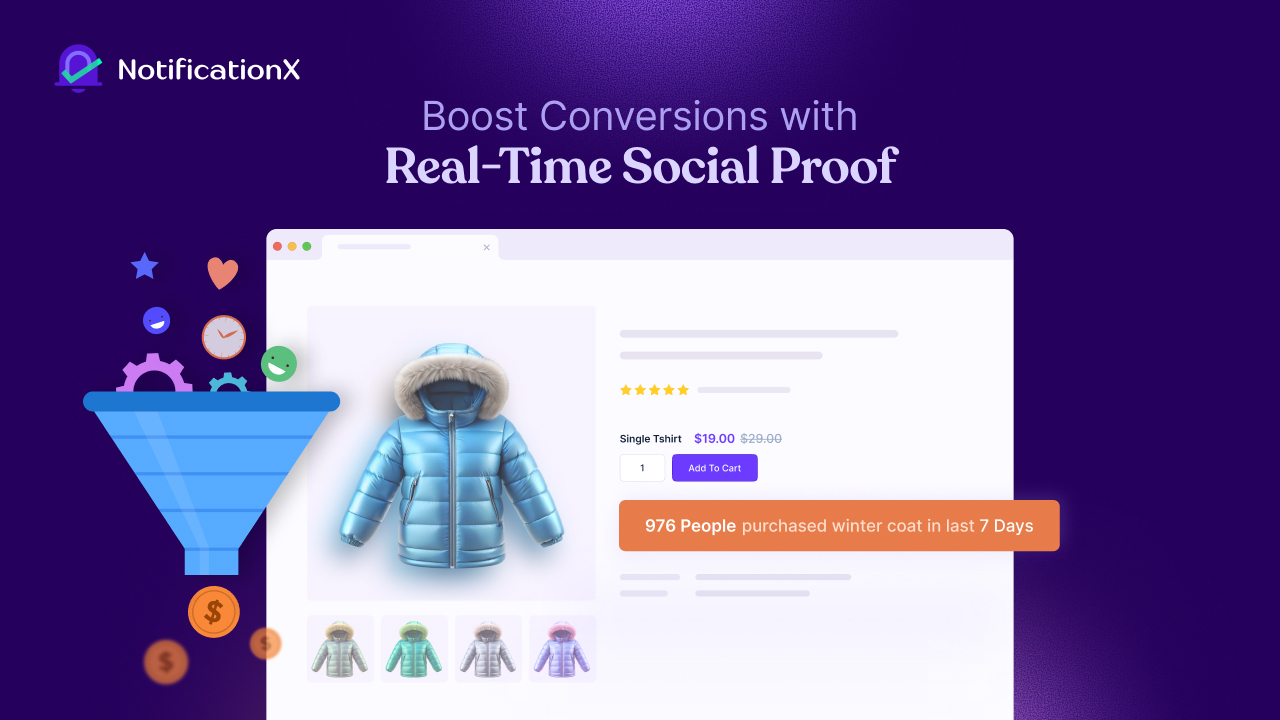
Selon industry benchmarks, the average website conversion rate currently ranges between 1.5% and 2.5%. However, websites that actively use real-time social proof examples in 2026, such as live activity notifications, verified reviews and authentic user signals, frequently exceed 5% conversion rates, outperforming standard CRO benchmarks by a wide margin.
At a Glance: 2026 Social Proof Strategies & Their Impact
To help you prioritize your conversion strategy, here is a breakdown of how different real-time social proof tactics influence user behavior and contribute to your Conversion Rate Optimization (CRO) goals.
| Social Proof Tactic | Primary Psychological Trigger | Key 2026 Data Point | Best For… |
| Live Sales Notifications | The Bandwagon Effect | Up to 98% increase in conversions | High-volume eCommerce & Digital Downloads |
| Real-Time Visitor Counts | Scarcity & Social Validation | 38% of users value contextual browsing signals | Reducing “Browse Abandonment” on mobile |
| Video Testimonial Popups | Authenticity & Trust | 80% higher conversion vs. text-only reviews | Building deep brand trust & high-ticket sales |
| Third-Party Reviews | Unfiltered UGC Credibility | 270% more likely to convert with 5+ reviews | Establishing authority via Google/Trustpilot |
| Enrollment Alerts | Peer Validation | 92% of B2B/EdTech buyers seek peer signals | LMS, Online Courses, and SaaS sign-ups |
| Evergreen Timers | Personalized Urgency | 22% average lift in sales vs. static timers | Flash sales and limited-time landing page offers |
| Flashing Browser Tabs | Pattern Interruption | Recovers part of the 70% global cart abandonment | Winning back distracted or multi-tab users |
| Low-Stock Alerts | Loss Aversion | Overcomes price resistance for 48% of shoppers | Accelerating decisions for physical inventory |
Real-Time Social Proof Examples That Help You Boost Website Conversions
Attention is expensive. Trust is even more so. Real-time social proof bridges that gap by turning live customer actions into instant credibility. This guide moves beyond theory and generic advice.
We will break down data-backed real-time social proof examples for 2026, supported by FOMO marketing statistics, behavioral psychology and insights inspired by real-world case studies that show exactly how trust, urgency and credibility drive modern conversions.
1. Live Sales Notifications (The Bandwagon Effect)
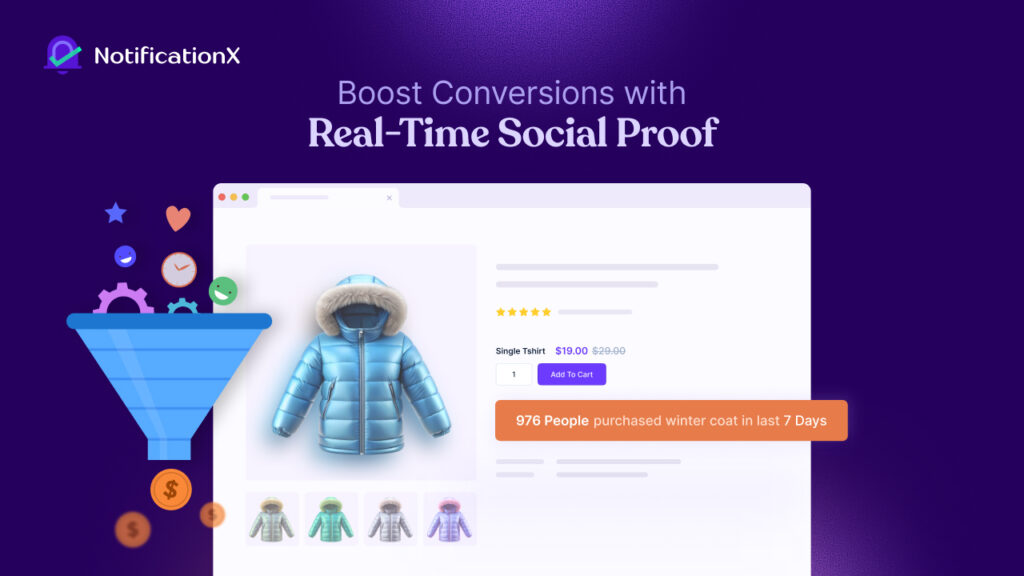
Live activity feeds and purchase notifications consistently rank among the highest-performing real-time social proof examples in 2026. Some brands report up to a 98% increase in conversions after enabling live sales alerts.
Why does it work?
This tactic leverages the Bandwagon Effect, a psychological principle where people assume that if others are buying, the decision must be safe. From a CRO perspective, live sales notifications act as real-time validation, reducing hesitation at critical decision points.
Live sales notification ROI remains exceptionally strong in 2026 because it removes uncertainty instantly, especially for first-time visitors.
How to make it happen?
NotificationX connects directly with WooCommerce and Easy Digital Downloads to display verified, real purchase data. This is crucial for digital trust-building in 2026, as 95% of users can now identify fake or exaggerated social proof. Authenticity is no longer optional; it is a conversion requirement.
Follow the steps below to create live sales notifications using NotificationX:
- Étape 1: Accédez à votre tableau de bord WordPress et accédez à NotificationX → Add New to create a new notification.
- Étape 2: Select Notification de vente as the source and choose your sales platform (WooCommerce, Easy Digital Downloads, or custom data).
- Étape 3: Choose a layout and theme from the Concevoir tab, then customize colors, typography, images, and styling as needed.
- Étape 4: Configure the Contenu using dynamic variables to display customer names, product details, and purchase time.
- Étape 5: Set Display & Visibility rules to control where the notification appears and who can see it.
- Étape 6: Adjust Appearance, Timing, and Behavior to manage position, delay, duration, looping, and mobile visibility.
- Étape 7: Click Publier to activate the Sales Notification and start showing real-time purchase alerts on your website.
👉 Learn more: How to Use ‘Sales Notification’ in NotificationX?
2. Real-Time Visitor Counts (Reducing Browse Abandonment)
Desktop users convert at 3.64%, while mobile users convert closer to 2% in 2026. Real-time visitor counters help narrow this gap by injecting urgency into passive browsing sessions.
Why does it work?
Seeing “52 people are viewing this product right now” triggers FOMO, one of the most powerful motivators, according to recent FOMO marketing statistics. High demand signals shorten decision cycles and reduce bounce rates.
Want to turn this into results? Here is how you can do it:
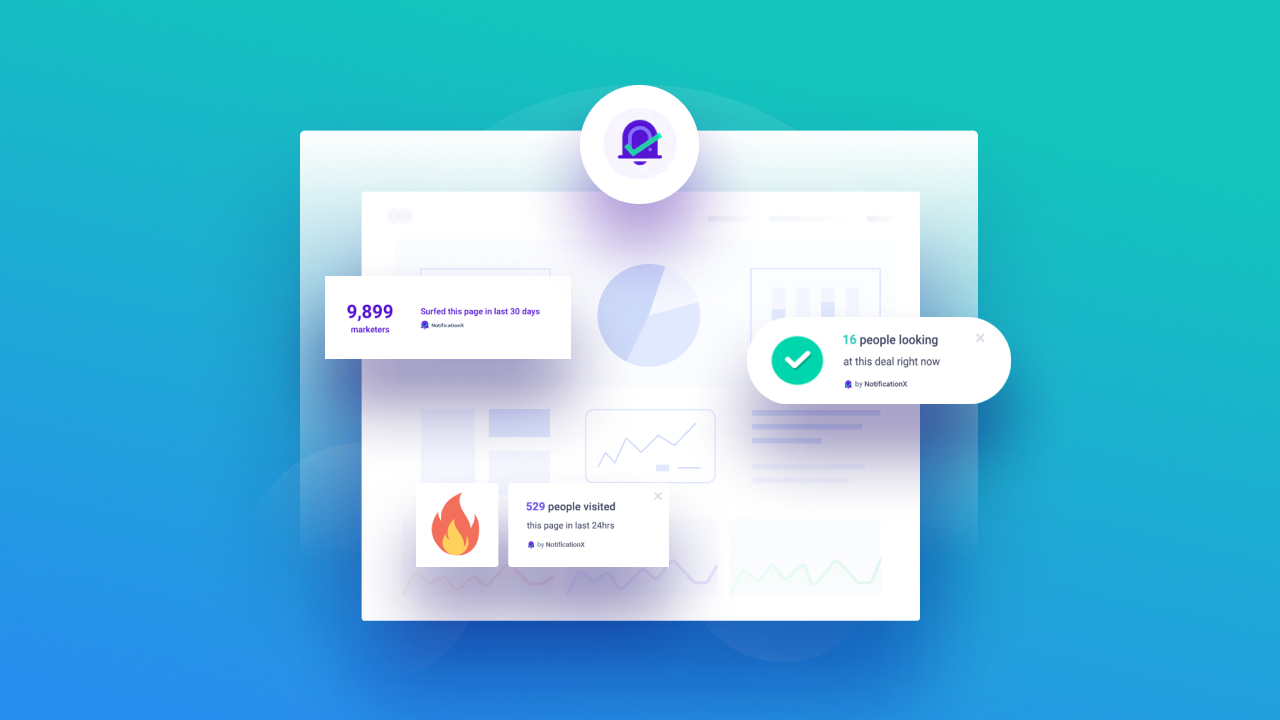
With Google Analytics integration, NotificationX turns raw traffic data into actionable CRO signals. Recherche shows that 38% of users appreciate contextual browsing reminders, making this a subtle yet effective conversion rate optimization tactic.
Follow the steps below to show real-time visitor count using NotificationX:
- Étape 1: Make sure Google Analytics is set up on your website and the Google Site Tag is properly inserted.
- Étape 2: Connect NotificationX with Google Analytics using either the pre-defined NotificationX app or your own Google app.
- Étape 3: Go to WordPress Dashboard → NotificationX → Add New to create a new notification campaign.
- Étape 4: Select Analyse des pages as the notification type and choose Google Analytics as the source.
- Étape 5: Pick a layout and theme from the Concevoir tab, then customize colors, typography, images, and styling if needed.
- Étape 6: Configure the Contenu by selecting variables to display total or real-time visitor counts and campaign data.
- Étape 7: Set Display & Visibility rules to control where the visitor count alert appears and who can see it.
- Step 8: Personnaliser Appearance, Timing, and Behavior, including position, delay, duration, looping, sound alerts, and mobile visibility.
- Step 9: Click Publier to start showing Google Analytics visitor count alerts on your website.
👉 Learn more: Comment afficher l'alerte de nombre de visiteurs de Google Analytics à l'aide de NotificationX?
3. Video Testimonials (The Authenticity Premium)
Video testimonials increase conversions by up to 80% compared to text-only reviews, making them one of the most effective user-generated content (UGC) data-driven strategies in 2026.
Why does it work?
UGC (especially video) outperforms branded messaging. 88% of users trust video testimonials as much as personal recommendations. This positions video as a cornerstone of digital trust-building in 2026.
How to implement it?
NotificationX enables lightweight video testimonial alerts from YouTube or Vimeo without slowing down your site. With users retaining 95% of video messages versus 10% of text, this is one of the highest-impact UGC-based CRO tools available.
Follow the steps below to show video testimonials using NotificationX:
- Étape 1: Install and activate NotificationX (Free + PRO) and generate your YouTube API key.
- Étape 2: Connect YouTube by adding the API key from NotificationX → Settings → API Integrations.
- Étape 3: Create a new notification and select Video as the type with Youtube as the source.
- Étape 4: Choose a design theme and customize the notification content using your YouTube Channel ID or Username.
- Étape 5: Configure display position, visibility, and timing, then publish the notification.
👉 Learn more: How To Display YouTube Video Activities Popups With NotificationX?
4. Verified Third-Party Review Showcases
Products with at least five reviews are 270% more likely to convert than those with none, a stat frequently cited while speaking of showcasing third-party reviews.
Why does it work?
Third-party reviews represent unfiltered user-generated content (UGC) data, which modern consumers trust more than on-site testimonials. In fact, 81% of shoppers check Google Reviews before purchasing.
How to Implement it??
NotificationX, the solution, pulls live reviews from Google and Trustpilot, reinforcing credibility at the exact moment of decision-making. With 93% of buyers reading reviews before every purchase, this form of real-time social proof is essential for CRO (Conversion Rate Optimization) success.
Follow the steps below to showcase reviews using NotificationX:
- Étape 1: Install and activate NotificationX PRO, then collect and validate your Google Reviews API key from Google Console.
- Étape 2: Go to NotificationX → Settings → API Integrations and enable Google Reviews.
- Étape 3: Create a new notification from Notifications → Add New, select Commentaires as the type, and choose Google as the source.
- Étape 4: Choisis un design theme and customize colors, typography, layout, and image placement if needed.
- Étape 5: Configure the review content by setting your place name, selecting review type (Newest or Most Relevant), and customizing the notification template.
- Étape 6: Set display rules, appearance, timing, and behavior, then Publier to start showing Google Review alerts on your website.
👉 Learn more: How to Configure Google Reviews With NotificationX?
5. Course Enrollment Alerts (For LMS & EdTech Growth)
In the B2B and EdTech sectors, 92% of buyers convert after seeing peer validation or activity signals. Enrollment alerts are among the most effective real-time social proof examples for 2026 in education-focused funnels.
Why does it work?
Enrollment notifications replicate a “classroom environment,” signaling legitimacy, popularity, and long-term value.
How to implement it?

With native integrations for LearnDash and Tutor LMS, NotificationX showcases live enrollments and student activity. It turns social validation into a powerful CRO lever.
Follow the steps below to showcase the Tutor LMS course enrollment alert using NotificationX:
- Étape 1: Ensure Tutor LMS is installed and configured, then go to NotificationX → Add New to create a course notification.
- Étape 2: Select Tutor LMS as the source and choose Notification de vente as the type.
- Étape 3: Pick a design theme and customize layout, colors, typography, and image appearance using Advanced Design if needed.
- Étape 4: Configure notification content with variables like student name, enrolled course, and use Advanced Template or UTM options if required.
- Étape 5: Set display rules and visibility, including pages and user roles where notifications should appear.
- Étape 6: Personnaliser appearance, timing, behavior, queue management, and sound settings, then click Publier to activate the notification.
👉 Learn more: Comment afficher l'alerte d'inscription au cours Tutor LMS à l'aide de NotificationX?
6. High-Velocity Growth Alerts (Authority Through Scale)
Cumulative social proof like “10,000 users joined this month” boosts perceived authority. 60% of users say volume-based engagement metrics influence trust.
Why does it work?
Scale communicates safety. From a CRO perspective, large numbers reduce perceived risk and reinforce brand legitimacy.
How to implement it?
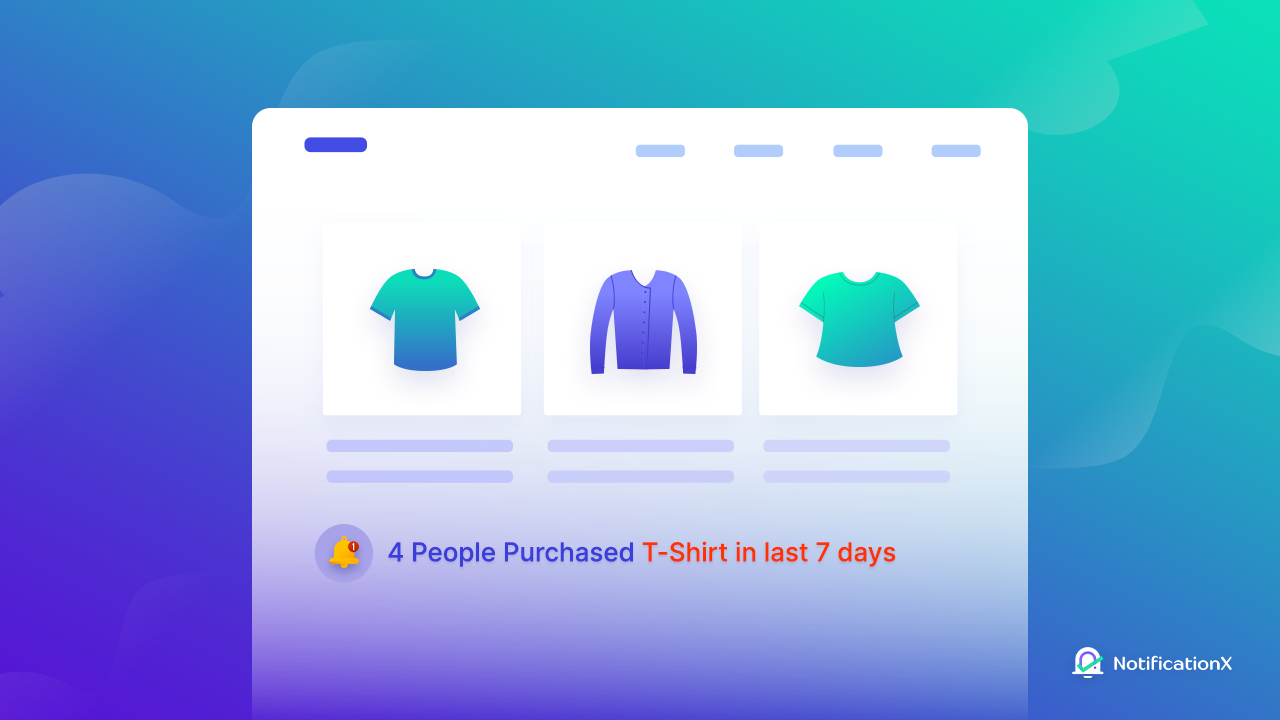
NotificationX provides the Growth Alerts feature, which helps you highlight milestones, such as subscribers, downloads, or total sales. A tactic frequently featured in successful case studies for SaaS and WordPress products.
Follow the steps below to showcase the growth alerts using NotificationX:
- Étape 1: Install and activate NotificationX PRO, then go to NotificationX → Tous NotificationX to start a new Growth Alert campaign.
- Étape 2: Select Alerte de croissance as the notification type and choose your source platform (WooCommerce, Easy Digital Downloads, LearnDash, or Tutor LMS).
- Étape 3: Pick a design theme and customize it using Advanced Design (colors, typography, layout, and images).
- Étape 4: Configure the content by selecting products, courses, or stock thresholds, and customize using the Advanced Template if needed.
- Étape 5: Set display rules and visibility, including pages, product locations, or user roles.
- Étape 6: Publish the notification and check how your live Growth Alerts appear on your site.
👉 Learn More: How To Configure NotificationX Growth Alert?
7. Evergreen Countdown Timers (Personalized Urgency)
Selon research, evergreen countdown timers increase conversions by 22% compared to static deadlines. Unlike fixed timers, evergreen timers create a personalized deadline for each visitor, making the offer feel exclusive and time-sensitive rather than generic.
Why does it work?
Personalized urgency taps into loss aversion, one of the most powerful behavioral triggers highlighted in FOMO marketing statistics. When users believe they might miss out on a limited-time opportunity created just for them, they are far more likely to take immediate action instead of postponing the decision.
How to implement it?
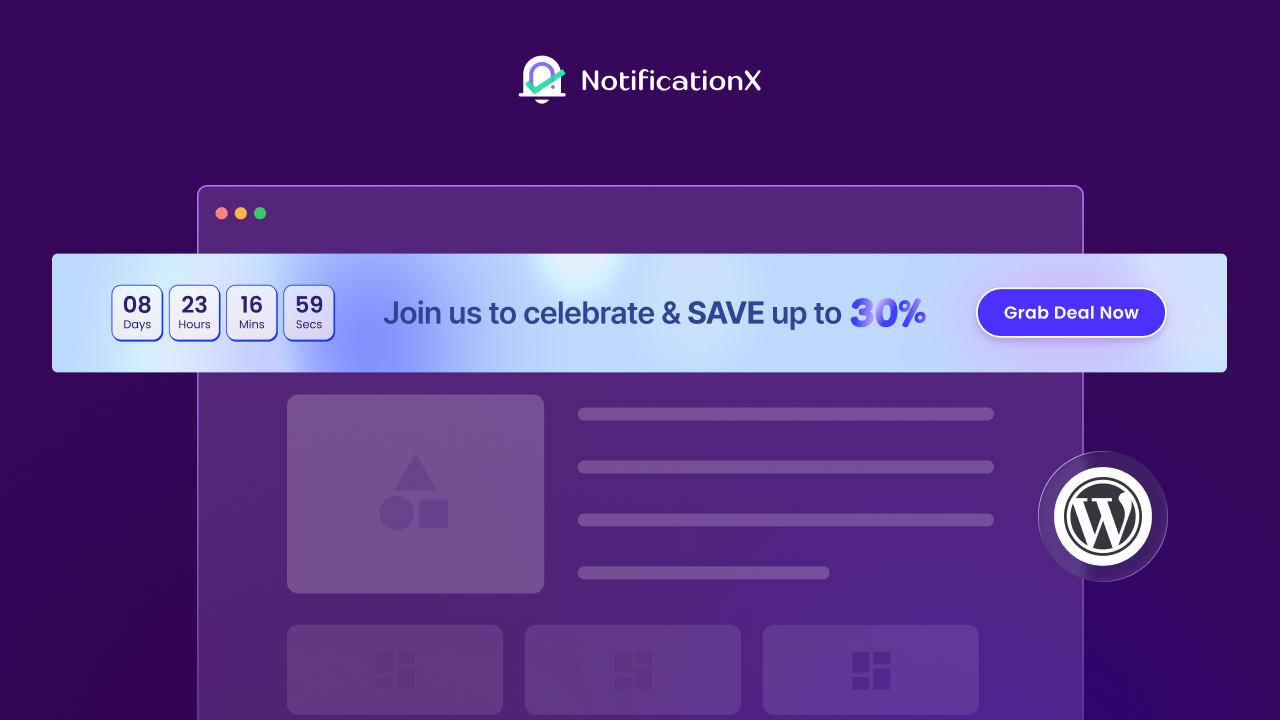
NotificationX Announcement Bars deliversevergreen countdown timers, allowing you to deliver authentic, personalized urgency to every visitor. This ensures deadlines feel real, credible, and consistent & it boosts trust while driving higher conversions.
Follow the steps below to create countdown timers using NotificationX:
Étape 1: Go to NotificationX → All NotificationX → Add New to create a Barre de notification. Name your alert, select Barre de notification as the type, and Barre de presse as the source.
Étape 2: dans le Contenu tab, enable the Countdown option and turn on Minuterie Evergreen.
Étape 3: Configure the timer:
- Set your countdown text et time duration.
- Utiliser Randomize to show countdowns at varied times.
- Enable Daily Time Reset to reset the countdown each day.
- Optionally, use Permanent Close to allow users to dismiss the timer forever.
Étape 4: Publier your notification bar and check how the Evergreen Timer appears on your site to create urgency and boost conversions.
👉 Learn more: Comment utiliser Evergreen Timer avec NotificationX?
8. Flashing Browser Tabs (Recovering Lost Attention)
The global taux d'abandon de panier currently stands at 70.22%, rising to 80.2% on mobile devices, where distractions and interruptions are most common.
Why It Works?
Flashing browser tabs subtly interrupt user distraction and pull attention back to the checkout page at the critical moment. By acting as a visual reminder, they help re-engage users who were about to abandon. It is an effective yet often-overlooked conversion-rate-optimization tactic.
How can NotificationX help here?
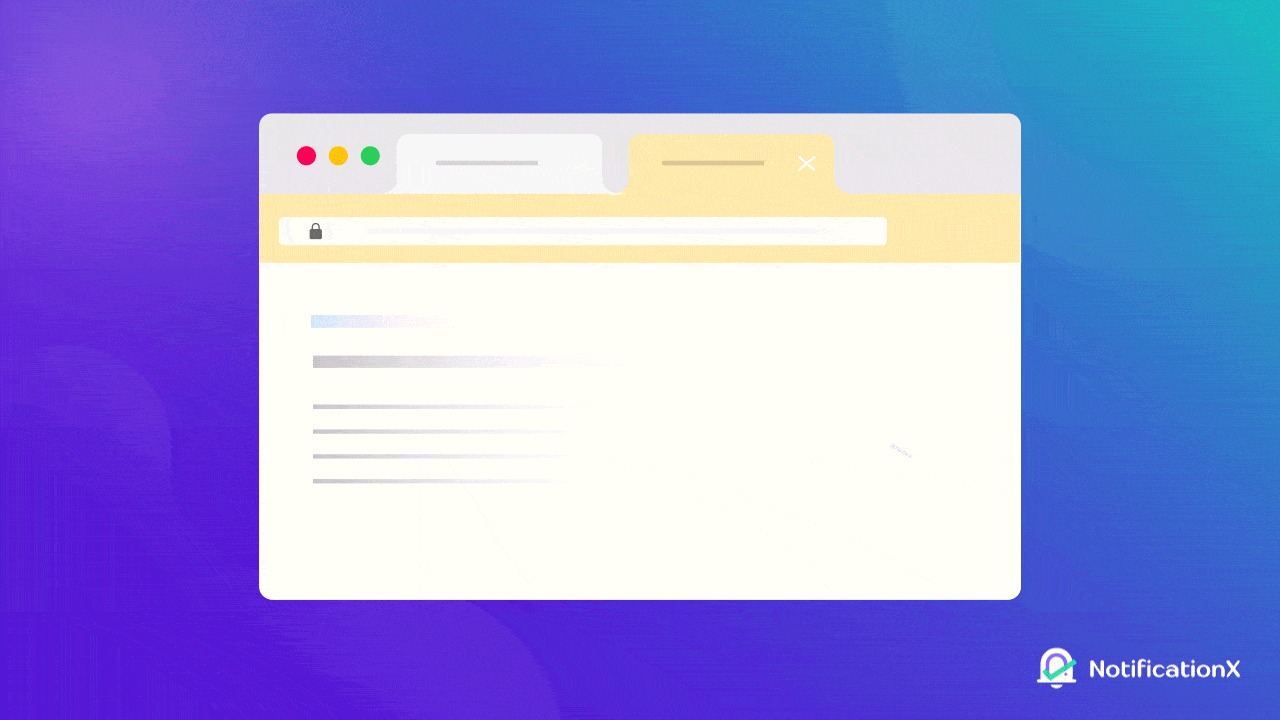
With its attention-recovery Flashing Tab feature, NotificationX helps businesses win back a portion of the $260 billion in recoverable eCommerce revenue lost each year due to cart abandonment. It helps you turn missed opportunities into completed purchases.
Follow the steps below to create flashing browser tabs using NotificationX:
Étape 1: Go to NotificationX → Settings in your WordPress dashboard. Turn on the Flashing Tab toggle and click Save Settings.
Étape 2: Navigate to NotificationX → Add New, select Flashing Tabs as the source, and give your alert a name.
Étape 3: Choisis un Design Theme:
- Themes 1-2: Call visitors back to your site.
- Theme 3: Remind WooCommerce users who left items in their cart.
- Theme 4: Show the number of items in the cart to re-engage users.
Étape 4: Configure Content, Timing & Visibility:
- Set the blinking message, icons, et emojis.
- Configure Start Blinking After, Delay Between, et Display For times.
- Set audience visibility as needed.
Étape 5: Click Publier. Your flashing tab alert is now live and will help re-engage site visitors effectively.
👉 Learn more: How To Configure Flashing Tab Alerts Using NotificationX?
9. Recent Blog Comments (Engagement Signaling)
Direct and referral traffic consistently convert at over 3%, while social traffic often struggles to reach even a 1% conversion rate (Source: Martal Group). Engagement-driven user-generated content (UGC), such as recent comments, helps bridge this gap by adding real-time credibility and interaction where social traffic typically lacks intent.
Why does it work?
Recent comments function as live UGC signals. They show that real users are actively engaging with your content, which reinforces relevance, authority, and community trust at the exact moment visitors are deciding whether to stay or leave.
How to implement it?
By displaying recent comments in real time, NotificationX increases on-page engagement and dwell time, both of which have become critical SEO and conversion rate optimization (CRO) signals in 2026. This subtle validation keeps visitors engaged longer and nudges them closer to conversion.
Follow the steps below to display blog comments using NotificationX:
Étape 1: Go to NotificationX → All NotificationX → Add New.
Étape 2: Choose commentaires as the notification type and WordPress as the source. Click Prochain.
Étape 3: Select a layout from the Concevoir tab. Optionally, use Conception avancée to customize background, text, border, typography, and image style (Rounded, Circle, Square).
Étape 4: dans le Contenu tab, customize your notification template. Use variables to show the commenter’s name, post/page, and time interval. Add your own text or links as needed.
Étape 5: dans le Afficher tab, set image options (Gravatar or default) and page visibility. Restrict notifications to specific user roles if needed.
Étape 6: Under Personnaliser, configure:
- Appearance: Bottom Left or Bottom Right position.
- Timing: Initial delay, display duration, and interval between notifications.
- Behavior: Loop notifications, show comment counts, enable sound alerts.
Étape 7: Click Publier to make your WordPress Comments popup live on your site.
👉 Learn more: Comment afficher un commentaire WordPress dans une alerte contextuelle en utilisant NotificationX ?
10. Low-Stock & Scarcity Alerts (Decision Acceleration)
Nearly 48% of online shoppers abandon their carts due to pricing concerns, making hesitation one of the biggest barriers to conversion. However, urgency continues to be one of the few psychological triggers strong enough to overcome cost resistance and push users toward action.
Why does it work?
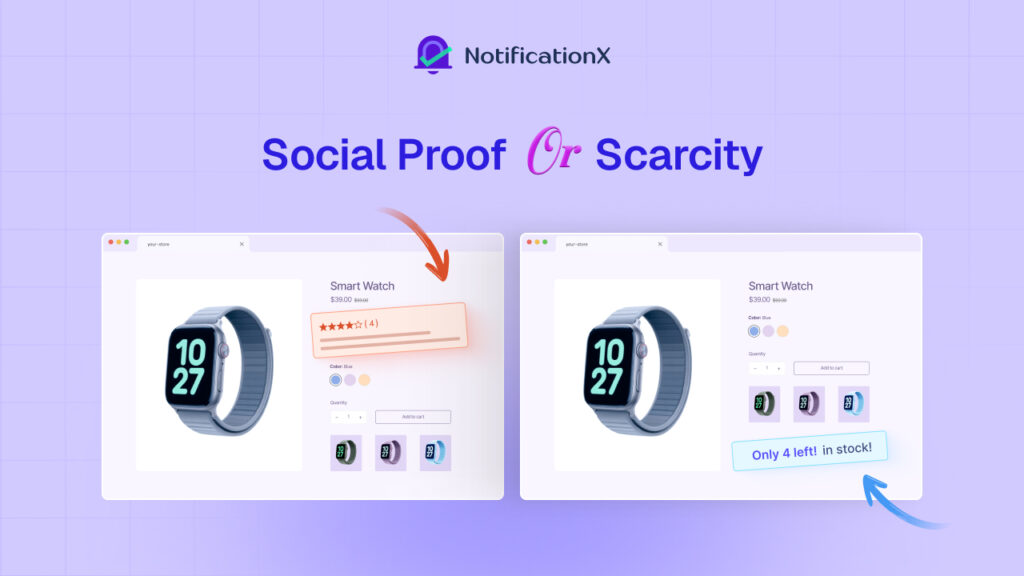
When scarcity is paired with FOMO signals, such as “Only 2 left in stock” alongside “12 people are viewing this item”, it creates immediate pressure to decide. This combination reduces overthinking, accelerates purchase intent, and shifts the focus from price comparison to fear of missing out.
How to implement it?
With accurate, real-time inventory-based alerts, NotificationX ensures scarcity messages stay honest and up to date. This reliability is critical for trust, making urgency-driven conversion rate optimization both effective and sustainable.
Real-Time Social Proof is the Foundation of CRO in 2026
The data speaks for itself: verified reviews drive 270% higher conversions, video-based UGC delivers an 80% boost, and personalized urgency can increase sales by 22%. In 2026, real-time social proof is not just an optional CRO tactic; it is the foundation of digital trust.
With NotificationX, you can implement all of these strategies seamlessly from a single, lightweight WordPress plugin, backed by real data, proven ROI and real-world success stories.
If you have found this blog helpful, feel free to share your helpful opinion and insightful feedback with our Communauté Facebook. You can also abonnez-vous à nos blogs for valuable tutorials, guides, knowledge, tips and the latest WordPress updates.



 English
  Arabic
  Indonesian
  Spanish
  Bengali
  Portuguese
  German
  Dutch
Dutch  Russian
  Hindi
Hindi  French
  Japanese
  Chinese
  Vietnamese
  Malay
Malay